Inventory Aging
Introduction/Purpose
The Inventory Aging feature helps users monitor and manage the aging of oil or white products in inventory. It tracks the duration products have been stored, calculates penalties if applicable, and manages payments related to inventory aging. This ensures compliance with storage policies and optimizes inventory turnover.
How to Navigate
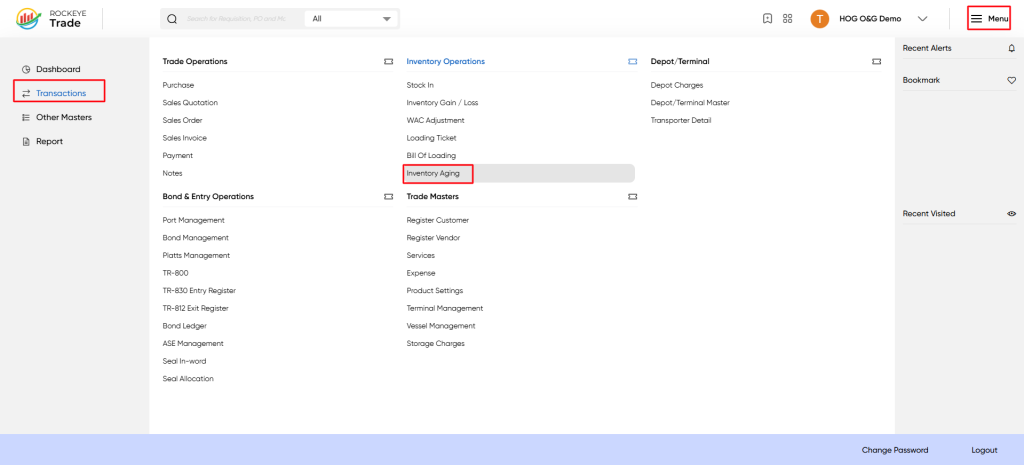
To access the Inventory Aging screen:
- Click the Menu icon at the top-right corner.
- Select Transactions from the left-hand menu.
- Under Inventory Operations, click Inventory Aging.
Listing
The list view displays all inventory aging records with the following columns:
- Document# Unique document number for the aging record.
- Date: Date when the aging record was created.
- Distributor: Distributor associated with the inventory.
- Depot/Terminal: Location of the inventory.
- Product: Product code and description.
- Ref. Number: Reference number related to the aging record.
- Ref. Date: Reference date associated with the record.
- Payment: Status of payment related to aging (e.g., Approved).
- Actual: Actual quantity subject to aging.
- Status: Approval status of the aging record (e.g., Approved).
- Action: Options to view, edit, or delete the record.
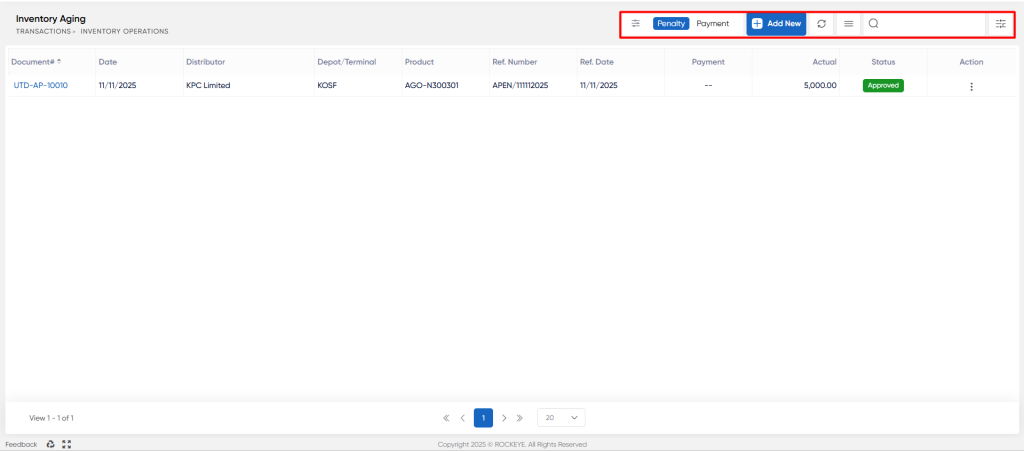
Additional Features:
- Penalty / Payment Toggle: Switch between viewing penalty records and payment records.
- Add New: Create a new inventory aging record.
- Refresh: Reload the list to see the latest entries.
- Search & Filter: Quickly find specific records using the search bar and filters.
Adding a New Inventory Aging Record
To add a new aging record:
- Click the Add New button.
- Fill in the required fields in the form:
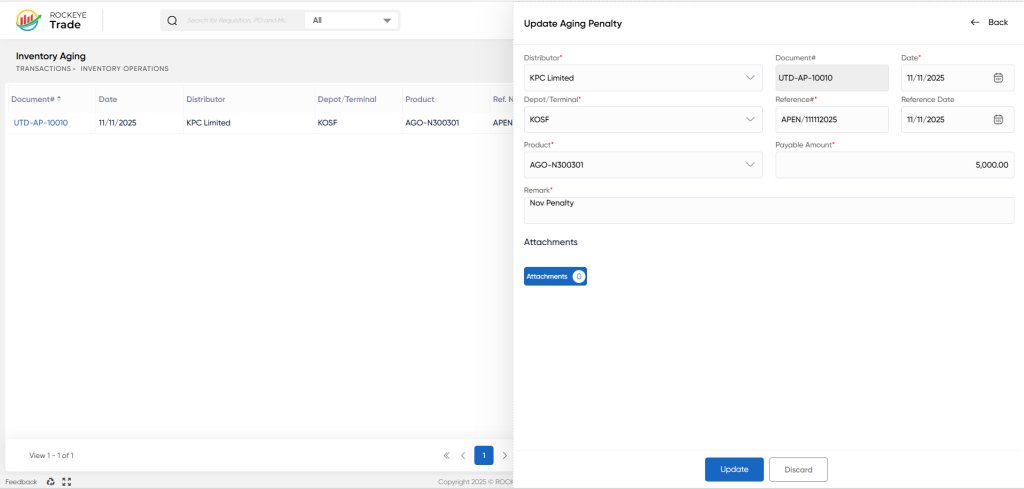
- Distributor: Select the distributor from the dropdown list.
- Depot/Terminal: Select the depot or terminal location.
- Product: Select the product subject to aging.
- Document#: Auto-generated unique document number (read-only).
- Date: Select the date of the aging record.
- Reference#: Enter a related reference number (optional).
- Reference Date: Enter the reference date (optional).
- Payable Amount: Enter the amount payable as penalty or fee.
- Remark: Additional notes or comments (optional).
- Attachments: Upload supporting documents if any (optional).
Click Submit to save the record or Discard to cancel.
Viewing and Updating an Inventory Aging Record
- Click on the Document# link in the list to view details.
- Modify fields as necessary.
- Click Update to save changes or Discard to cancel.
Refrence Video Link

