Transporter Details
Introduction/Purpose
The Transporter Detail module serves as the master database for all logistical assets used in the transportation of oil and white products. This is where you register and manage critical information about your transport providers, including their company details, specific trucks, assigned drivers, and detailed truck configurations.
Maintaining an accurate Transporter Detail master is essential for seamless operations. This data is used in downstream processes like creating Loading Tickets and dispatching orders. It ensures that the correct truck with the appropriate capacity is assigned to a job, and provides a clear record for tracking and compliance.
How To Navigate
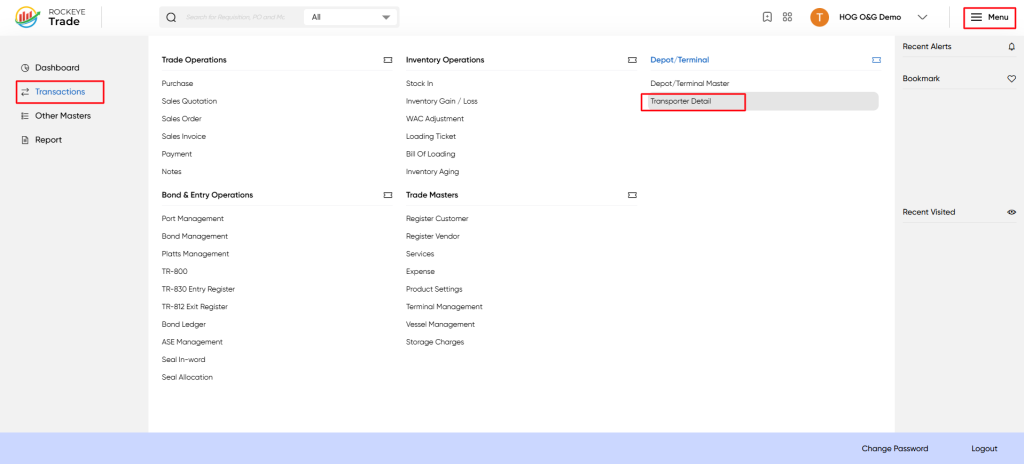
- From the main dashboard, click the Menu icon in the top-right corner to open the main navigation panel.
- In the navigation panel, click on the Transactions module.
- Under the Depot/Terminal section, select Transporter Detail.
Listing
Upon accessing the Transporter Detail module, you will see a screen displaying a table of all registered transporters and their associated vehicles. This list view provides an overview of your transportation fleet.
- Header Bar: Contains the module title ("Transporter Detail") along with an "+ Add New" button and action icons for search, filter, and more options.
- Data Table: The main area displaying a list of all transporter entries with key details in columnar format.
- Pagination Controls: Located at the bottom, allowing navigation through multiple pages of entries if the list is extensive.
The data table presents the following columns, providing essential details for each transporter and their vehicle:
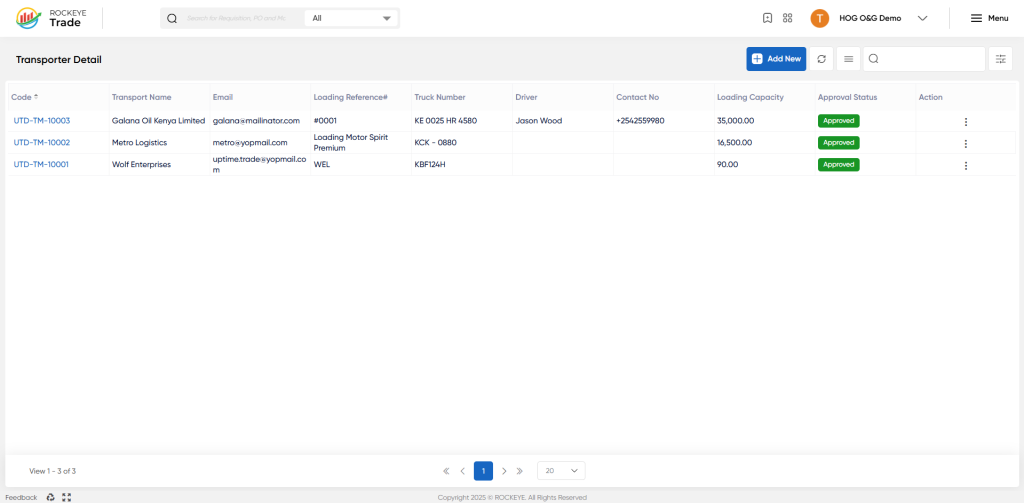
- Code *: A unique alphanumeric identifier assigned to each transporter entry (e.g., UTD-TM-10003). This is typically a hyperlink to view or edit the detailed master record.
- Transporter Name: The legal or operational name of the transportation company (e.g., Galana Oil Kenya Limited).
- Email: The primary contact email address for the transporter.
- Loading Reference#: A specific reference number related to loading operations, potentially identifying a specific contract or service type (e.g., #0001, Loading Motor Spirit Premium).
- Truck Number: The registration plate or identification number of the specific truck (e.g., KE 002S HR 4980, KCK - 0880).
- Driver: The name of the primary or current driver assigned to this truck.
- Contact No: The primary contact number for the transporter or driver.
- Loading Capacity: The total maximum loading capacity of the truck (e.g., 35,000.00 LT for Liters, or MT for Metric Tons).
- Approval Status: Indicates the current status of the transporter record (e.g., "Approved," "Draft," "Pending Approval").
- Action: An ellipsis (...) icon, typically providing options to View, Edit, or Delete the transporter record (subject to user permissions and status).
How To add Transporter Details
- From the Transporter Detail list view, click the "+ Add New" button located in the top right corner of the screen.
- A side panel will open, displaying the "Transporter Detail" creation form.
- Fill in the required fields:
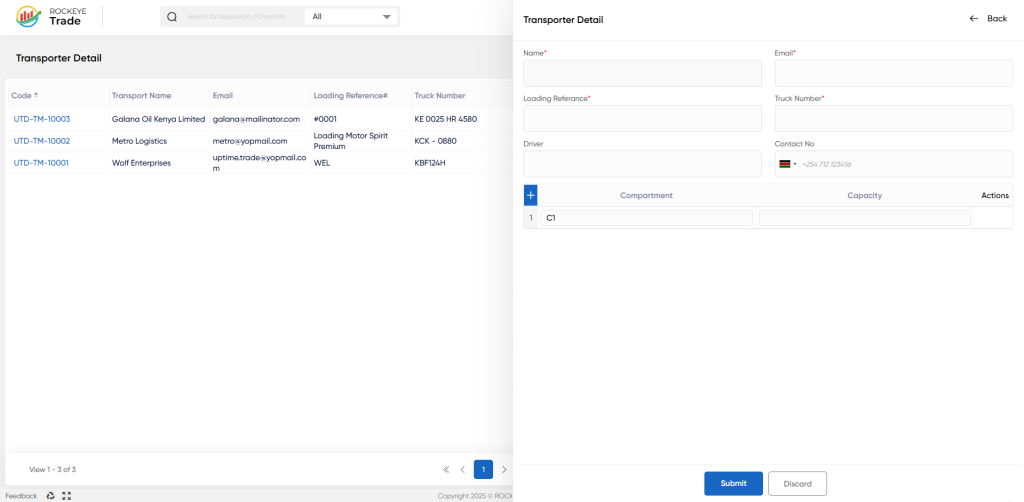
- Name *: Enter the name of the transportation company (e.g., "Swift Logistics").
- Email: Enter the primary email address for the transporter.
- Loading Reference *: Provide a reference for loading operations, which could be an internal code, contract ID, or a descriptive name.
- Truck Number *: Enter the unique registration number of the truck.
- Driver: Enter the name of the driver assigned to this truck.
- Contact No: Enter the primary contact number for the transporter/driver, including the country code if applicable.
- Compartment & Capacity Configuration (Critical for Oil & Gas):
- This section allows you to define the individual compartments of a tanker truck and their respective capacities. This is vital for petroleum products, which are often loaded into multiple compartments to separate different grades or manage load distribution.
- By default, one row "C1" is visible. Click the "+" icon to add more compartments if the truck has multiple.
- Compartment: Enter the identifier for the compartment (e.g., "C1", "Compartment A", "Front").
- Capacity: Enter the specific loading capacity for this individual compartment in the appropriate Unit of Measure (UOM). The system will likely aggregate these to determine the total
Loading Capacitydisplayed in the list view. - The "Actions" column (Bin icon) allows you to remove a specific compartment line if needed.
- Once all required information is entered, click the "Submit" button to save the new transporter detail record.
- If you wish to abandon the entry, click "Discard."

