Sales Invoice
Introduction/Purpose
This guide provides a detailed walkthrough of creating a sales invoice for oil (white product) in the Rockeye Trade system. The process involves multiple steps including customer selection, product details entry, price breakdown, and final submission.
How To Navigate
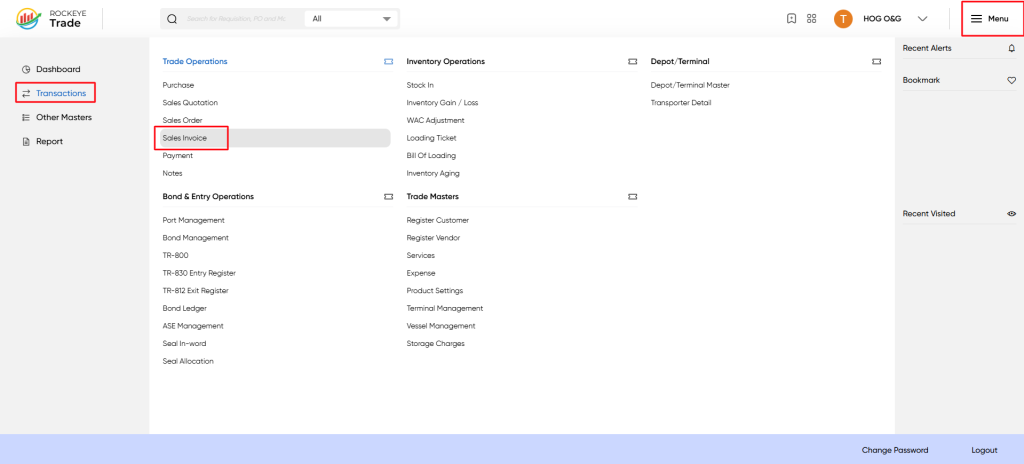
- Click on the "Menu" icon in the top right corner
- Select "Transactions" from the left sidebar
- Choose "Sales Invoice" from the Trade Operations section
How To Add Sales Invoive
Basic Information Entry
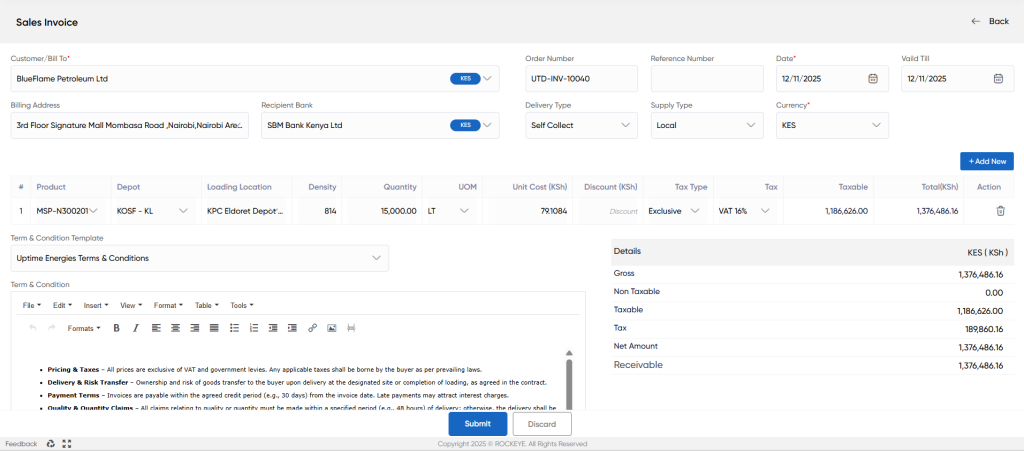
- Customer/Bill To: Select the customer from the dropdown menu
- Order Number: Enter or select the order number (e.g., OR-00001)
- Reference Number: Enter a reference number (e.g., 123456)
- Date: Set the invoice date (e.g., 30/06/2026)
- Valid Till: Set the validity period for the invoice (e.g., 30/06/2026)
- Billing Address: Select the appropriate billing address
- Recipient Bank: Select the recipient bank if applicable
- Delivery Type: Choose between "Company" or other options
- Supply Type: Select "Transit" or other relevant options
- Currency: Choose the currency (e.g., USD)
- Exchange Rate: Enter the current exchange rate (if applicable)
Product Details Entry
- Product: Select the product (e.g., Crude Oil)
- Depot: The receiving terminal where product is offloaded by importer
- Loading location: Pumping location where trucks are loaded for customer order delivery
- Density: Enter the product density (e.g., 820)
- Quantity: Enter the quantity (e.g., 50,000)
- UOM: Select the unit of measure (e.g., Ltr)
- Unit Cost: Enter the unit cost (e.g., 125.00)
- Discount: Enter any applicable discount (e.g., 0.00)
- Tax Type: Select the tax type (e.g., Inclusive)
- Tax: Select the tax percentage (e.g., VAT 16%)
- Taxable: The system will automatically calculate the taxable amount
- Total: The system will automatically calculate the total amount
Terms & Conditions
- Term & Condition Template: Select an appropriate template if available
- Term & Condition: Add any specific terms and conditions using the text editor provided
Actions:
Discard: Click to discard the invoice if needed
Save As Draft: Click to save the invoice as a draft for later completion
Submit: Click to submit the invoice for processing
Refrence Video Link

