Inventory Gain/Loss
Introduction/Purpose
The Inventory Gain / Loss feature allows users to record and manage discrepancies in oil or white product inventory. This process helps track product gains or losses due to various operational factors, ensuring accurate inventory valuation and reporting.
How to Navigate
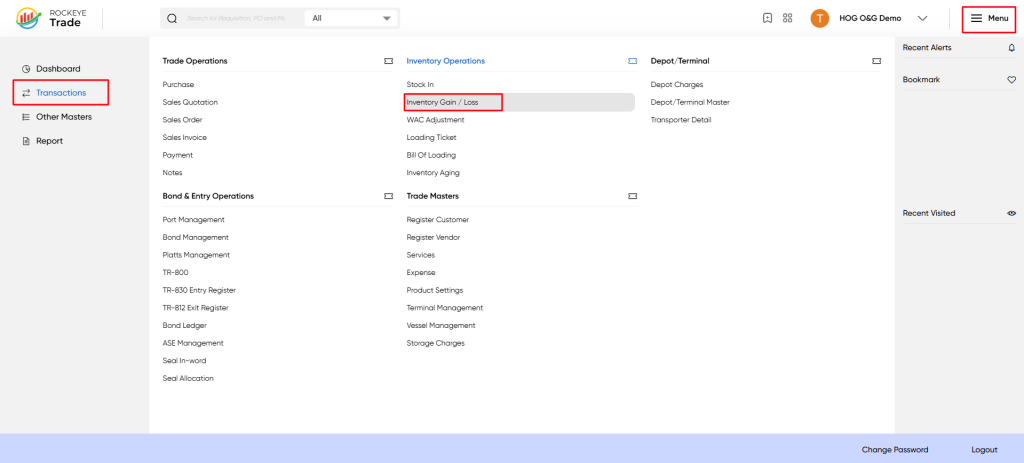
To access the Inventory Gain / Loss screen:
- Click the Menu icon at the top-right corner.
- Select Transactions from the left menu.
- Under Inventory Operations, click Inventory Gain / Loss.
Listing
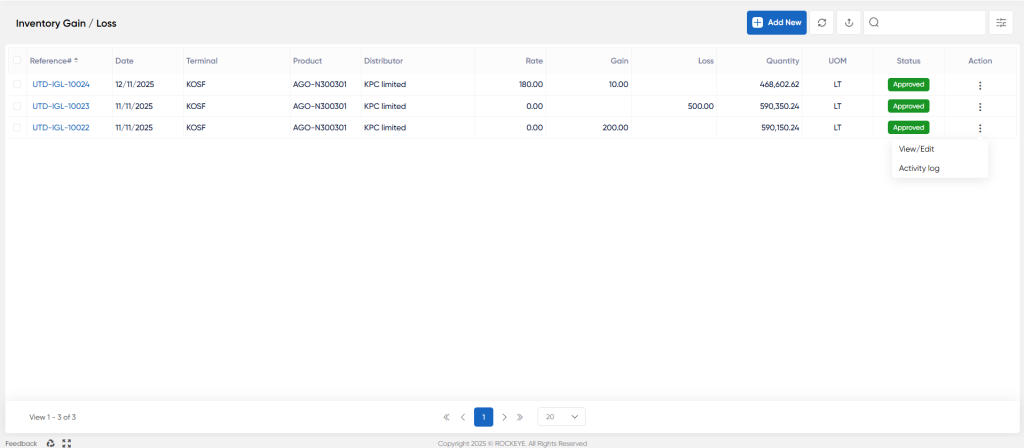
The list view displays all recorded inventory gain or loss entries with the following columns:
- Reference: Unique reference number for the gain/loss entry.
- Date: Date of the inventory gain or loss.
- Terminal: Terminal or depot where the inventory is recorded.
- Product: Product code and description.
- Gain: Quantity of product gained (if any).
- Loss: Quantity of product lost (if any).
- Quantity: Total quantity involved in the transaction.
- UOM: Unit of Measure (e.;g., LT, MT).
- Status: Approval status of the entry (e.g., Approved).
- Action: Options to view, edit, or delete the record.
Additional Features:
- Add New: Create a new inventory gain/loss record.
- Refresh: Reload the list to see the latest entries.
- Upload: Bulk upload inventory gain/loss data.
- Export: Export bulk data in pdf,xls file.
- Search & Filter: Quickly find specific records using search and filter options.
Adding a New Inventory Gain / Loss Entry
To add a new record:
- Click the Add New button.
- Fill in the required fields in the form:
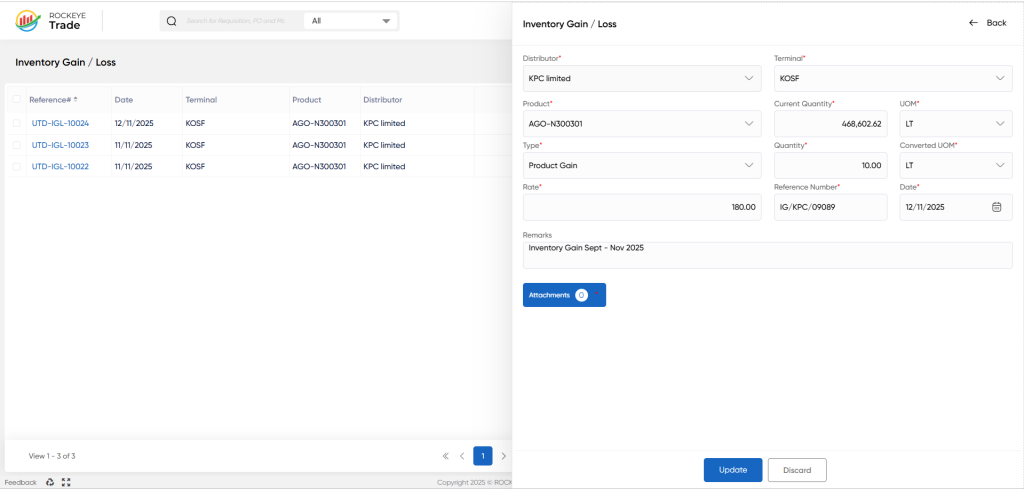
- Distributor: Select the distributor from the dropdown list.
- Terminal: Select the terminal or depot.
- Product: Choose the product involved.
- Current: Quantity Current inventory quantity at the terminal.
- UOM: Unit of measure for the current quantity.
- Type: Select the type: Product Gain or Product Loss.
- Quantity: Quantity gained or lost.
- Converted UOM: Converted unit of measure (auto-calculated).
- Cost: Cost associated with the gain or loss.
- Reference Number: Optional reference number for tracking.
- Date: Date of the gain/loss event.
- Remarks: Additional notes or comments.
- Attachments: Upload supporting documents if any.
After completing the form, click Submit to save the entry or Discard to cancel.
Viewing and Editing an Inventory Gain / Loss Entry
- Click on the Reference# link in the list to view details.
- Edit fields as necessary.
- Click Update to save changes or Discard to cancel.
Refrence Video Link

