Expenses
Introduction/Purpose
The Expense master is a central repository for defining all potential costs and charges associated with your trade operations. Properly configuring expenses is crucial for accurate cost tracking, financial reporting, and calculating the profitability of each transaction.
This module allows you to pre-define various types of expenses related to the handling of white products (oil), such as freight, demurrage, inspection fees, transport charges, and port dues. Once an expense is created here, it can be applied to purchase orders and other transactions, ensuring consistency and accuracy in your accounting.
How To Navigate
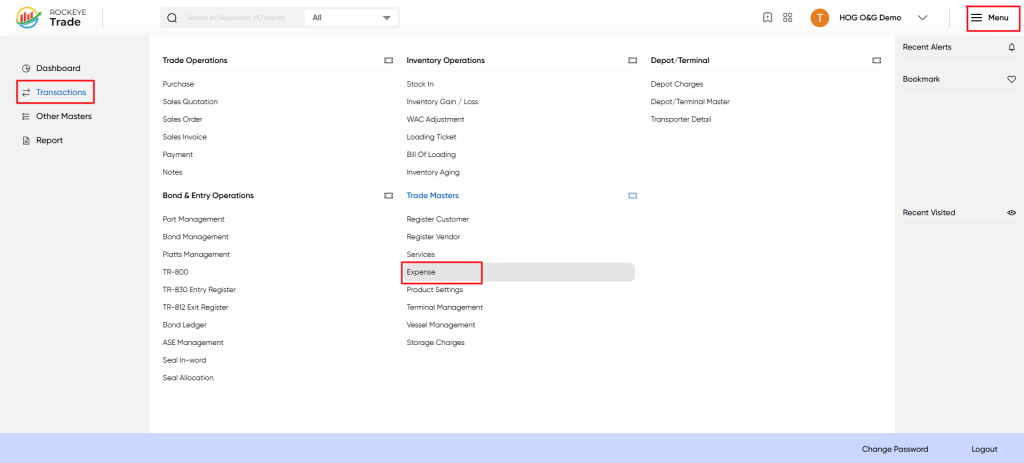
- From the main dashboard, click the ☰ Menu icon in the top-right corner.
- In the navigation panel, go to Transactions.
- Under the Trade Masters section, click on Expense.
Listing
Upon selection, the Expense page displays all existing expense entries.
Key Fields:
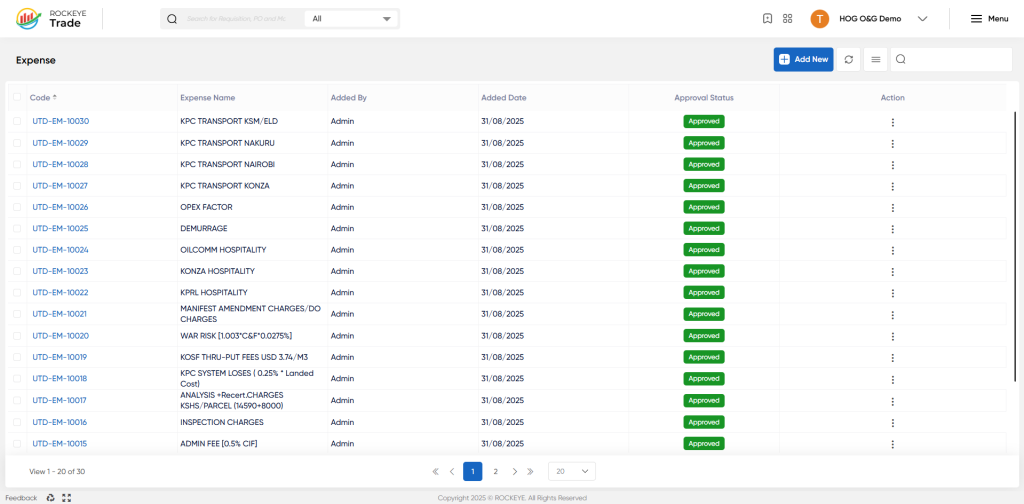
- Code – Unique identifier auto-generated for each expense.
- Expense Name – Name of the configured expense (e.g., Transport Nakuru, Demurrage).
- Added By – The user who created the entry.
- Added Date – When the expense was recorded.
- Approval Status – Displays whether the expense is available for operational use (Approved / Pending).
- Action – Edit or update the expense configuration.
Actions available on this screen:
- Add New → Create a new expense.
- Search/Filter → Locate specific records efficiently.
- Edit/Delete → Modify or discontinue an expense entry.
How To Add Expenses
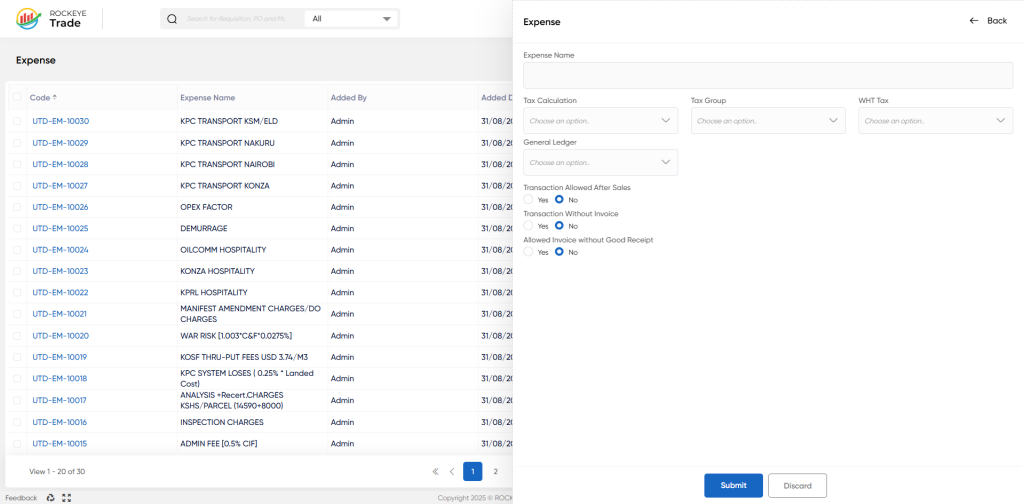
Click Add New to open the Expense Entry Form.
Expense Details
- Expense Name* – Enter the name (e.g., "Pipeline Transport Fee," "Demurrage", "Inspection Charges").
Tax & Ledger Mapping
- Tax Calculation – Select the applicable tax rules for the expense.
- Tax Group – Choose the related tax group for compliance.
- WHT Tax – Define if the expense requires withholding tax.
- General Ledger – Assign an account code for accounting linkage (expense/revenue classification).
Transaction Rules
- Transaction Allowed After Sales – Enable if this expense can be posted after the sales process.
- Transaction Without Invoice – Choose if the expense can be accounted without an invoice.
- Allowed Invoice without Good Receipt – Enable in cases where invoices can be issued even without receipt confirmation of the related service.
After completing the details, click Submit to save or Discard to cancel.
Refrence Video Link

