Sales Note
Introduction/Purpose
This guide details the process of generating and managing Sales Notes (Debit Notes and Credit Notes) in the Rockeye Trade module, specifically for transactions involving bulk liquid commodities like Crude Oil, Petrol, Diesel, Kerosene, and other white products. Sales Notes are essential documents used to adjust the value of an existing Sales Invoice after it has been issued, for reasons such as price corrections, quantity discrepancies, quality claims, additional charges (e.g., demurrage), or returns.
How To Navigate
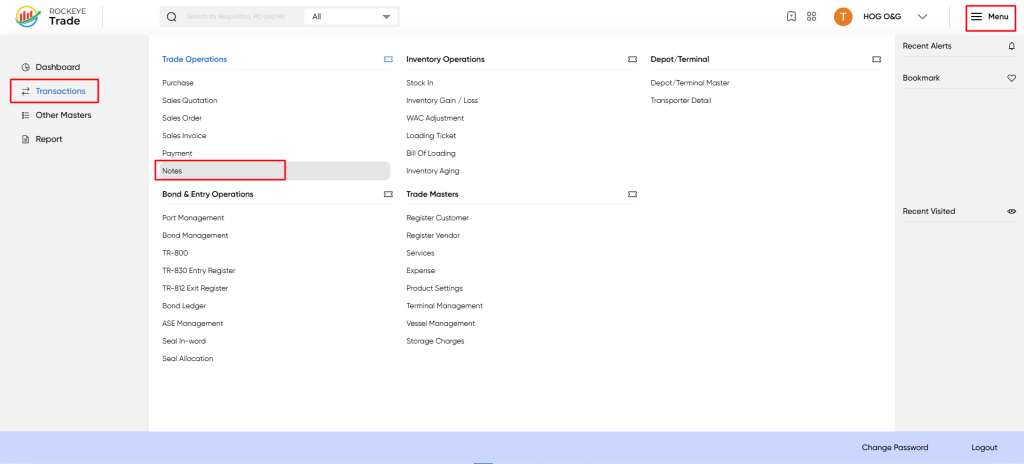
- Click on the "Menu" icon in the top right corner
- Select "Transactions" from the left sidebar
- Choose "Notes" from the Trade Operations section
Listing
Upon navigating to the "Notes" screen, you will see a list of all previously created Debit and Credit Notes. This view provides an overview of their status and key details:
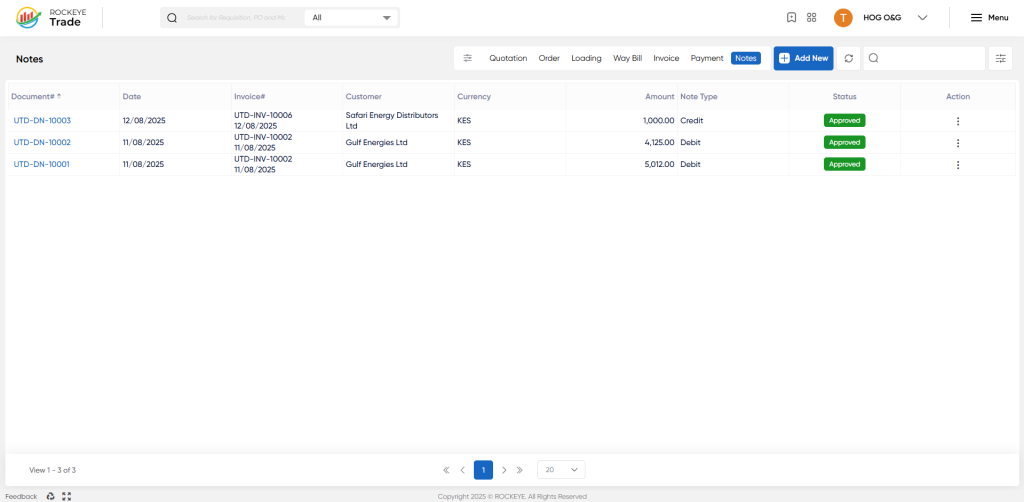
- Document#: The unique identifier for the Sales Note (e.g., INV-0001, typically auto-generated).
- Date: The date the Sales Note was created or registered.
- Invoice#: The reference number of the Sales Invoice that this note is adjusting.
- Customer: The name of the customer affected by the note.
- Currency: The currency in which the note's value is denominated.
- Amount: The monetary value of the adjustment.
- Type: Indicates whether it's a Debit Note or a Credit Note.
- Status: The current processing stage of the note:
- Draft: The note is incomplete and has not yet been submitted for approval.
- Pending: The note has been submitted and is awaiting approval from authorized personnel.
- Approved: The note has been approved and officially processed, impacting the customer's ledger.
- Cancelled: The note has been revoked, either before approval or after approval if a reversal was needed.
- Sync Fail: An issue occurred during synchronization with an integrated accounting system.
- Action: Click the three-dot menu (ellipsis) for options related to the specific note:
- View: To see full details of the Sales Note.
- Edit: To modify details of a note (usually restricted to "Draft" or "Pending" statuses, depending on user roles).
- Print: To generate a printable version of the note.
- Activity Log: To view an audit trail of changes and actions performed on the note.
How To Add Note
To create a new Debit or Credit Note:
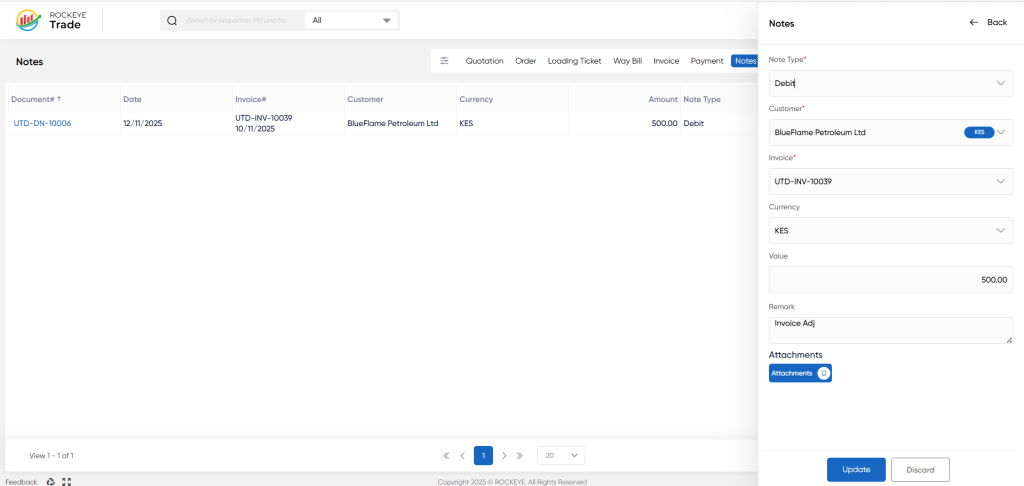
- From the Notes list view, click on the "Add New" button (represented by a plus icon).(Refer to Screenshot 1: "Add New" button in the top right of the notes list)
- The "Add Notes" form will appear. Follow these steps to fill in the details:
- Note Type:
- Select "Debit" if you need to increase the amount receivable from the customer (i.e., the customer owes more). Examples: under-billed quantity, additional freight charges, demurrage, quality claim adjustment in your favor.
- Select "Credit" if you need to decrease the amount receivable from the customer (i.e., the customer owes less). Examples: over-billed quantity, product return, quality claim adjustment in the customer's favor, price reduction.
- Customer: Select the relevant customer from the dropdown list.
- Invoice: Select the specific Sales Invoice that this note is intended to adjust. The dropdown will show invoices associated with the selected customer.
- Currency: This field will typically default based on the selected invoice or customer.
- Value: Enter the monetary amount of the adjustment. Ensure this value correctly reflects the increase or decrease in the invoice amount.
- Remark: Enter a clear and concise explanation for the note. This is crucial for audit trails and customer understanding (e.g., "Adjustment for 500 Ltr quantity discrepancy," "Demurrage charges for vessel XYZ," "Quality discount for sulphur content").
- Attachment: Click the "Attachment" button to upload any supporting documents, such as quality certificates, weighbridge tickets, communication logs, or internal approval forms.
- Note Type:
- Review and Submit:
- Carefully review all the entered details for accuracy.
- If all information is correct, click "Submit" to save the note. It will typically enter a "Draft" or "Pending" status based on system configuration and user permissions.
- If you wish to abandon the entry, click "Discard."
Refrence Video Link

