Tax Group
Introduction/Purpose
Tax Group defines how tax is calculated and applied at invoice (purchase & sale) lines. Product/supplier/transaction line settings reference a Tax Group to derive tax amounts automatically. Input Tax Credit toggles whether purchase VAT is booked as recoverable input VAT or as non‑recoverable expense (important for petrol/petroleum specifics where input credit may be restricted).
Use Tax Groups to define indirect tax rules (e.g., VAT/GST) for Trade transactions. A Tax Group contains one or more Tax Classes (VAT, Excise, etc.) and controls:
- The tax rate to apply on purchases and/or sales
- The calculation base (e.g., Taxable Value)
- Whether input tax credit is allowed
- Any withheld VAT percentage (if applicable in your country)
How To Navigate Tax Group
Open Tax Groups
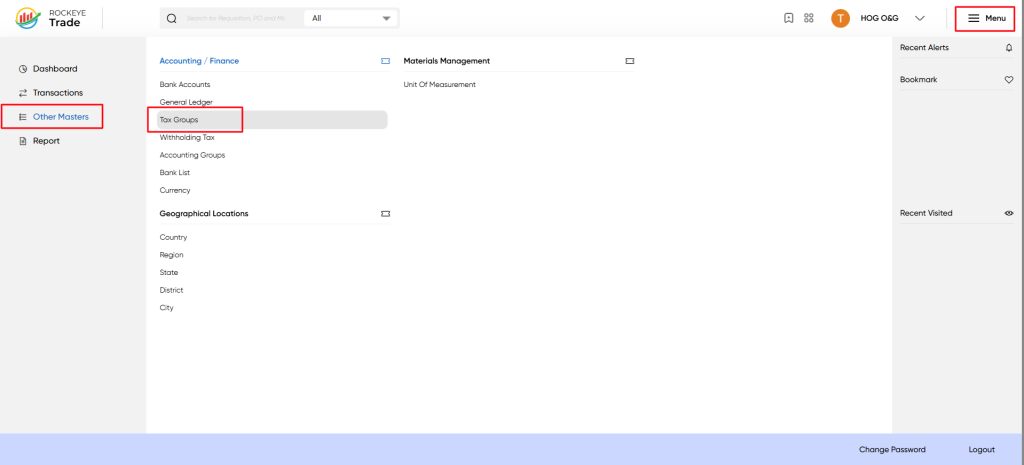
- From the main menu choose Other Masters → Accounting / Finance → Tax Groups.
- Go to Other Masters on the left menu.
- Select Accounting / Finance.
- Click Tax Groups.
Listing
- List page
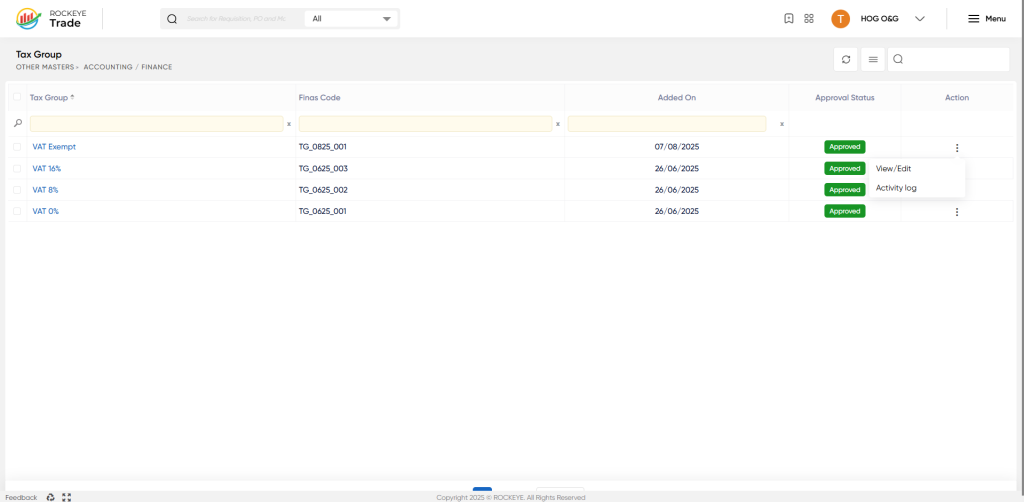
- Columns: Tax Group, Finas Code, Added On, Approval Status, Action (…)
- Actions: View/Edit, Activity Log, plus filters and search
- Examples shown: VAT Exempt, VAT 16%, VAT 8%, VAT 0% (all Approved)
The detail view shows: Tax Group Name, Remark, and a tax-class table with columns for Tax Class, Apply On Purchase, Purchase Percentage, Purchase Calculate On, Vat Withheld Purchase %, Input Tax Credit and Actions.
To View Tax Group
- View Tax Class rows
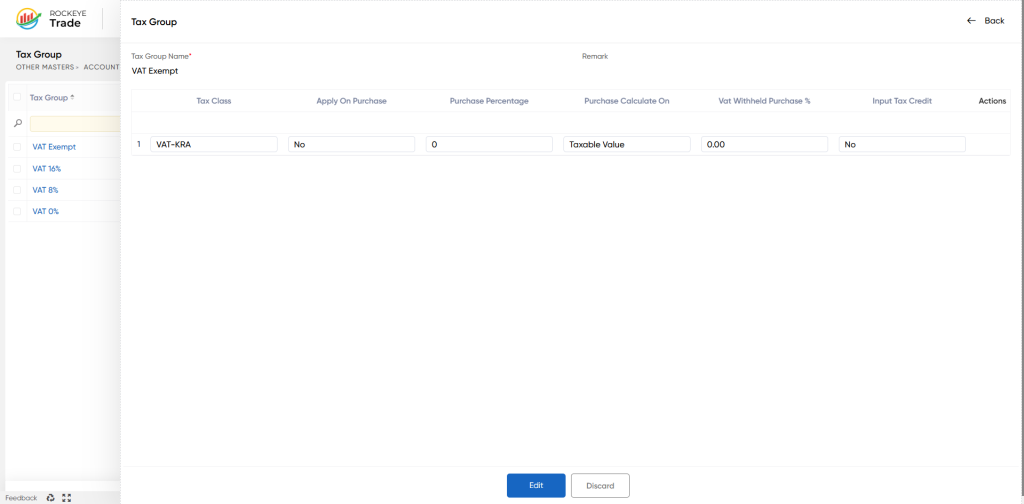
- Tax Class: the specific tax type or authority reference (e.g., VAT-KRA).
- Apply On Purchase: Yes if this tax applies to purchases; No if not.
- Purchase Percentage: numeric rate (e.g., 16, 8, 0).
- Purchase Calculate On: choose the base (Taxable Value recommended for standard VAT).
- VAT Withheld Purchase %: enter the withheld VAT rate if your country requires suppliers/customers to withhold a portion of VAT on purchases. Otherwise leave 0.00.
- Input Tax Credit:
- Yes for taxable purchases that are creditable.
- No for exempt or non-creditable items.
- Submit to save and route for approval (if workflow applies).
- Approval: an authorized approver changes status to Approved. Approved groups become selectable in transactions and mappings.
Refrence video Link

