General Ledger
Introduction/Purpose
Set up and manage the chart of accounts used by Trade transactions, including white product accounts (e.g., Gasoline, AGO/Diesel). Each record defines how a GL appears on documents, whether it’s a reconciliation/control account, and the code used by Finance. This article explains how to add and manage General Ledger (GL) master records used for petroleum/white product transactions in ROCKEYE Trade.
How To Add General Ledger
- Menu → Other Masters → General Ledger.
- Click Add New (blue button top-right). A right‑panel form opens.
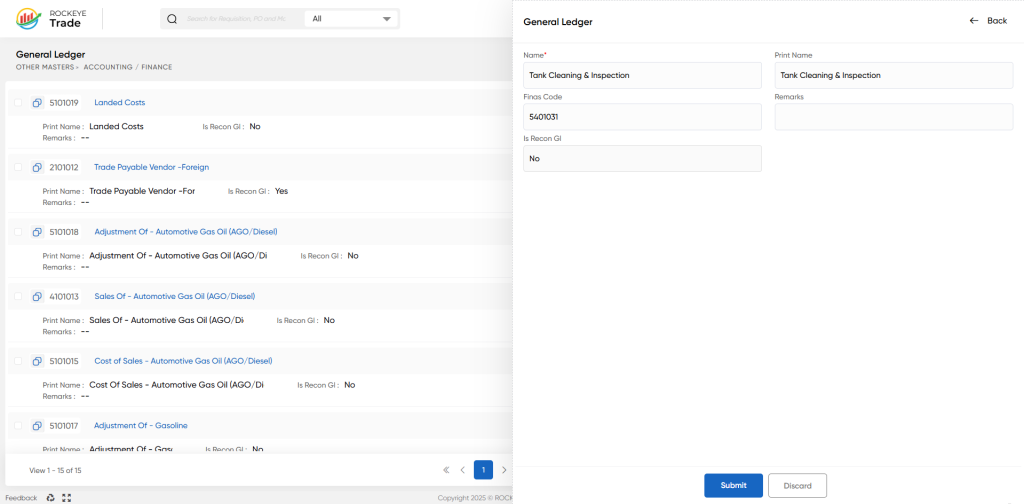
- Name: meaningful internal name.
- Print Name: how it should appear on printouts/reports (can mirror Name)
- Finas Code: the unique code from your COA. Example: 5401031
- Is Recon GL:
- Yes for control/reconciliation accounts (e.g., Trade Payable, Trade Receivable).
- No for normal revenue/expense/COGS/adjustment accounts.
- Remarks: optional notes (usage, restrictions, mapping).
- Click Submit.
- Approval (if applicable): a user with approval rights sets the record to Approved. Once approved, the GL becomes available for mappings and transactions.
Listing
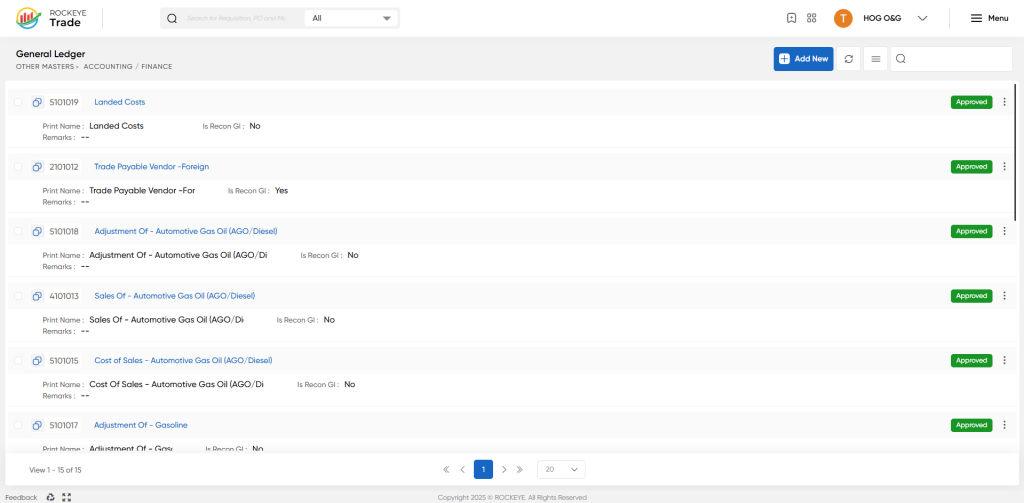
- he list displays GL entries (GL code on left, name as clickable link, Print Name, Is Recon GI column, and an Approval/status label on the right).
- Use the Search box (top-right) to find an existing GL, use pagination at the bottom to move through pages.
Refrence Video Link

