Sales Payment
Introduction/Purpose
This guide outlines the process of recording incoming payments from customers for sales of commodities like Crude Oil, Petrol, Diesel, Kerosene, and other white products in the Rockeye Trade module. Accurately recording sales payments is crucial for maintaining up-to-date customer ledgers, reconciling bank statements, and ensuring accurate financial reporting.
How To Navigate
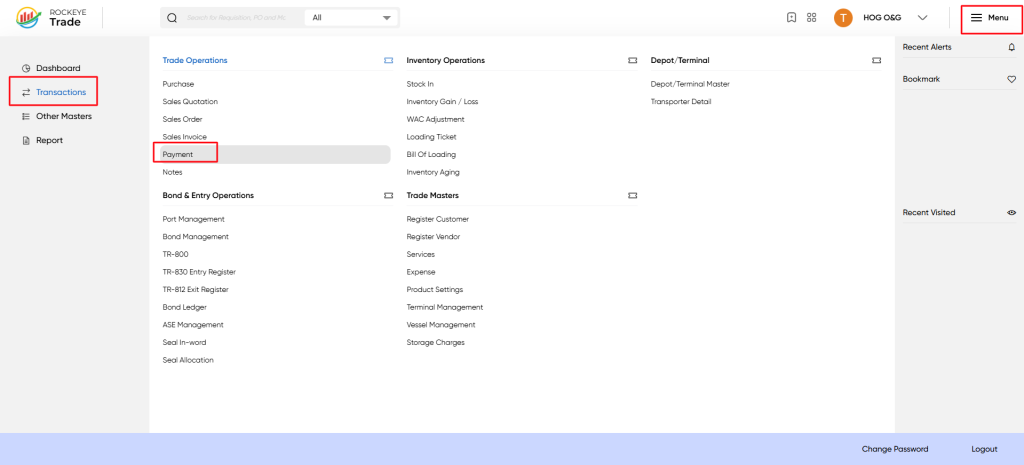
- Click on the "Menu" icon in the top right corner
- Select "Transactions" from the left sidebar
- Choose "Payment" from the Trade Operations section
Listing
Payment List View
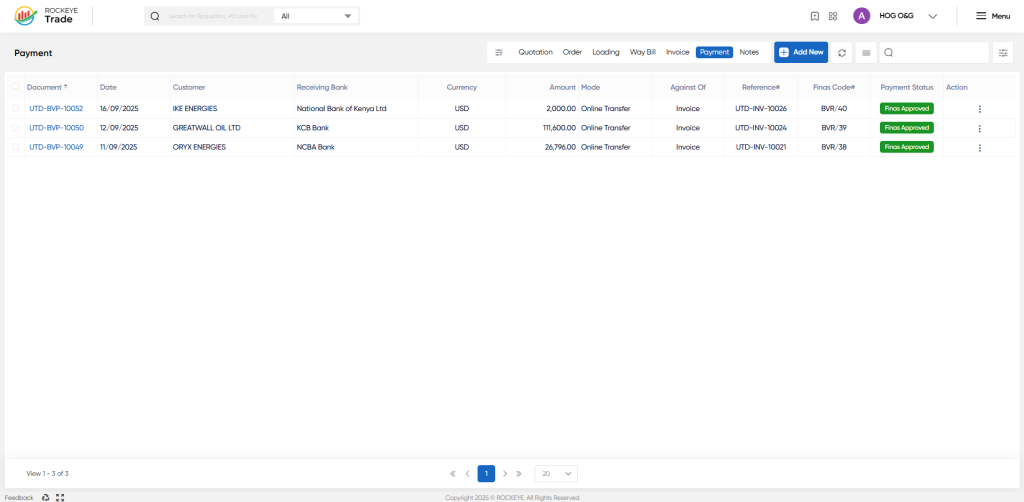
- Document#: Unique identifier for the payment document
- Date: Date of the payment transaction
- Customer: Name of the customer making the payment
- Receiving Bank: Bank where the payment is received
- Currency: Currency of the payment amount
- Amount: Total amount of the payment
- Mode: Payment mode (e.g., Online)
- Against Of: Document type the payment is made against (e.g., Invoice, Order)
- Reference#: Reference number of the related document
- Finas Code: The linked finance journal voucher generated for the payment
- Status: Current status of the payment (e.g., Pending, Paid, Sync Fail)
- Action: Options to view, edit, re-sync, or view activity log of the payment
Payment Status Indicators
- Pending: Payment is yet to be processed or completed
- Paid: Payment has been successfully processed
How To Add Sales Payment
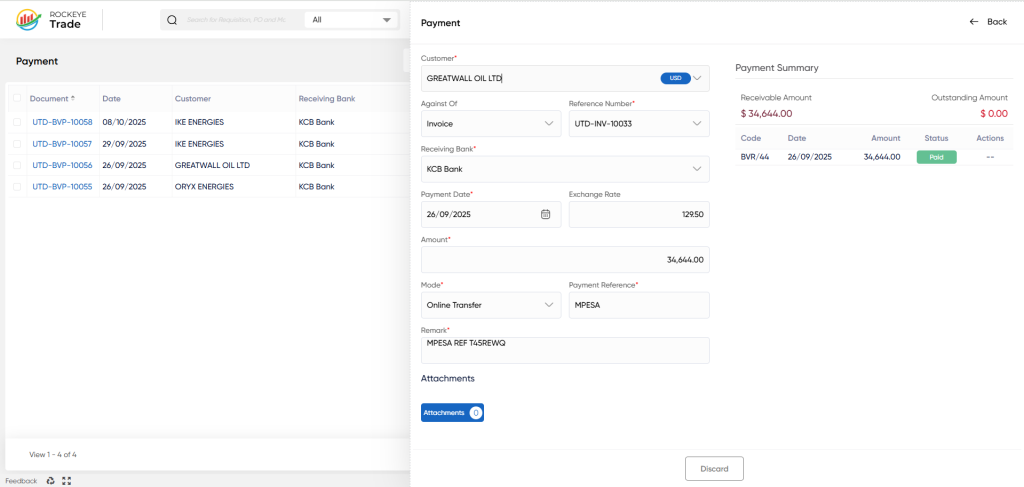
- Click on the "Add New" button to create a new payment entry
- Customer: Select the customer from the dropdown menu
- Against of: Choose the type of document the payment is for (e.g., Invoice)
- Reference Number: Select the reference number of the related document
- Receiving Bank: Select the bank where the payment will be received
- Payment Date: Set the date of the payment
- Exchange Rate: Enter the current exchange rate if applicable
- Amount: Enter the payment amount
- Mode: Select the payment mode (e.g., Online)
- Payment Reference: Enter any reference number for the payment
- Payment Remark: Add any remarks or notes about the payment
- Attachment: Attach any relevant documents or files
Payment Summary
- Receivable: Total amount receivable from the customer
- Outstanding: Total outstanding amount yet to be paid
- Date: Date of each payment entry
- Amount: Amount of each payment entry
- Status: Status of each payment entry (e.g., Requested, Paid)
- Action: Options to view or manage each payment entry
Managing Existing Payments
- View: Click to view the details of a specific payment
- Edit: Click to edit the details of a specific payment
- Re-Sync: Click to re-sync the payment data if there was a synchronization issue
- Activity Log: Click to view the activity log of a specific payment
Refrence Video Link

