Sales Quotation
Introduction/Purpose
The sales quotation module in Rockeye Trade allows you to create, manage, and track sales quotes for oil products (PMS, AGO, Jet A1, Kerosene, etc.). This guide will walk you through the process of creating a sales quotation for oil products, also referred to as white products. It supports quotation approvals, validity control, and conversion to sales orders.
How To Navigate
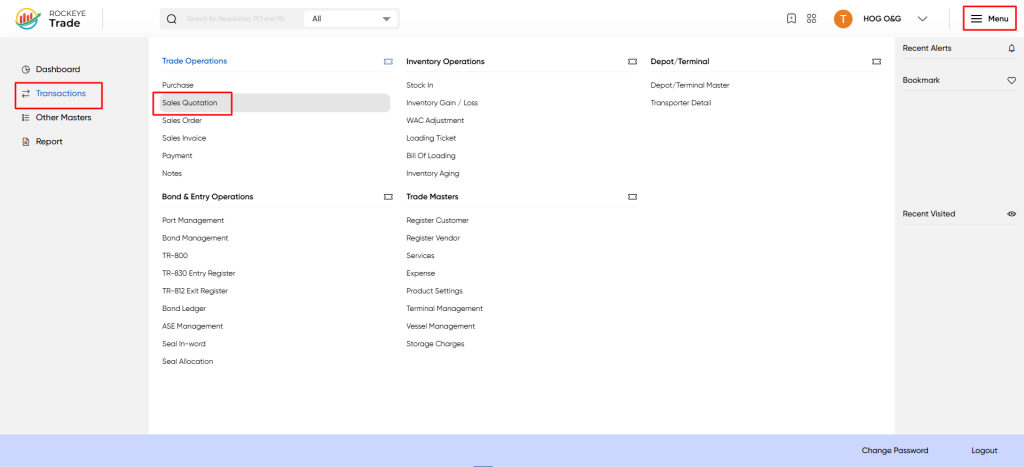
- Navigate to Transactions → Sales.
- Click on the Quotation tab.
- Click Add New to create a new sales quotation.
Listing
Columns displayed:
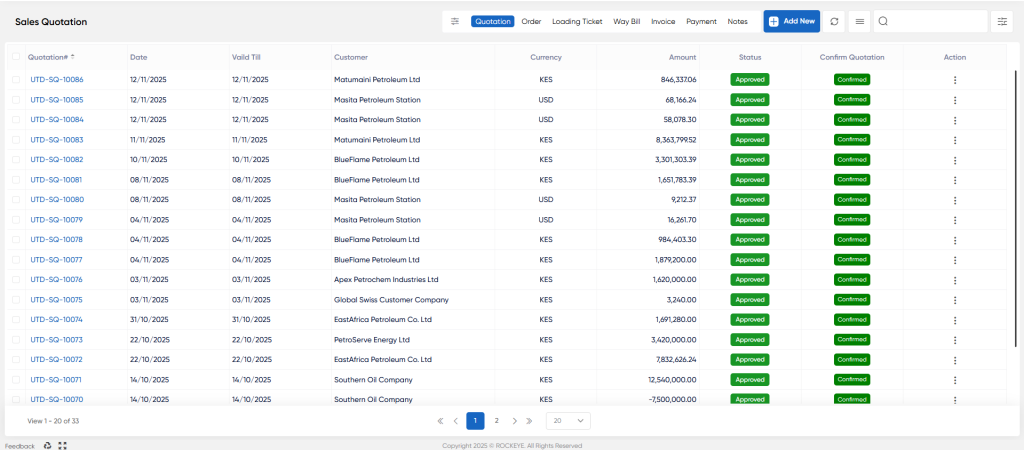
- Quotation – System generated quotation number.
- Date / Valid Till – Issue date and validity period.
- Customer – Selected buyer (Oil Marketing Company, Distributor, Industrial Client).
- Currency – Quotation currency (KES / USD).
- Amount – Quoted value.
- Status – Current stage (Draft, Pending, Approved, Confirmed, Expired).
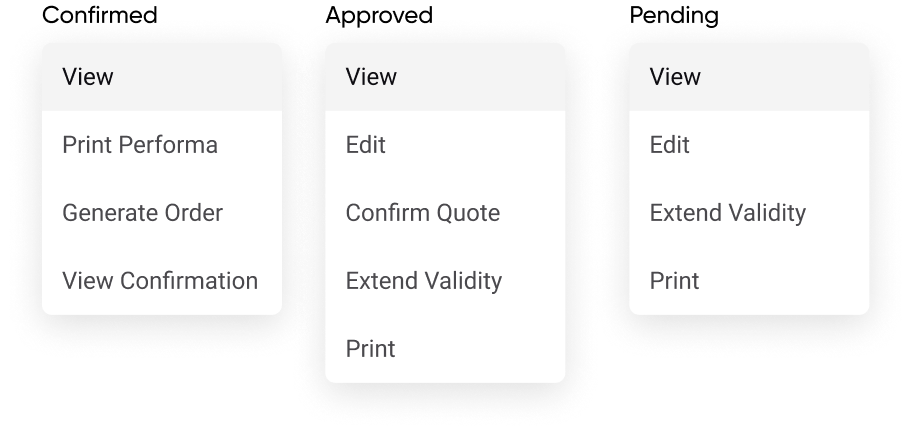
| Status | Description | Available Actions |
|---|---|---|
| Draft | Quotation is saved but not submitted. | Edit, Delete |
| Pending | Quotation is submitted and awaiting approval. | View, Edit, Extend Validity, Print |
| Approved | Quotation is approved by the customer. | View, Edit, Confirm Quote, Extend Validity, Print |
| Confirmed | Quotation is confirmed and ready for order generation. | View, Print Performa, Generate Order, View Confirmation |
| Expired | Quotation has passed the validity date. | View |
Add New Sales Quotation
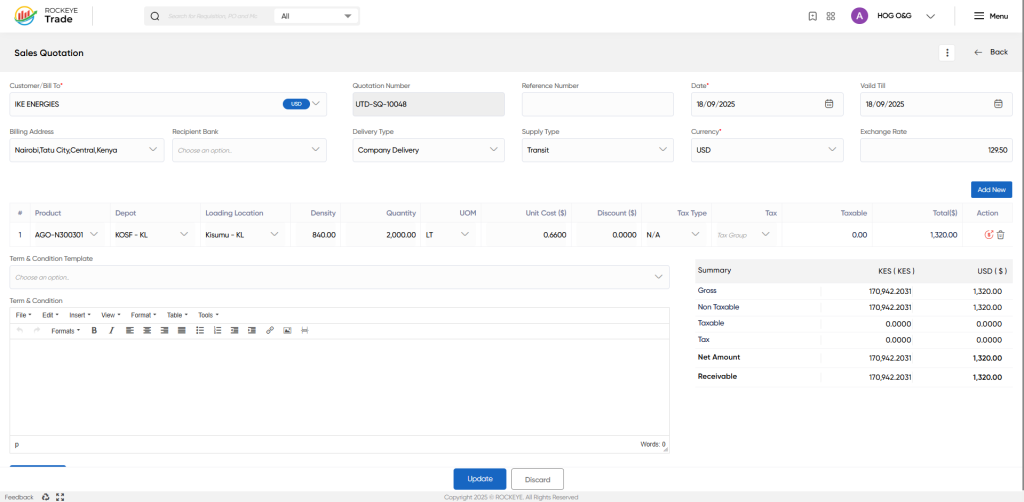
Entering Basic Information
- Customer/Bill To: Select the customer from the dropdown list.
- Quotation Number: Auto-generated (e.g., QT-00001) or manually entered.
- Reference Number: Optional reference number for tracking.
- Date: The date the quotation is created.
- Valid Till: The expiration date of the quotation (e.g., 30/06/2026).
Setting Additional Details
- Billing Address: Select the appropriate billing address for the customer.
- Recipient Bank: Select the recipient bank (if applicable).
- Delivery Type: Choose between Company or other delivery options.
- Supply Type: Select the supply type (e.g., Transit).
- Currency: Choose the currency (e.g., USD, KES).
- Exchange Rate: Enter the current exchange rate (e.g., 126.00).
Adding Product Details
- Product: Select the oil product (e.g., Crude Oil).
- Depot: The receiving terminal where product is offloaded by importer
- Loading location: Pumping location where trucks are loaded for customer order delivery
- Density: Enter the density of the product (e.g., 820).
- Quantity: Enter the quantity (e.g., 50,000 Ltr).
- UOM: Select the unit of measure (e.g., Ltr).
- Unit: Cost Enter the unit cost (e.g., 0.28 USD).
- Discount: Enter any applicable discount (e.g., 0.00).
- Tax Type: Select the tax type (e.g., Inclusive).
- Tax: Specify the tax percentage (e.g., VAT 16%).
- Taxable: The system calculates the taxable amount (e.g., 14,000.00 USD).
- Total: The system calculates the total amount (e.g., 62,50,000.00 USD).
Term & Condition Template
- Select a predefined Term & Condition Template or create a new one.
- Customize the terms and conditions as needed.
Reviewing the Summary
The system automatically calculates:
- Gross Amount (e.g., 62,50,000.00 USD)
- Non-Taxable Amount (e.g., 0.00 USD)
- Taxable Amount (e.g., 0.00 USD)
- Tax (e.g., 0.00 USD)
- Net Amount (e.g., 0.00 USD)
- WHT Tax (e.g., 0.00 USD)
- Receivable (e.g., 0.00 USD)
Submitting or Saving as Draft
- Submit: Finalize the quotation.
- Save As Draft: Save the quotation for later completion.
- Discard: This option allows the user to discard the transaction before saving it.
Refrence Video Link

