Unit Of Measurement
Introduction/Purpose
The Unit Of Measurement (UoM) module, located under Other Masters > Materials Management, is fundamental for defining and managing all units used to quantify products and materials within RockEye Trade. For businesses dealing with oil or white products, accurate UoM definition is critical for:
- Inventory Management: Tracking stock levels (e.g., in Litres, Metric Tons, Cubic Meters, Barrels).
- Procurement & Sales: Specifying quantities in purchase orders, sales contracts, and invoices.
- Logistics: Calculating cargo volumes and weights for transportation and storage.
- Pricing: Establishing unit prices based on standard measurements.
- Compliance: Adhering to industry standards and regulatory reporting requirements (e.g., volume at standard temperature, gross/net weight).
- Conversion: Facilitating conversions between different units (though the module primarily defines the units, not the conversion logic itself).
Proper UoM setup ensures consistency and accuracy across all trade operations.
How To Navigate
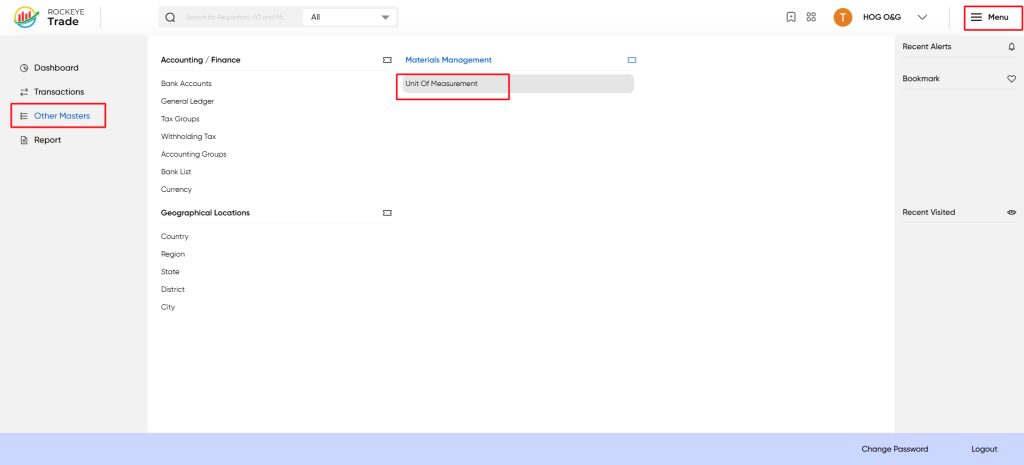
- Click on the Menu icon (☰) in the top-right corner.
- Navigate to Other Masters > Materials Management > Unit Of Measurement.
Listing
The Unit Of Measurement interface displays a list of all defined UoMs in the system. Each entry provides the following details:
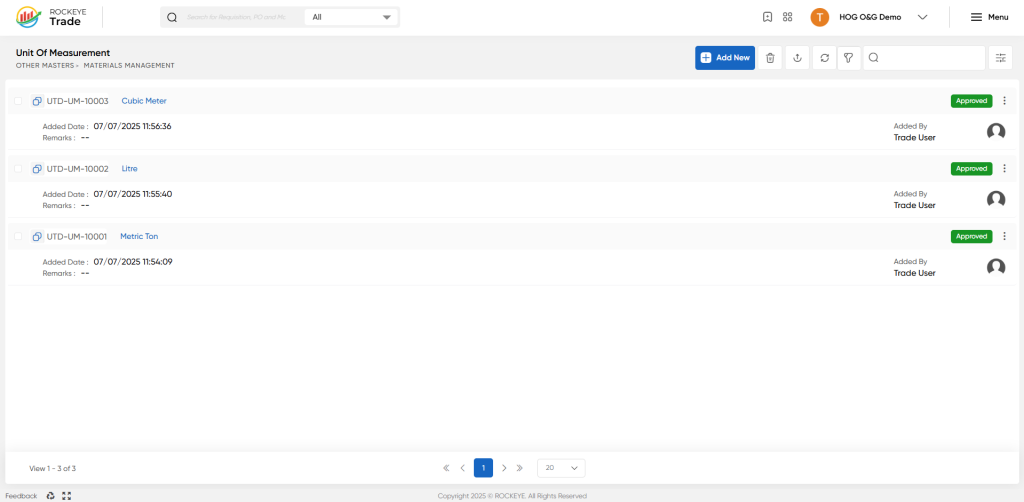
- Internal UoM Code: A unique system-generated identifier for the UoM (e.g.,
UTD-UM-10003). - Name: The full name of the Unit Of Measurement (e.g., Cubic Meter, Litre, Metric Ton).
- Added Date: The date and time when the UoM was added to the system.
- Added By: The user who created the UoM entry.
- Approval Status: Indicates the current status of the UoM entry (e.g., Approved).
- Remarks: Any additional notes or comments associated with the UoM.
- Action: A dropdown menu (⋮) to perform actions on individual entries (e.g., View/Edit, Activity Log).
The top of the interface also includes general actions such as Add New Refresh, Filter, and Search.
How To Add UPM
To add a new UoM to the system:
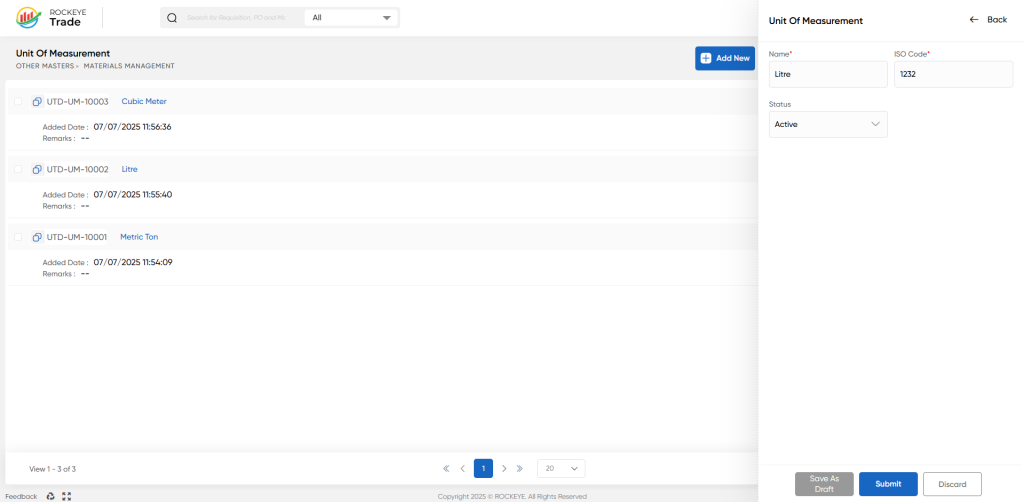
- Click on the Add New button in the top-right corner of the interface.
- A side panel will appear, prompting for details:
- Name*: Enter the official and descriptive name of the unit (e.g., "Barrel (Oil)", "Kilolitre", "Gallon (US)").
- ISO Code*: Enter a unique identifier or a standard ISO code for the unit. This helps in system integration and standardized reporting (e.g., "BBL" for Barrel, "L" for Litre, "T" for Metric Ton). Note: The system may use specific numeric codes; ensure to follow internal conventions.
- Status: Select "Active" to make the UoM available for use in transactions, or "Inactive" to temporarily disable it.
- Remarks: (Optional) Add any relevant notes or descriptions for the UoM.
- Choose one of the following actions:
- Save As Draft: To save the entry without submitting it for approval, allowing you to return and complete it later.
- Submit: To save the entry and send it for approval. Once approved, the UoM becomes active in the system.
- Discard: To cancel the new entry without saving.
Refrence Video Link

