Day Clouser
Introduction
The "Day Closure" feature within the SmartStation mobile application. This section provides access to a summary of all daily sales closures, allowing you to view, download, and filter day-end reports for administrative and accounting purposes.
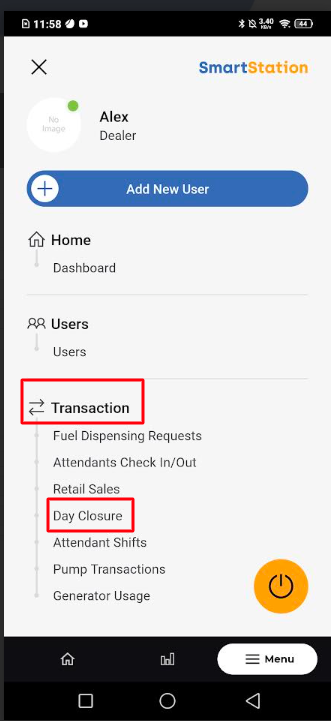
How To Navigate
- From the main menu, tap on the "Transaction" section.
- Within the "Transaction" menu, select "Day Closure."
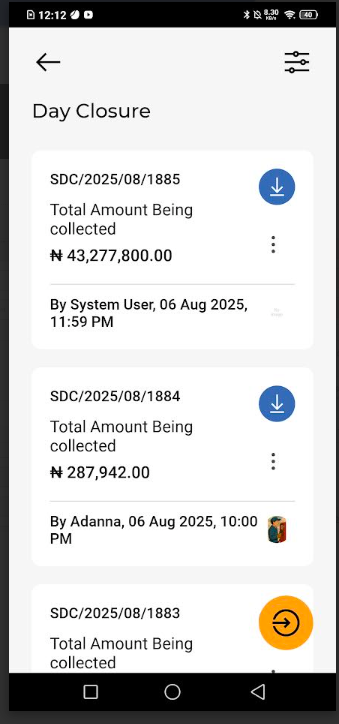
This will open the "Day Closure" screen, which lists all past day-end closures.
Filtering Day Closure Reports
To quickly find a specific day closure report, you can use the filtering feature.
- On the "Day Closure" screen, tap the filter icon (two horizontal lines with circles) at the top right corner.
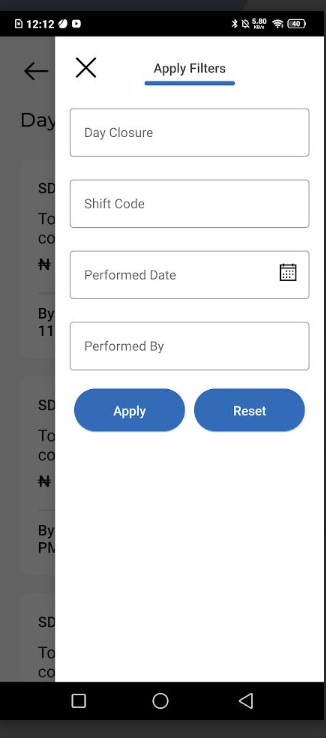
- The "Apply Filters" screen will appear. You can filter the reports using the following criteria:
- Day Closure: Filter by a specific day closure code.
- Shift Code: Filter by the shift code associated with the day's closure.
- Performed Date: Select a specific date to view all closures performed on that day.
- Performed By: Search for closures performed by a particular user or attendant.
- After entering your desired filter criteria, tap the "Apply" button. The list will update to show only the day closure reports that match your search.
- To clear the filters and view all day closures, tap the "Reset" button.

