Retail Sales
Introduction
The "Retail Sales" feature in the SmartStation mobile application. This section provides an overview of all retail transactions, offering tools to view, filter, print, and download sales data for efficient management and record-keeping.
How To Navigate
- From the main menu, tap on the "Transaction" section.
- Within the "Transaction" menu, select "Retail Sales."
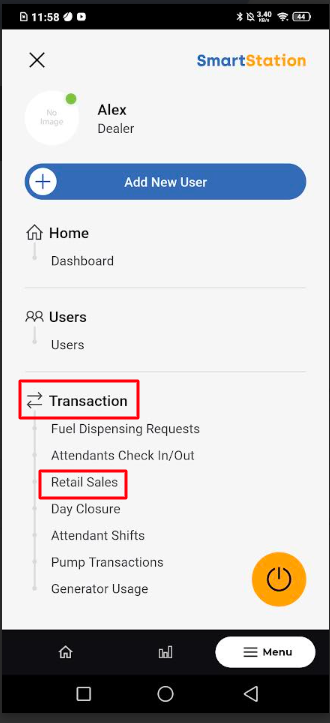
This will open the "Retail Sales" screen, which lists all retail transactions, including the time, transaction type, attendant, and total amount.
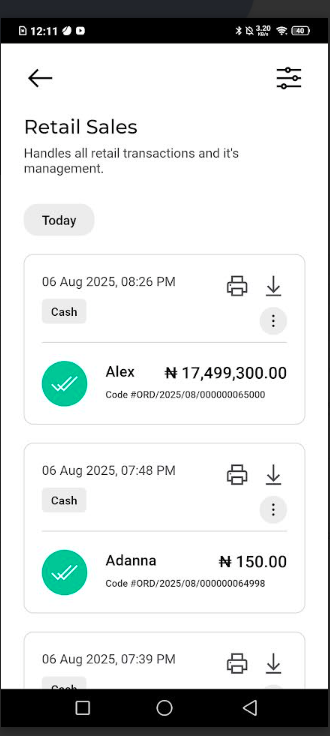
- View Details: Each card provides a summary of a transaction, including the date, time, payment method (e.g., "Cash"), the attendant's name, the total amount, and the transaction code.
- Print Transaction: To print a receipt or a summary of the transaction, tap the printer icon next to the transaction details.
- Download Transaction: To download the transaction data (e.g., as a PDF or other file format), tap the download icon next to the printer icon.
Filtering Retail Sales for Easy Search
- On the "Retail Sales" screen, tap the filter icon (two horizontal lines with circles) at the top right corner.
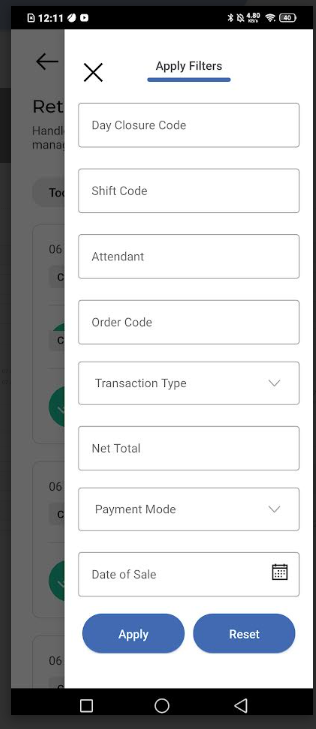
- The "Apply Filters" screen will appear. You can filter transactions by various criteria, including:
- Day Closure Code: Filter by the unique code of a day's closing.
- Shift Code: Filter by a specific attendant's shift code.
- Attendant: Search for sales made by a particular attendant.
- Order Code: Find a specific transaction using its unique code.
- Transaction Type: Filter by the type of transaction.
- Net Total: Filter transactions within a specific total amount range.
- Payment Mode: Search for transactions paid via a specific method (e.g., "Cash," "Online").
- Date of Sale: Filter transactions by a specific date.
- After entering your filter criteria, tap the "Apply" button. The list of retail sales will refresh to show only the transactions that match your filter.
- To clear the filters and view all transactions again, tap the "Reset" button.

