Attendants check In/Out
The "Attendants Check In/Out" feature in the SmartStation application. This function allows station managers to track and manage attendant shifts, including the check-in and check-out processes, along with associated sales and readings.
How to Navigate
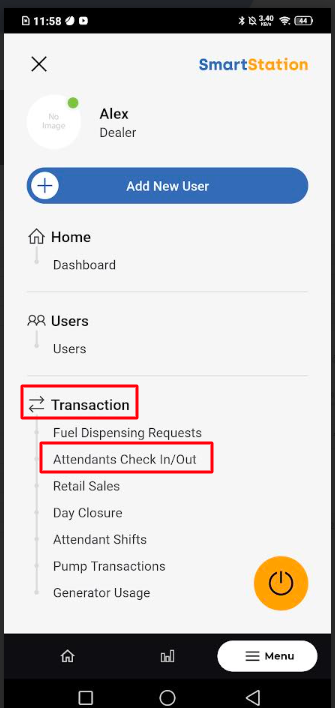
- From the main menu, tap on the "Transaction" section.
- Within the "Transaction" menu, select "Attendants Check In/Out."
- This will bring you to the "Attendants Check In" screen, which shows a list of attendants and their current shift status.
Check In
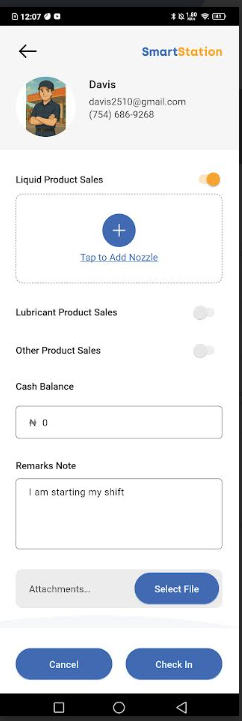
This will open the check-in form. On this screen, you will need to:
- Add Nozzle Reading: Tap the "+" icon under "Liquid Product Sales" to add the nozzle(s) the attendant will be using.
- Enter Current Reading: A pop-up will appear. Select the nozzle and enter the current meter reading. Tap "Save." You can add multiple nozzles if needed.
- Fill in other relevant details:
- Liquid Product Sales, Lubricant Product Sales, Other Product Sales: Toggle these on or off as needed.
- Cash Balance: Enter the starting cash balance for the shift.
- Remarks Note: Add any specific notes about the start of the shift.
- Attachments (Optional): You can upload relevant files.
- Once all details are entered, tap "Check In." The attendant's status will now show as "Running."
Listing
To view a list of all attendant shifts, you can navigate to the "Attendant Shifts" screen. This screen can be accessed from the main "Transaction" menu.
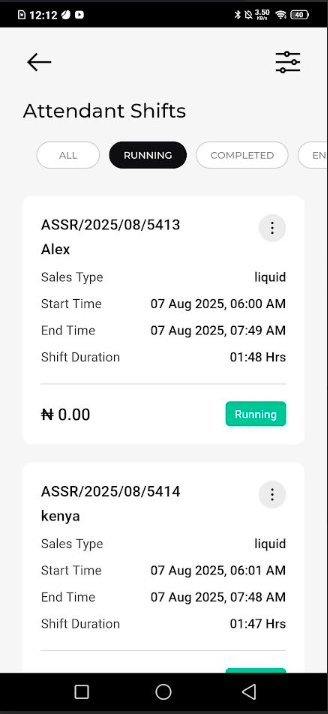
- All: Displays all shifts, regardless of status.
- Running: Shows only currently active shifts.
- Completed: Lists shifts that have been checked out.
- Enclosed: Shows shifts that have been fully closed (e.g., after reconciliation).
Check Out
When a shift is ending, the attendant needs to check out.
- On the "Attendants Check In/Out" screen, tap the circular arrow icon next to the attendant whose shift is "Running."
- This will open the "Check Out" screen. Here, you will see a summary of the shift, including the check-in time.
- Fill in the required check-out details:
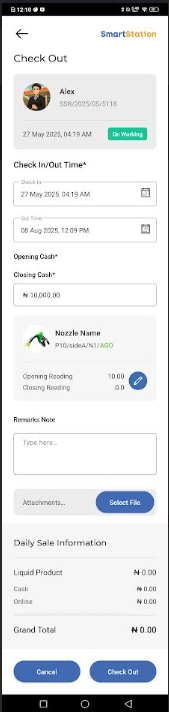
- Closing Cash: Enter the final cash balance at the end of the shift.
- Closing Reading: Tap the pencil icon next to each nozzle to enter the final meter reading.
- Remarks Note (Optional): Add any notes about the end of the shift.
- Attachments (Optional): Upload any final files.
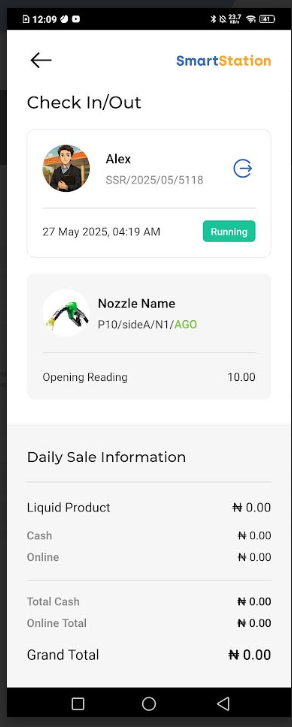
- Review the "Daily Sale Information" section, which summarizes the sales for the shift.
- Once all information is correct, tap "Check Out" to end the shift. The shift's status will be updated accordingly.

