Users
The "Users" submodule in the Smart Station app allows admins to manage user accounts, including adding new users, viewing and editing existing users, updating details, and resetting PINs or passwords. This feature is accessible from the Menu (bottom navigation bar) and supports roles like Dealer, Station Manager, etc.
How To Navigate
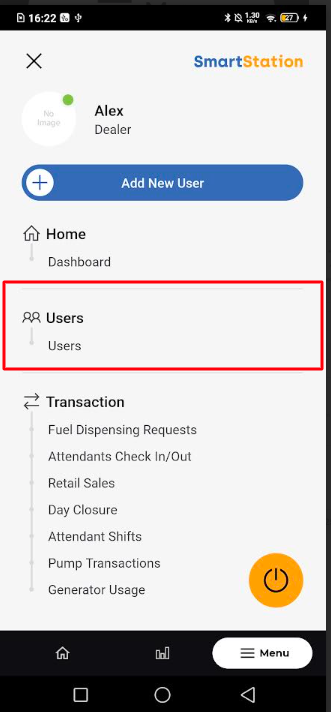
- From the app's home screen, tap the "Menu" button at the bottom navigation bar.
- In the menu that appears, tap on Users. This will take you to a list of all current users in the system.
How To Add User
- On the Users screen, tap the floating plus icon (+) located in the bottom-right corner.
- You will be directed to the Add User form.
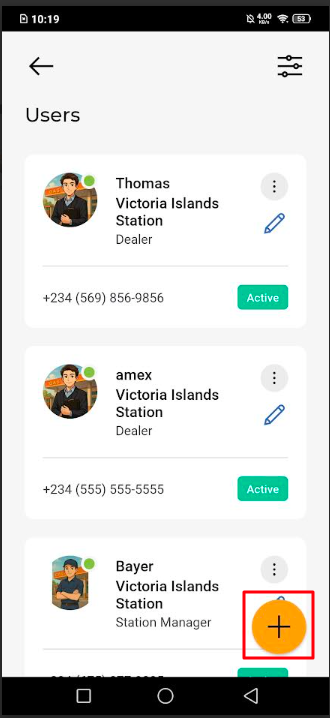
- Fill in all the required user information:
- Location Name : Name of the fuel station or operational site the user is assigned to.
- Name: Full name of the user associated with the station.
- Email : User’s official email address for communication and login purposes.
- Phone Number: Contact number of the user for alerts and notifications.
- Gender: User’s gender information for record-keeping and identity.
- User Name & Password (for login)
- Role (e.g., Attendant, Station Manager)
- After entering all the details, tap the Add User button at the bottom to create the account.
Edit Existing Users
If you need to update a user's information, such as their name, role, or contact details, follow these steps.
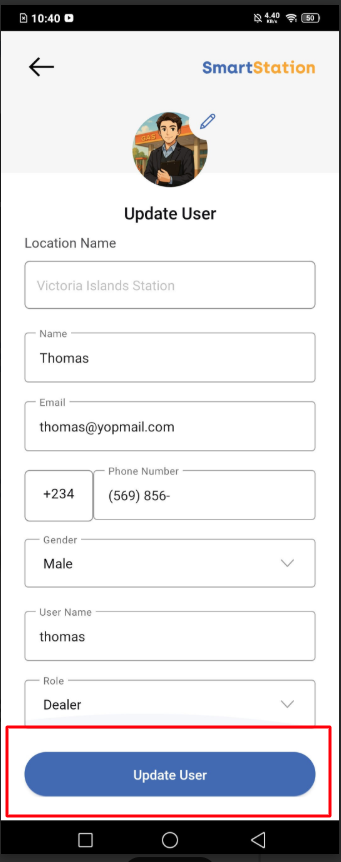
- From the Users list, find the user you wish to modify.
- Tap the edit icon (a pencil ) on the right side of the user's card.
- On the Update User screen, change the information in the relevant fields.
- Once you have made the necessary changes, tap the Update User button to save them.
How To Reset pin or Password
If a user forgets their PIN or password, an administrator can reset it for them.
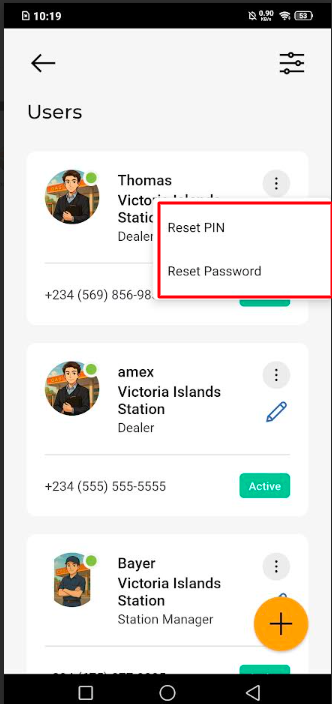
- Navigate to the Users list.
- Find the specific user and tap the three-dot menu icon (⋮) on their user card.
- A small menu will pop up with two options:
- Reset PIN
- Reset Password
Apply Filters
When managing a large number of users, the filter function helps you quickly find specific accounts based on various criteria.
- From the main Users list screen, tap the filter icon (sliders) located in the top-right corner.
- This will open the Apply Filters pop-up menu.
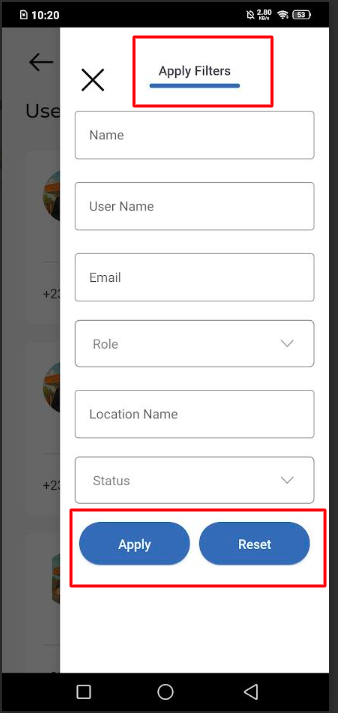
You can narrow down the user list by entering information in one or more of the following fields:
- Name: Search by the user's full name.
- User Name: Find a user by their login username.
- Email: Search by the user's registered email address.
- Role: Select a role from the dropdown (e.g., Dealer, Station Manager) to see all users with that role.
- Location Name: Filter users based on their assigned station or location.
- Status: Select a status from the dropdown (e.g., Active, Inactive) to find users by their account status.
To Apply: Once you have entered your search criteria, tap the Apply button. The user list will refresh to show only the users that match your search.
To Reset: To clear all the filter fields and view the complete, unfiltered user list again, tap the Reset button.

