Leaves
Introduction / Purpose
The Leaves module lets a Dealer/Station Manager submit staff leave requests (e.g. sick leave, paid leave) and track their approval status.
How to Navigate
- From Home or the relevant Menu entry, open Leaves.
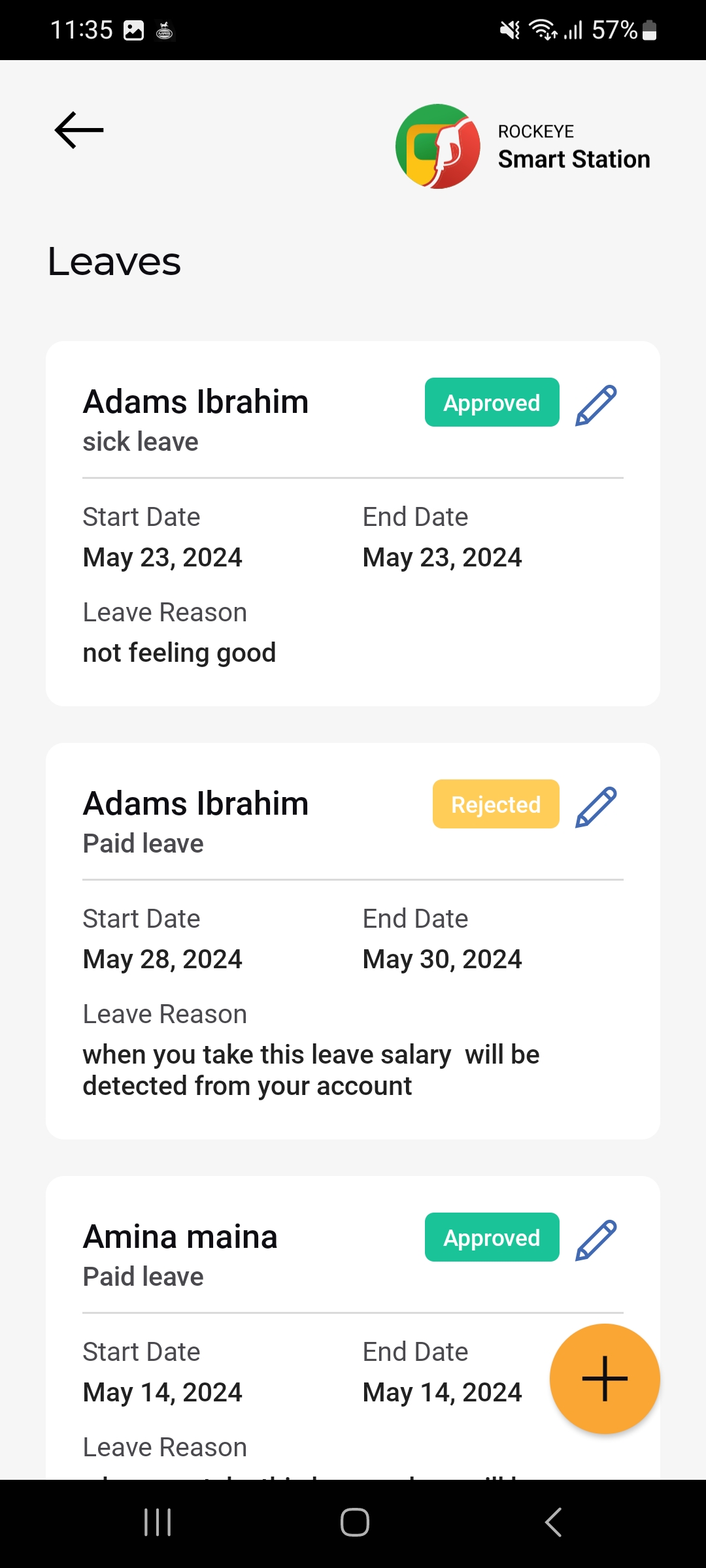
- The Leaves list opens, showing each leave request as a card, most recent first.
- Tap the (+) button to submit a new leave request; tap the pencil icon on a card to edit an existing one.
Leaves List
Each leave card shows:
- Staff Name
- Leave Type
- Status badge: Approved (green) or Rejected (yellow).
- Start Date / End Date: The leave period
- Leave Reason: Free-text explanation for the request
- Pencil (Edit) icon: Opens the leave request for editing.
Add a Leave
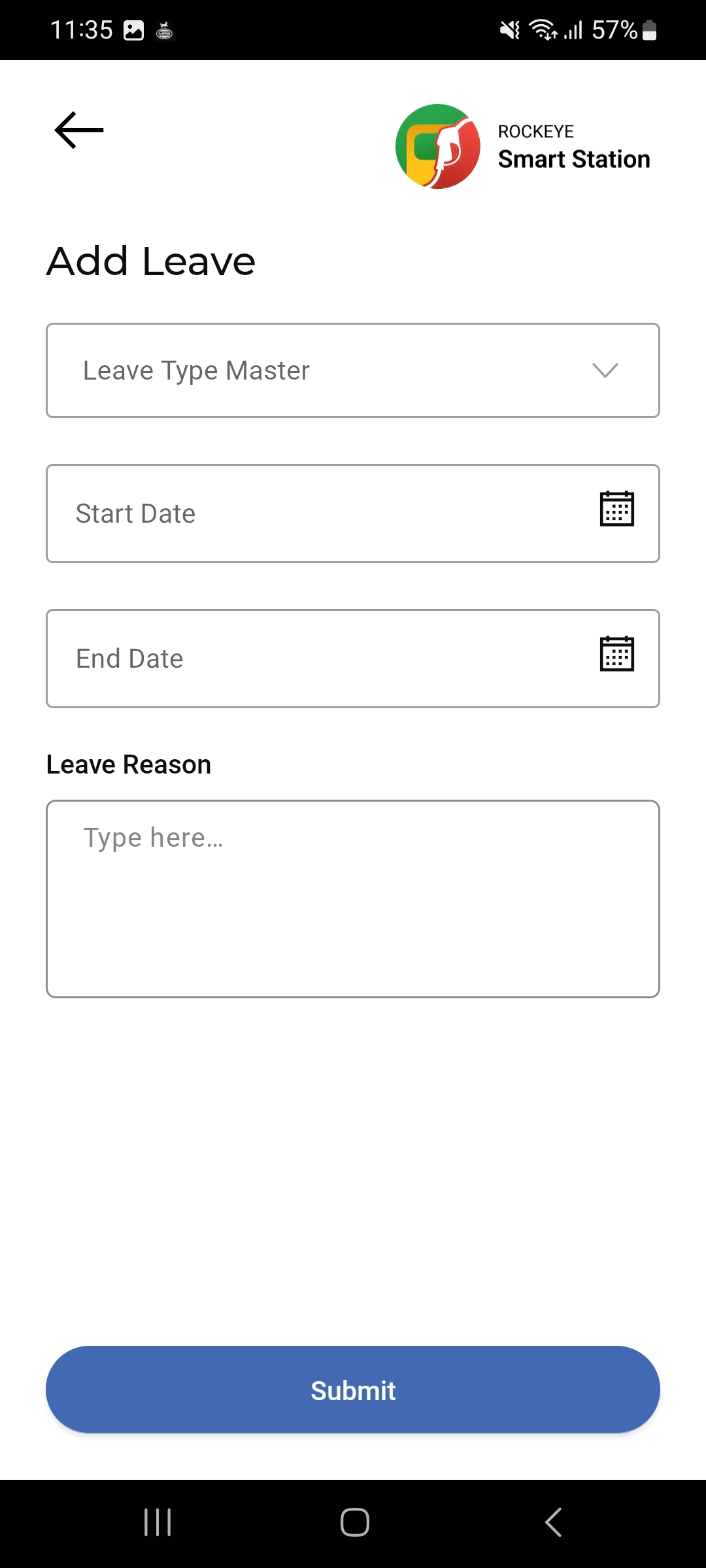
- Tap the (+) button on the Leaves list.
- Select the Leave Type Master from the dropdown.
- Set the Start Date using the calendar picker.
- Set the End Date using the calendar picker.
- Enter the Leave Reason as free text.
- Tap Submit to save the leave request.
Other Applicable Actions
- Use the edit icon on a leave card to edit a previously submitted request.

