Bank Accounts
How to Navigate
- Open the relevant Menu entry for Bank Accounts.
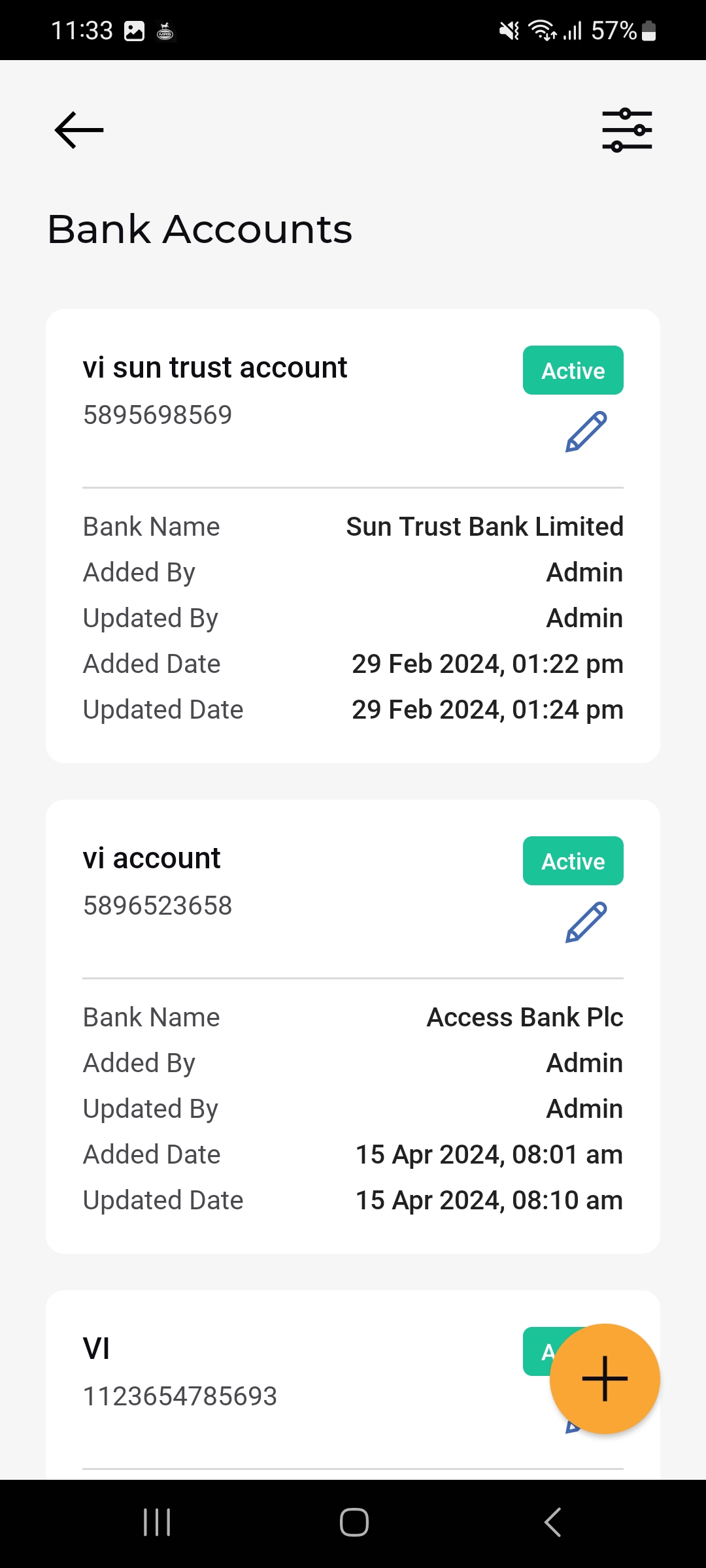
- The Bank Accounts list opens, showing each account as a card.
- Tap the floating (+) button to add a new bank account, or the pencil icon on a card to edit it.
Bank Accounts List
Each account card shows:
- Account Name & Status
- Account Number:
- Bank Name
- Added By / Updated By: Who created and last updated the account
- Added Date / Updated Date: When the account was created and last updated.
- Edit icon: Opens the account for editing.
Add a Bank Account
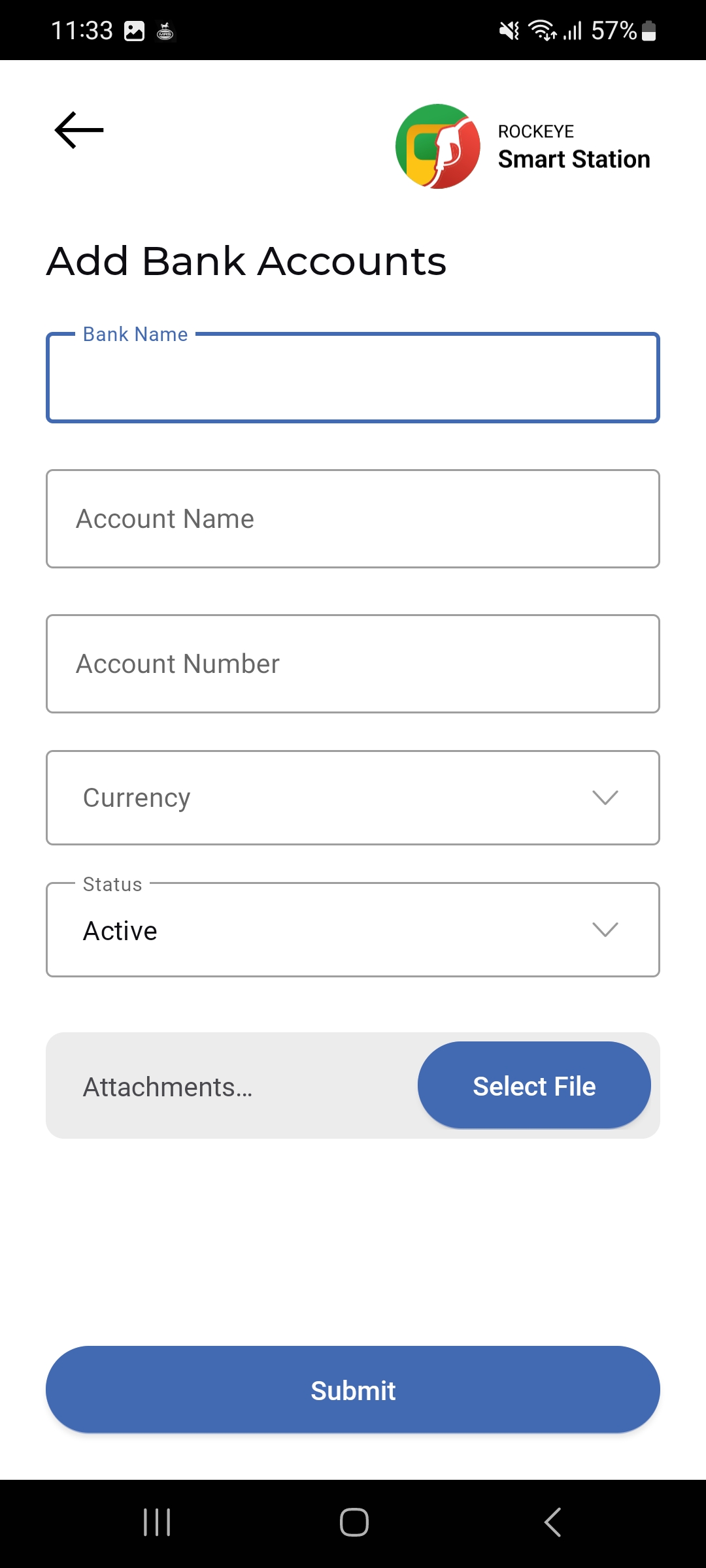
- Tap the (+) button on the Bank Accounts list.
- Enter the Bank Name.
- Enter the Account Name and Account Number.
- Select the Currency.
- Select the Status (defaults to Active).
- Optionally attach supporting documents via Attachments > Select File.
- Tap Submit to save the bank account.
Other Applicable Actions
- Use the filter icon on any Vendor Management list to narrow records.
- Use the (Edit) icon on any card to update that record.
- Link a Vendor Contact to its parent Vendor via the Vendor Name field when adding or editing a contact.

