Vendor Contact
How to Navigate
- Open the relevant Menu entry for Vendor Contact.
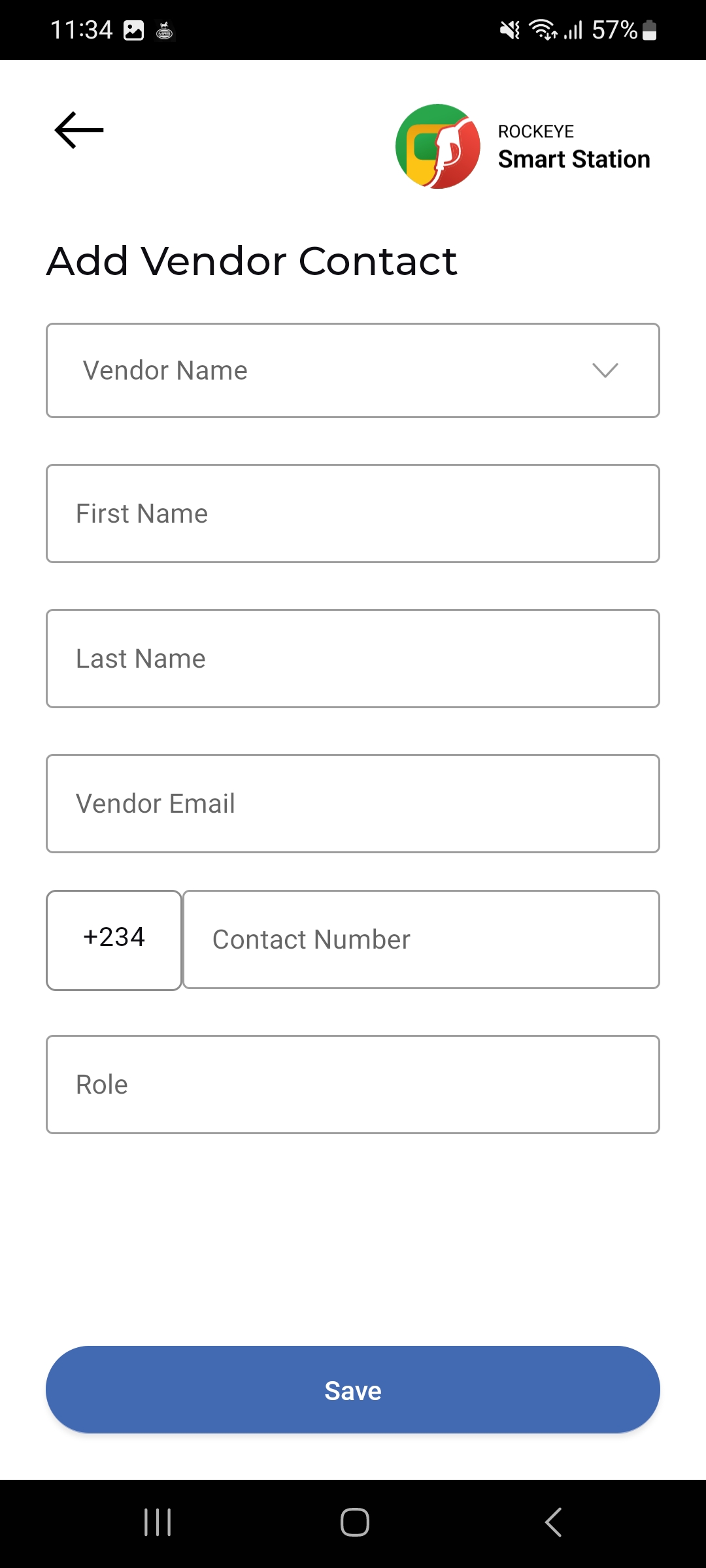
- The Vendor Contact list opens, showing each contact person as a card.
- Tap the (+) button to add a new contact, or the pencil icon on a card to edit it.
Vendor Contact List
Each contact card shows:
- Contact Name
- Associated Vendor: The vendor company the contact belongs to, or N/A
- Vendor Email: The contact’s email
- Contact Number: The contact’s phone number.
- Added By / Added Date: Who added the contact and when.
- Edit icon: Opens the contact for editing.
Add a Vendor Contact
- Tap the floating (+) button on the Vendor Contact list.
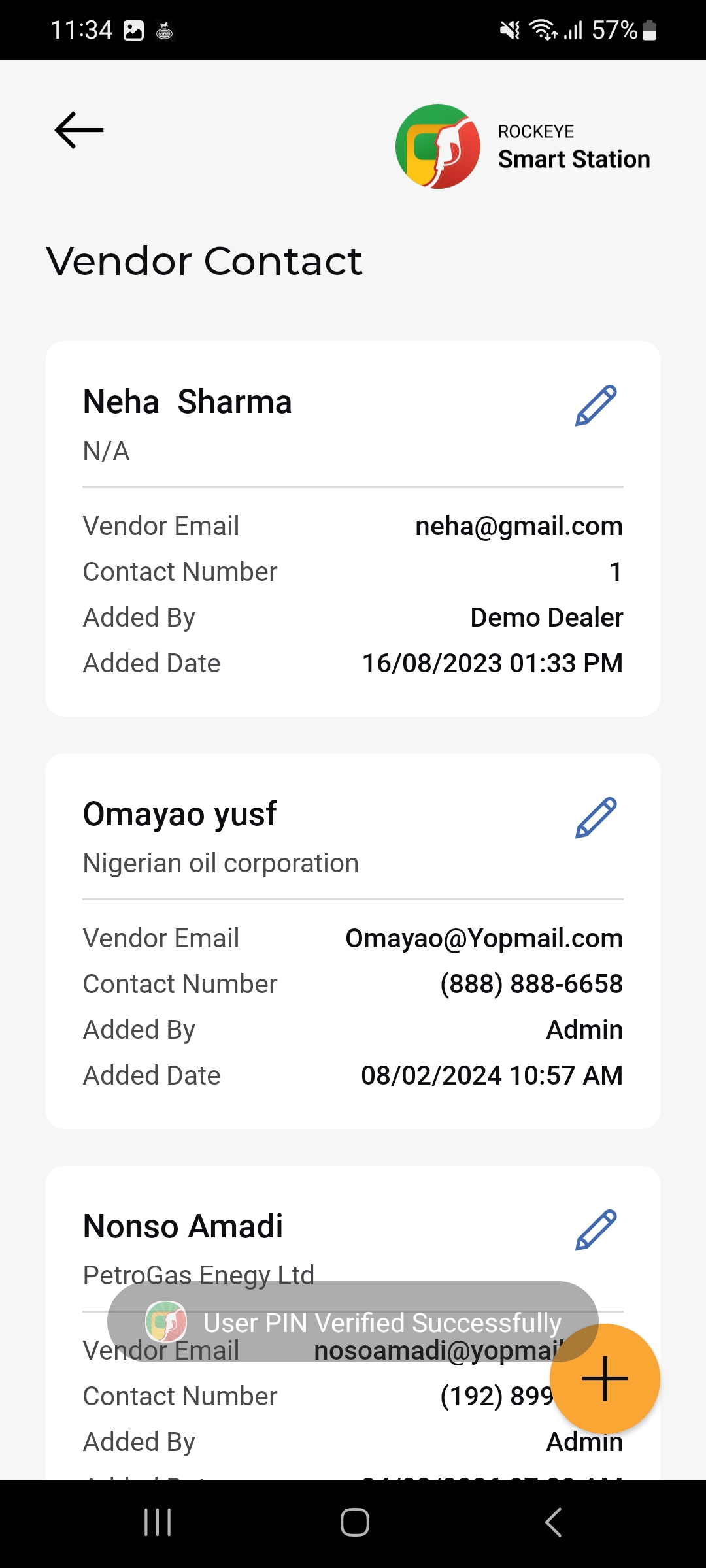
- Select the Vendor Name the contact belongs to.
- Enter the contact’s First Name and Last Name.
- Enter the Vendor Email.
- Enter the Contact Number (with country code, e.g. +234).
- Enter the contact’s Role.
- Tap Save to create the contact.