Tank Reconciliation
Introduction / Purpose
Tank Reconciliation compares physical tank stock against book (system-calculated) stock for each product, surfacing any variance or slippage so discrepancies can be reviewed, closed out, and documented.
How to Navigate
- From Home, tap Reconciliation, or the relevant Menu entry.
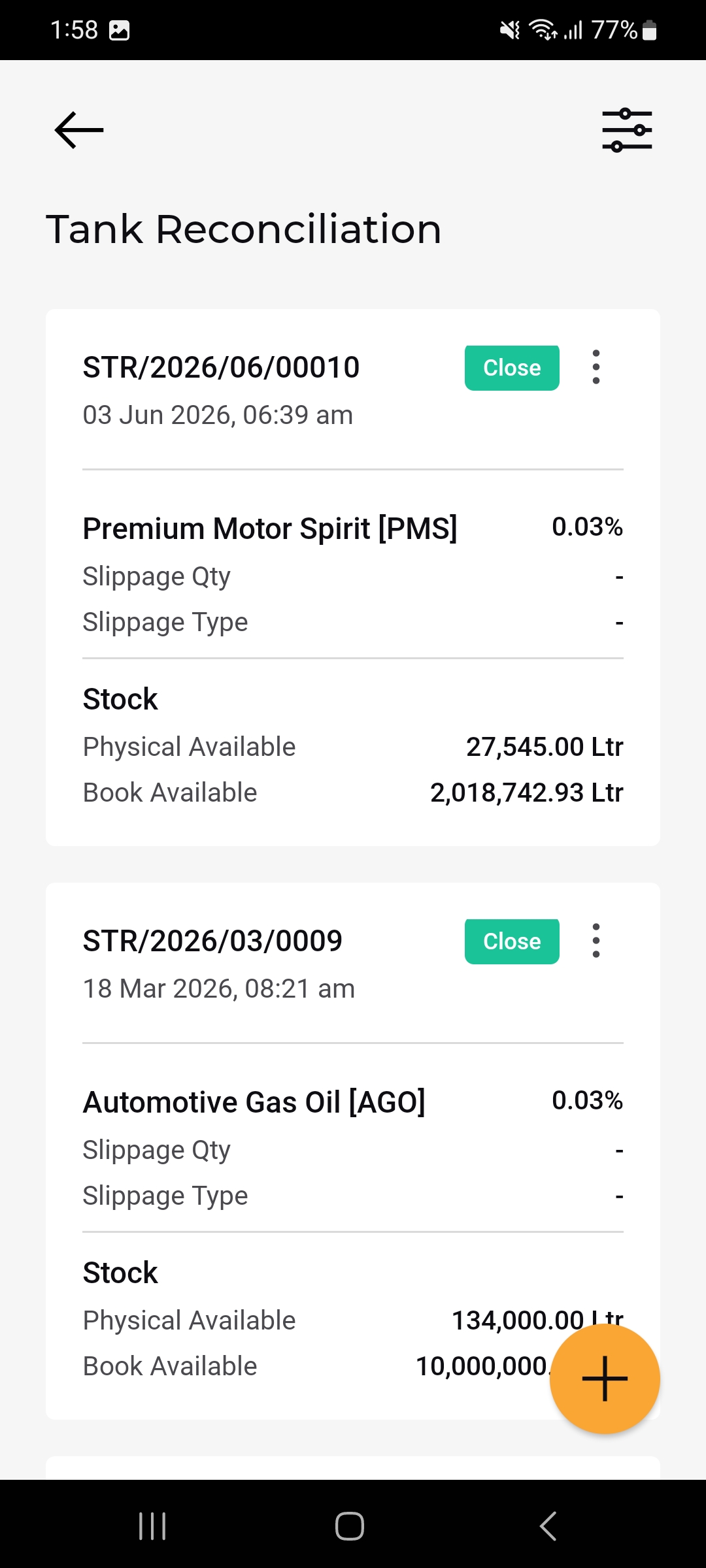
- The Tank Reconciliation list opens, showing each reconciliation as a card, most recent first.
- Tap the floating (+) button to start a new reconciliation; use the filter icon to narrow the list.
- Tap a card to open its full detail view.
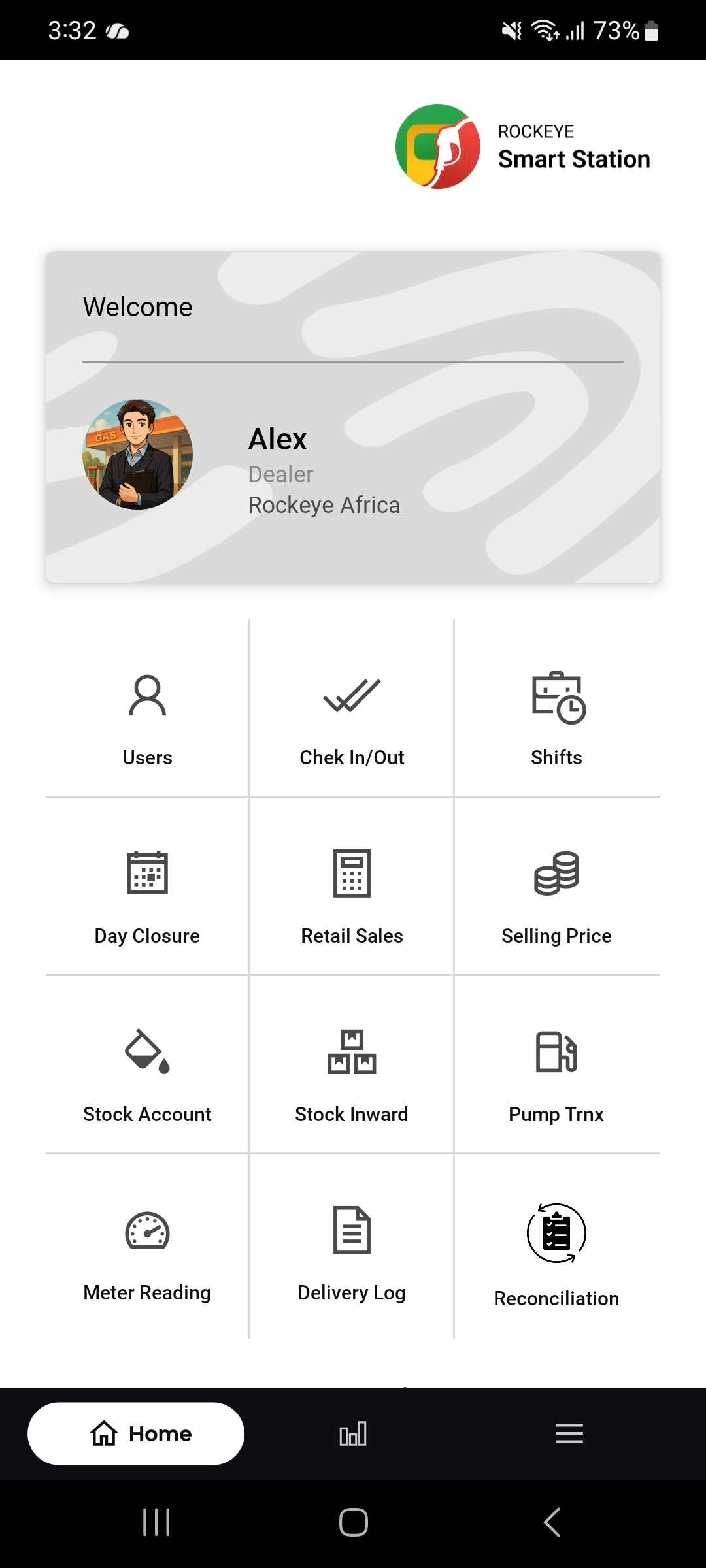
Tank Reconciliation List
Each reconciliation card shows:
- Reconciliation Reference
- Date
- Close button: A green Close action/status control for the reconciliation.
- Product & Variance: Product name with its variance percentage
- Slippage Qty / Slippage Type:
- Stock – Physical Available: Physically measured stock.
- Stock – Book Available: System-calculated stock
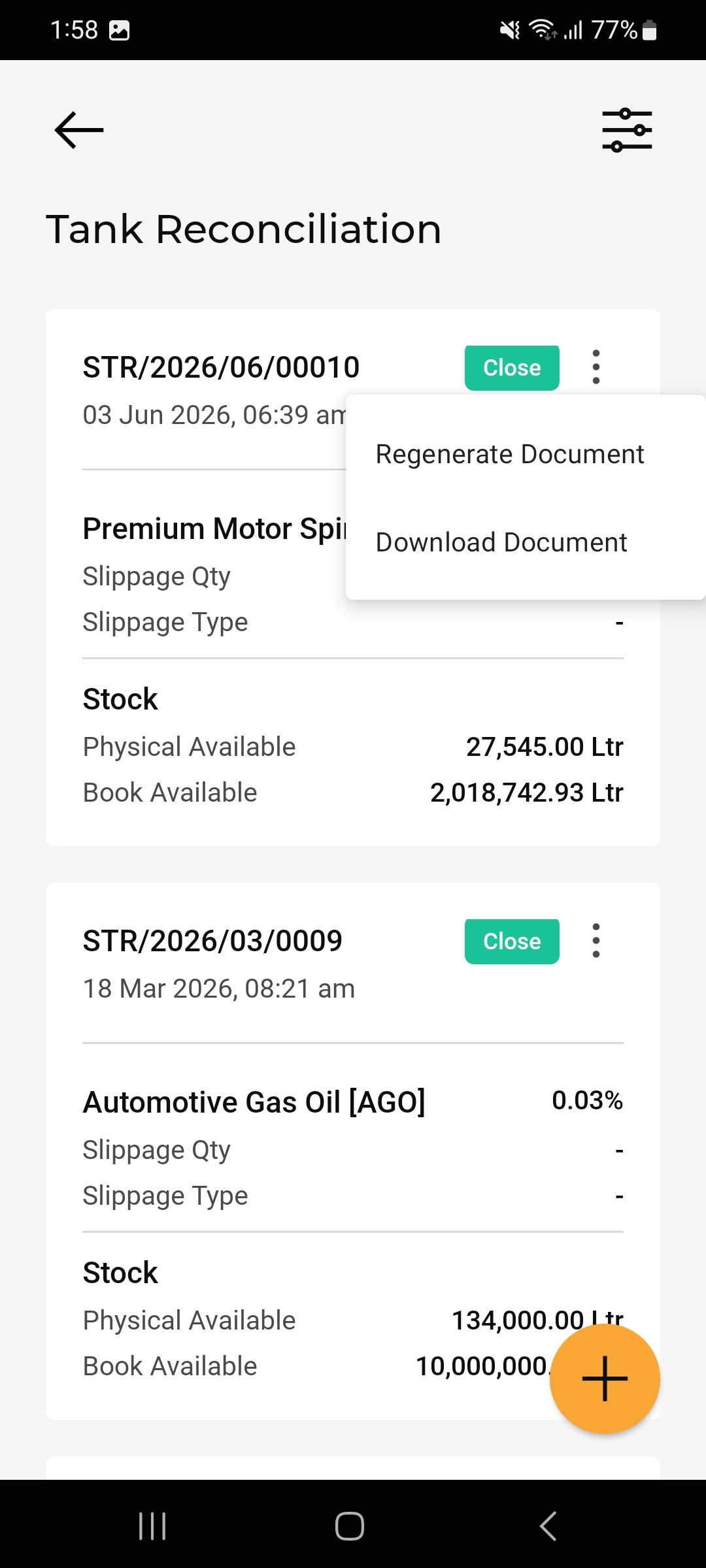
- 3-dot menu: Opens Regenerate Document and Download Document.
Reconciliation Actions – Regenerate / Download Document
The 3-dot menu on a reconciliation card offers:
- Regenerate Document – rebuilds the reconciliation’s supporting document.
- Download Document – downloads/exports the reconciliation document.
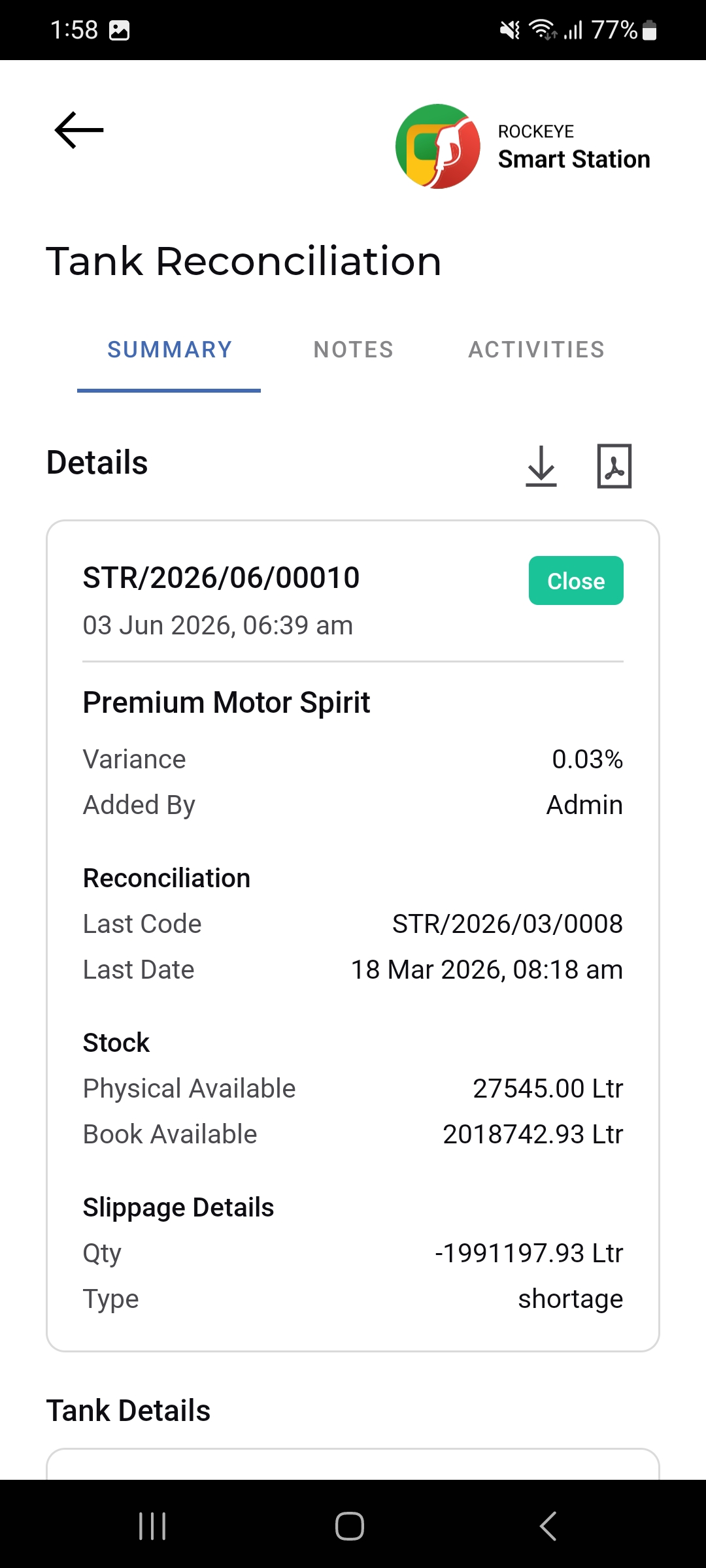
View Tank Reconciliation
Tapping a card opens the full detail across Summary, Notes, and Activities tabs, with download and PDF export icons at the top-right. Under Summary:
- Reference & Close status
- Product
- Variance
- Added By
- Reconciliation – Last Code / Last Date: Reference and date of the previous reconciliation for comparison
- Stock – Physical Available / Book Available: The same figures shown on the list card, in full precision.
- Slippage Details – Qty: The calculated stock difference
- Slippage Details – Type: Classification of the variance
Other Applicable Actions
- Use the filter icon to narrow reconciliations by product, tank, or date.
- Download or regenerate the supporting reconciliation document from the list or detail view.

