Tank Meter Reading
Introduction / Purpose
Tank Meter Reading records periodic gauge readings for each storage tank — quantity, product height, temperature, and water height — supporting stock accuracy and reconciliation.
How to Navigate
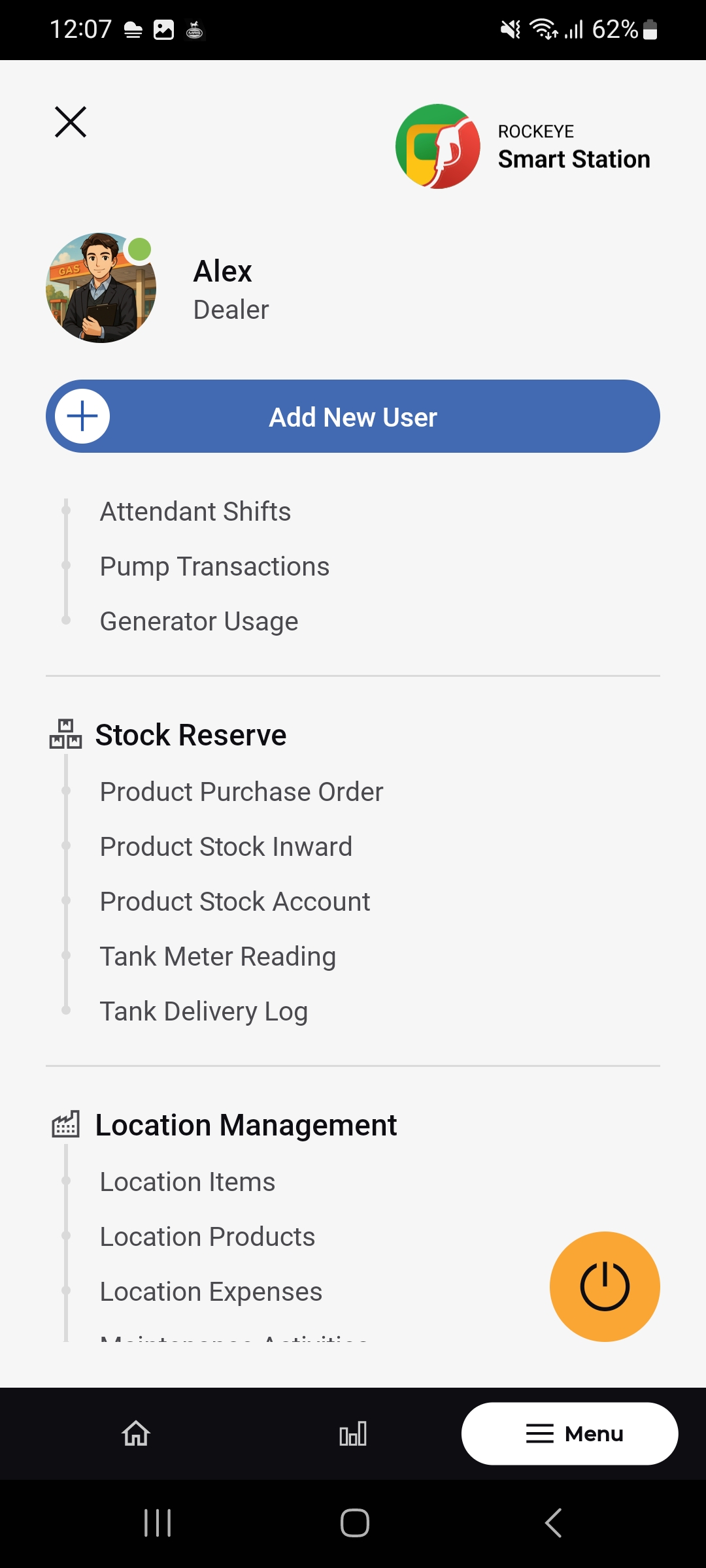
- From Home, tap Meter Reading, or the relevant Menu entry.
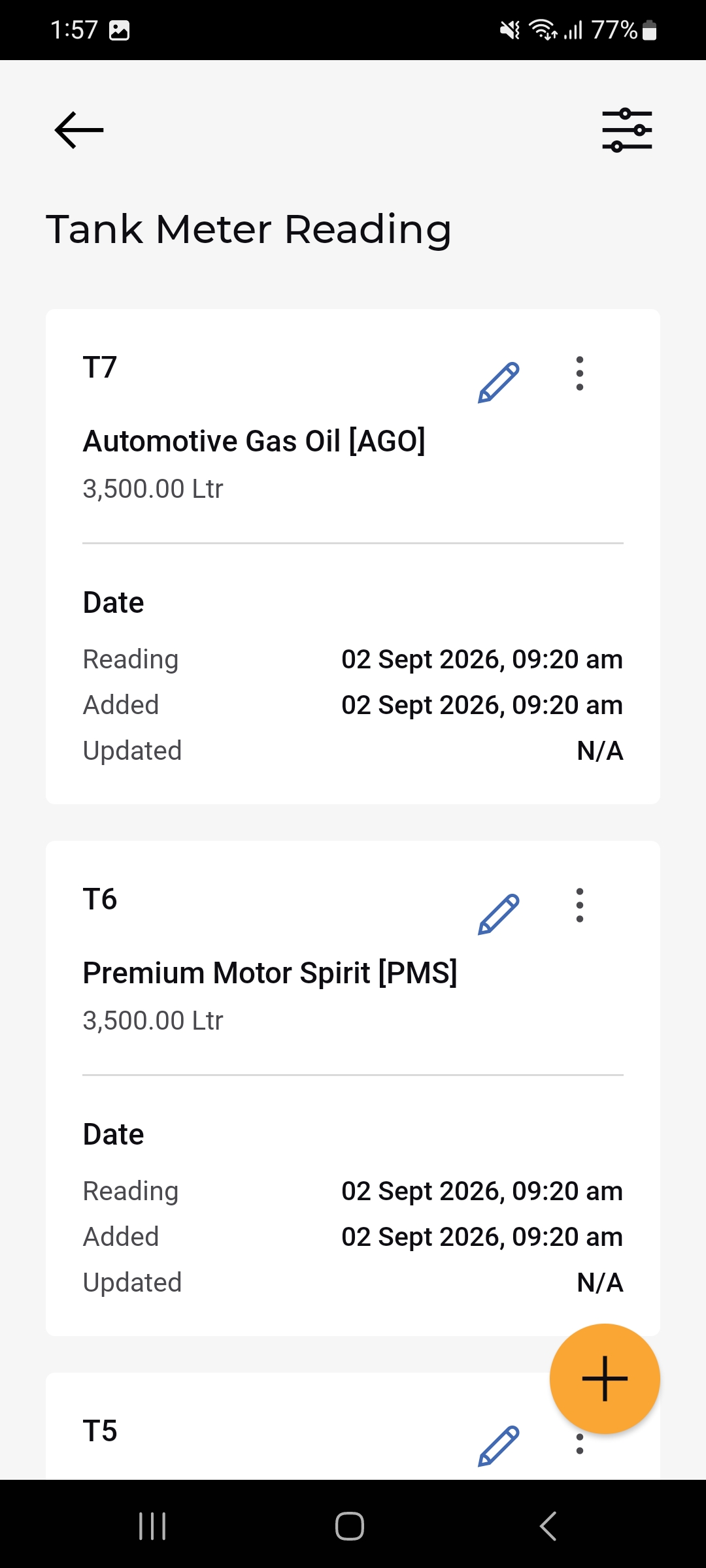
- The Tank Meter Reading list opens, showing each tank as a card.
- Tap the (+) button to record a new reading tap the pencil icon on a card to update an existing reading.
- Tap a card to open its full View Tank Meter Reading detail.
Tank Meter Reading List
Each tank card shows:
- Tank Code:
- Product:
- Quantity: Current stored quantity
- Date – Reading: Date/time the reading applies to.
- Date – Added: Date/time the reading was recorded.
- Date – Updated: Date/time of the last update, or N/A.
- Pencil (Edit) icon: Opens the Update Tank Meter Reading form.
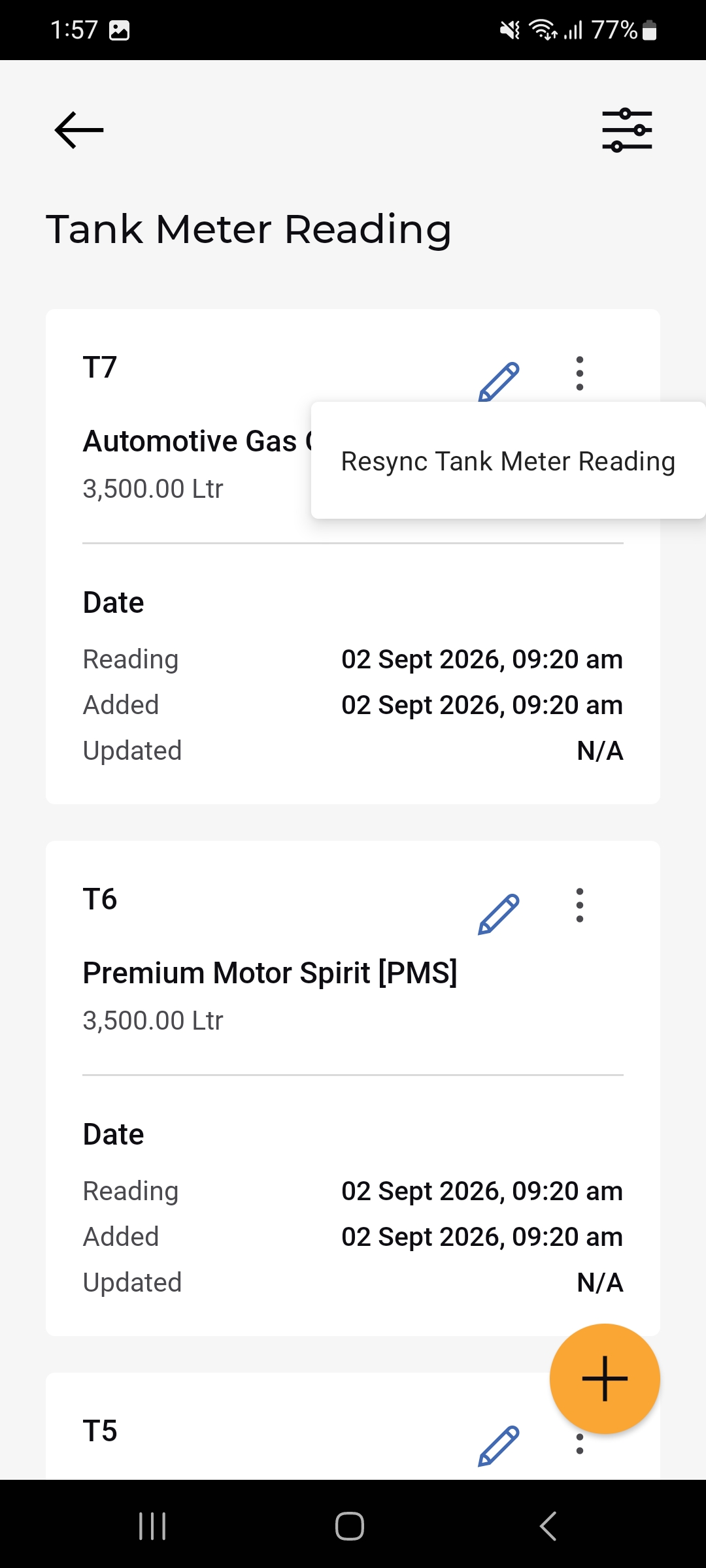
- 3-dot menu: Opens Resync Tank Meter Reading.
13.2.2 Add / Update a Tank Meter Reading
The Update Tank Meter Reading form (opened via the pencil icon, or a similar Add form via the floating (+) button) includes:
- Location Name: The station the tank belongs to.
- Tanks: Dropdown to select the tank .
- Quantity: Reading value and its unit.
- Reading Date: Date/time picker for the reading.
- Added From: How the reading was captured.
- Product Height: Measured product height.
- Temperature: Measured temperature.
- Water Height: Measured water height (field continues below the visible screen).
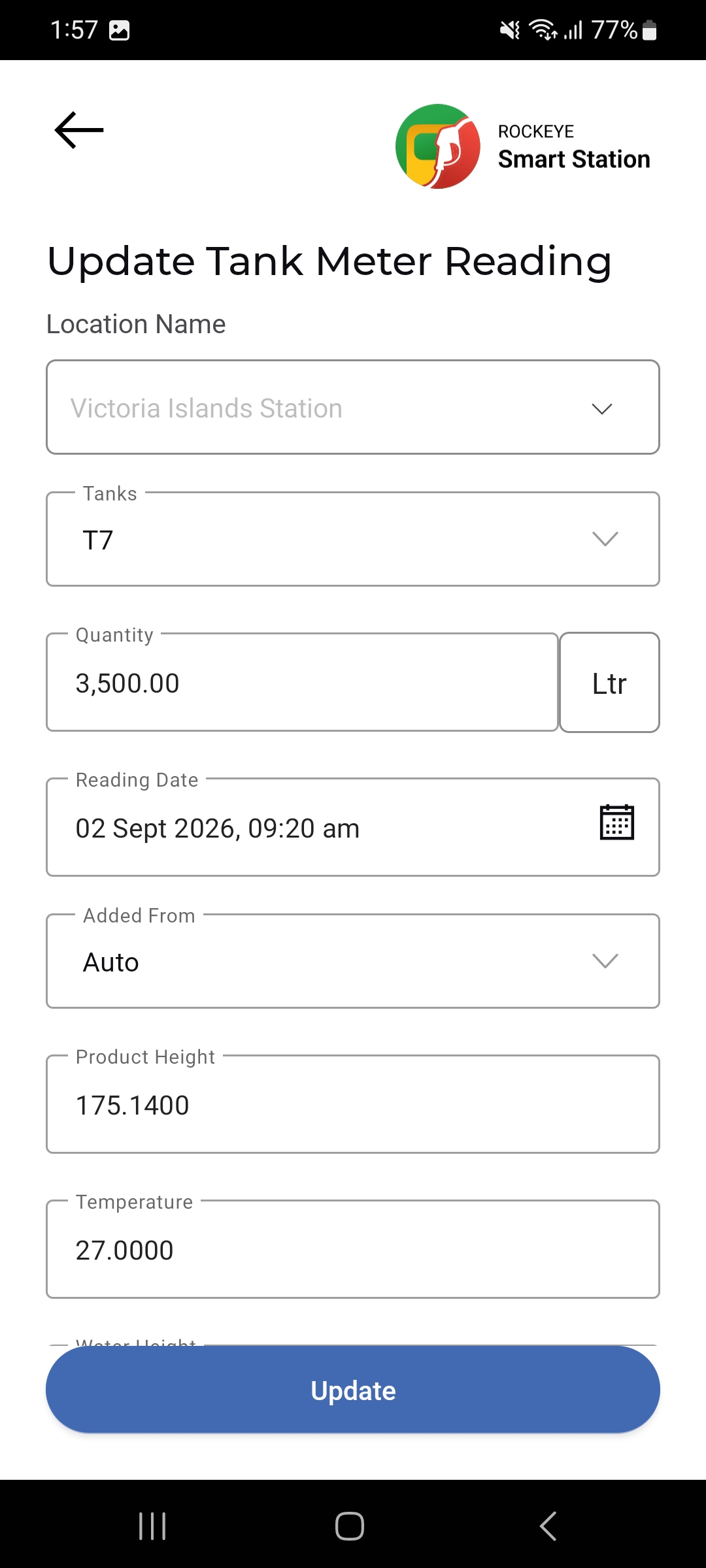
Tap Update (or Add) to save the reading.
13.2.3 Tank Meter Reading Actions – Resync
The 3-dot menu on a tank card offers Resync Tank Meter Reading, used to re-synchronize that tank’s reading data with the server.
13.2.4 View Tank Meter Reading
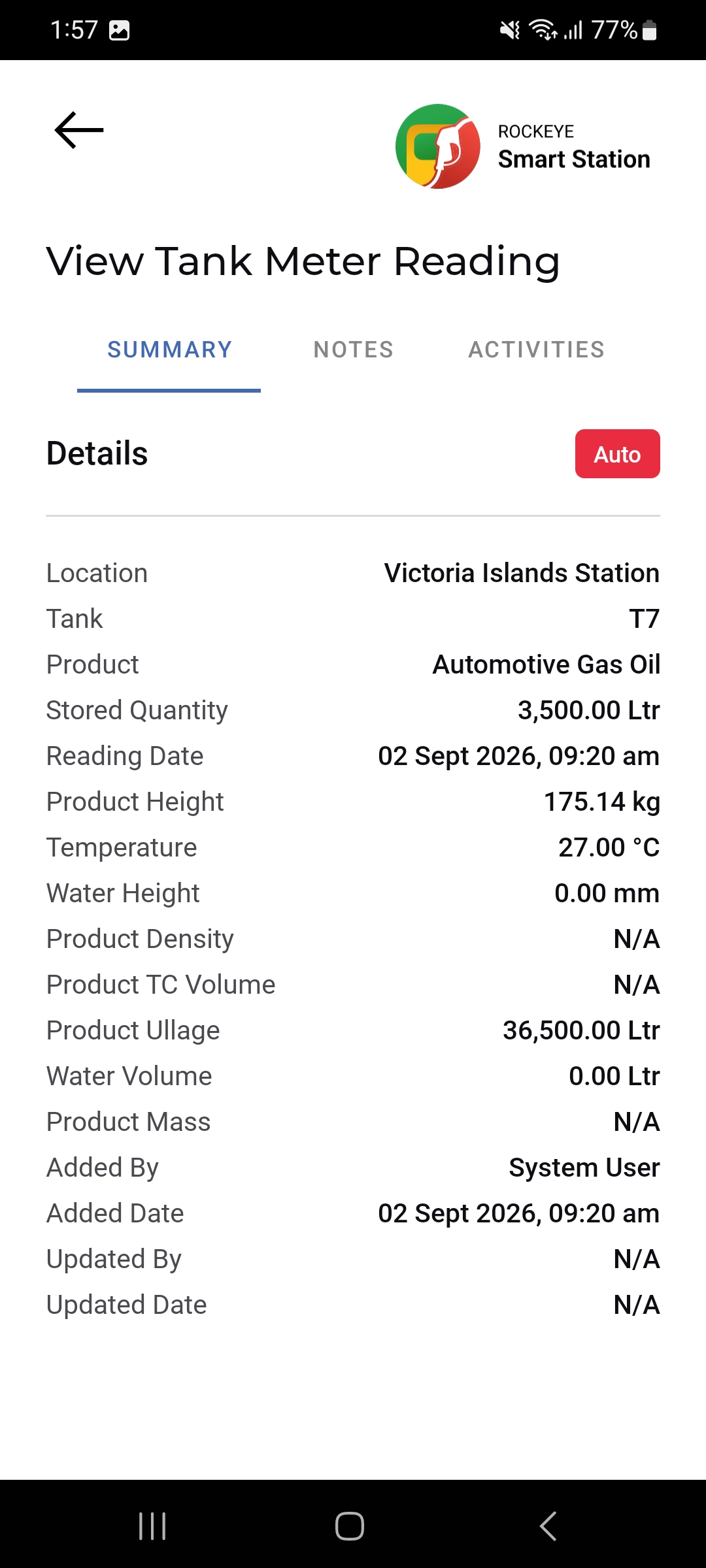
Tapping a card opens the full detail across Summary, Notes, and Activities tabs. Under Summary
- Location:
- Tank:
- Product:
- Stored Quantity:
- Reading Date:
- Product Height
- Temperature
- Water Height
- Product Density
- Product TC Volume
- Product Ullage: Remaining empty tank capacity
- Water Volume
- Product Mass:
- Added By / Added Date: Who recorded the reading and when
- Updated By / Updated Date: Who last updated the reading and when, or N/A.
13.3 Other Applicable Actions
- Use the filter icon to narrow tank readings by location or tank.
- Use Resync Tank Meter Reading to correct out-of-sync gauge data.

