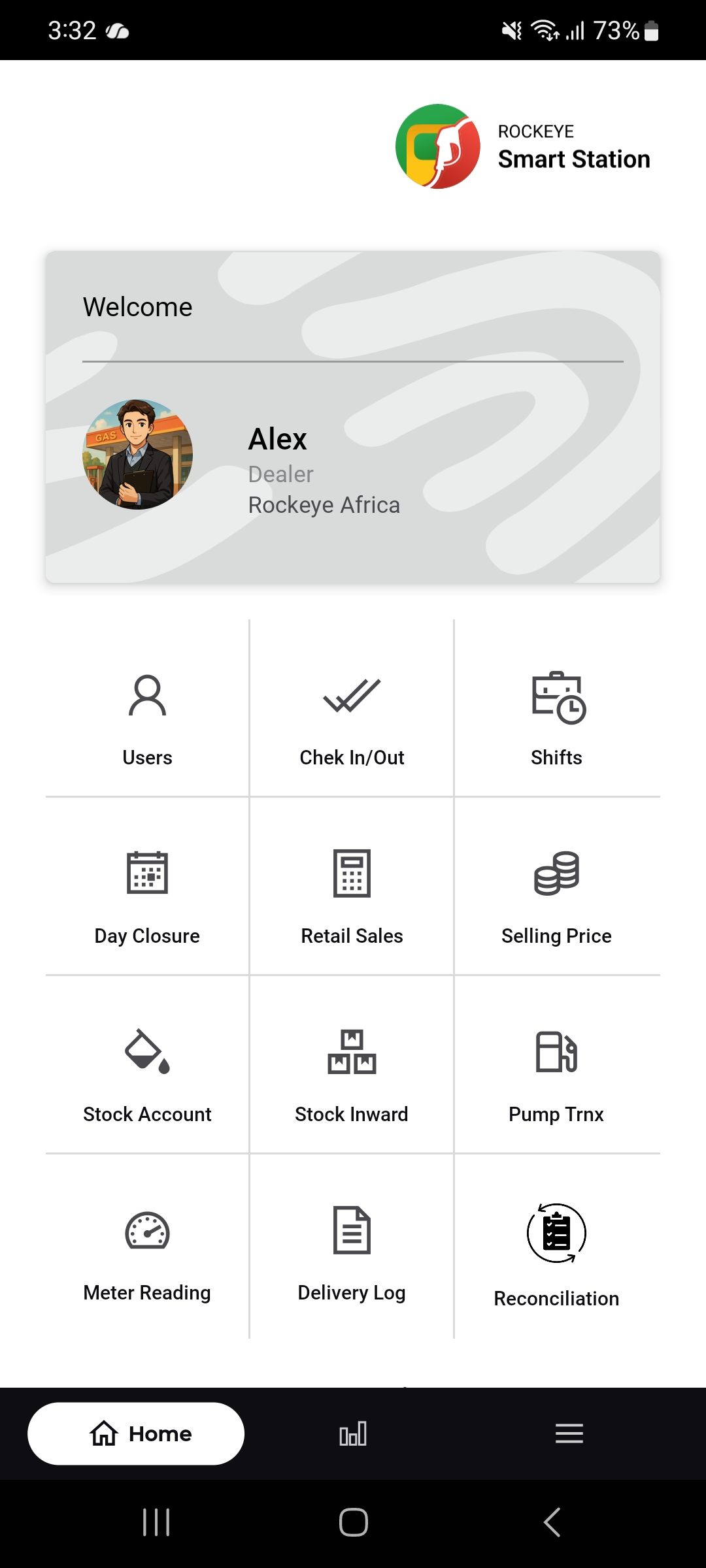
Selling Price
9.1 Introduction / Purpose
The Selling Price module maintains the current and historical unit prices for every product sold at the station — both liquid fuel products and retail/shop items — along with a record of who set each price and when.
9.2 How to Navigate
- From Home, tap Selling Price .
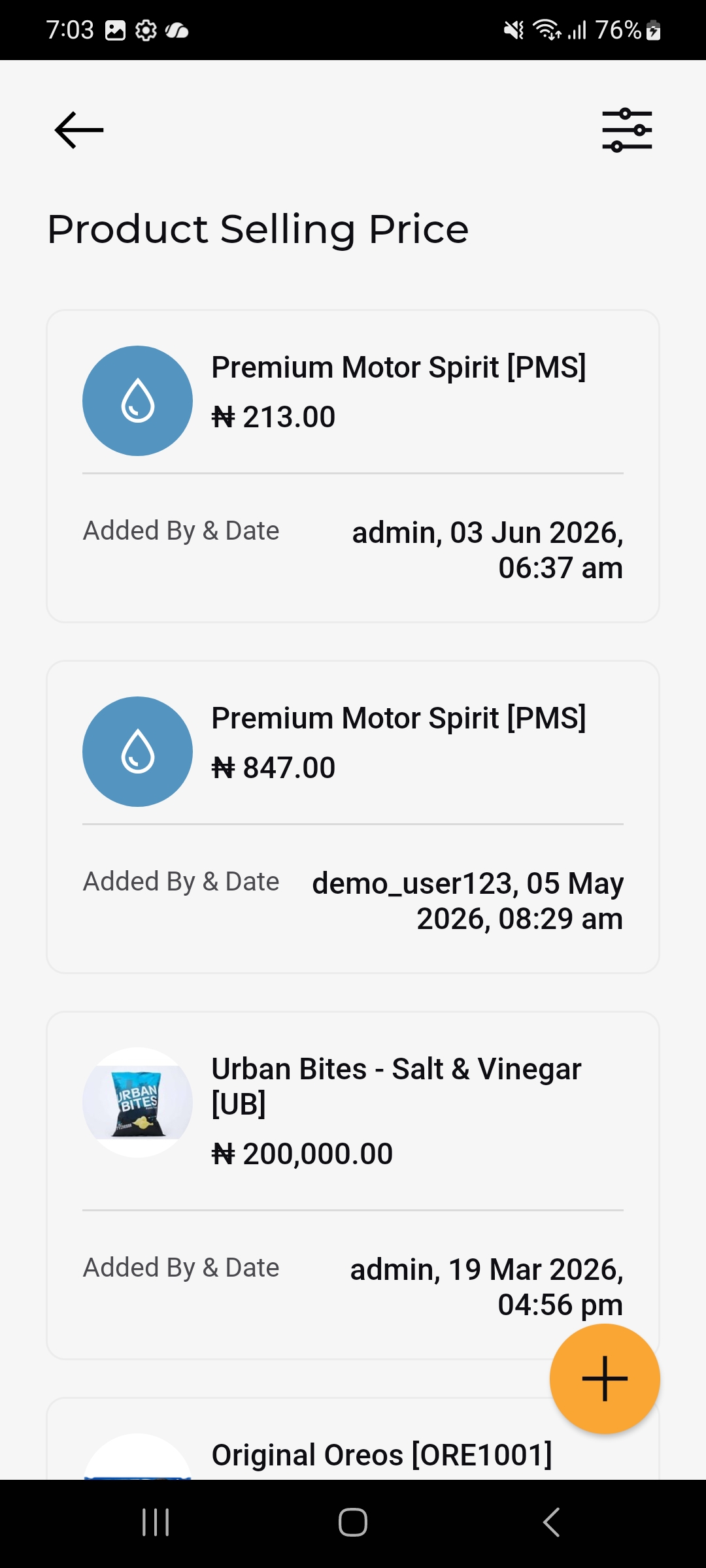
- The Product Selling Price list opens, showing each product’s current price as a card.
9.2.1 Product Selling Price List
Each card includes:
- Product icon & name
- Current price
- Added By & Date: Who set that price and when .
Both fuel products (liquid) and shop/retail items appear in the same list, each with their own price-history entries — a single product can have multiple cards reflecting price changes over time.
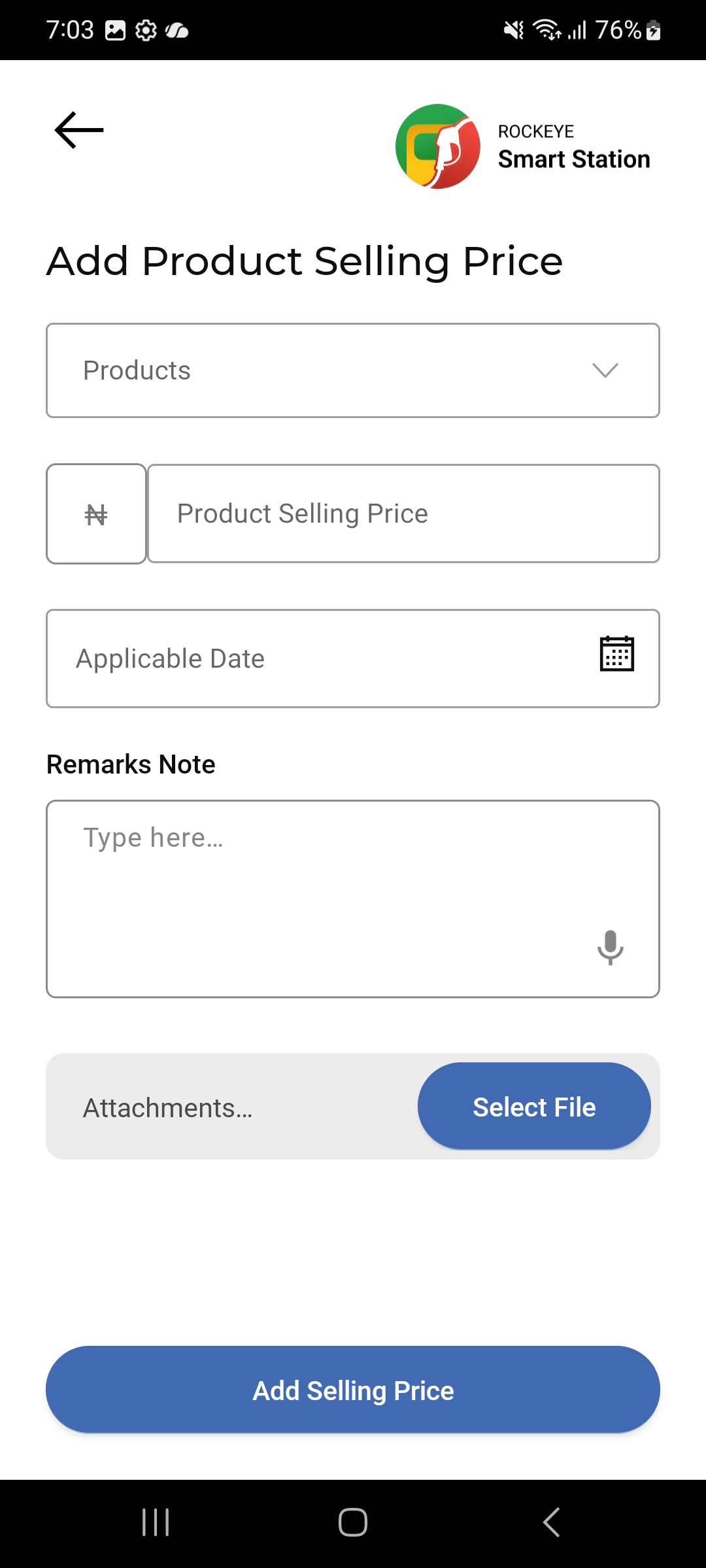
9.2.2 Add a Product Selling Price
- Tap the floating (+) button on the Product Selling Price list.
- Select the Products dropdown to choose the item.
- Enter the Product Selling Price (currency amount).
- Set the Applicable Date using the calendar picker — the date from which this price takes effect.
- Optionally add a Remarks Note.
- Optionally attach supporting documentation via Attachments > Select File.
- Tap Add Selling Price to save the new price.