Attendant Shifts
7.1 Introduction / Purpose
Tracks each attendant’s sales shift — including duration, sales type, and total sales value — and lets the Dealer/Station Manager monitor, filter, and manage shift records.
7.2 How to Navigate
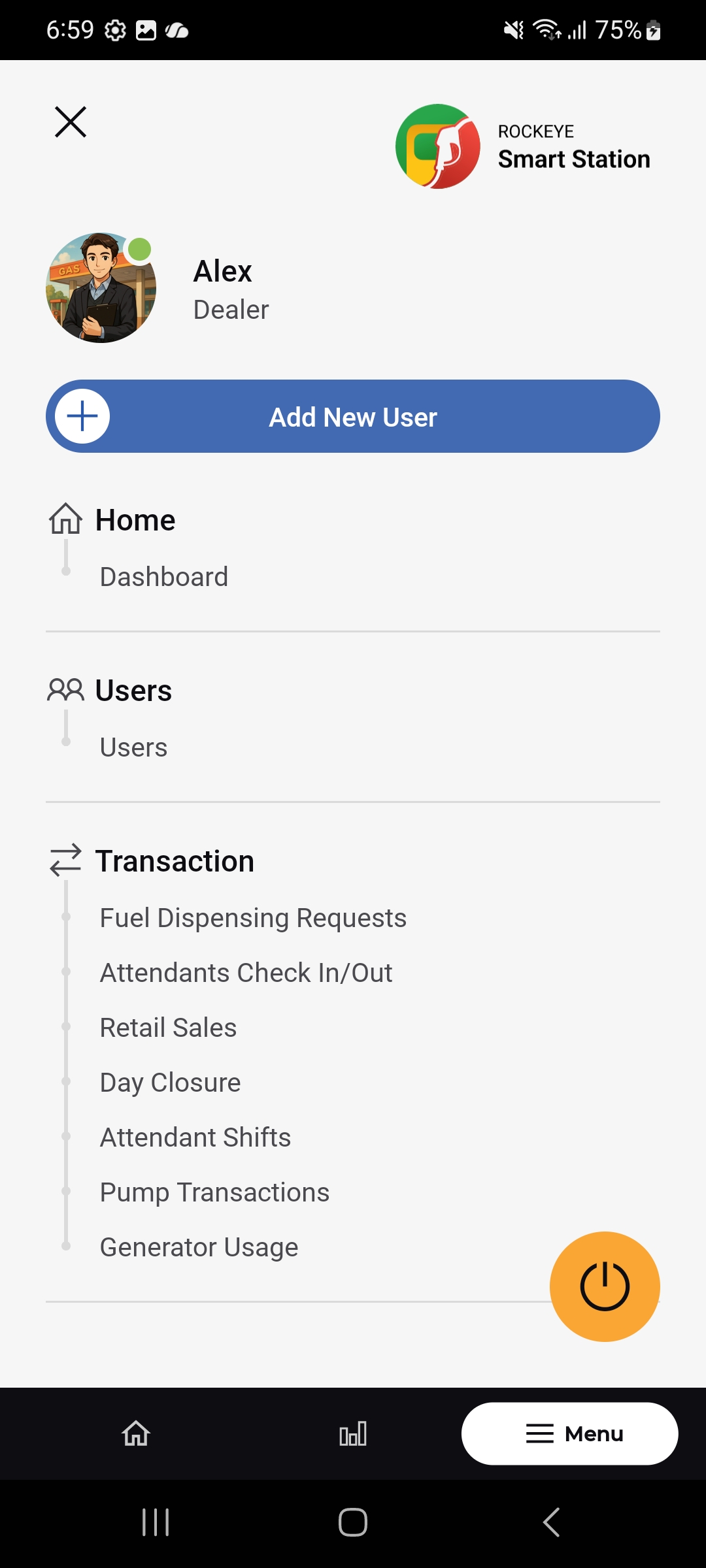
- From Home, tap Shifts, or Menu > Transaction > Attendant Shifts.
- The list opens with status tabs: All, Running, Completed, Enclosed.
- Tap a status tab to filter the list by that status.
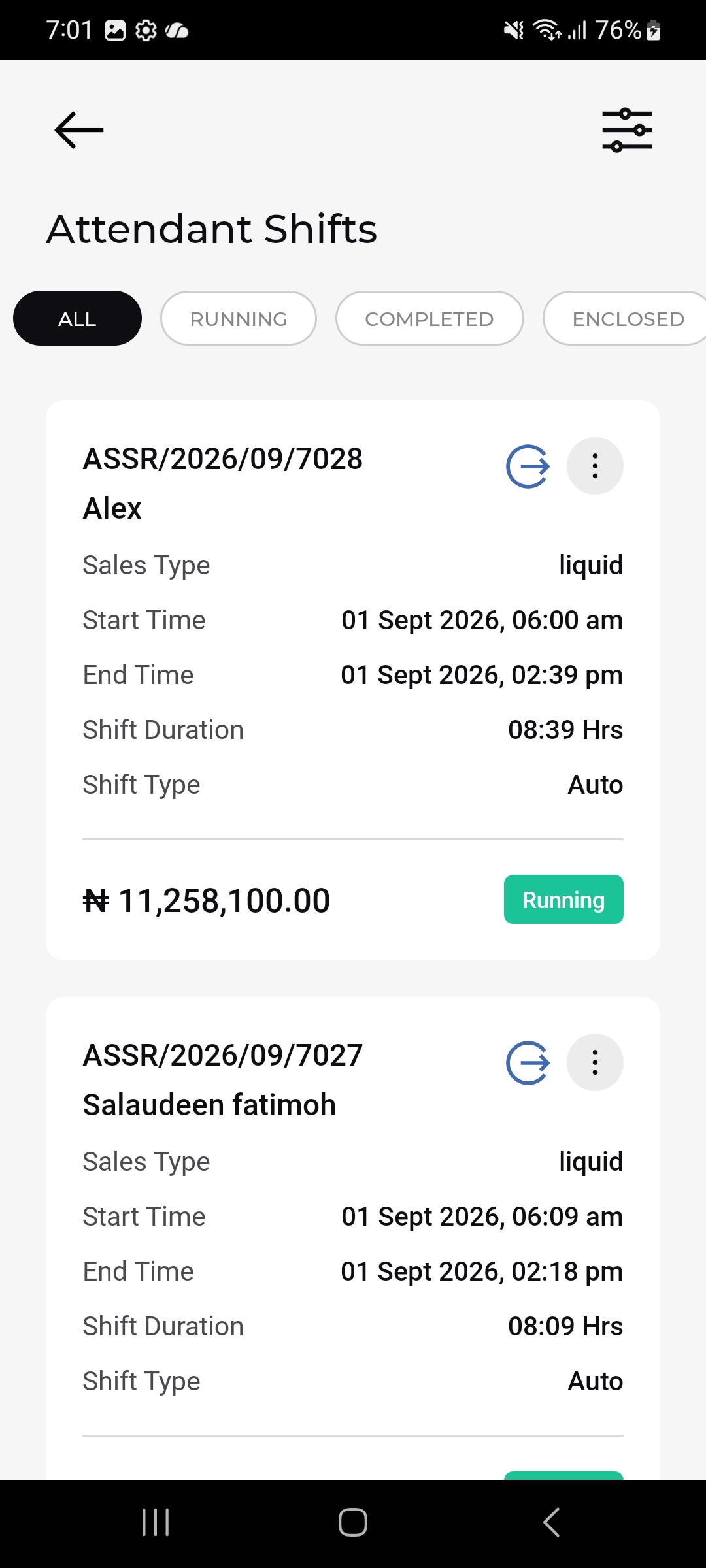
7.2.1 Shift Card Details
Each shift record shows:
- Shift Reference No.
- Attendant Name.
- Sales Type: e.g. liquid.
- Start Time / End Time: Date and time the shift began and ended.
- Shift Duration.
- Shift Type: e.g. Auto.
- Total Sales Value:.
- Status: Running / Completed / Enclosed badge.
- Check-out icon: Ends an active shift.
- 3-dot menu: Additional shift actions.
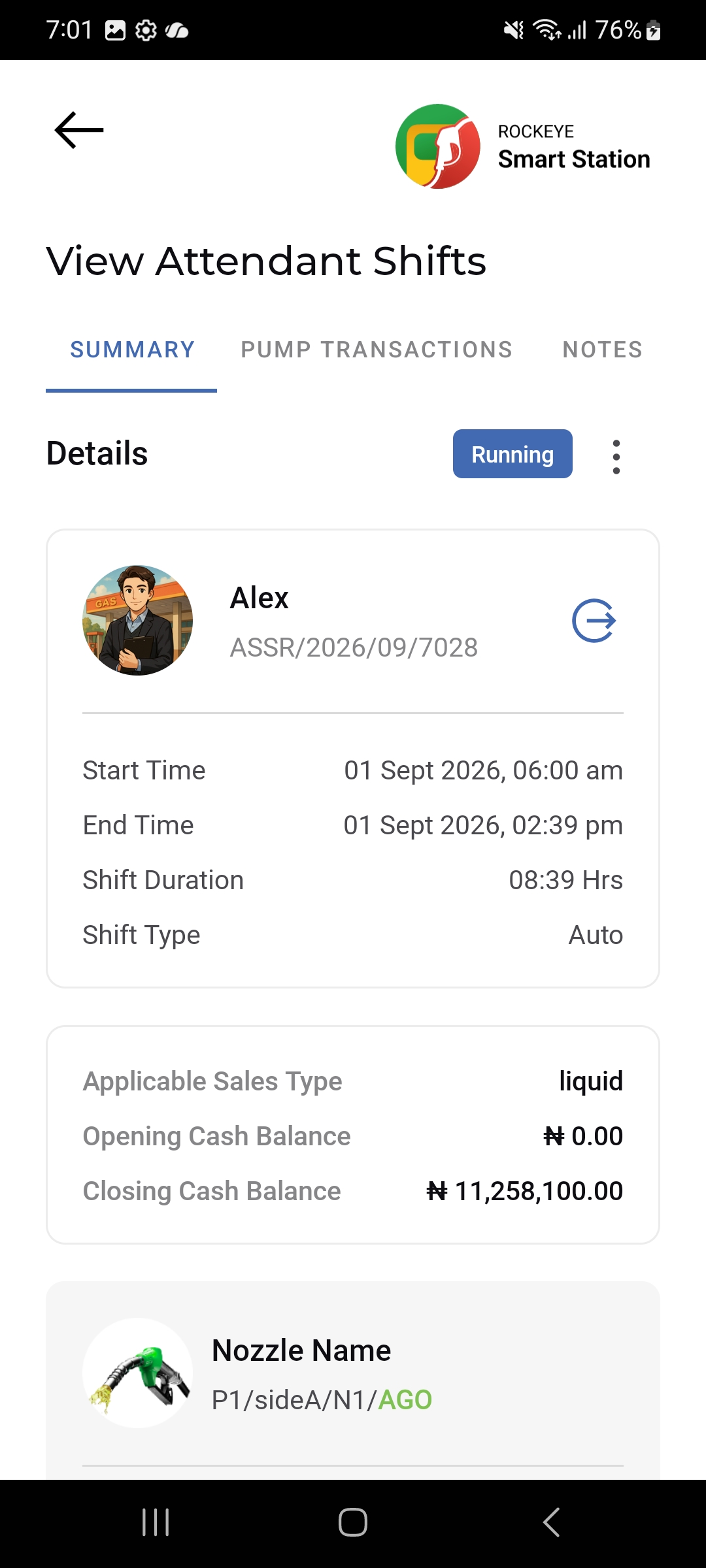
7.2.2 View Attendant Shift – Summary Tab
Tapping a shift card opens the View Attendant Shifts screen across three tabs: Summary, Pump Transactions, and Notes.
Under Summary:
- Details header: Shows the shift’s status badge (Running/Completed/Enclosed).
- Attendant & reference: Name, photo, and shift reference, with a checkout icon.
- Start Time, End Time, Shift Duration, Shift Type:
- Applicable Sales Type:
- Opening Cash Balance
- Closing Cash Balance
- Nozzle Name: The pump/side/nozzle/product the attendant operated during the shift.
7.2.4 View Attendant Shift – Pump Transactions Tab
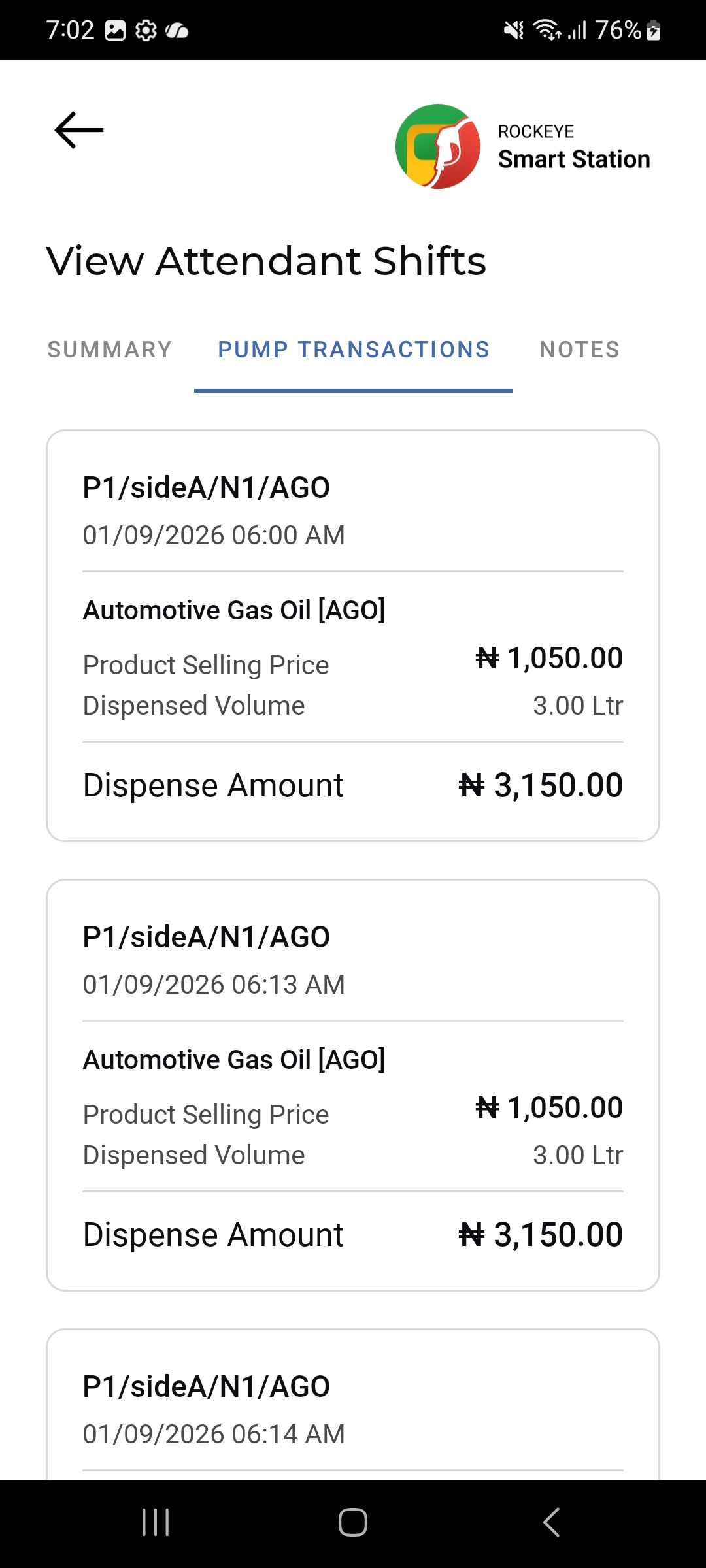
Lists every individual fuel dispense recorded during the shift, giving a transaction-level audit trail behind the shift totals. Each transaction card shows:
- Nozzle & product
- Date & time
- Product name
- Product Selling Price
- Dispensed Volume
- Dispense Amount: Calculated value of that dispense
7.3 Other Applicable Actions
- Switch between the ALL, RUNNING, COMPLETED, and ENCLOSED tabs to review shifts by status.
- Use the check-out icon to close a Running shift.

