Home Dashboard & Navigation
2.1 Introduction / Purpose
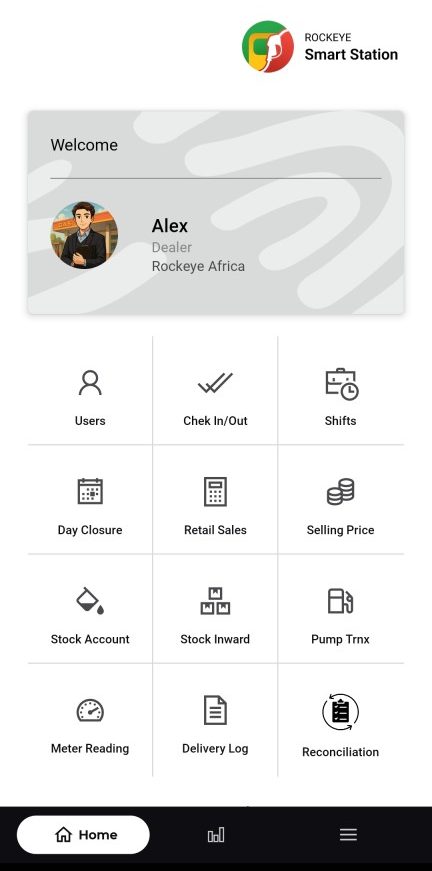
The Home dashboard is the central hub of the application, providing quick-access tiles to every major function: Users, Check In/Out, Shifts, Day Closure, Retail Sales, Selling Price, Stock Account, Stock Inward, Pump Trnx, Meter Reading, Delivery Log, and Reconciliation.
2.2 How to Navigate
- Welcome Card: Displays the user’s photo/avatar, name, role, and business/organization name.
- Bottom Navigation Bar: Present on every screen: Home (dashboard), Sales/Analytics, and Menu
2.3 Menu / Navigation Drawer
Tapping the Menu icon opens a full-screen drawer listing all application modules by category, plus the profile summary and an Add New User shortcut.
- Profile header: Username, and role, with a close icon.
- Add New User: Quick shortcut to create a new user.
- Home: Dashboard.
- Users: Users list.
- Transaction: Fuel Dispensing Requests, Attendants Check In/Out, Retail Sales, Day Closure, Attendant Shifts, Pump Transactions, Generator Usage.
- Logout icon: Located bottom-right of the drawer, used to sign out.
2.4 Other Applicable Actions
- Tap any Home grid tile or Menu item to open that module.
- Tap the bar-chart icon in the bottom navigation bar to jump directly to Sales-related screens.

