Fuel Dispence Request
Introduction
The "Fuel Dispensing Requests" feature within the SmartStation mobile application. This section allows you to manage fuel requests, including adding new requests, updating existing ones, and ensuring data is synchronized.
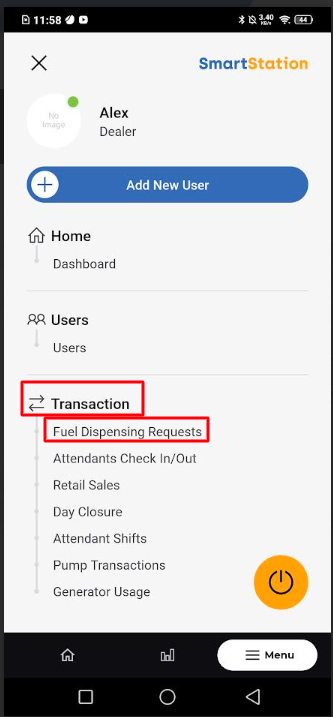
How To Navigate
- Open the SmartStation app.
- Navigate to the "Menu" button (usually located at the bottom right corner).
- Select "Transaction" from the menu options.
- Choose "Fuel Dispensing Requests" from the list of transaction options.
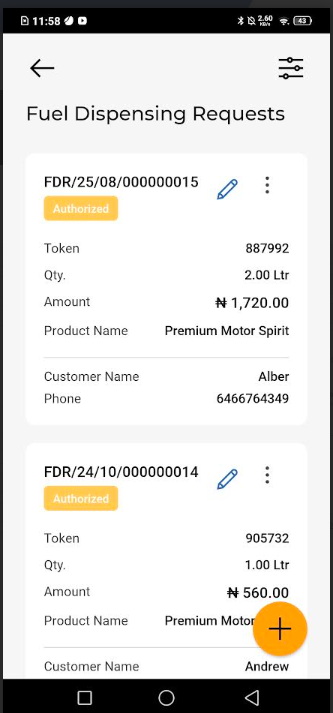
Add Fuel Dispence Request
On the "Fuel Dispensing Requests" screen, tap the orange "+" button at the bottom right corner.
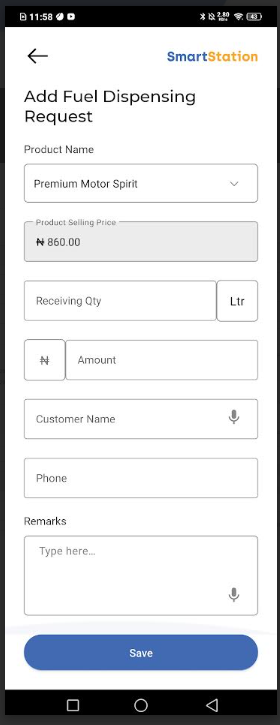
- Product Name: Select the type of fuel (e.g., Premium Motor Spirit).
- Product Selling Price: This field will typically auto-populate based on the selected product.
- Receiving Qty: Enter the quantity of fuel in liters. The "Amount" will automatically calculate.
- Customer Name: Enter the customer's name.
- Phone: Enter the customer's phone number.
- Remarks (Optional): Add any relevant notes about the request.
- Tap "Save" to finalize the request.
- A "Details" screen will appear, showing a unique Token Number and Fuel Dispensing Code for the new request. This screen also displays a countdown for screen timeout.
View and edit data
- On the "Fuel Dispensing Requests" screen, locate the request you wish to edit.
- Tap the pencil icon next to the request. This will open the "Update Fuel Dispensing Request" screen.
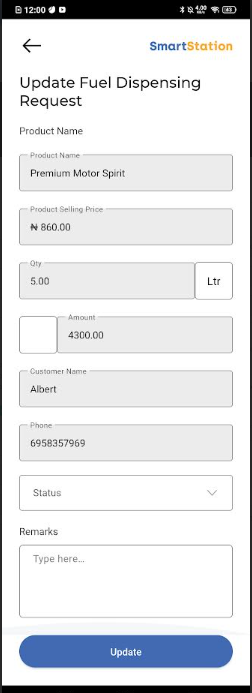
- On this screen, you can modify details such as the product name, quantity, customer information, and status.
- Once you have made the necessary changes, tap the "Update" button at the bottom of the screen to save your modifications.
Resynchronizing Data
If you need to resync a specific request with the server, follow these steps:
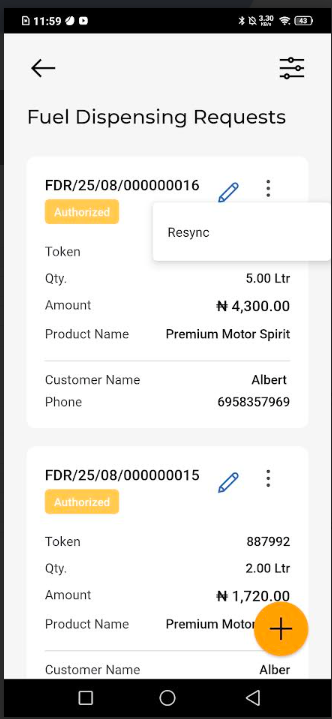
- On the "Fuel Dispensing Requests" screen, find the request you want to sync.
- Tap the three vertical dots (menu button) next to the request.
- A dropdown menu will appear. Select "Resync" to synchronize the data for that specific request.
Filtering Fuel Dispensing Requests
o easily find a specific request, you can use the filtering options:
- Tap the filter icon (two horizontal lines with circles) at the top right of the "Fuel Dispensing Requests" screen.
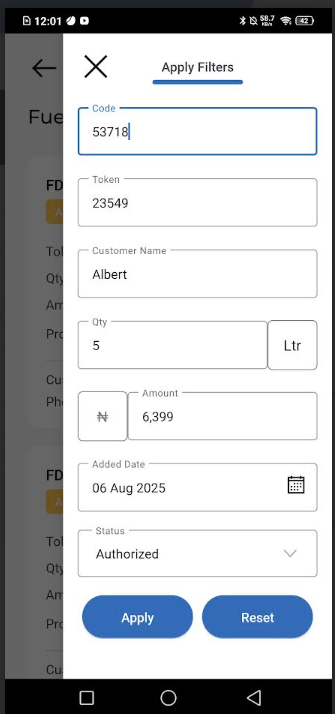
- The "Apply Filters" screen will appear. You can filter by various criteria, including:
- Code: Unique identifier assigned to each transaction or fuel entry.
- Token: Reference number generated for a specific fueling operation or request.
- Customer Name: Name of the customer receiving the fuel or service.
- Qty (Quantity): Total volume of fuel issued or recorded, typically in litres.
- Amount: Monetary value charged or calculated based on the fuel quantity.
- Added Date: Date and time when the entry or transaction was recorded in the system.
- Status: Indicates the current state of the transaction (e.g., Completed, Pending, Cancelled).
- Fill in the desired filter criteria and tap "Apply." To clear the filters, tap "Reset."

