Team Management
Introduction
The Team Management module in ROCKEYE CRM is designed to organize users into structured groups based on roles, departments, or business functions. It enables organizations to define clear hierarchies—such as HOD, Supervisor, and Team Lead—ensuring streamlined communication, accountability, and operational control.
This module acts as a bridge between user roles and real-world organizational structure, allowing businesses to manage teams efficiently while aligning responsibilities across different levels. By grouping users into teams, organizations can assign tasks, track performance, and control access more effectively.
Team Management plays a crucial role in improving collaboration and visibility. It helps ensure that workflows, leads, and activities are routed to the right team members, reducing dependency gaps and enhancing productivity.
How To Navigate
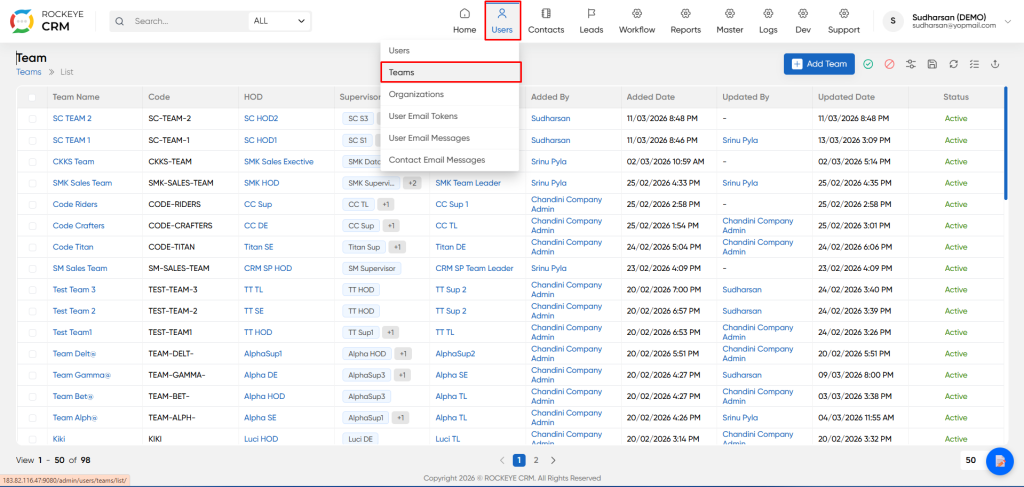
- Click on the Users icon in the top navigation bar.
- Select Teams from the dropdown menu.
How to Add a New Team
Click the Add Team button to open the creation modal.
- Team Name: Enter the display name for the team.
- Team Code: Enter a unique alphanumeric code/identifier for the team.
- HOD: Select the Head of Department from the dropdown. This user must exist in the system.
- Supervisor: Select one or more supervisors for the team. You can add multiple supervisors.
- Team Lead: Select the primary team leader from the dropdown.
Actions:
- Discard: Cancel and close the form without saving.
- Save: Create the team immediately.
Once the team details are saved, they will be displayed on the listing page along with all relevant information
Team Details & Management
Click on any Team Name in the list to view the detailed team page. This view is split into two sections:
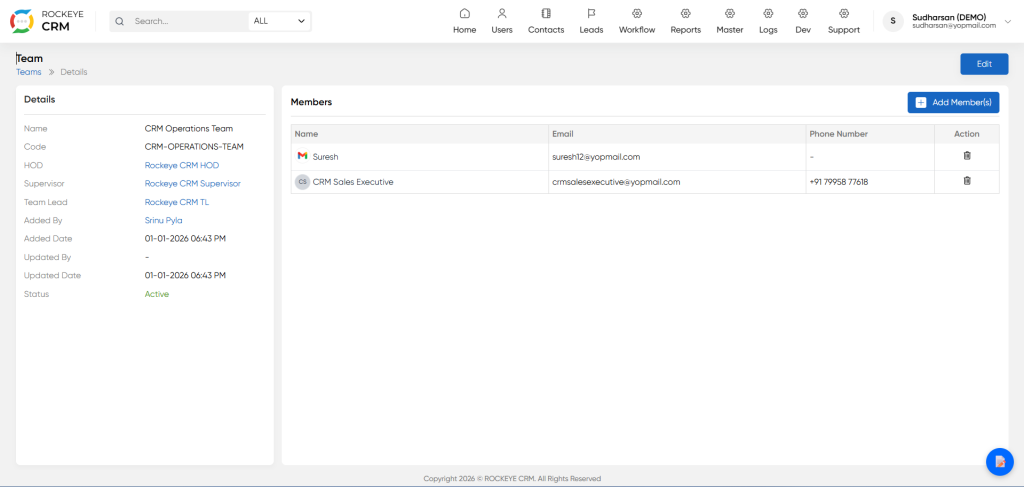
Left Panel - Details:
Shows a read-only summary of the team's configuration:
- Name, Code, HOD, Supervisor(s), Team Lead
- Audit information (Added By, Added Date, Updated By, Updated Date)
- Current Status
Right Panel - Members:
Displays all users currently assigned to this team.
- Add Member(s): Click this button to assign existing users to the team.
- Action Column: Remove members using the trash icon.
Update Team
Click the Edit button in the top right to modify team details. The Update Team modal allows you to:
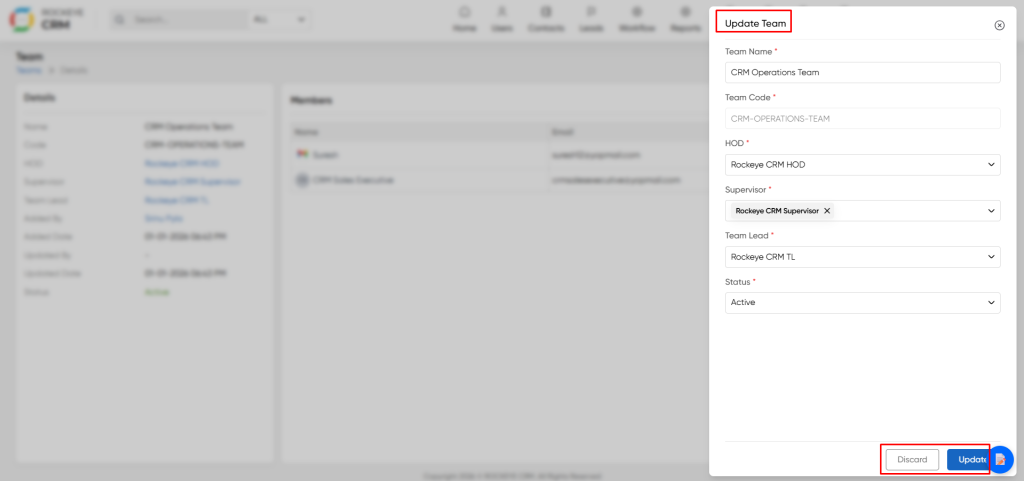
- Change the Team Name or Code
- Reassign HOD, Supervisors, or Team Lead
- Change Status (Active/Inactive)
- Update: Save changes
- Discard: Cancel changes
Adding Members to a Team
In the Team Details view, click Add Member(s).
- The Add Member(s) modal will open showing a searchable list of all available users.
- Select Members: Click to select one or multiple users from the list (displays Name, Email, and Role).
- Click Save to assign them to the team immediately.
Note: Users must already exist in the system (created in the Users module) before they can be added to a team.
Listing
The Teams list displays all created teams with their organizational hierarchy.
- Team Name: The display name of the team.
- Code: A unique identifier/code for the team.
- HOD: The Head of Department assigned to this team.
- Supervisor: The supervisor(s) managing the team.
- Team Lead: The team leader assigned to this team.
- Added By/Date: Who created the team and when.
- Updated By/Date: Who last modified the team and when.
- Status: Active or Inactive state of the team.
Toolbar Actions:
- Filters: Filter teams by Name, code, HOD, supervisor, team lead, Added by, update by and status
- Column Manager: Customize which columns are visible.
- Export: Download team data (CSV/PDF).
Saving Filters for Teams
Just like in the Users module, you can save frequently used filter configurations for quick access.
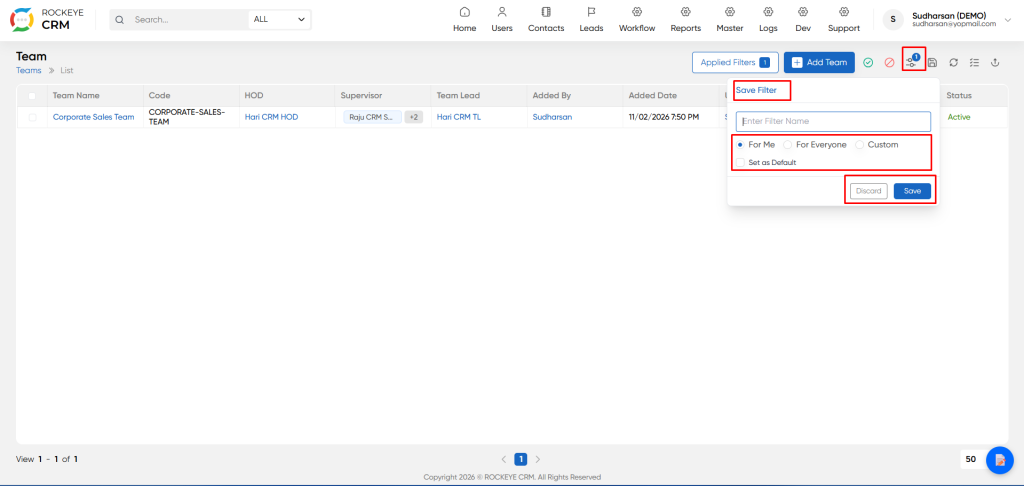
To save a Team filter:
- Apply your desired filters using the Filters panel (e.g., filter by specific HOD or Status).
- Click the Save Filter icon (floppy disk with badge) in the top toolbar.
- The Save Filter dialog will appear.
- Enter Filter Name
- Visibility
- For Me: Private to your account only.
- For Everyone: Shared with all system users.
- Custom: Limited to specific users or groups.
- Set as Default Enable this to automatically apply this filter every time you open the Teams page.
- Discard / Save Click Discard to cancel, or Save to store the filter preset.

