Campaign Management
Introduction
Campaign Management enables users to plan, execute, and monitor marketing campaigns across different channels. It helps organize target audiences, track engagement, and manage associated contacts and companies within each campaign.
This module improves marketing efficiency by providing insights into campaign performance, allowing businesses to optimize strategies and generate better leads.
This is the central workspace for all marketing and outbound outreach operations. This module allows teams to create, manage, audit and execute end-to-end targeted prospecting campaigns. It also includes native built-in tools for AI enrichment, data quality auditing, deduplication and compliance filtering.
The Campaign Management module is used for lead generation and lead management. It allows users to create sales/marketing campaigns, import bulk companies and contacts (leads), track data quality, manage batches, and monitor outreach performance.
How To Navigate
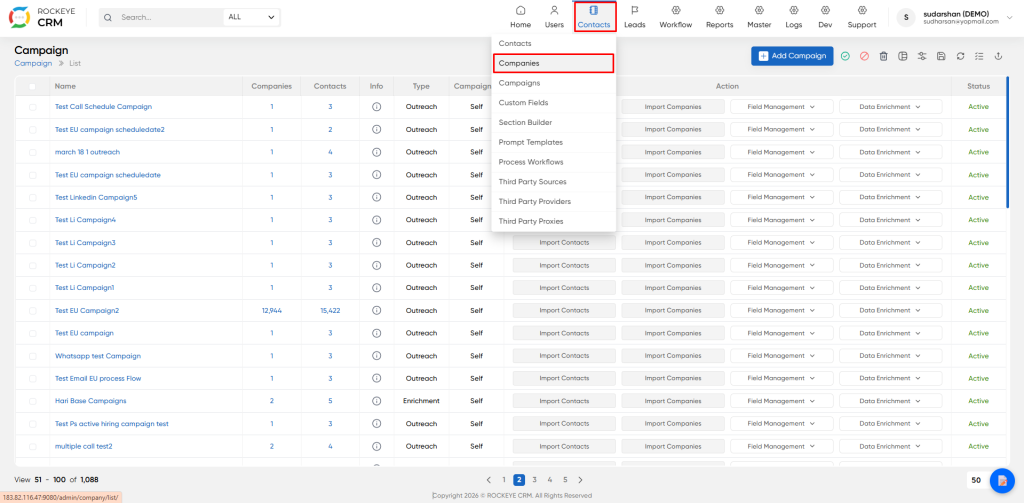
- Click on Campaigns in the top navigation menu.
- You will land on the Campaign List View by default.
How To Create a New Campaign
Click Add Campaign button to open the form.
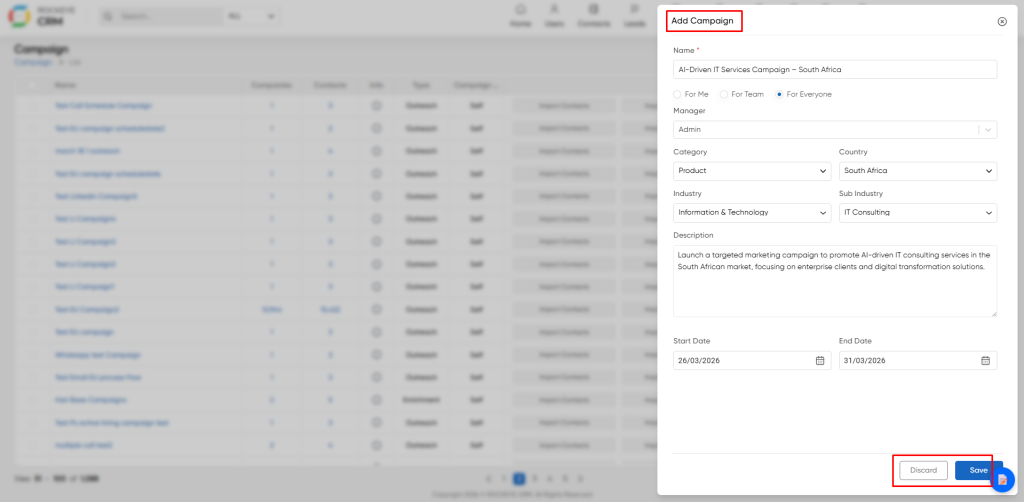
- Name: Name of the campaign
- Visibility: (Me, My Team, or Everyone)
- Manager: Person responsible for the campaign
- Category: Product/Service
- Country: Target country
- Industry Target industry
- Sub Industry More specific industry segment
- Start Date Campaign start date
- End Date Campaign end date
- Description Detailed purpose and objective of the campaign
After filling details, click Save.
Campaign Detail View – Tab Wise & Field Description
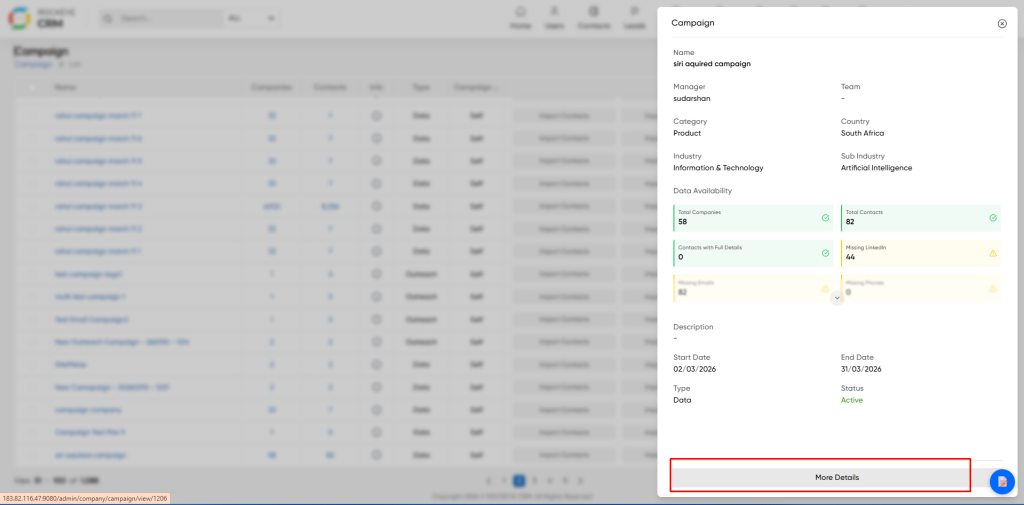
Summary Tab
Shows basic campaign information (Name, Manager, Industry, Dates, Description). The system automatically scans all loaded data for missing fields, duplicates, invalid phone numbers, compliance flags and country mismatch. Dashboard refreshes automatically on every import or edit.
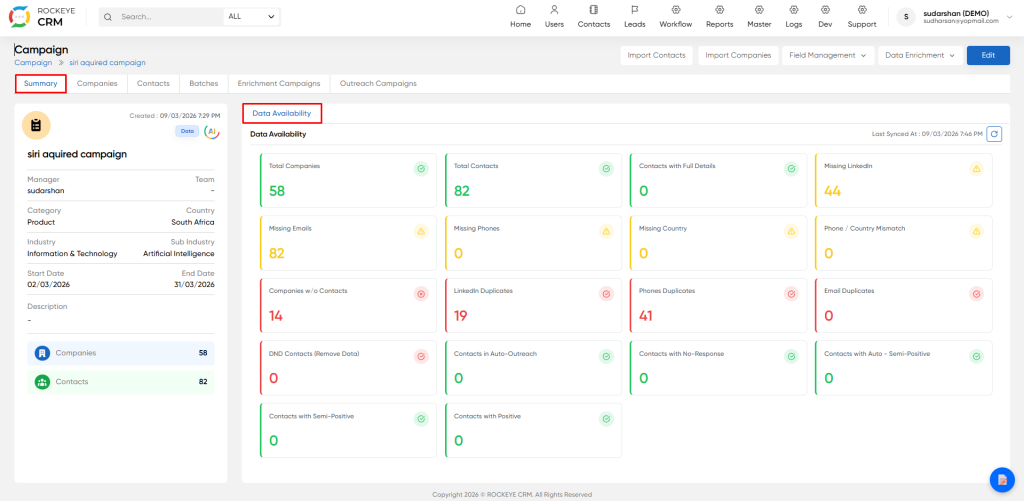
- Displays lead quality metrics in colored boxes:
- Total Companies
- Total Contacts
- Having Emails
- Having LinkedIn
- Having Phone Numbers
- Contacts with Full Details
- Missing Emails / LinkedIn / Phone
- Contacts with Same Position / Same Mobile / Same Business Email
These metrics help users quickly understand the quality and completeness of leads in the campaign.
Company tab
Full list of all target organizations loaded into the campaign. Manually add, edit or remove company records from this tab. All records are automatically synced to the global master company database.
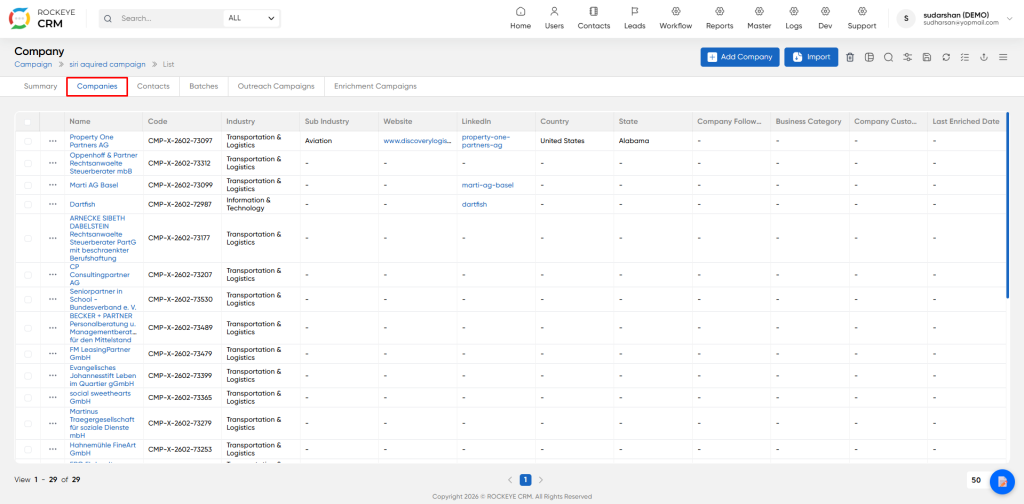
Lists all companies added to the campaign.
- Company Name
- Code
- Industry
- Sub-Industry
- Website
- Country
- State
- Company
- Follower Count
- Business Category
- Last Contact
- Date
- Action.
Contacts Tab
Full list of individual prospect contacts. Includes job title, seniority level, contact details and direct LinkedIn profile link. All entries are automatically synced to the global CRM contact directory.
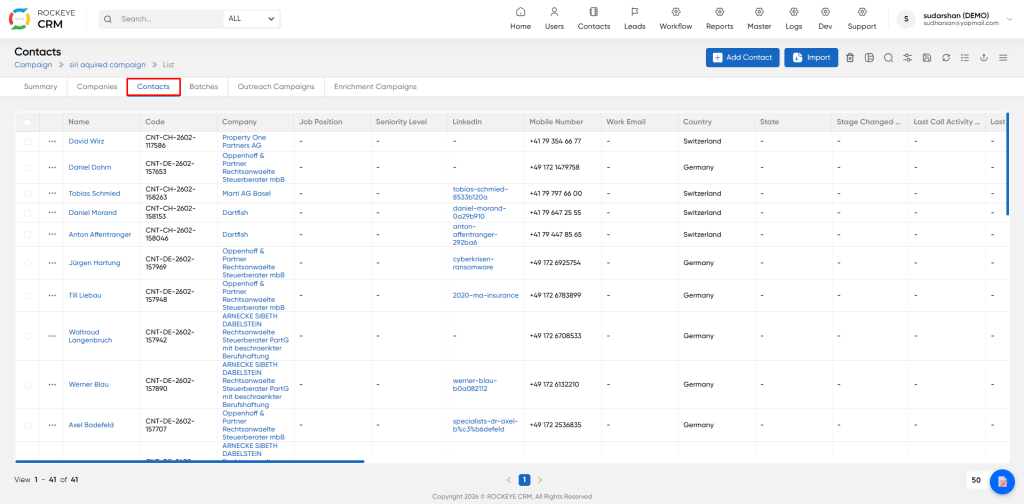
Lists all individual contacts/leads.
- Contact Name
- Company Name
- Job Position
- Mobile Number
- Business Email
- Work Email
- Country
- State
- Changed On
- Last Contact
- Activity
- Action.
Batches Tab
For large campaigns, prospects can be split into separate batches for phased outreach, assignment to different team members, or A/B testing.
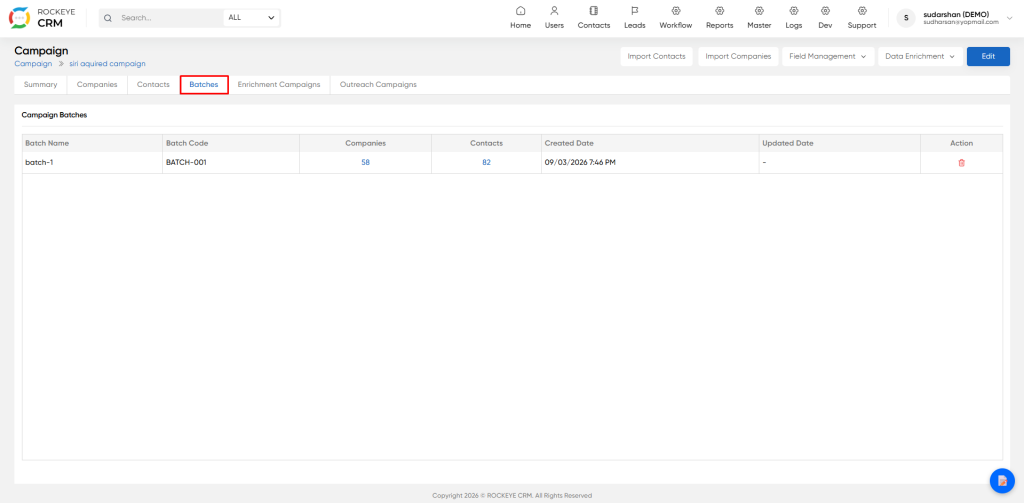
Batch Name / Code (e.g., BATCH-000)
Companies count
Contacts count
Created Date
Updated Date
Action
Toolbar Actions
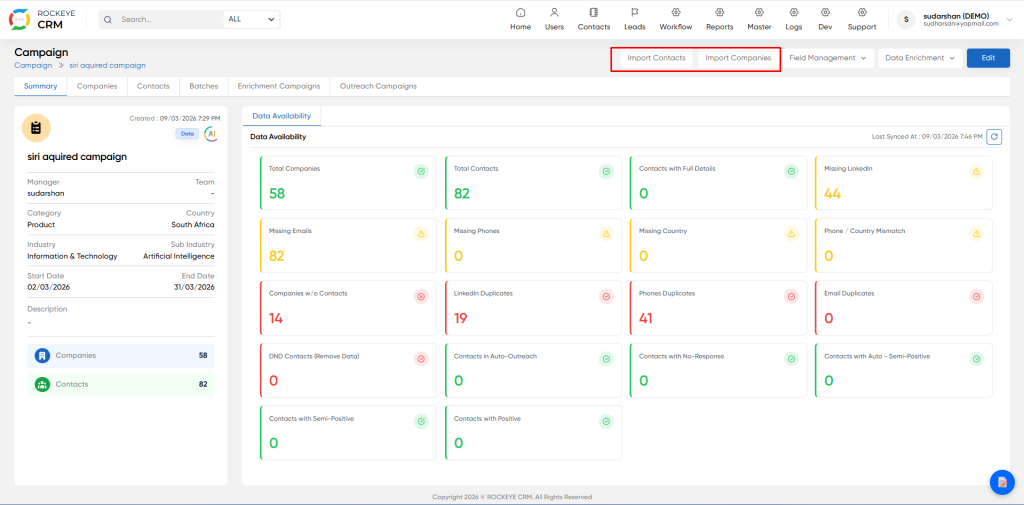
- Import Contacts – Bulk upload leads.
- Import Companies – Bulk upload organizations.
- Field Management – Manage additional custom fields for Companies and Contacts.
- Data Enrichment – Enrich existing data with missing emails, LinkedIn, phones, etc.
Listing
The Campaign List View is the main landing page of the Campaign Management module. It displays all existing campaigns in a tabular format. Users can view campaign performance at a glance (number of companies & contacts), create new campaigns, import data, manage fields, enrich data, and perform bulk actions.
Top Right Action Bar Buttons
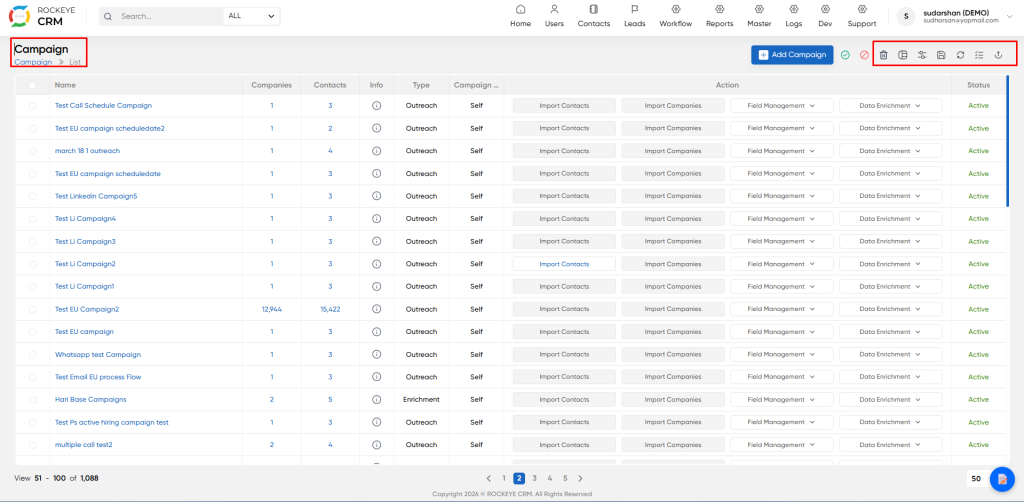
- Delete: Permanently erase one or more selected campaigns. This will also permanently delete all associated contacts, batches and full activity history.
- Clone Campaign: Create an exact copy of the selected campaign. This copies all campaign settings, but will not duplicate imported contact/company data.
- Save Custom View: Save your current filters and column layout as a reusable personal view
- Refresh Manually reload the list to show the latest status updates
- Toggle Button: Column Selector Add, remove or reorder columns displayed in the grid. This only affects your own personal view.
- Export: Download the full filtered campaign list to CSV / Excel file

