Partner
Introduction
The Partners module in ROCKEYE CRM is used to manage external business entities such as clients, vendors, distributors, and strategic partners. It acts as a centralized repository to store and maintain partner-related information, including company details, contact persons, and communication data.
This module helps businesses build and maintain strong relationships with external stakeholders by organizing partner data in a structured manner. It also supports better collaboration, tracking, and communication with partners across various business processes.
How To Navigate
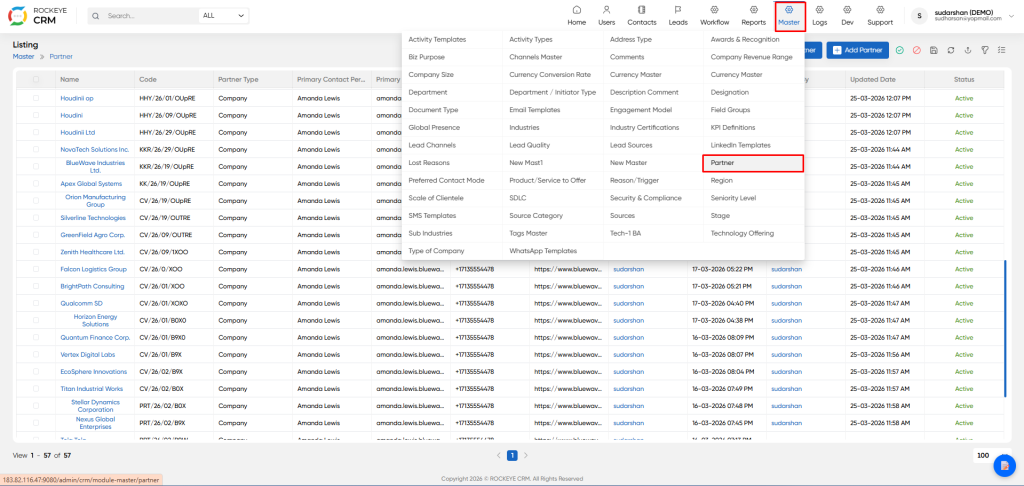
- Click Master on the top menu.
- Select Partner.
- The Listing page opens showing all existing partner records in a grid.
How To Add Partner
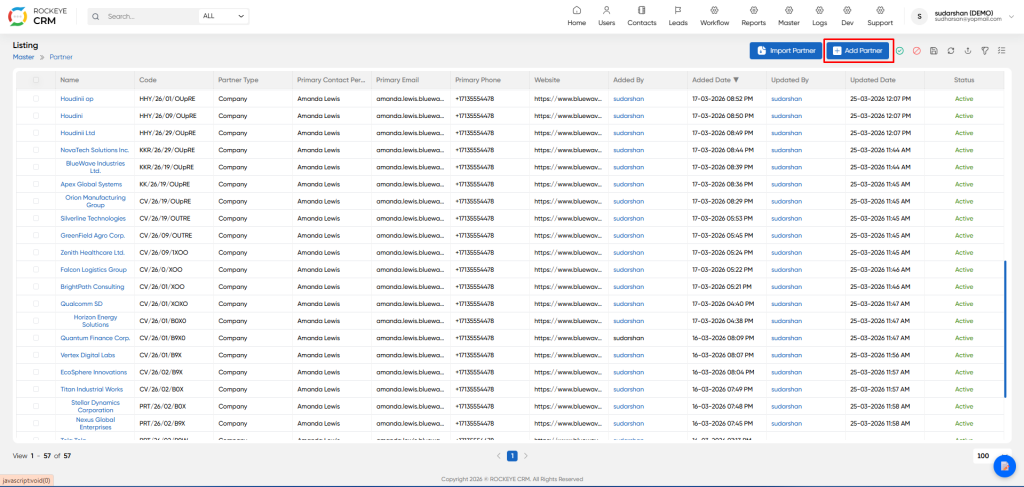
- On the Listing page, click Add Partner.
- The Add Partner form opens on the right side.
- Enter required information (see Field-wise details below).
- Click Save to create the partner.
- Click Discard to cancel without saving.
Partner's Identification
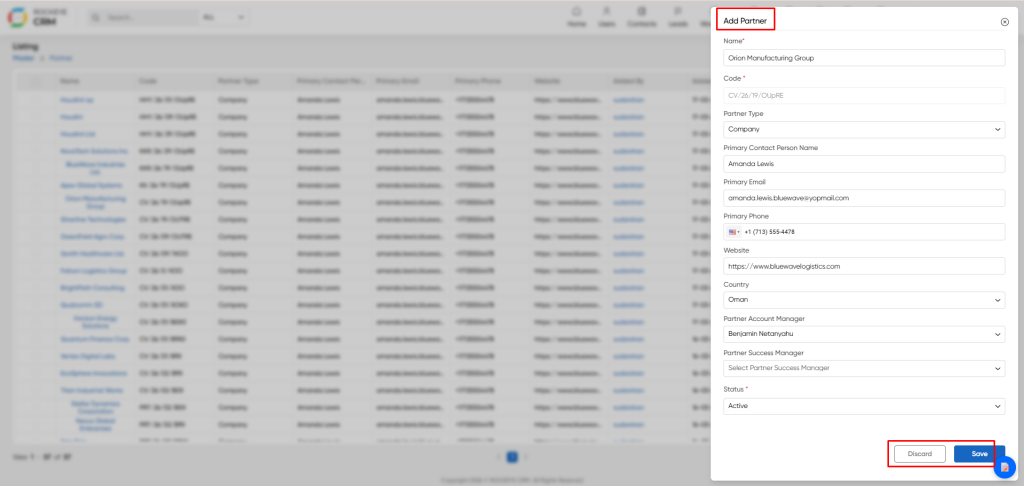
- Name: Official name of the partner organization/person.
- Code: Unique internal code/identifier for the partner record. Helps avoid duplicates and supports internal tracking.
- Partner Type: Category of partner (e.g., Individual or Company).
- Primary Contact Person Name: Main point of contact for the partner.
- Primary Email: Email address for the primary contact.
- Primary Phone: Phone number of the primary contact (includes country code selector).
- Website: Partner’s official website URL.
- Country: Partner’s operating/registered country (as maintained in master data).
- Partner Account Manager: Internal user responsible for managing the commercial/account relationship with the partner.
- Partner Success Manager: Internal user responsible for partner onboarding, enablement, and success activities.
- Status: Active / Inactive (based on configuration).
After filling all required fields, click Save to create the record or Discard to cancel.
Update an Existing Partner
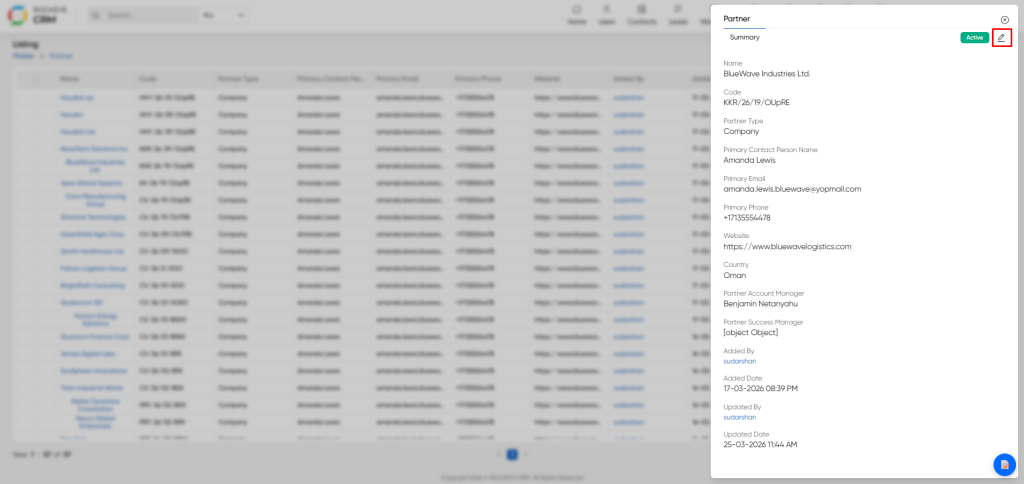
- Open the partner Summary panel.
- Click the Edit (pencil) icon.
- The Update Partner form opens.
- Make changes and click Update.
- Click Discard to exit without saving.
Updated values reflect in the Summary panel and Listing grid.
Listing
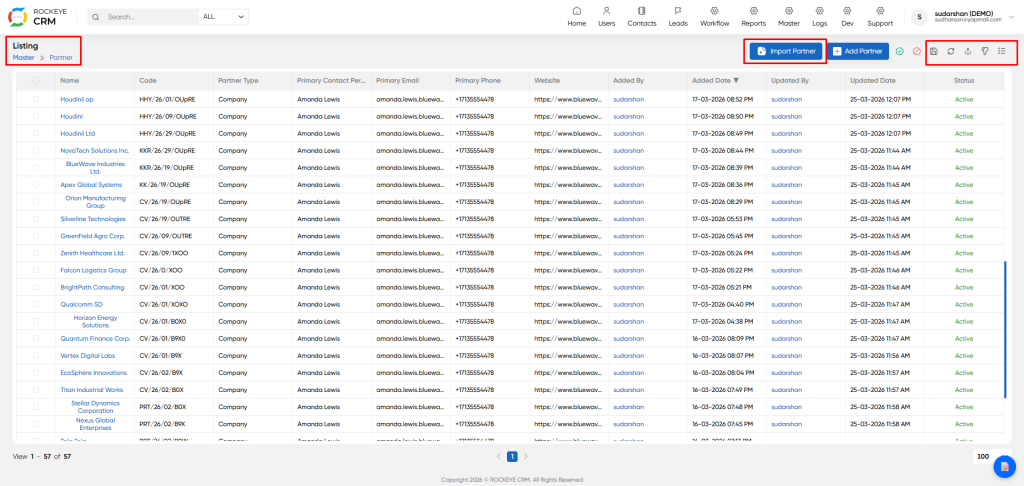
- Search: Find partners by typing keywords in the search bar.
- View: Scroll through partner records with key columns (Name, Code, Partner Type, etc.).
- Open details: Click the Partner Name to open the partner details panel.
- Import Partner: Allows bulk creation of partners by uploading a properly formatted Excel or CSV file.
- Save Filter: Save the currently applied filter criteria as a preset for future use
- Reload: Refresh the list to display the most recent data changes.
- Export: Download the partner list data as CSV or PDF format.
- Click the toggel coloum to customize which columns appear in the Partner listing grid. This helps reduce clutter by hiding fields you don't need and showing only relevant data.

