Lead Source
Introduction
The Lead Source Master in ROCKEYE CRM is used to define and manage the specific origins from which leads are generated, such as Google Ads, Referrals, Email Campaigns, Events, or Direct Enquiries.
It helps businesses track the exact source of each lead, enabling better analysis of marketing performance and return on investment (ROI). By capturing detailed source information, organizations can identify which channels and campaigns are most effective in generating high-quality leads.
How To Navigate Lead Resource
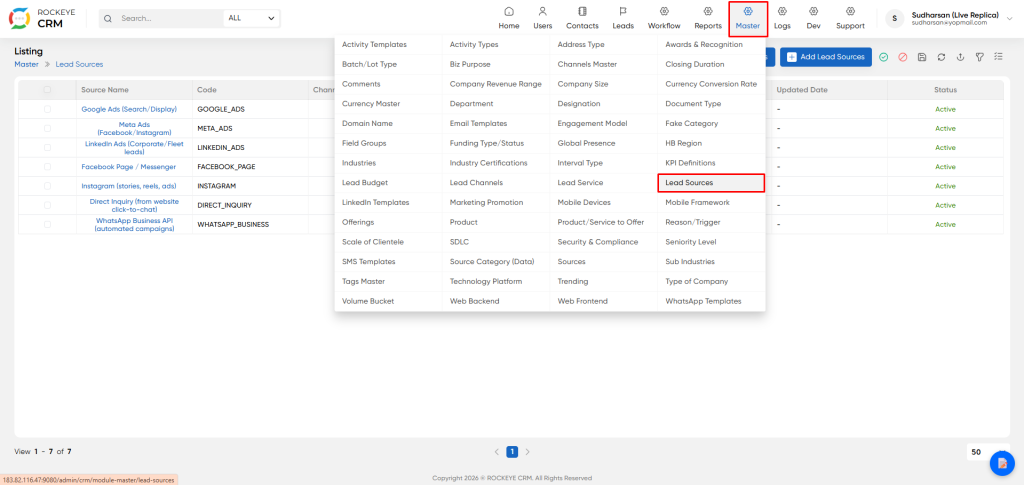
- Click on the Master icon in the top navigation bar.
- From the dropdown menu, select Lead Sources.
How To add Lead Source
Click the Add Lead Sources button on the listing page.
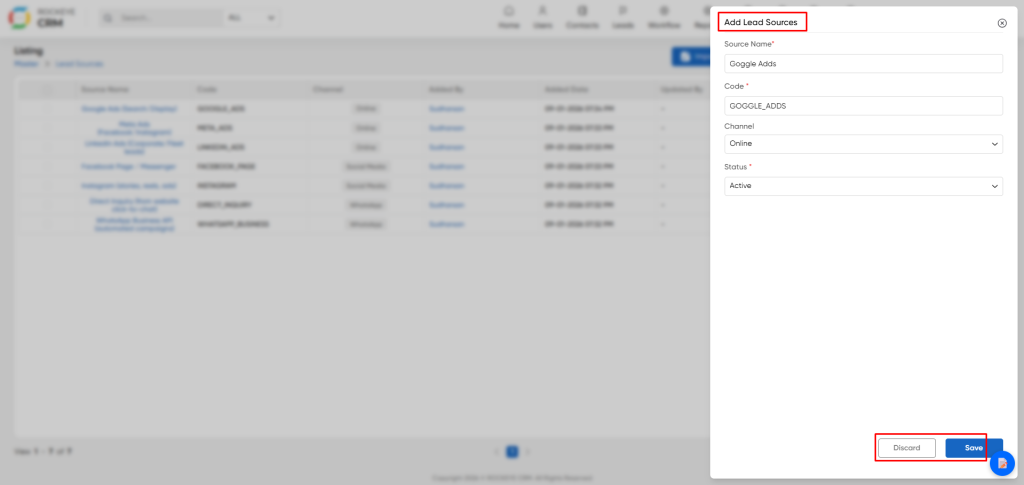
- Source Name: Enter a clear and descriptive name for the new source.
- Code: Enter a unique, uppercase code for the system to identify this source.
- Channel: Select the parent channel for this source from the dropdown list (e.g.,
Online,Social Media,WhatsApp). This categorizes the source for higher-level reporting. - Status: Select the initial status for the source (
ActiveorInactive). It is recommended to set it asActiveupon creation.
- Action Buttons:
- Save: Creates the new lead source and adds it to the list.
- Discard: Cancels the operation and closes the window without saving.
Editing an Existing Lead Source
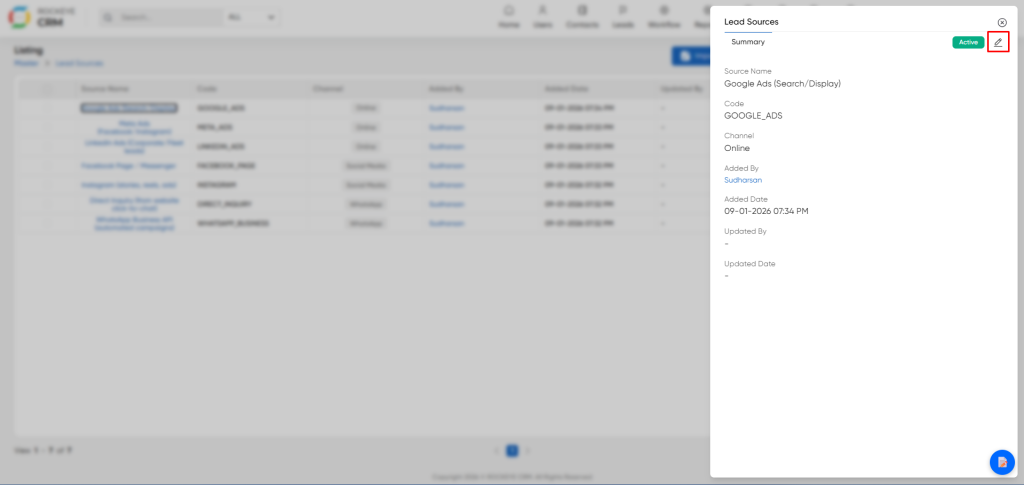
- Click on the Source Name (e.g., "Google Ads (Search/Display)") in the list. A summary panel will slide out from the right.
- Summary Panel Details: This panel displays all the information for the selected lead source, including its name, code, associated channel, and audit trail.
- Editing a Lead Source:
- Click the Edit (pencil icon) in the top-right corner of the summary panel.
- This will open the "Update Lead Sources" form, pre-filled with the current data. Note that the
Codefield may be locked to prevent changing the system identifier. - Modify the
Source Name,Channel, orStatusas required. - Click the Update button to save your changes. Use the Discard button to cancel.
Listing
The listing page provides a comprehensive table of all configured lead sources.
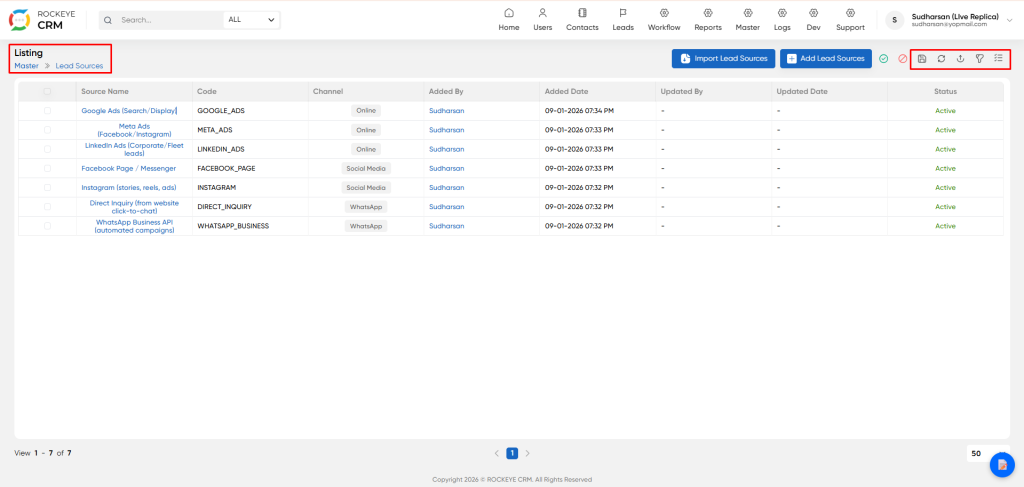
- View all available lead sources and their key details at a glance.
- Source Name: The descriptive name of the source (e.g., Google Ads (Search/Display), Meta Ads).
- Code: A unique, system-friendly identifier for the source.
- Channel: The broader channel this source belongs to (e.g., Online, Social Media). This links back to the "Lead Channels" master.
- Added By / Updated By: Shows which user created or last modified the record.
- Added Date / Updated Date: Timestamps for when the record was created or last modified.
- Status: Indicates if the source is currently Active or Inactive.
- List Actions Toolbar: The toolbar above the list provides several utilities:
- Add New: Create a single new lead source manually.
- Import: Bulk upload multiple lead sources from a file.
- Other Icons: Provide functions like refresh, delete, download, filter, and view options.

