Document Type
Introduction
The Document Type Master in ROCKEYE CRM is used to define and manage different categories of documents within the system, such as Proposal, Invoice, Requirements, Legal, SRS etc..
It helps standardize how documents are classified and organized, ensuring consistency across all modules where documents are uploaded or managed. By defining document types, users can easily categorize, search, and retrieve documents, improving document management and operational efficiency.
How To Navigate Document Type
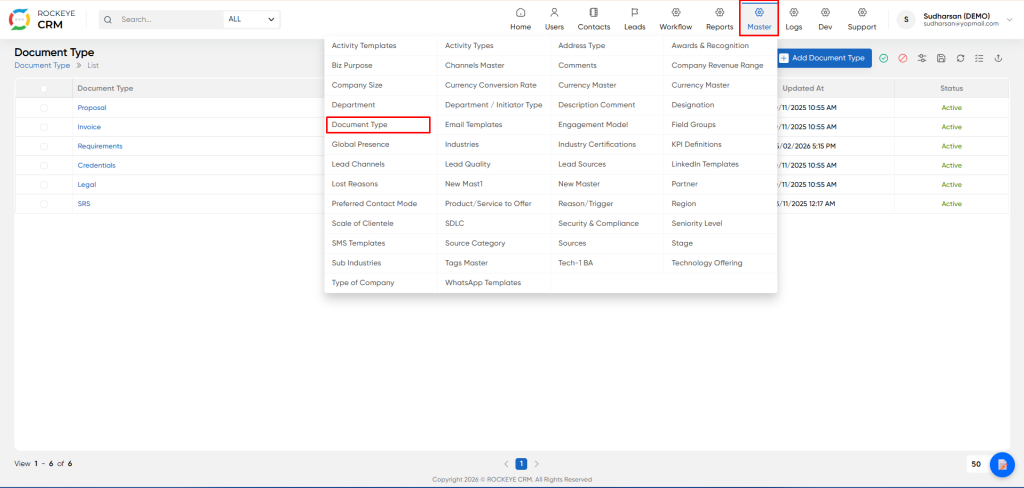
- Click on the Master icon in the top navigation bar.
- From the dropdown menu, select Document Type.
How To Add Document Type
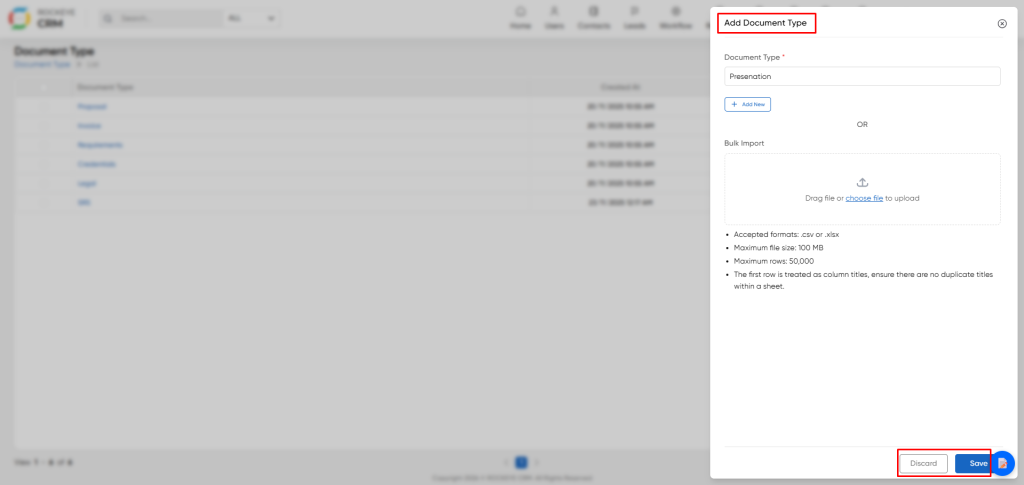
- Click the blue Add Document Type button on the listing page.
- Document Type *: Enter the name for the new document category (e.g., Presentation, Statement of Work). This field is mandatory.
- Add New Button: After entering one document type, you can click this button to save it and immediately add another without closing the window.
- Bulk Import:
- Drag file or choose file to upload: Use this option to upload a .csv or .xlsx file containing a list of
- document types.
- Import Requirements:
- Accepted formats: .csv or .xlsx
- Maximum file size: 100 MB
- Maximum rows: 50,000
- Column Titles: The first row of your file must contain column titles, and there should be no duplicate titles.
- Action Buttons:
- Save: Commits the new document type(s) to the system.
- Discard: Cancels the operation and closes the window without saving any changes.
Editing an Existing Document Type
You can view the details of any document type and make changes if needed.
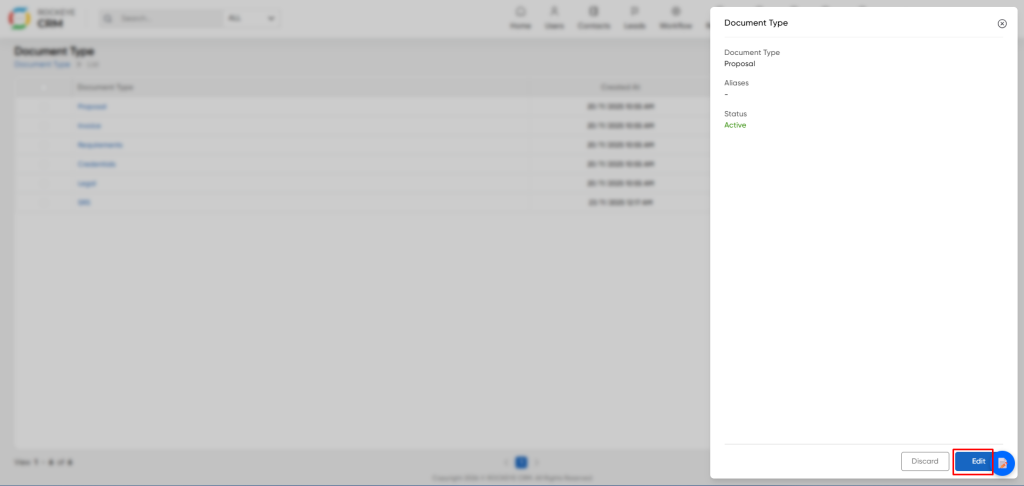
- How to Access: Click on the Document Type name in the list. A summary panel will slide out from the right.
- Summary Panel Details: This panel displays the key information for the selected document type:
- Click the Edit button at the bottom of the summary panel.
- This will open the same form used for adding a document type, pre-filled with the current data.
- Modify the Document Type name as required and click Save.
Listing
The listing page provides a clear table of all configured document types.
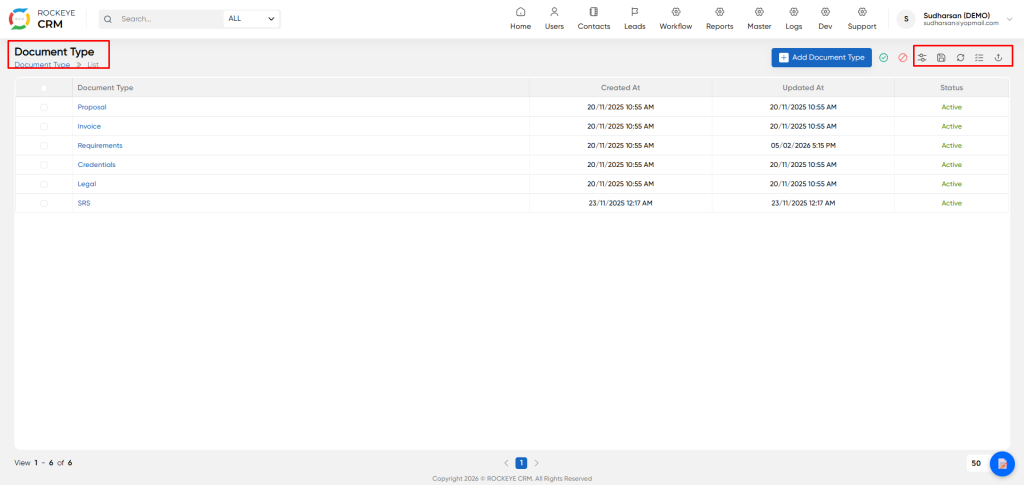
- Document Type: The name of the document category (e.g., Proposal, Invoice, Legal).
- Created At / Updated At: Timestamps indicating when the record was created and last modified.
- Status: Shows whether the document type is Active or Inactive. Inactive types are typically hidden from selection lists when uploading new documents.
- List Actions Toolbar: The toolbar above the list provides several utilities:
- Other Icons: Provide functions like refresh, delete, download, filter, and view options.

