Department
Introduction
The Department module in ROCKEYE CRM is used to define and manage different functional units within an organization, such as Sales, Marketing, Finance, HR, and Operations.
It helps structure the organization by grouping users based on their roles and responsibilities, enabling better control, communication, and task allocation. By organizing users into departments, businesses can streamline workflows, improve accountability, and enhance reporting across various functions.
How To Navigate:
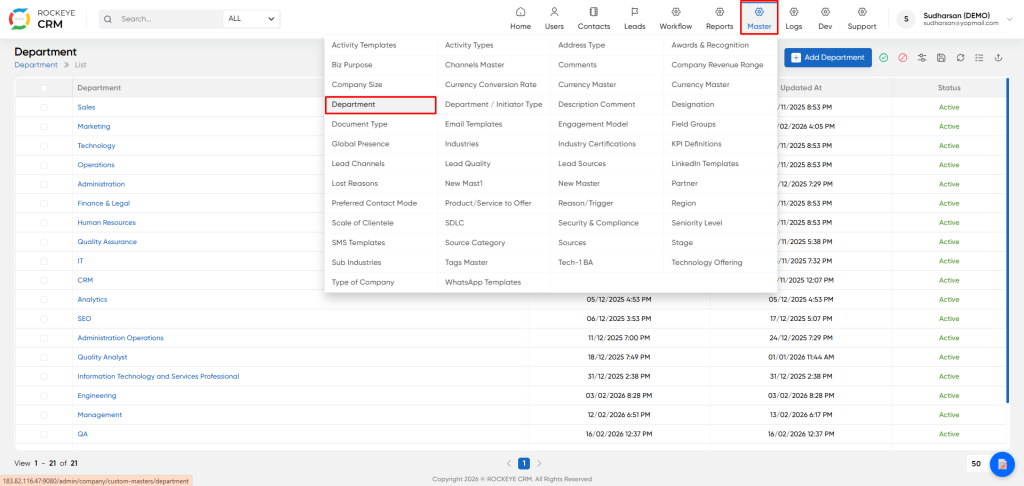
- Click on the Master icon in the top navigation bar.
- From the dropdown menu, select Department.
How To Add Department
You can add a single department manually or import multiple departments at once using a file.
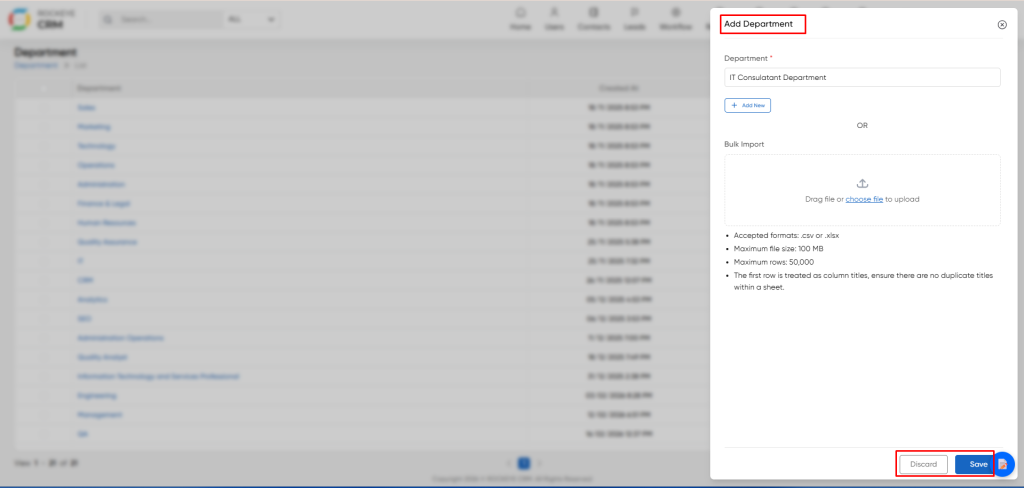
- Click the blue + Add Department button on the listing page.
- Department: Enter the name of the new department.
- Bulk Import:
- Drag file or choose file to upload: Use this option to upload a .csv or .xlsx file containing a list of
- department names.
- Import Requirements:
- Accepted formats: .csv or .xlsxMaximum file size: 100 MB
- Maximum rows: 50,000
- Column Titles: The first row of your file must contain column titles, and there should be no duplicate titles.
- Action Buttons:
- Save: Commits the new department(s) to the system.
- Discard: Cancels the operation and closes the window without saving any changes.
Listng
The listing page provides a comprehensive table of all configured departments.
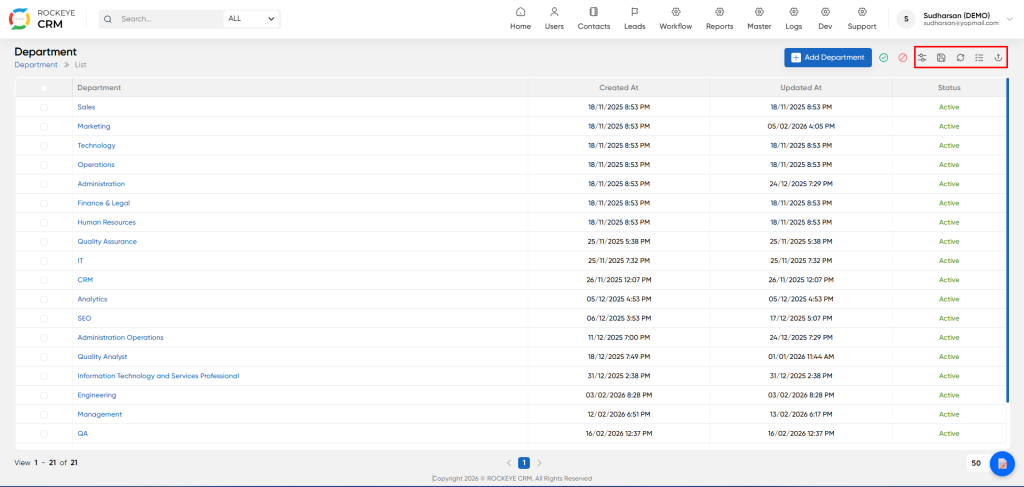
- View all available departments and their key details at a glance.
- Department: The name of the department (e.g.,
Sales,Marketing,Technology). - Created At: The date and time when the department record was created.
- Updated At: The date and time when the department record was last modified.
- Status: Indicates if the department is currently
ActiveorInactive. Inactive departments are typically hidden from selection lists. - Action Toolbar: Provide functions like refresh, delete, download, filter, and view options.

