Tag Master
Introduction
Tag Master in a CRM system is a centralized configuration module used to create, manage, and organize tags that help categorize and segment records such as leads, contacts, opportunities, and campaigns. Tags act as flexible labels (e.g., Hot Lead, Follow-Up Required, High Value, New Client) that allow users to quickly identify, filter, and group data based on specific business criteria.
In Tag Master, each tag is defined with key attributes like Tag Name, Tag Code, Color, and Status, enabling visual identification and standardized usage across the system. This helps improve data organization, enhances search and filtering capabilities, and supports better decision-making by allowing teams to track and prioritize records efficiently. Additionally, tags play a crucial role in automation, reporting, and campaign targeting, as they can be used to trigger workflows, segment audiences, and monitor performance. Overall, Tag Master ensures consistency, improves productivity, and provides a structured way to manage dynamic business classifications within the CRM.
How To Navigate
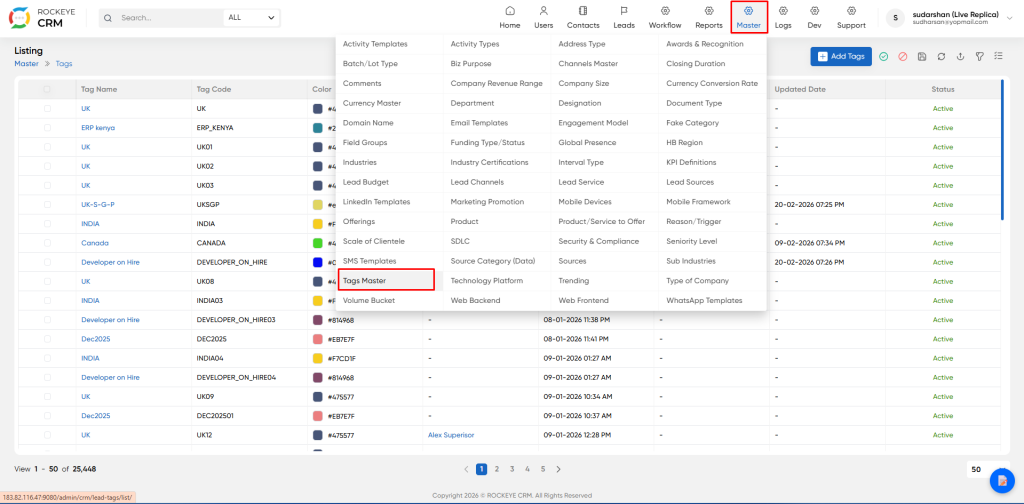
- Locate the Master menu on the top main navigation bar
- Click to open the dropdown menu of all available master data entities
- Select Tags Master from the left hand column of the menu
- You will land on the main module landing screen
How To add Tags
- Click the blue
+ Add Tagsbutton - The Add Tags modal form will open
- Click
Saveto confirm and create the new global tag - Or click
Discardto cancel the operation with no changes saved
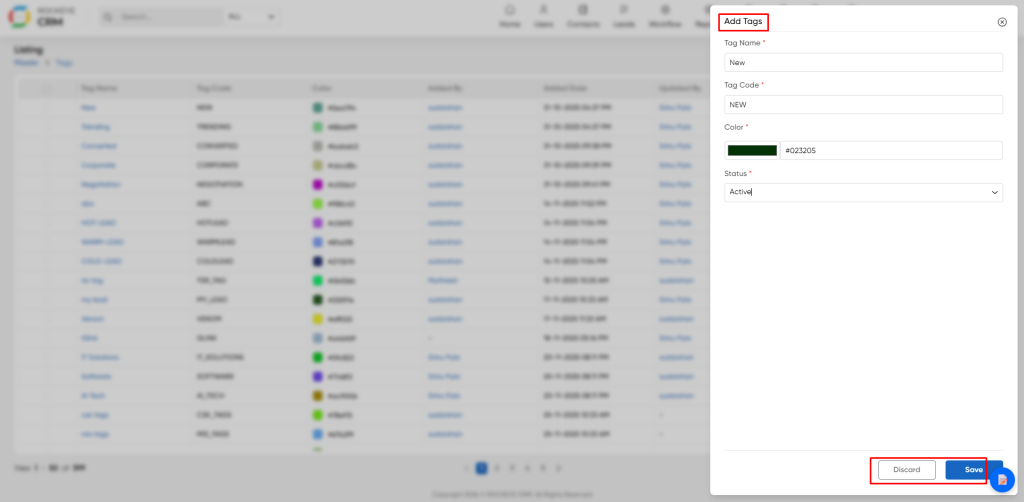
- Tag Name: Keep names short, clear and consistent. Avoid special characters. This value can be edited later.
- Tag Code: This value is PERMANENT and can never be modified after save.
- Color: Use high contrast distinct colors. We recommend establishing a standard organization color convention for different categories of tag.
- Color: Use high contrast distinct colors. We recommend establishing a standard organization color convention for different categories of tag.
Listing
This page provides a comprehensive overview of all configured tags. It allows you to quickly view essential information about each tag, such as its name, code, associated color, and status. It also offers functionalities to add new tags, search, filter, and export tag data.
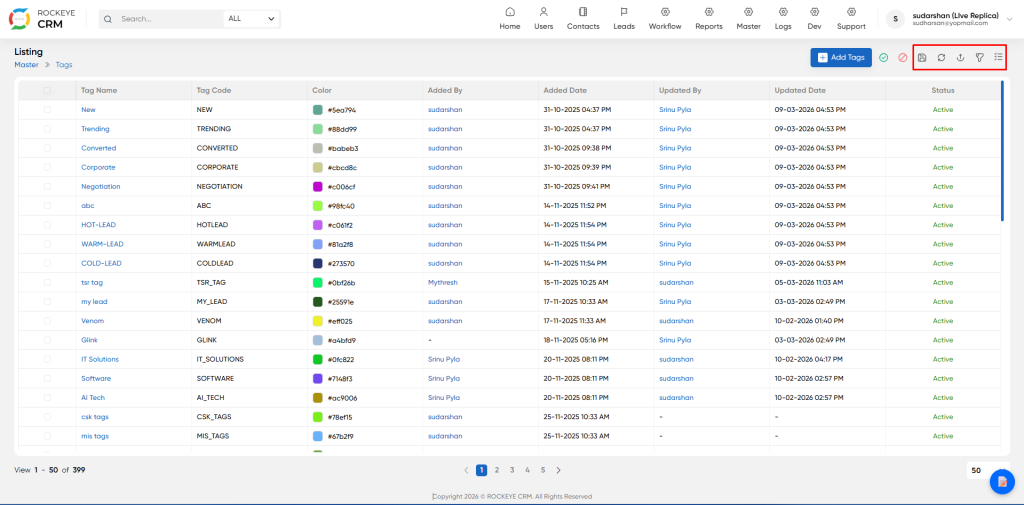
- Add Tags Primary action: Opens the creation form to add a new global system tag
- Export Export the full tag list to CSV / Excel file
- Refresh Reload and refresh all data on the screen
- Import Bulk import multiple tags from an upload file
- Filter Open advanced filter panel to search and filter the list
- Columns Customize which columns are visible on the listing table

