Lead Management
Introduction
The Lead Management module is used to capture, qualify, track, and convert raw leads into opportunities. It serves as the entry point for new business inquiries.
Leads contain information about potential clients (company + contact) before they become full Opportunities. This module allows bulk import, manual entry, scoring, and a complete 360° view with history, documents, and qualification data.
Lead Management is the process of capturing, tracking, qualifying, nurturing, and converting potential customers (leads) into actual business opportunities and clients. It ensures no potential customer is missed and helps sales teams focus on the right prospects at the right time.
How To Navigate
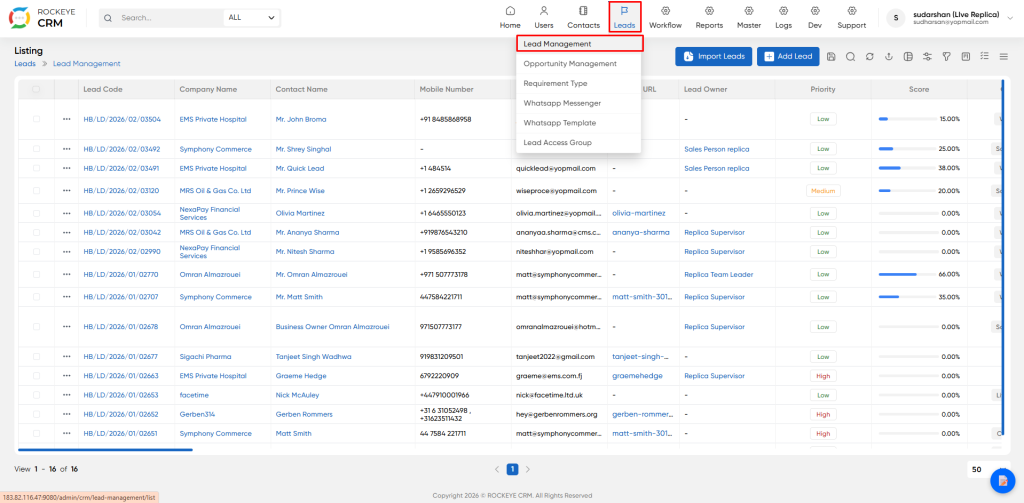
- From the top menu, click Leads.
- Select Living List > Lead Management from the left sidebar or sub-menu.
- You will land on the Lead List View by default.
How To Add Lead
Click the Add Lead button to open the form.
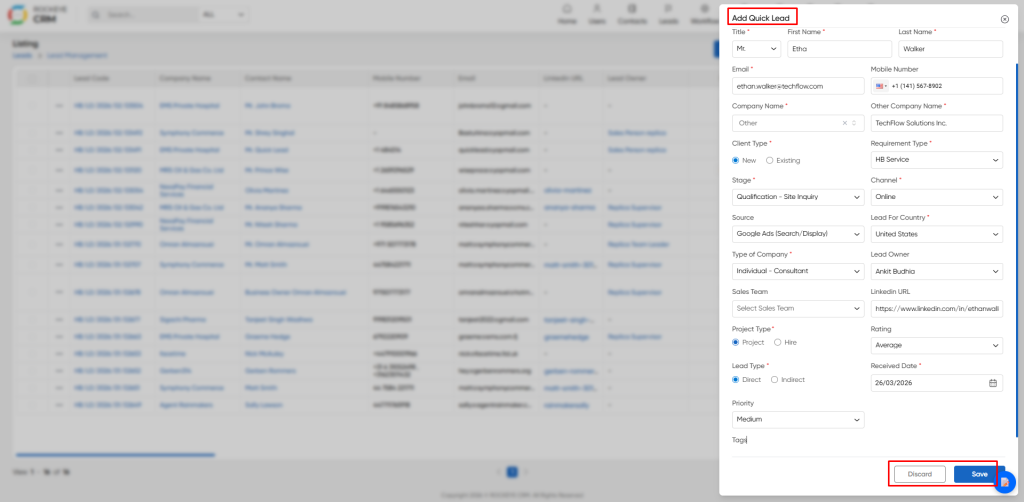
- Lead Lead/contact name
- Mobile Primary mobile numbe
- Email Primary email address
- Company Name Organization the lead belongs to (can create new)
- Contact Name Full name of contact
- Client Type New or Existing client
- Stage Current stage of the lead
- Source How the lead was acquired
- Qualification Initial qualification status
- Requirement Type Critical field – Nature of the requirement
- Other Company Name Alternate company reference (if any)
- Lead Owner Person assigned to follow up the lead
- Priority High / Medium / Low
- Received Date Date lead was received
- Expected Close Date Target date to convert or close the lead.
- Expected Revenue Anticipated deal value
- Tags Internal tags for filtering
- Description Additional notes about the lead
After filling the form, click Save. The lead will open in Detail View.
Lead Detail View With All Tabs
After saving or clicking a lead from the list, the following tabs appear in sequence:
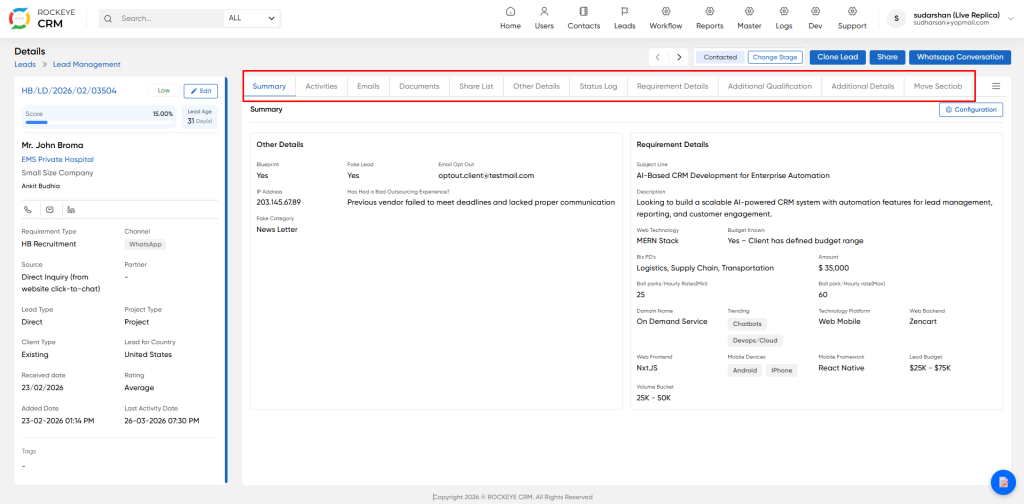
- Summary: Quick overview of the lead.
- Activities: Shows all calls, meetings, notes, and tasks related to the lead. Chronological list with date, subject, performed by, and remarks. Option to add new activity.
- Emails: All email communications sent or received for this lead. Shows subject, date, sender, and preview.
- Documents: File repository for proposals, RFPs, contracts, and supporting documents. Upload and download functionality.
- Status Log: Visual status tracker with colored cards showing different stages or components. Statuses include Open, Won, Lost, No Bid, etc.
- Other Details: Additional operational information (campaign source, business type, fair category, preferred communication mode).
- Requirement Details: Detailed client requirement text, domain, technology stack, budget range, and project description.
- Additional Qualification: Qualification checklist with Yes/No fields (cost sensitive, funding status, relationship with competitors, closing duration, etc.).
Summary Configuration
The Summary Configuration screen allows administrators to customize what information (fields and sections) appears in the Summary Tab of a Lead record.
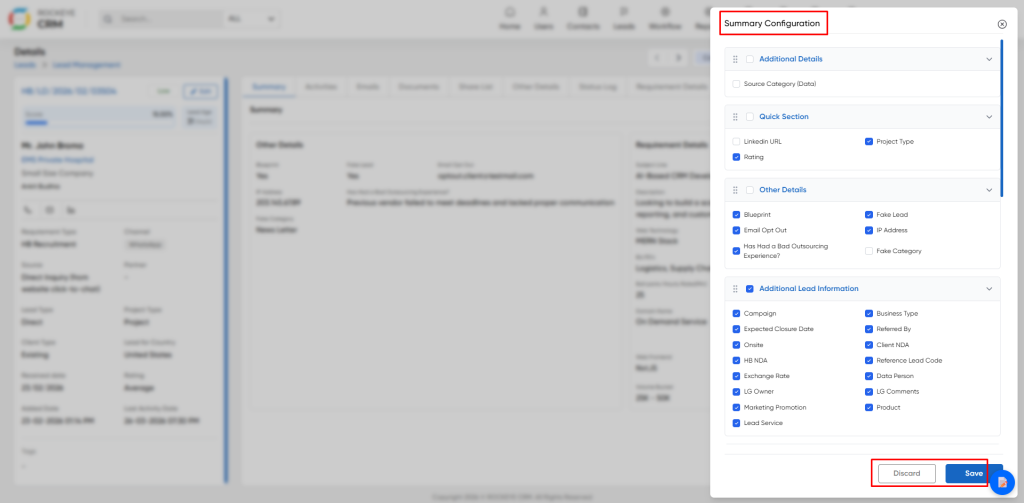
The screen is divided into multiple collapsible sections. Each section contains multiple fields with checkboxes.
- Checked = Field will be visible in the Summary tab.
- Unchecked = Field will be hidden from the Summary tab.
All users will now see only the selected fields when they open any Lead and go to the Summary tab.
Sales Qualification
This is the Sales Qualification or BANT Score dashboard that appears inside a Lead or Opportunity record. It automatically calculates a qualification score based on BANT methodology (Budget, Authority, Need, Timeline).
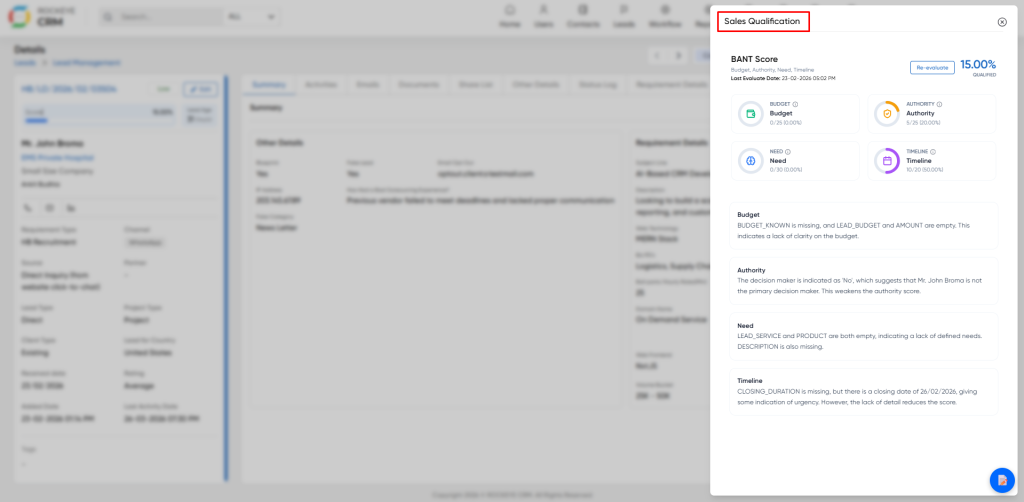
Purpose Helps sales users quickly understand how well-qualified a lead is. Low score (16.50%) indicates the lead needs more information before conversion to Opportunity.
Listing
The Lead Management Listing Page is the default view when you navigate to the Leads module. It displays all leads in a tabular format with key details such as Lead Code, Contact Name, Company Name, Mobile Number, Email, Lead Source, Priority, and Score.
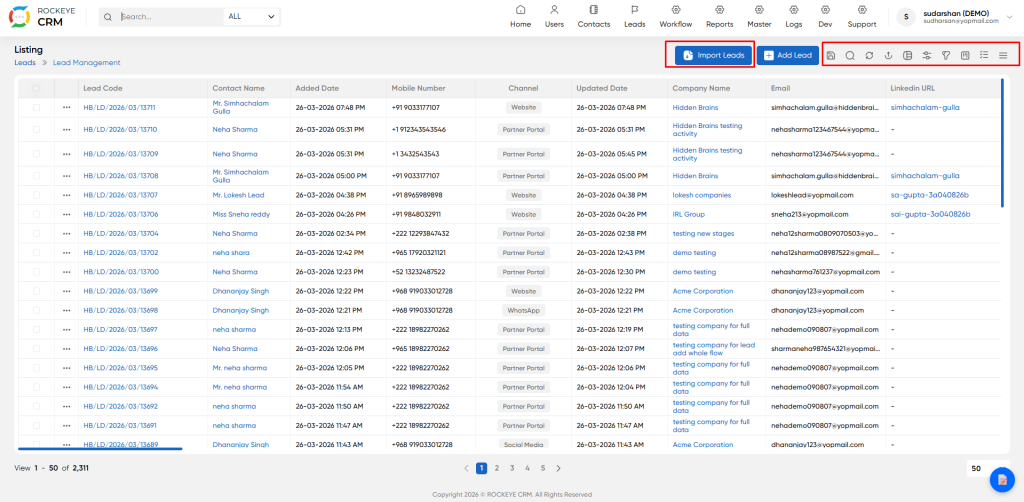
This page serves as the main dashboard for sales and lead generation teams to monitor, search, filter, and manage leads efficiently.
- Import Button: This button is used to bulk import multiple leads into the system from external sources such as Excel, CSV files, or third-party lead databases.
- Export: Download the current list of leads (or selected leads) into Excel/CSV.
- Filter Icon: Apply advanced filters (by date, owner, source, score, priority, etc.).
- Column Selector: Choose which columns to show or hide in the table.
- Refresh Icon: Reload the current list to see latest updates.

