Contacts
Introduction
The Contacts module in ROCKEYE CRM is used to manage and maintain detailed information about individuals associated with your business, such as customers, prospects, and stakeholders.
It stores key details including name, company, job position, contact information, and social profiles, enabling teams to track interactions and build strong relationships. This module serves as a central hub for all contact-related data, supporting sales, communication, and engagement activities.
The Contacts module is the central repository for managing individual people associated with your business relationships. It stores comprehensive professional and personal details, communication preferences, and interaction history. Contacts can be linked to Companies, Leads, and Opportunities.
How To Navigate Contacts
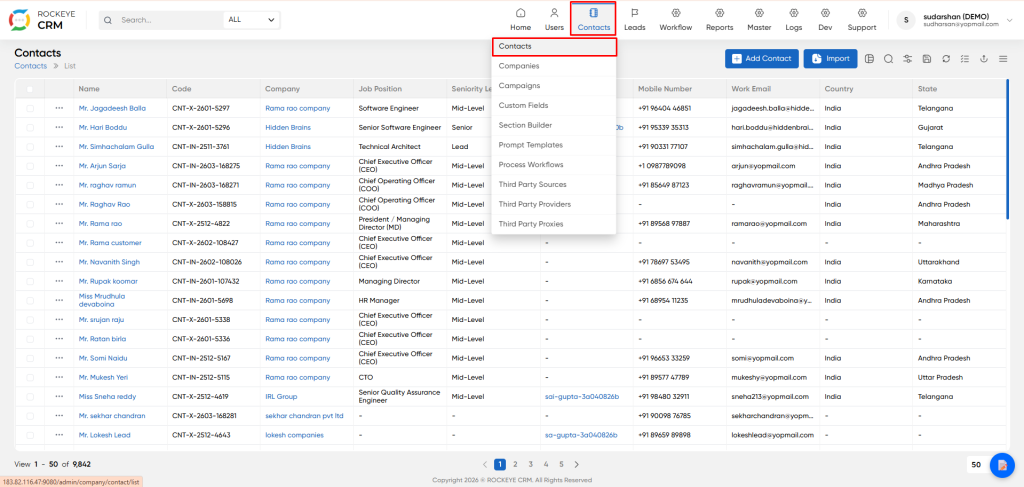
- Click the Contacts icon in the top navigation bar.
- Select Contacts from the dropdown menu.
How To Add Contacts
Click Add Contact to open the creation modal.
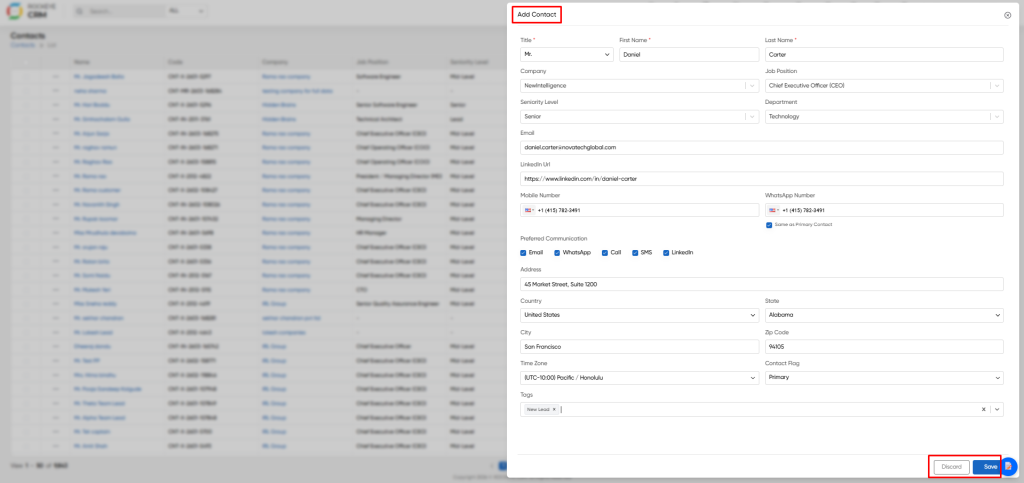
- Title: Honorific prefix (Mr., Ms., Mrs., Dr., etc.) used for formal communication.
- First Name: Given name of the contact.
- Last Name: Surname/family name of the contact.
- Company: Link the contact to an existing Company record in the CRM. Type to search company names.
- Job Position: Current role or designation (e.g., "Chief Executive Officer", "Software Engineer").
- Seniority Level: Career hierarchy level: Junior, Mid-Level, Senior, or Lead. Used for filtering and workflow rules.
- Department: Business unit or division (e.g., Technology, Sales, CRM, HR).
- Email: Primary work email address. Used for sending communications and matching email threads.
- LinkedIn Url: Direct link to the contact's LinkedIn profile. Used for social selling and data enrichment.
- Mobile Number: Primary mobile number with country code selector (e.g., +1 for USA, +91 for India).
- WhatsApp Number: Dedicated WhatsApp number. Check "Same as Primary Contact" to auto-populate from Mobile Number if identical.
- Preferred Communication: Indicates allowed communication channels: Email, WhatsApp, Call, SMS, LinkedIn. Checked options appear as quick-action buttons on the contact card.
- Address: Street address (e.g., "45 Market Street, Suite 1200").
- Country: Nation of residence/work. Affects available states and time zones.
- State: Province or state within the selected country.
- City: City or town name.
- Zip Code: Postal code for the address.
- Time Zone: Dropdown Contact's local time zone (e.g., "(UTC-10:00) Pacific / Honolulu"). Critical for scheduling calls and meetings.
- Contact Flag: Designates relationship importance: Primary (main point of contact), Secondary (backup contact), etc.
- Tags: Categorization labels for grouping contacts (e.g., "New Lead", "Follow-up", "Warm Lead", "Decision Maker"). Tags appear as chips and are searchable.
Contact Detail View
When you click a contact name, the system opens a comprehensive detail page with the following sections
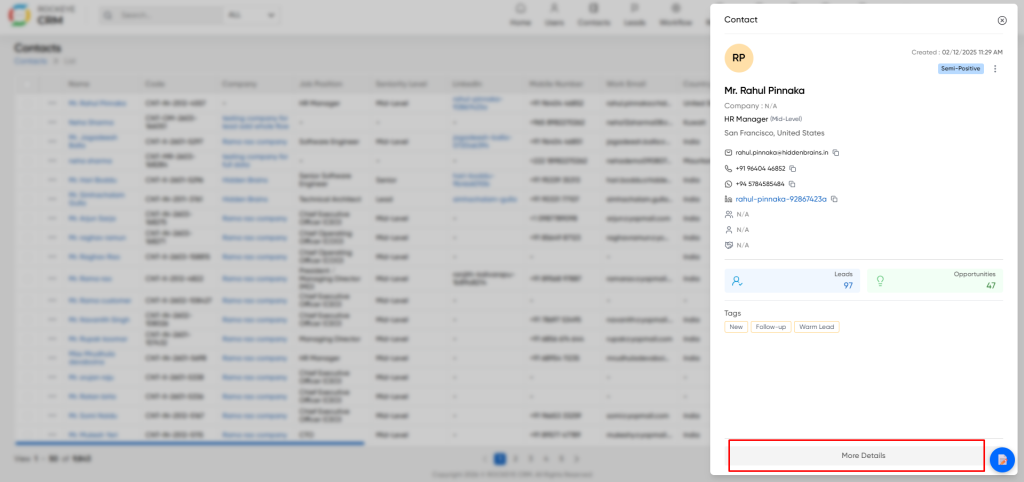
Header Section
- Semi-Positive Current sentiment/stage indicator (clickable to change stage).
- Change Stage Manually move contact through pipeline stages (Prospect, Qualified, etc.).
- Sync Call Logs Pull recent call history from integrated telephony systems.
- WhatsApp Conversation Open integrated WhatsApp chat window.
- Data Enrichment Trigger AI to fetch/update contact info from external sources.
- Edit Modify all contact fields.
Summary Tab
Provides a high-level overview:
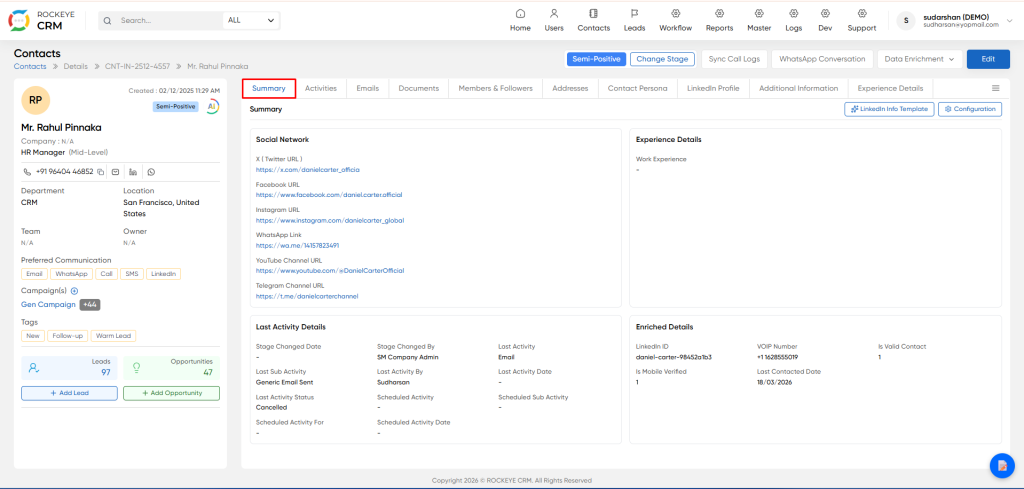
- Social Network: Links to X (Twitter), Facebook, Instagram, YouTube, Telegram, and WhatsApp profiles.
- Last Activity Details: Recent interactions including Stage Changed Date, Last Activity Type (Email/Call), and Scheduled Activities.
- Experience Details: Work history summary.
- Enriched Details: AI-generated data including LinkedIn ID, VOIP Number, verification status, and Last Contacted Date.
Activities Tab
Split-view interface:
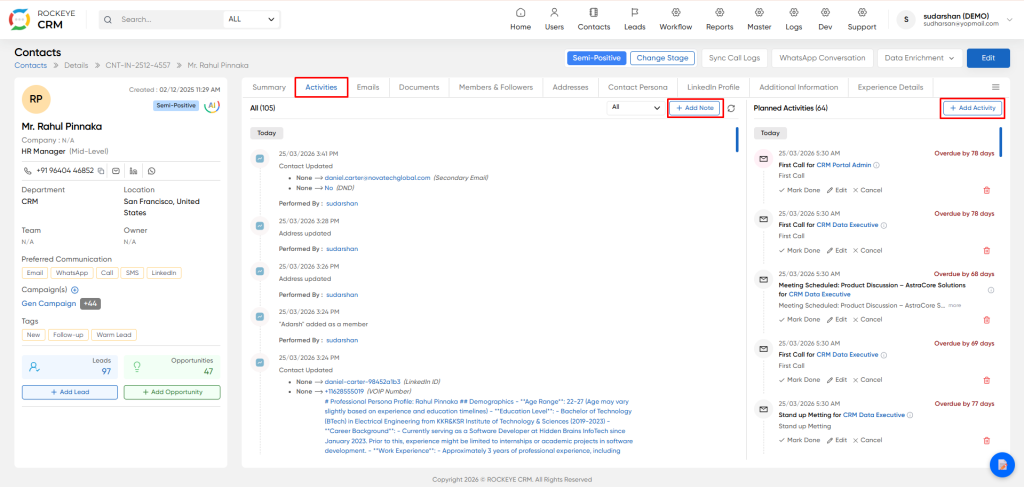
- Left Panel (All): Complete activity history (updates, emails, calls) with performer names and timestamps.
- Right Panel (Planned): Upcoming tasks and scheduled activities.
- Add Note: Quick text entry for logging unstructured information (e.g., "Spoke briefly, will follow up Monday").
- Add Activity: Schedule specific tasks with due dates (calls, meetings, to-dos).
Email Tab
Threaded communication history:
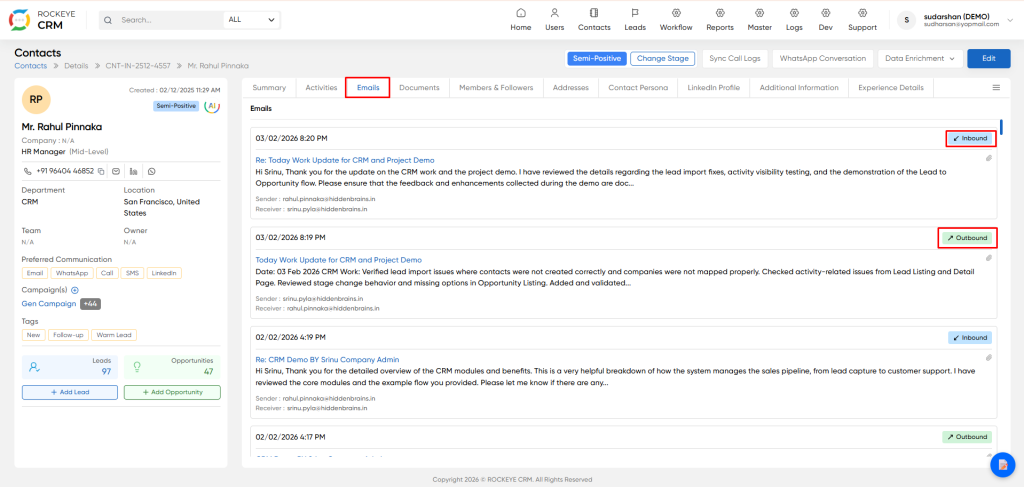
- Inbound: Emails received from the contact (marked with blue "Inbound" badge).
- Outbound: Emails sent to the contact (marked with green "Outbound" badge).
- Displays subject line, timestamp, sender/receiver details, and message preview.
Documents Tab
File management section:
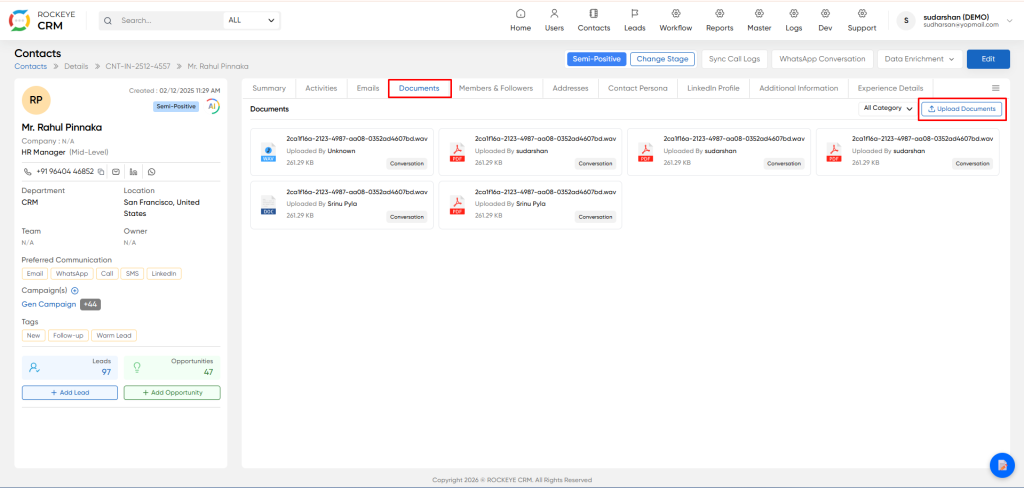
- Upload Documents: Attach contracts, presentations, or recordings.
- Displays file type icons (PDF, DOC, WAV), file size, uploader name, and category tags (e.g., "Conversation").
- Supports download and delete actions.
Members & Followers Tab
Collaboration management:
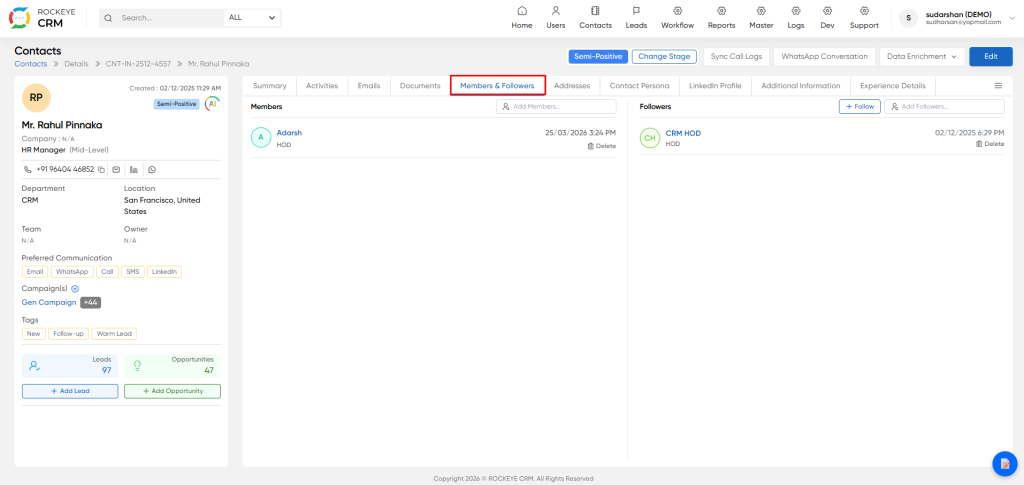
- Members: Users responsible for managing this contact (can edit details, add activities). Displayed with avatar, name, role, and delete option.
- Followers: Users who receive notifications about contact updates but may not have edit rights. Useful for managers monitoring key accounts.
Contact Persona Tab
The Contact Persona tab displays an AI-generated professional profile that analyzes the contact's demographics, career trajectory, and professional motivations. This psychographic data helps sales and marketing teams personalize outreach strategies, understand decision-making drivers, and identify potential pain points. The data is generated via Large Language Models (LLMs) based on existing contact information and external sources.
AI-generated professional profile:
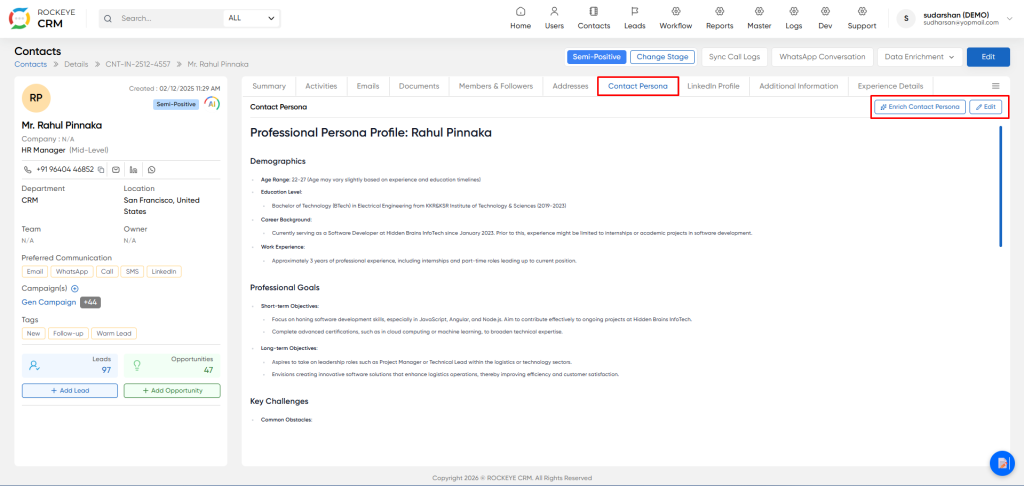
- Demographics: Age range estimation, education level (degrees, institutions, years), career background summary.
- Professional Goals: Short-term objectives (skill development) and long-term aspirations (leadership roles).
- Key Challenges: Identified pain points and obstacles.
- Enrich Contact Persona: Button to refresh AI analysis based on latest data.
- Edit: Manual override of AI-generated persona content.
Enrichment Mode (AI Generation Dialog)
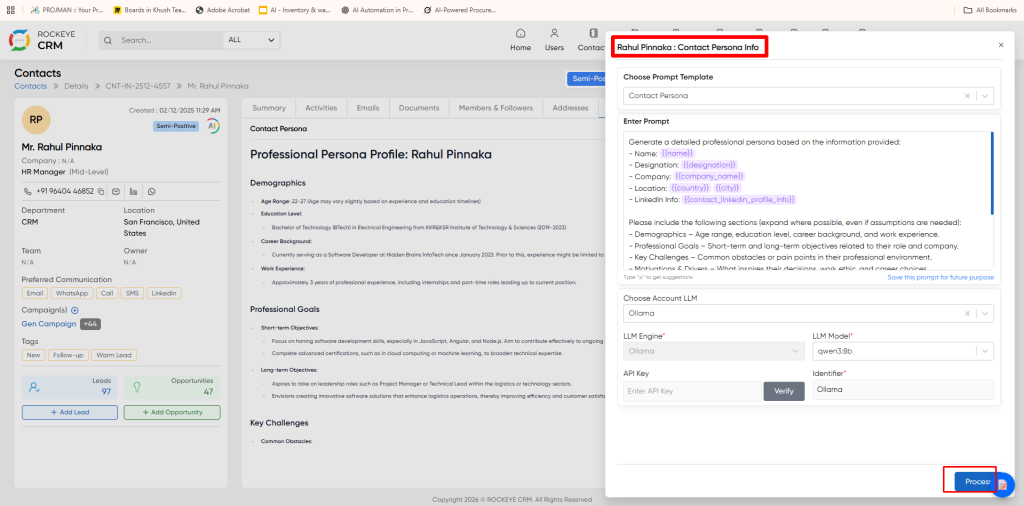
Choose Prompt Template: Select predefined AI prompt templates (e.g., "Contact Persona").
Enter Prompt: The AI instruction set containing dynamic variables ({{name}}, {{designation}}, {{company_name}}, {{country}}, {{city}}, {{contact_linkedin_profile_info}}). Defines the structure for AI output (Demographics, Professional Goals, Key Challenges).
Choose Account LLM: Dropdown Select the AI account/integration to use (e.g., "Ollama").
LLM Engine: The specific engine powering the AI (e.g., "Ollama").
LLM Model: The specific model version (e.g., "qwen3:8b").
API Key: Authentication key for the selected LLM service. Includes a Verify button to test connectivity.
Identifier: System identifier label for the LLM connection (e.g., "Ollama").
Process: Executes the AI generation to create or update the persona profile.
LinkedIn Profile Tab
The LinkedIn Profile tab displays data synchronized from the contact's LinkedIn public profile. It provides a structured view of their professional skills, employment history, education, and network metrics. This eliminates the need to manually browse LinkedIn for prospect research and keeps professional data centralized within the CRM.
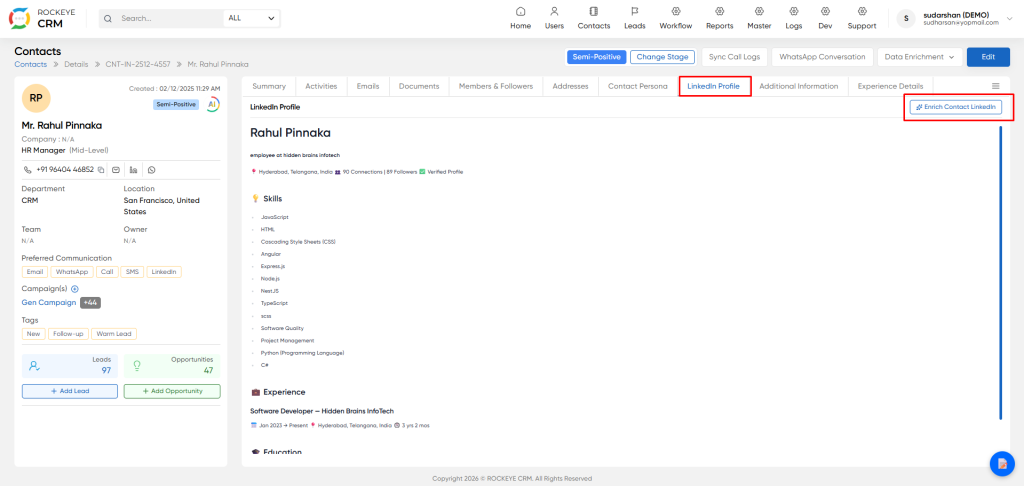
Enrichment Connect LinkedIn
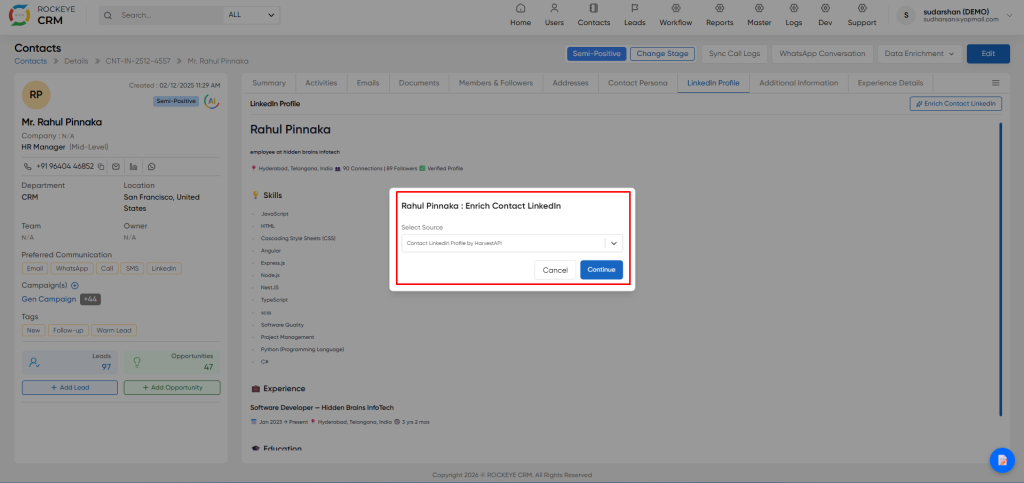
- Select: Source Choose the data provider or API integration (e.g., "Contact LinkedIn Profile by HarvestAPI").
- Cancel: Closes the dialog without fetching data.
- Continue: Proceeds with fetching the latest LinkedIn data using the selected source.
Additional Information Tab
The Additional Information tab houses supplementary administrative, demographic, and preference data not displayed on the main contact summary. This includes personal details (useful for relationship building like birthdays/anniversaries), secondary contact methods, compliance flags (DND, Blacklisted), and decision-making authority indicators.
- Gender: Male, Female, or Other.
- Date of Birth: Birth date (Format: DD/MM/YYYY).
- Anniversary Date: Marriage or work anniversary date for relationship management.
- Phone Number: Alternative primary phone number.
- Additional Phone 1-4: Four separate fields for backup or secondary phone numbers.
- Fax Number: Fax contact information (if applicable).
- Secondary Email: Alternative email address (e.g., personal email vs. work email).
- Web Ref URL: Reference website, portfolio, or personal site (e.g., "http://www.outcessspec.com").
- Decision Maker: Flag indicating if the contact has purchasing or approval authority.
- DND: Do Not Disturb flag. If "Yes", contact is excluded from automated marketing campaigns.
- Blacklisted: If "Yes", contact is blocked from all outreach activities.
- Address: Secondary or detailed street address.
- Country: Nation associated with this specific address.
- State: Province or state within the selected country.
- City: Text City or town name.
- Zip: Code Text Postal code.
Change Stage
Select the appropriate stage and save to update the contact's status across the CRM (visible in lists, reports, and dashboards).
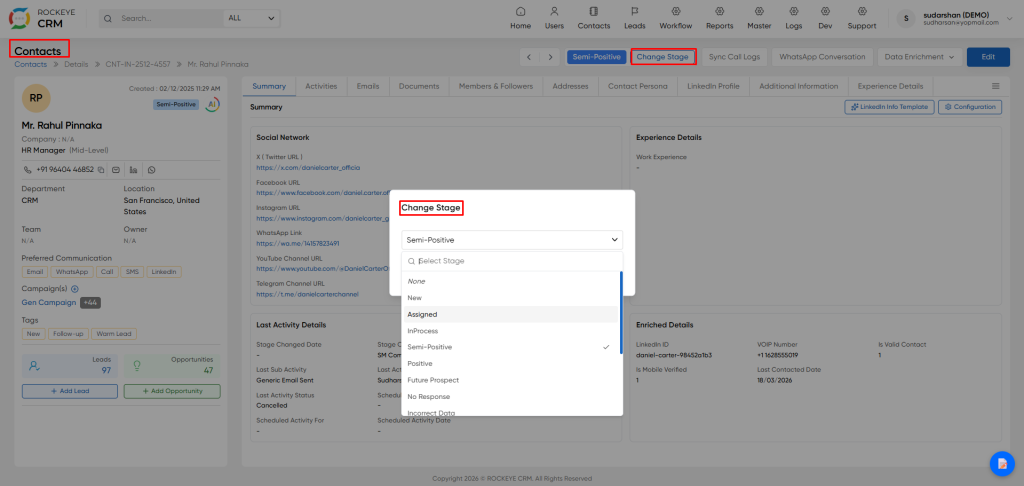
- Manually move the contact through the sales/engagement pipeline stages.
- Change Stage Button: Opens the stage selection dropdown/modal.
Sync Call Logs
Pull recent call history from integrated telephony systems (e.g., Outreach, RingCentral) into the contact's activity timeline.
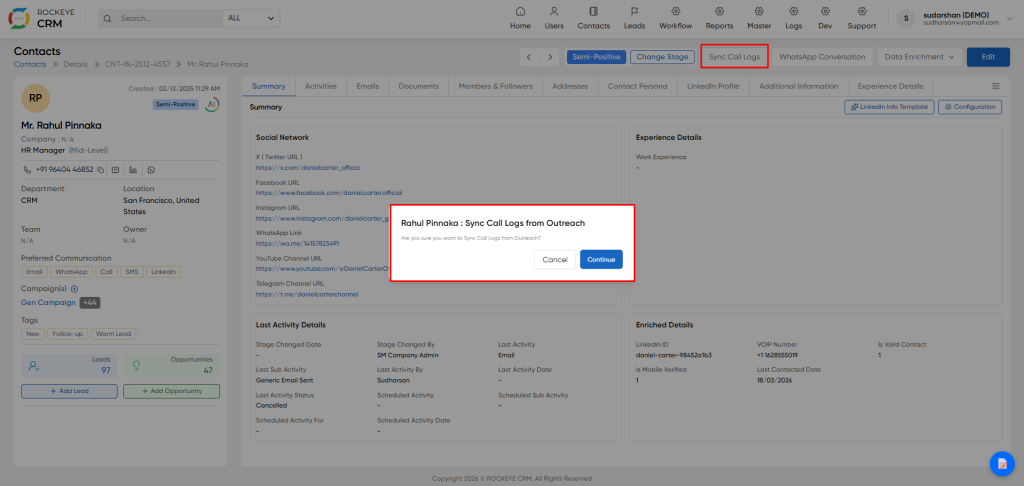
- Confirmation Message "Are you sure you want to Sync Call Logs from [Integration Name]?"
- Cancel Abort the synchronization.
- Continue Execute the sync operation.
WhatsApp Conversation
Initiate an integrated WhatsApp chat session with the contact.
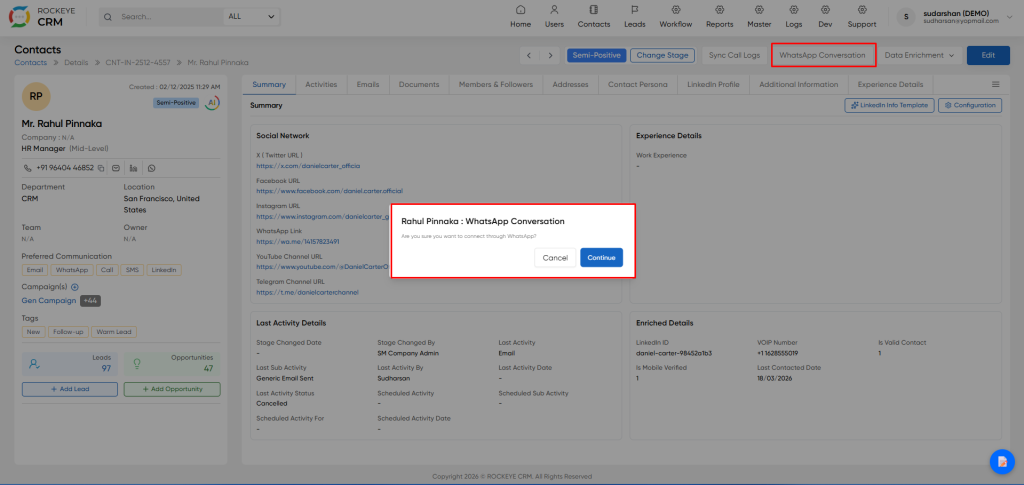
- Confirmation Message "Are you sure you want to connect through WhatsApp?"
- Cancel Close the dialog without opening WhatsApp.
- Continue Opens the WhatsApp Business API interface or redirects to WhatsApp Web with the contact's number pre-filled.
Data Enrichment
AI-powered data augmentation to fill gaps in contact information using external sources and LLM processing.
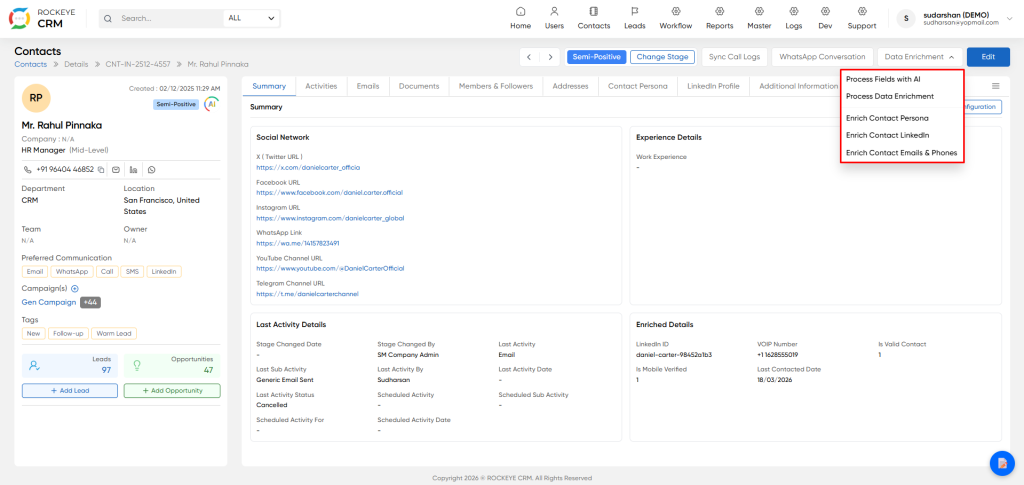
- Process Fields with AI Generic AI processing of available data to suggest field values.
- Process Data Enrichment Comprehensive background check and data append from multiple sources.
- Enrich Contact Persona Opens the Contact Persona enrichment dialog (detailed in Section 7.6) to generate professional profile analysis.
- Enrich Contact LinkedIn Fetches latest LinkedIn profile data (skills, experience, education) via API integration.
- Enrich Contact Emails & Phones Validates and appends additional email addresses and phone numbers using data enrichment services.
Note: Each enrichment option may open specific dialogs for API selection, field mapping, or confirmation before processing.
Listing
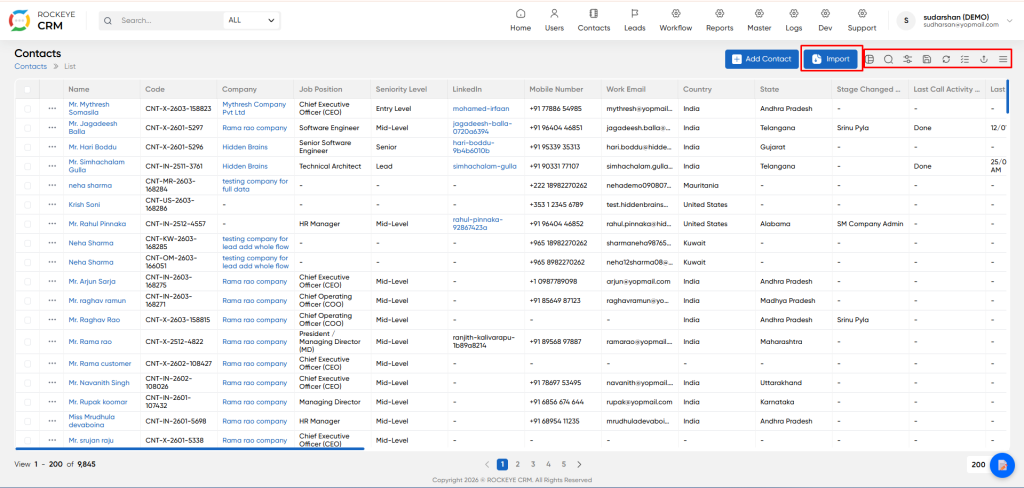
- Import: Opens the bulk import wizard for uploading contacts via CSV/Excel. See Import Section below.
- Save: Filter Saves current filter criteria as a preset for quick future access.
- Advance Search: Opens side panel to filter by Name, Company, Job Position, Country, Stage, etc.
- Refresh: Reloads the list to display latest data changes.
- Export: Downloads current view or selected records as CSV/PDF.
- Toggle Cploum: Show/hide columns to customize the grid view.
- More (Hamburger Menu):
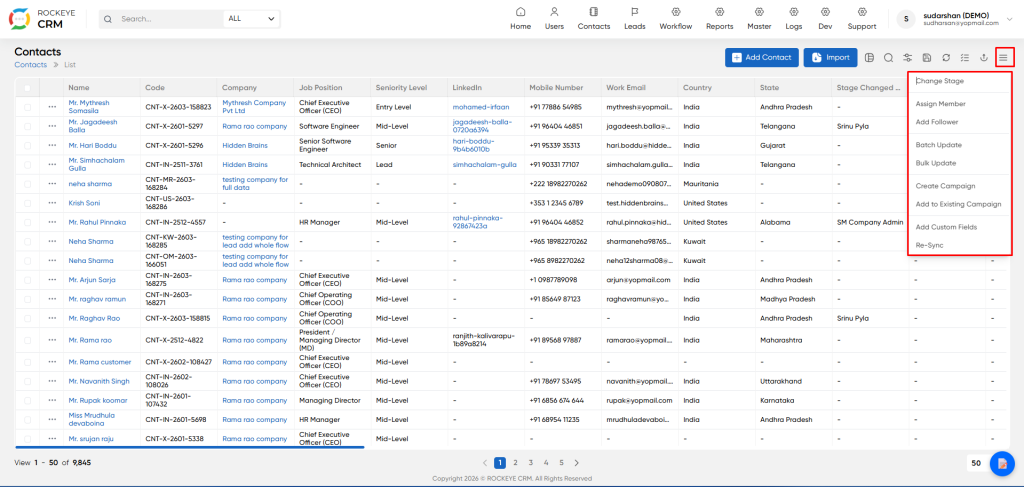
- Change Stage: Opens a dialog to move selected contacts to a different pipeline stage (e.g., from "New" to "InProcess" or "Positive"). Updates the Stage Changed By and Stage Changed Date fields automatically.
- Assign Member: Transfers contact ownership to a different team member or user. Updates the "Added By" or "Owner" field. Useful for workload balancing or territory reassignment.
- Add Follower: Yes Adds users as followers to selected contacts without changing primary ownership. Followers receive activity notifications and updates but cannot edit unless they have permissions.
- Batch Update: Opens a form to update specific fields across multiple contacts simultaneously (e.g., update "Country" to "United States" for 50 selected contacts).
- Bulk Update: Similar to Batch Update but may offer different UI or validation rules for complex field combinations.
- Create Campaign: Initiates campaign creation workflow using selected contacts as the initial recipient list. Redirects to Campaigns module with contacts pre-populated.
- Add to Existing Campaign: Opens dropdown of active campaigns to add selected contacts as recipients/targets. Useful for nurturing sequences or event invitations.
- Add Custom Fields: Allows adding or updating custom field values for selected contacts in bulk (e.g., industry tags, source codes, or custom identifiers).
- Re-Sync: Forces a synchronization of contact data with integrated external systems (e.g., LinkedIn, email platforms, or third-party databases). Refreshes enriched data and validation statuses.

