Designation
Introduction
The Designation module in ROCKEYE CRM is used to define and manage job titles within the organization, such as CEO, Manager, Team Lead, Executive, etc.
It helps establish a clear organizational hierarchy by assigning roles and levels to users. Designations play a key role in defining responsibilities, reporting structure, and access control within the system.
How To Navigate
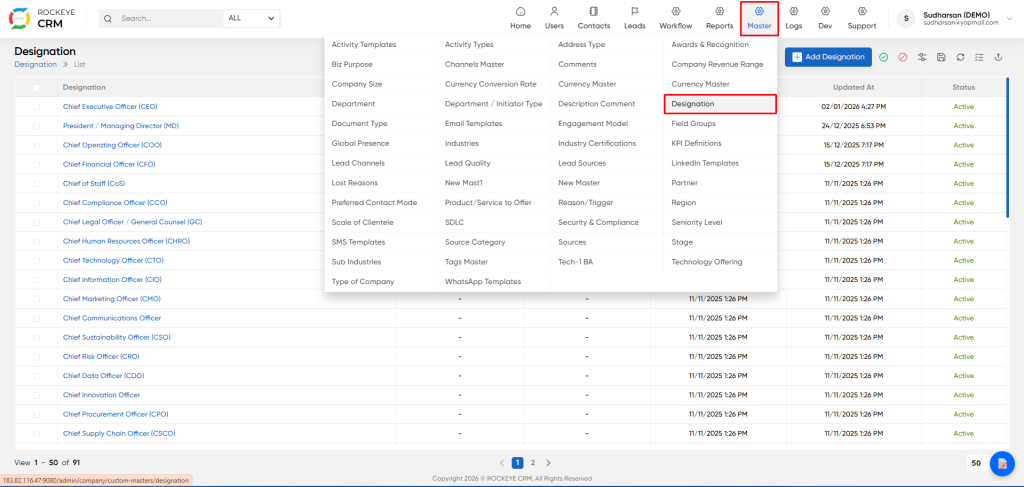
- Click on the Master icon in the top navigation bar.
- From the dropdown menu, select Designation.
How To Add Designation
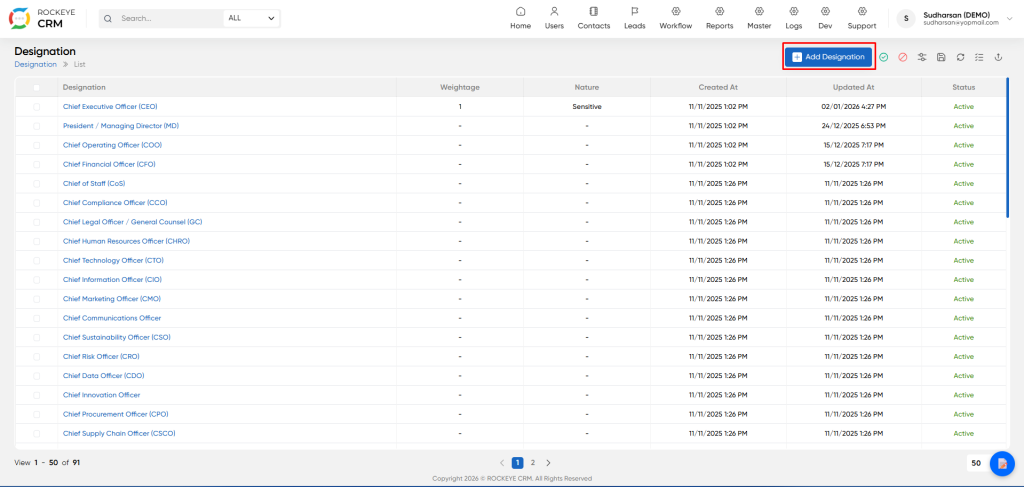
Click the blue Add Designation button on the listing page.
- Designation: Enter the full name of the job title (e.g.,
Chief Executive Officer (CEO),Sales Representative). - Weightage: Assign a numerical value to represent the role's seniority or priority level. For example, a CEO might have a higher weightage than a manager.
- Nature: Select a category for the designation from the dropdown menu. The available options are:
NoneGenericSensitive(Often used for high-level or confidential roles)
- Bulk Import:
- Drag file or choose file to upload: Use this option to upload a
.csvor.xlsxfile containing a list of designations. - Import Requirements:
- Accepted formats: .csv or .xlsx
- Maximum file size: 100 MB
- Maximum rows: 50,000
- Column Titles: The first row of your file must contain column titles, and there should be no duplicate titles.
- Drag file or choose file to upload: Use this option to upload a
- Action Buttons:
- Save: Commits the new designation(s) to the system.
- Discard: Cancels the operation and closes the window without saving any changes.
Listing
The listing page provides a comprehensive table of all configured designations.
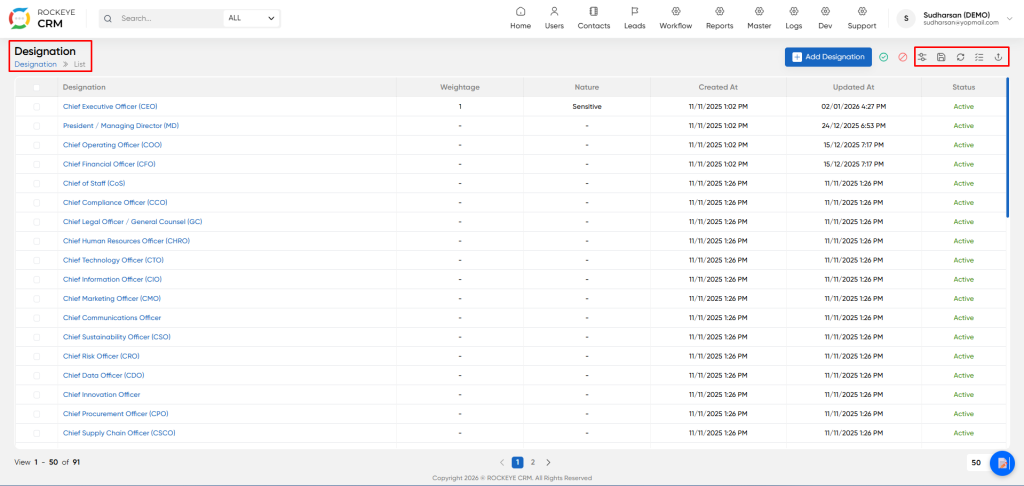
- View all available job titles and their associated attributes.
- Designation: The name of the job title (e.g.,
Chief Executive Officer (CEO),Marketing Manager). - Weightage: A numerical value assigned to the designation, often used to indicate seniority or importance in workflows and approvals.
- Nature: Classifies the designation into categories like
Sensitive,Generic, orNone. This can be used to apply specific security or visibility rules. - Created At / Updated At: Timestamps for when the record was created or last modified.
- Status: Indicates if the designation is currently
ActiveorInactive. - Other Icons: Provide functions like refresh, delete, download, filter, and view options.

