Homepage
Introduction/Purpose
The Rockeye HRMS Mobile App is designed to streamline your HR processes, making it easier to manage employee information, approvals, and other HR-related tasks on the go. This knowledge base will guide you through the various features and functionalities of the app, ensuring you can make the most of its capabilities.
Getting Started:
Selecting Your Organization:
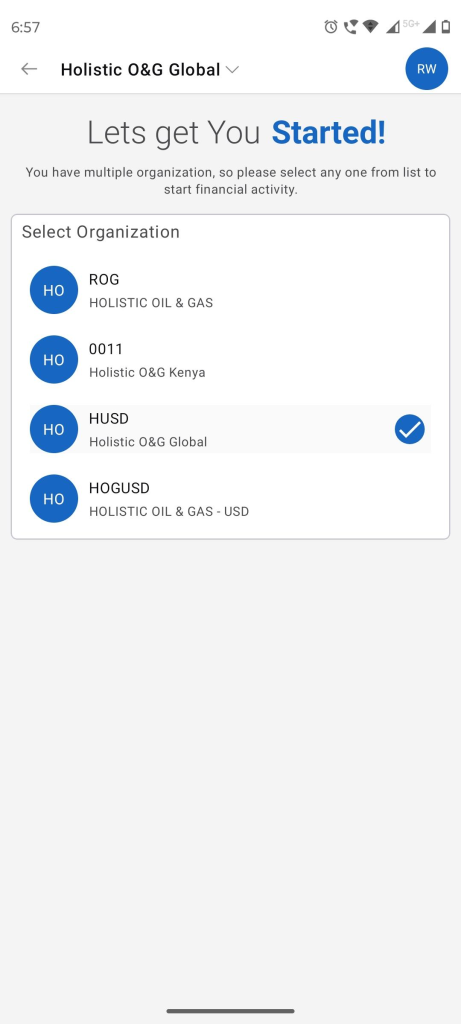
- Upon logging in, you may need to select the organization you wish to manage. This step is crucial if you are associated with multiple organizations.
- Follow the on-screen instructions to select the appropriate organization from the list provided.
Navigating the Homepage:
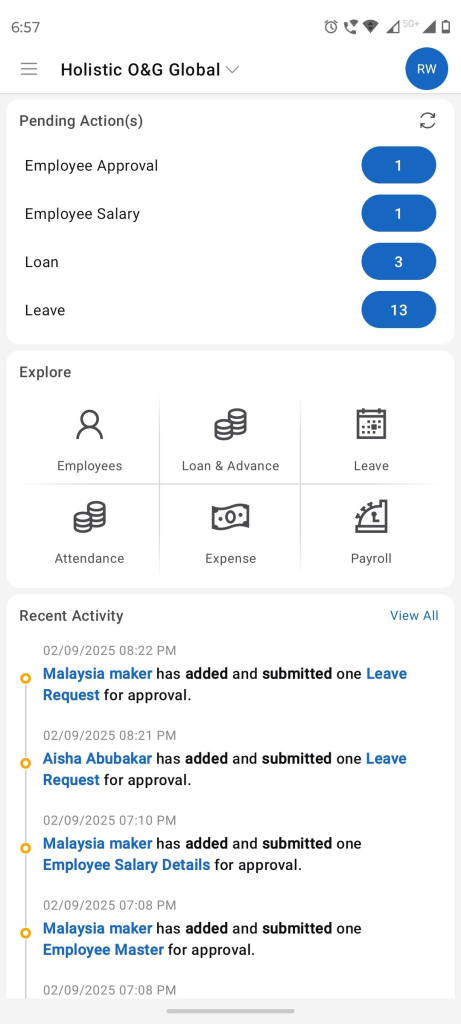
- The homepage provides an overview of pending actions that require your attention.
- Use the "Explore" section to access different HR functionalities.
- Check the "Recent Activity" section for the latest updates and submissions.
Key Features:
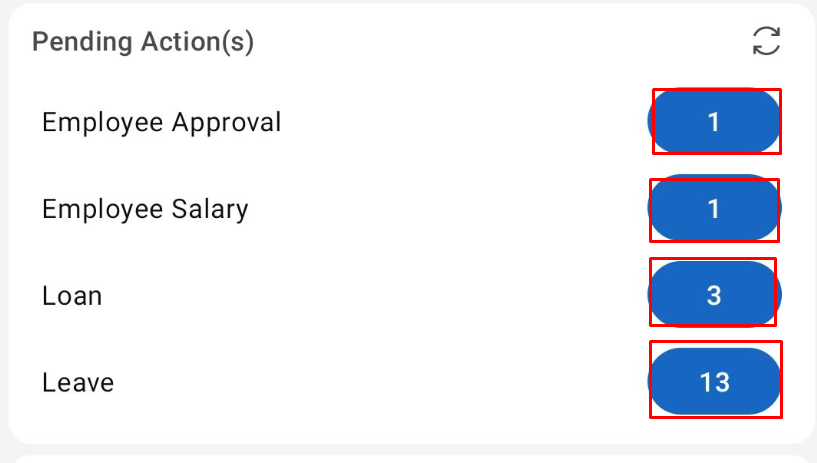
Pending Actions:
The Approval Workflow: From List to Action
The process for all approvals follows a consistent, two-step pattern:
- Review the Summary List: After tapping a category from the "Pending Action(s)" section on your homepage, you will see a list of all items awaiting your approval.
- Drill Down for Details: Tap any item in the list to view its complete details before making a decision.
- Approving a New Employee Enrollment
- This action is required when a new employee's profile has been created and needs to be formally approved and added to the system.
- Step 1: View the Pending Enrollment List
- From the homepage, tap on Employee Approval. You will see a list of new employee profiles awaiting validation. This screen provides a summary including their name, position, and current review status.
- Step 1: View the Pending Enrollment List
- This action is required when a new employee's profile has been created and needs to be formally approved and added to the system.
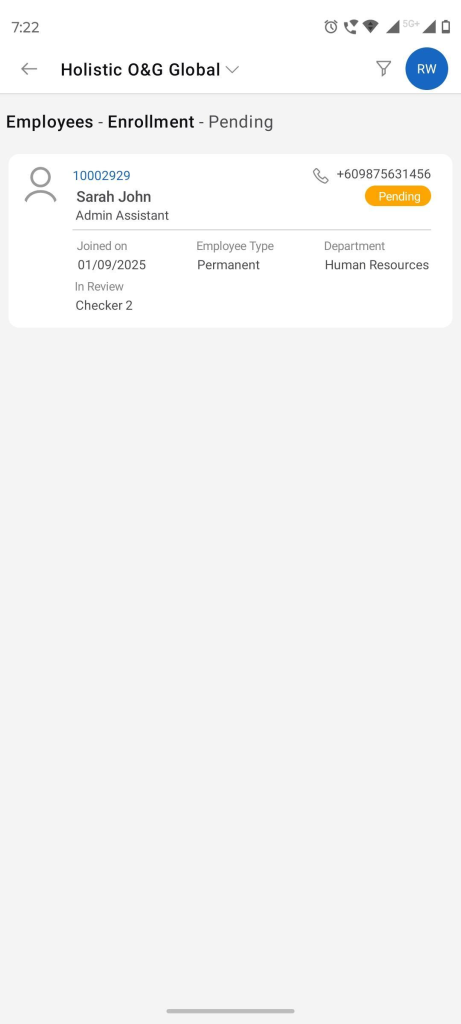
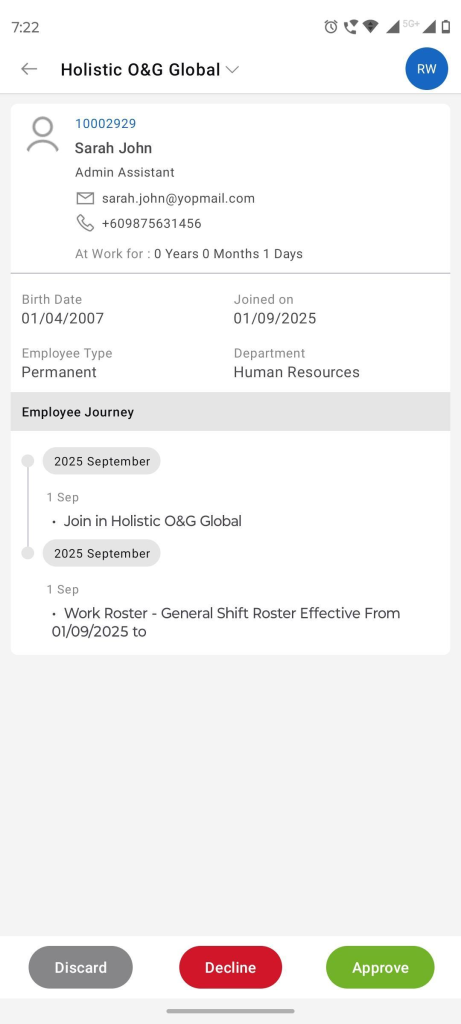
- Step 2: Review the Employee's Detailed Profile
- Tap on an employee's card (e.g., Sarah John) to see their full profile. This includes their contact details, birth date, join date, department, and the "Employee Journey" timeline. After reviewing, choose an action at the bottom of the screen.
Approving a Salary Revision
This action is needed when an existing employee has a proposed change to their salary structure.
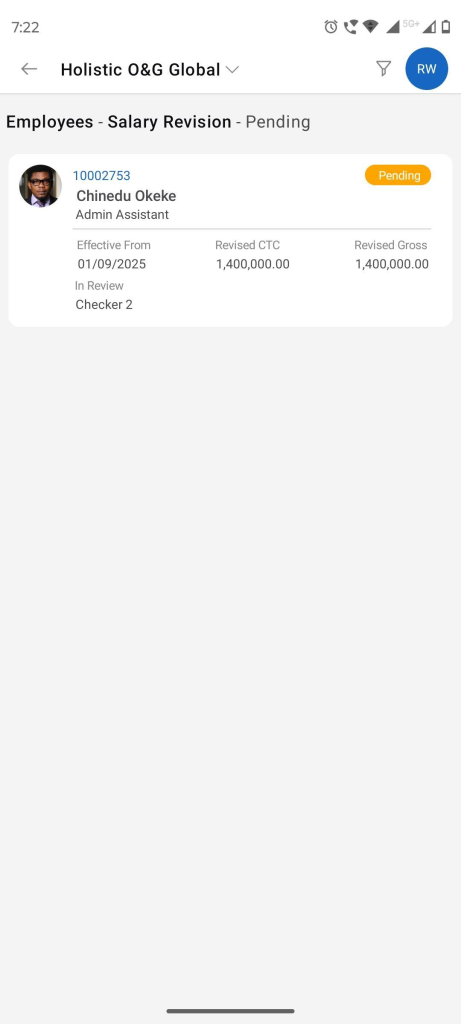
- Step 1: View the Pending Salary Revision List
- From the homepage, tap on Employee Salary. This screen lists all employees with pending salary changes, showing the revised CTC (Cost to Company) and Gross amounts for a quick overview.
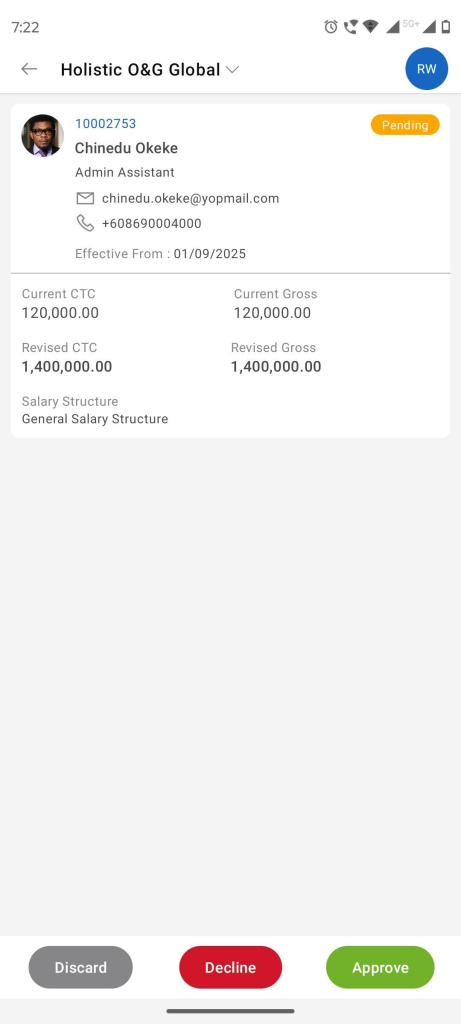
- Step 2: Compare Current vs. Revised Salary
- Tap on an employee's card (e.g., Chinedu Okeke) to see a detailed comparison. The screen clearly displays both the Current CTC/Gross and the Revised CTC/Gross, allowing for an easy and informed decision.
Approving a Loan Request
This action is for reviewing and approving loan or salary advance applications submitted by employees.
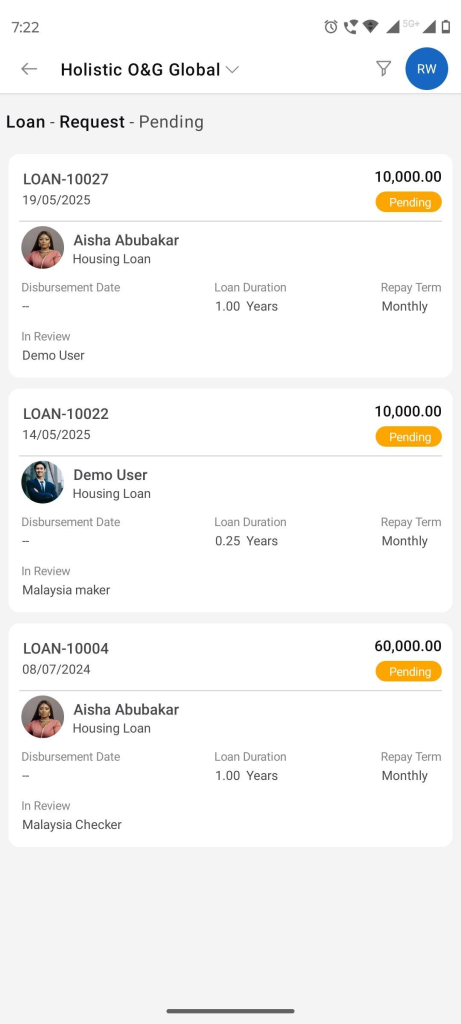
- Step 1: View the Pending Loan Request List
- From the homepage, tap on Loan. You'll see a list of all outstanding loan requests, showing the employee's name, loan amount, and status.
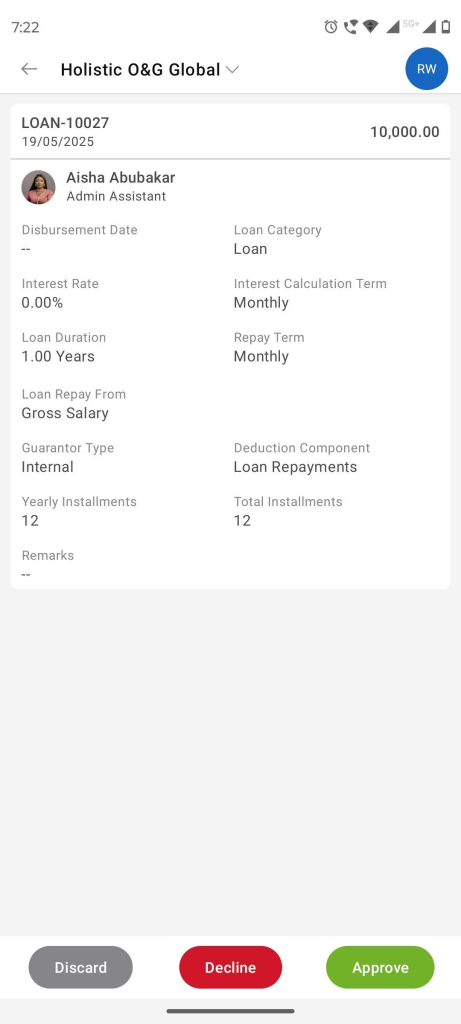
- Step 2: Examine the Loan Terms
- Tap on a specific loan request to view all its details. This includes the loan category, interest rate, duration, repayment terms, and guarantor information. This comprehensive view ensures you have all the necessary information to approve or decline the request.
Approving a Leave Request
This is one of the most common actions, used to approve or deny employee time-off requests.
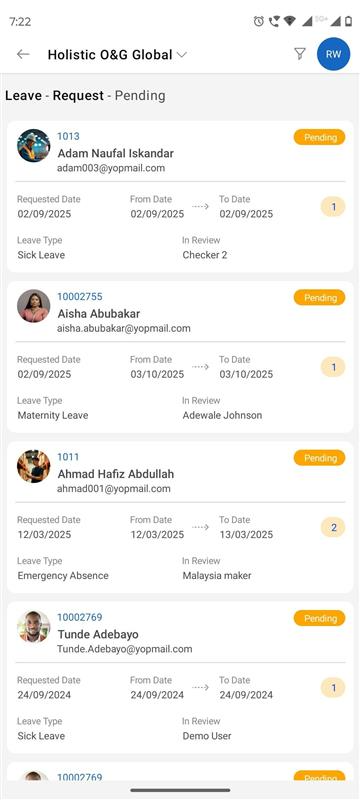
- Step 1: View the Pending Leave Request List
- From the homepage, tap on Leave. This brings you to a list of all pending leave applications, showing the employee, dates, and leave type.
- Step 2: Review the Leave Details
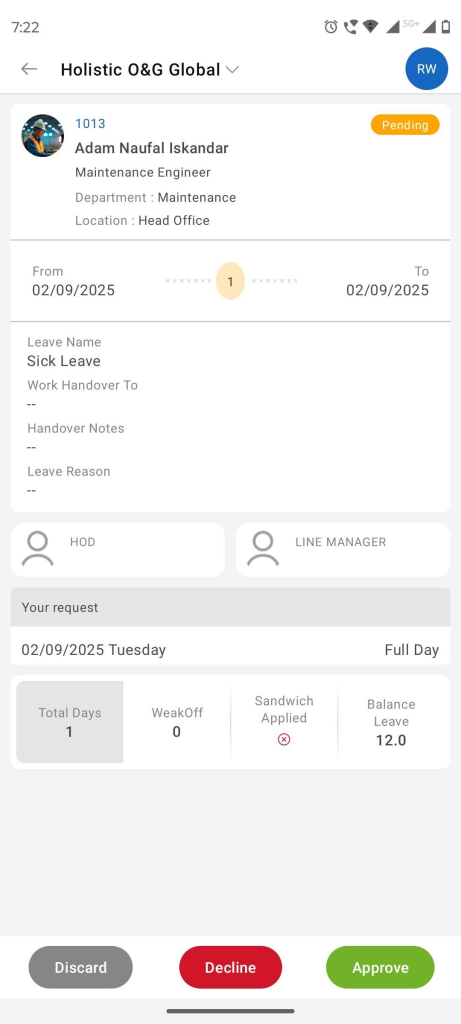
- Tap on a leave request to see the full context. This includes the specific dates, total days, handover notes, leave reason, and the employee's remaining Balance Leave. This balance is crucial for making an approval decision.
Taking Action: Approve, Decline, or Discard
At the bottom of every detail screen, you will find three action buttons:
- Approve (Green): Confirms and authorizes the request.
- Decline (Red): Rejects the request. The employee will be notified.
- Discard (Grey): Removes the request from your queue without a formal approval or rejection. This is useful for duplicate or erroneous entries.
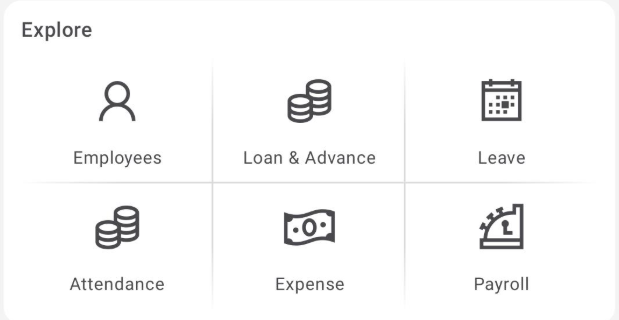
- Explore:
- Employees: Manage employee records and information.
- Loan & Advance: Manage loan and advance requests and approvals.
- Leave: Submit, approve, or review leave requests.
- Attendance: Track and manage employee attendance records.
- Expense: Manage and approve expense claims submitted by employees.
- Payroll: Access and manage payroll information.
- Recent Activities
- Stay updated with the latest activities and submissions within the HRMS module. This section provides a timeline of recent actions taken by employees and managers.

