Timesheet
Introduction/Purpose:
The Timesheet module in Employee Self-Service (ESS) enables employees to record, track, and manage their daily working hours, including attendance, shift timings, and break durations. It provides a structured view of time logs and supports transparency between employees and the organization.
This feature is crucial for accurate payroll processing, compliance monitoring, and workforce management.
Process Flow:

How to Navigate:
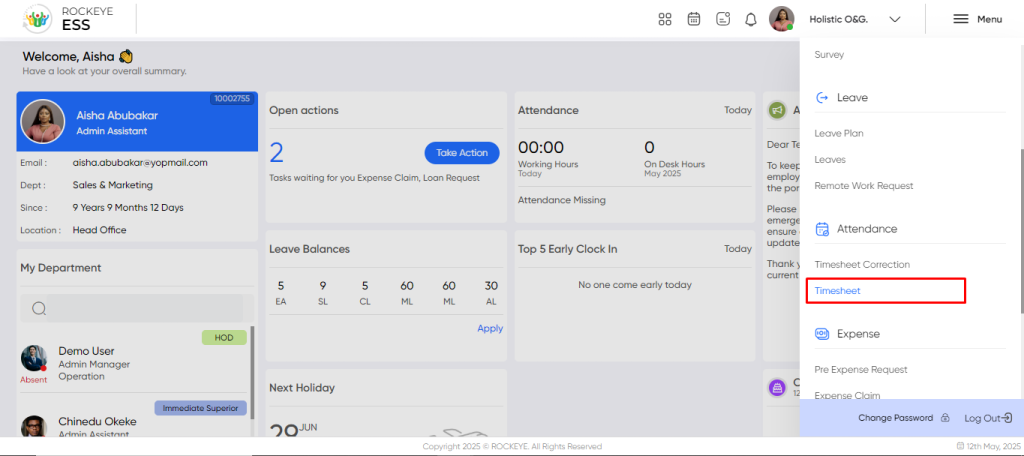
The navigation to a timesheet in a employee self service typically involves the following steps:
- Click the Menu icon at the top-right corner.
- Navigate to Attendance > Timesheet.
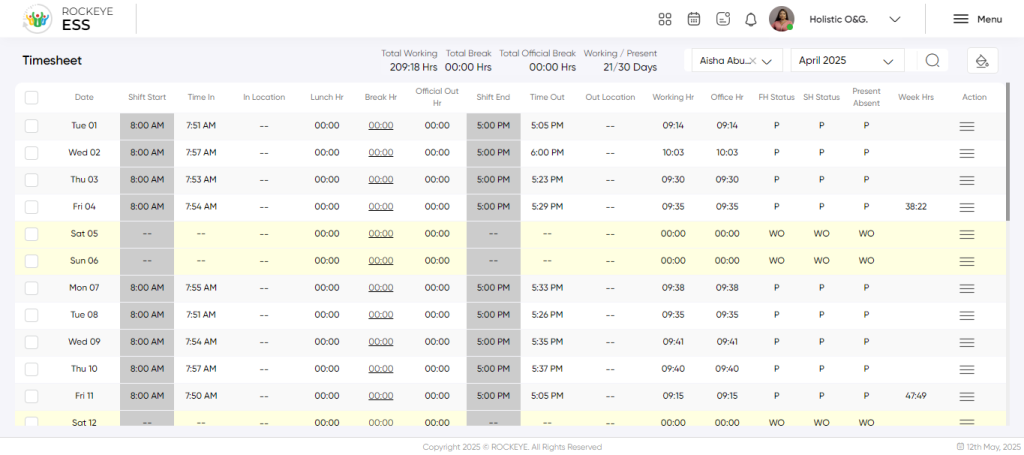
- The page displays time log entries such as date, shift timings, time in/out, break durations, working hours, and attendance status.
Listing:
- Review daily and weekly time entries.
- View shift start/end, time in/out, break/lunch durations, and presence status.
- Identify discrepancies or missing logs.
Filter
- Month-Wise Filter: Select a specific month to view time entries.
- Employee Filter (for managers): View timesheets for team members (if access is granted)
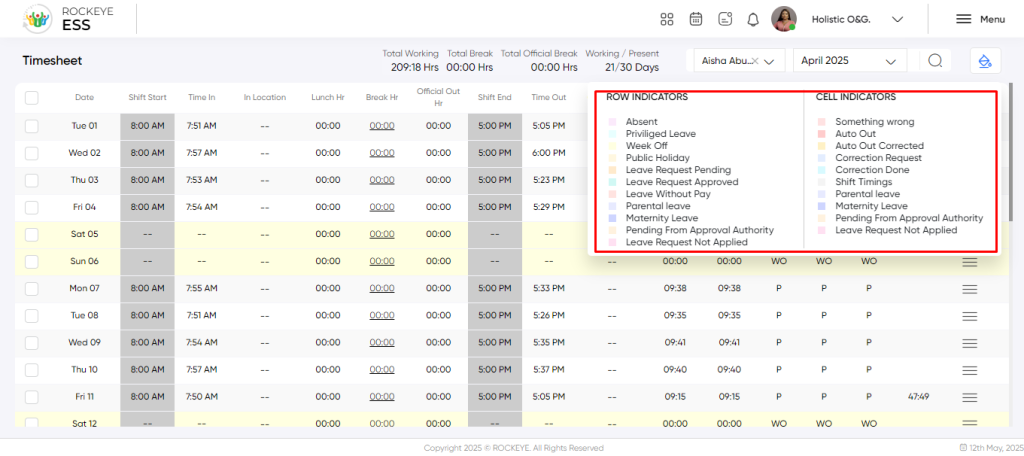
- Color Indication: The user can view the description of the colour display in the timesheet.

Recording & Update:
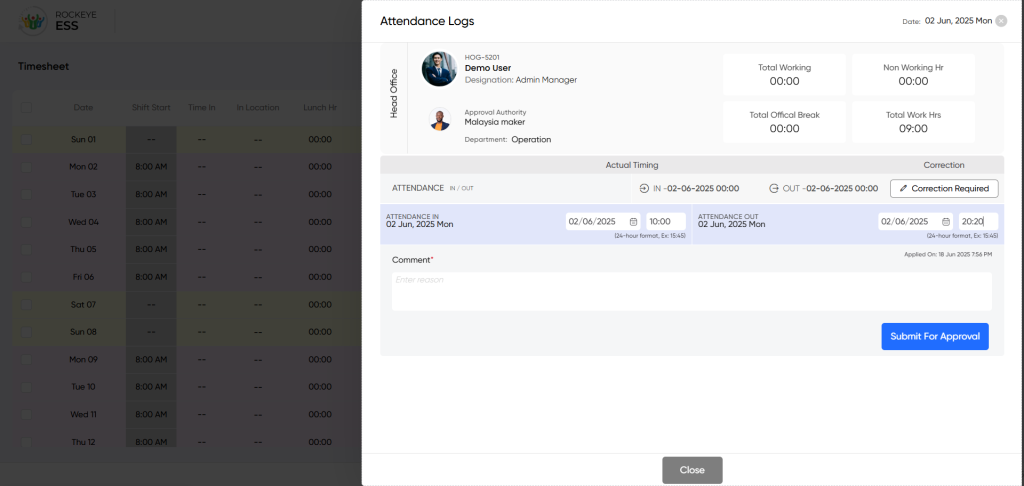
Employees can view and update the following time log fields:
- Entry Time / Exit Time: Actual working hours logged per day (format: hh:mm).
- Break Entry/Exit: Duration of breaks taken.
- Comment*: Provide a reason for any corrections (mandatory if editing logs).
Note: All corrections must include a valid comment for audit and approval.
Available Actions:
- Correction Required: Modify existing time entries or add missing records.
- Submit for Approval: Send the modified timesheet for approval by the reporting manager.
- Close: Exit the screen without saving changes.
Note: After approval, time entries cannot be updated.

