Operations Dashboard
Purpose
The Operations Dashboard provides a consolidated view of orders, quantities, trips, deliveries, routes, and operational performance. It helps users monitor the current status of orders and trips, track quantities and deliveries, and review route and transporter-related performance.
Navigation
To access the Operations Dashboard:
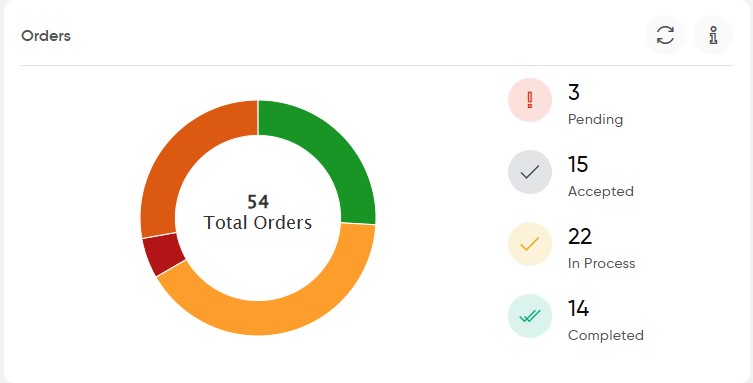
- Orders
- Displays the total number of orders and their current status, including:
- Pending
- Accepted
- In Process
- Completed
- The donut chart provides a visual distribution of orders across these status.
- Displays the total number of orders and their current status, including:
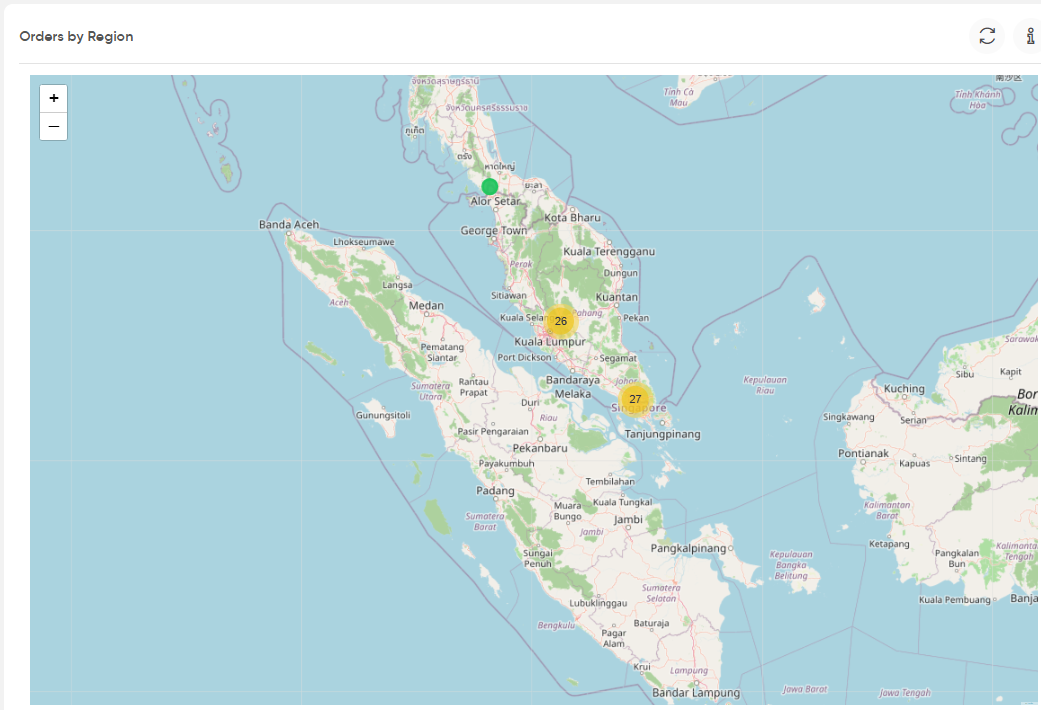
- Orders by Region
- Displays the geographic distribution of orders on a map based on their associated regions or locations.
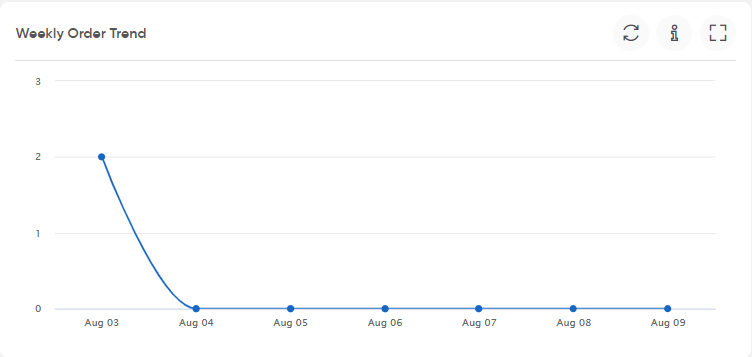
- Weekly Order Trend
- Displays the number of orders created during each day of the displayed week, allowing users to track changes in order volume over the week.
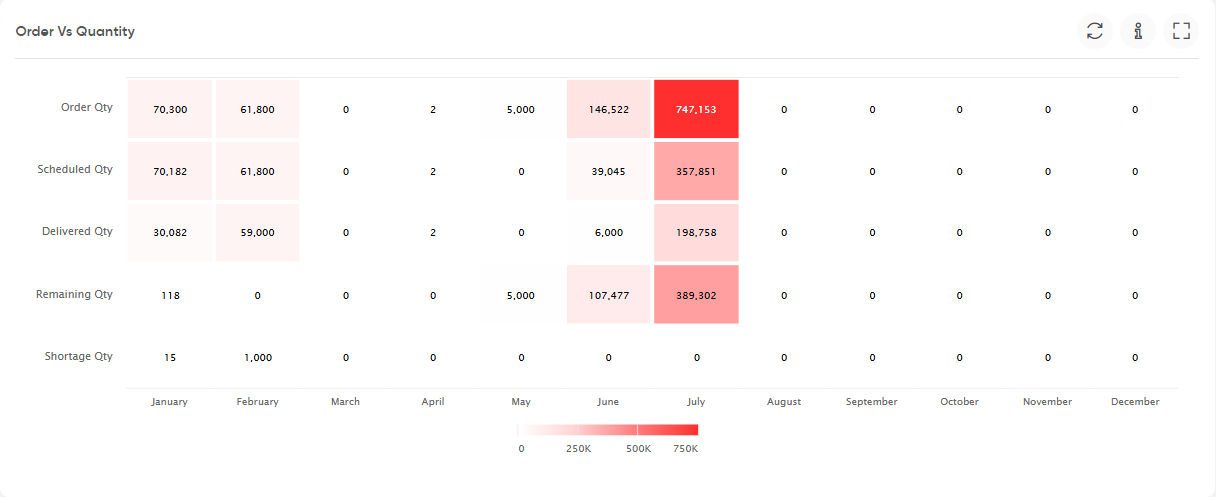
- Order Vs Quantity
- Displays order quantities against scheduled, delivered, remaining, and shortage quantities on a month-wise basis.
- The widget helps users compare the ordered quantity with the quantity scheduled and delivered.
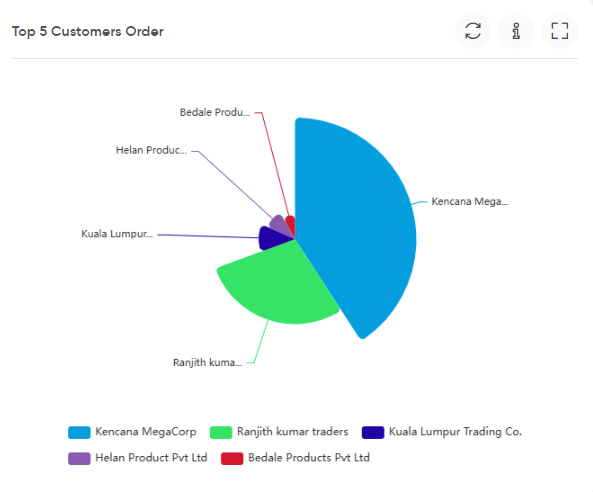
- Top 5 Customers Order
- Displays the top five customers based on their order volume.
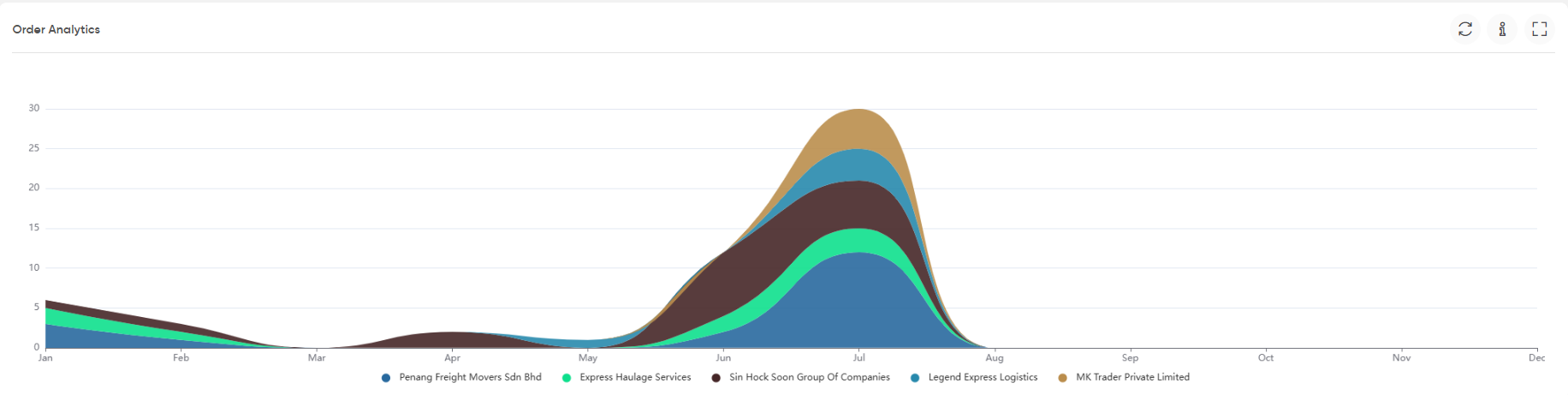
- Order Analytics
- Displays the month-wise order volume and its distribution across transporters, helping users review order activity over the selected period.
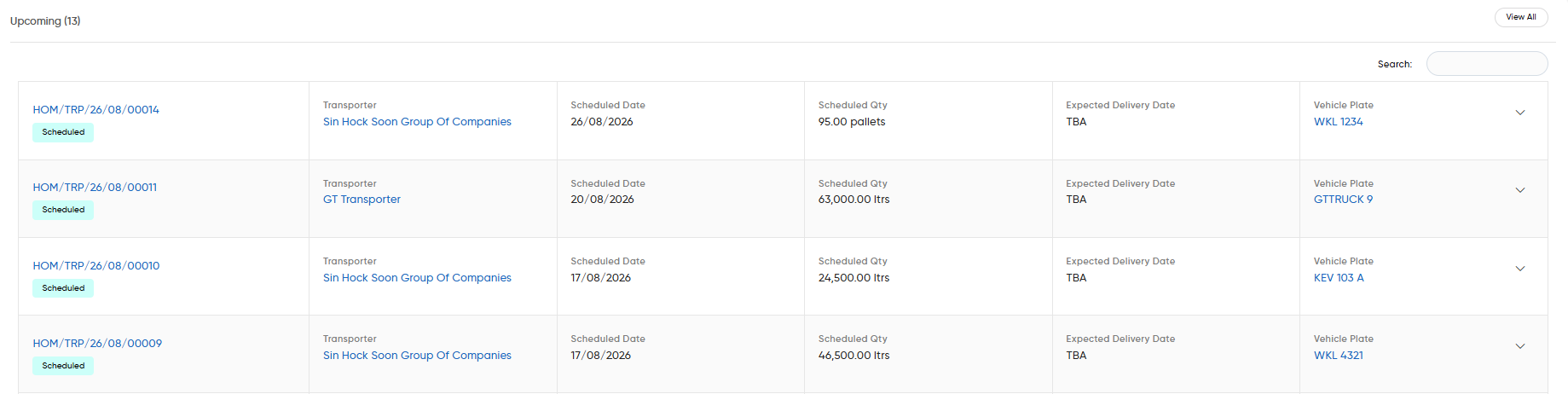
- Upcoming
- Displays upcoming scheduled trips along with key trip details, including:
- Trip Reference
- Transporter
- Scheduled Date
- Scheduled Quantity
- Expected Delivery Date
- Vehicle Plate
- A View All option is available to access the complete list.
- Displays upcoming scheduled trips along with key trip details, including:
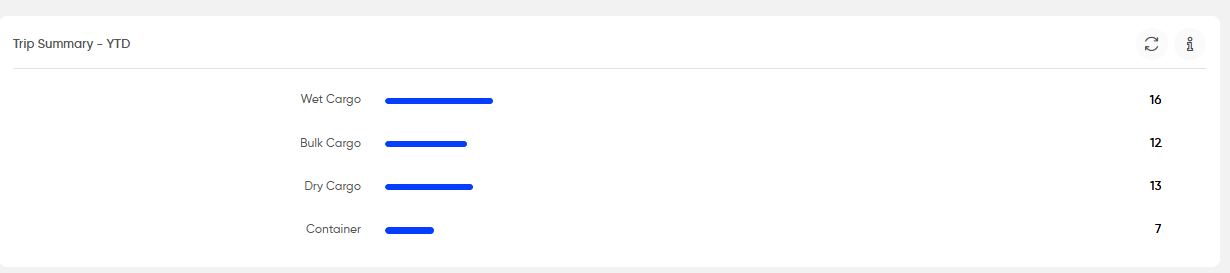
- Trip Summary – YTD
- Displays the year-to-date number of trips by cargo type, including:
- Wet Cargo
- Bulk Cargo
- Dry Cargo
- Container
- Displays the year-to-date number of trips by cargo type, including:
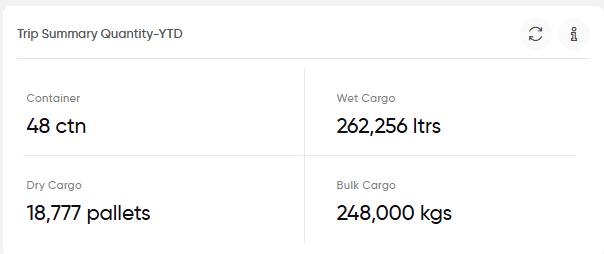
- Trip Summary Quantity – YTD
- Displays the year-to-date trip quantity by cargo type, including the respective measurement units such as containers, litres, pallets, and kilograms.
- Ongoing Trips State to State
- Displays the current movement of ongoing trips between their source and destination states.
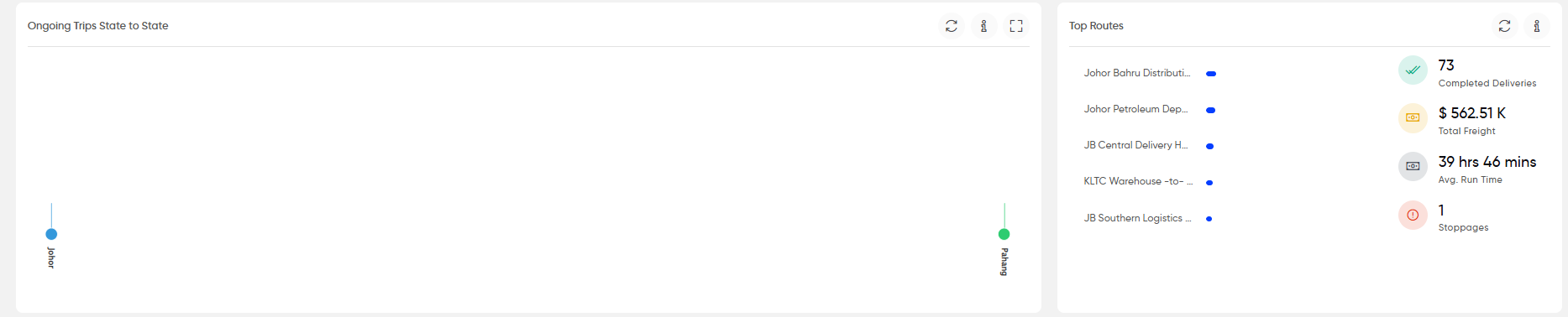
- Top Routes
- Displays the top routes based on operational performance. The widget provides information such as:
- Completed Deliveries
- Total Freight
- Average Run Time
- Stoppages
- Displays the top routes based on operational performance. The widget provides information such as:
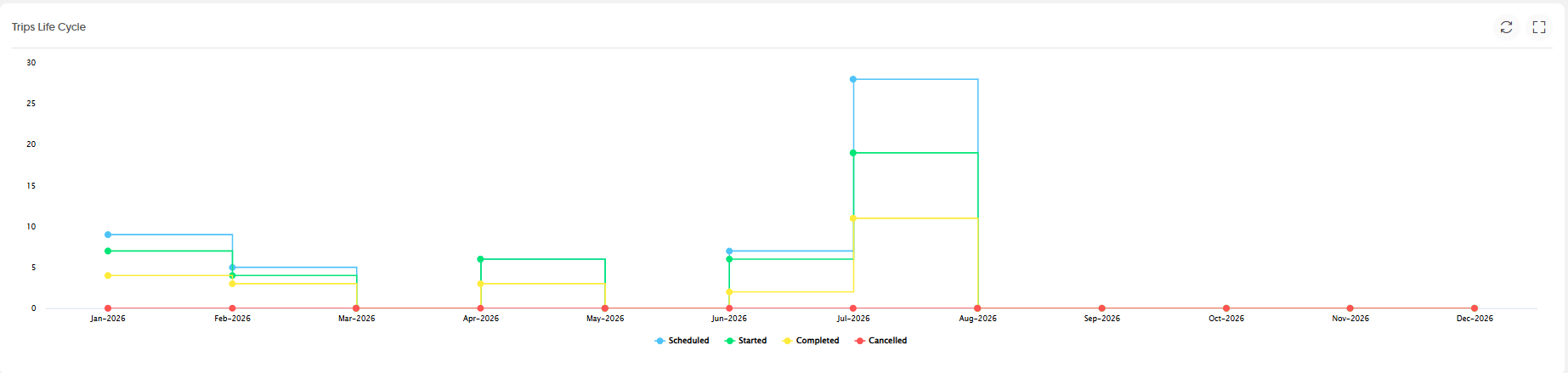
- Trips Life Cycle
- Displays the monthly progression of trips across different lifecycle stages:
- Scheduled
- Started
- Completed
- Cancelled
- This provides an overview of trip progression throughout the year.
- Displays the monthly progression of trips across different lifecycle stages:
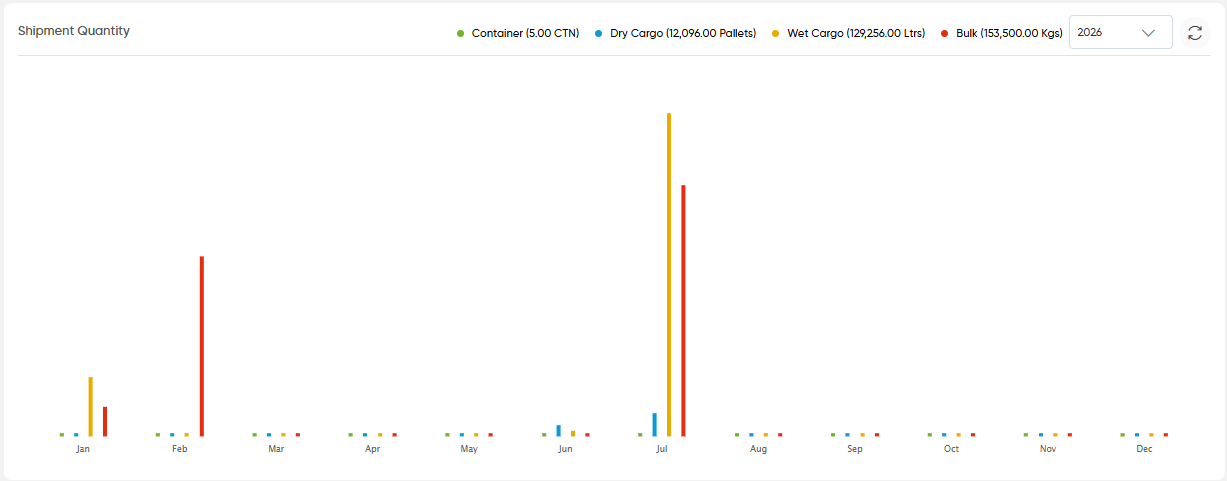
- Shipment Quantity
- Displays the monthly shipment quantity by cargo type. The available cargo categories include:
- Container
- Dry Cargo
- Wet Cargo
- Bulk
- A year selector is available to view data for the required year.
- Displays the monthly shipment quantity by cargo type. The available cargo categories include:
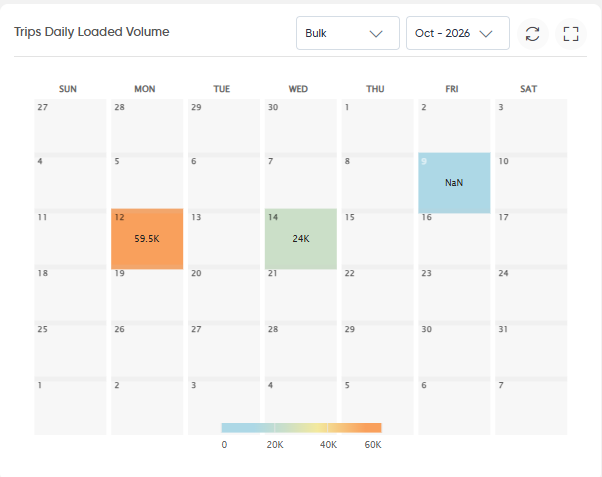
- Trips Daily Loaded Volume
- Displays the daily loaded trip volume for the selected cargo type and month in a calendar view.
- Users can select the cargo type and month to view the corresponding loaded volume for each day.
- Completed Trips
- Displays information related to completed trips.
- Widget Controls
- The dashboard provides common controls on applicable widgets:
- Refresh: Updates the widget with the latest available data.
- Information: Displays additional information about the widget.
- Expand: Opens the widget in an expanded view.
- Year Selector: Allows users to select the required year where applicable.
- View All: Opens the complete list where the option is available.
- The dashboard provides common controls on applicable widgets:

