Human Resource
Overtime Requests
Introduction/Purpose
The purpose of an overtime request in an HRMS is to provide a formal process for employees to request and obtain approval for working additional hours beyond their regular schedule.
How To Navigate:
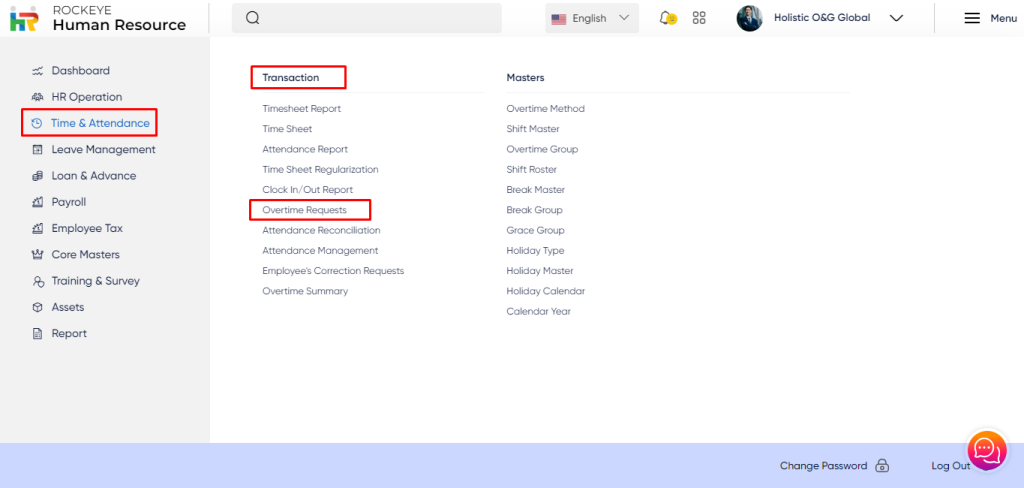
The navigation to record overtime requests in the HRMS system typically involves the following steps:
- Click on the main navigation icon which is located in the top right corner of the screen, then click on the Time and Attendance section which is located on the left side menus on the screen.
- Click on the Overtime Requests section, which is located in the Transactions under Time and Attendance. After clicking on this link, you can navigate to Overtime Requests Listing.
Listing:
The key features of the Overtime requests record listing are included below:
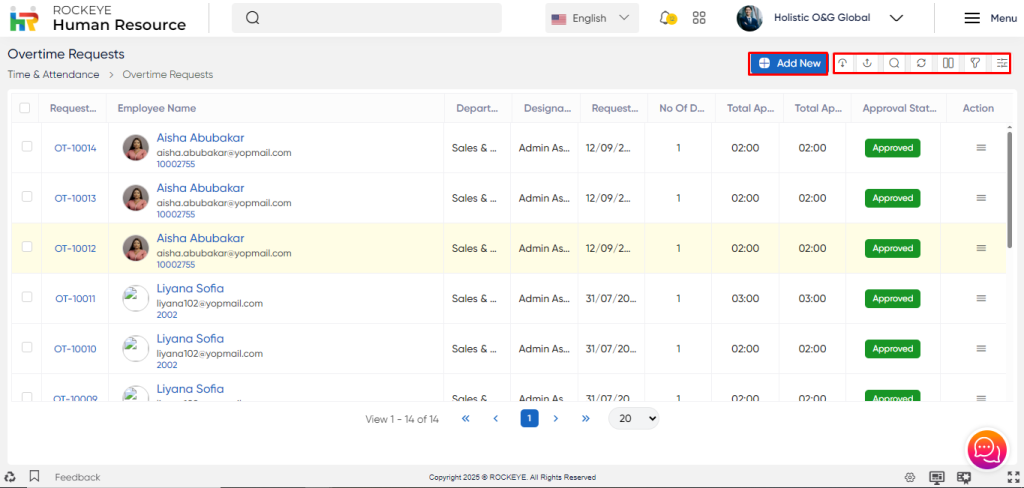
- Show all listing records: This option allows the user to clear all the filters and show all the overtime request records available in the system.
- Import: This option allows the user to import the overtime requests in the Excel format
- Upload Sheet: The user can import the overtime sheet in the form of an Excel sheet.
- Upload Sheet: The user can import the overtime sheet in the form of an Excel sheet.
- Date Time Format: The user can set the date Time format for the imported overtime sheet such as
- Y-m-d
- d-m-y
- y-m-d H:i:s
- d-m-y H:i:s
Recording & Update:
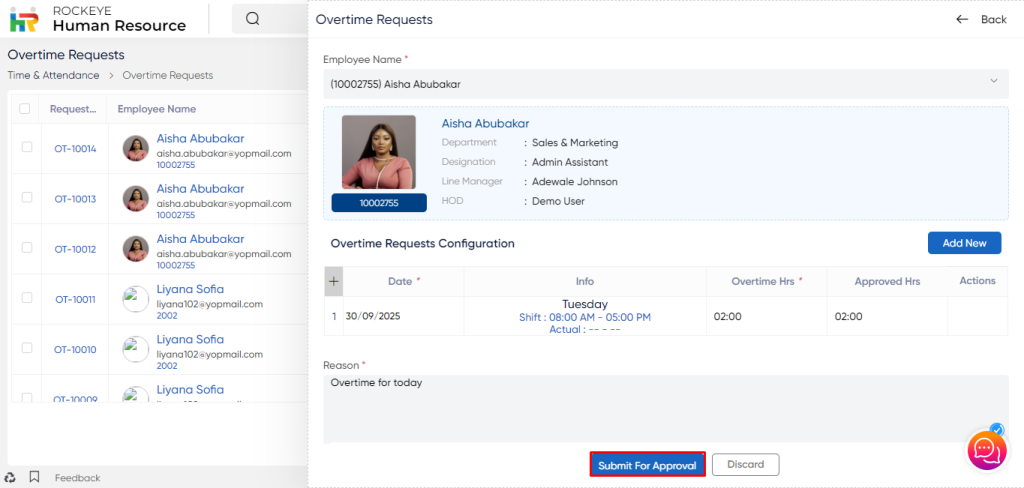
- Employee Name*: Identifies the employee applying for overtime. This field is mandatory.
- Request Code: A system-generated unique code assigned to each overtime request for tracking purposes.
- Request Date: The specific date on which the overtime is requested.
- Information: Displays details of the employee’s work schedule for the selected date, such as:
- Day (e.g., Friday)
- Shift timings (Start–End)
- Leave status (if any, e.g., Annual Leave)
- Actual working hours (if captured in the system).
- Overtime Hrs.: The number of overtime hours requested by the employee.
- Approved Hrs.: The number of overtime hours approved by the manager or approver.
- Reason*: A mandatory field where the employee specifies the reason for requesting overtime.
- OT Justification: Additional explanation or rationale provided by the employee to support the overtime request (e.g., urgent project delivery, system downtime recovery).
- Notes: A free-text field for adding any extra remarks or comments related to the overtime request.
The user can perform the following action in this section:
- Submit: This option allows the user to Submit the above fields and These Overtime request records will get Submitted, Based on the submission, the employee record will be displayed to the user.
- Discard: This option allows the user to discard the record and no changes will get created if adding or changes will not get saved if updating.
- Approve / Reject: Once submitted, the request moves to the approval stage. The approver (e.g., line manager or HOD) can either:
- Approve – Confirms the overtime hours, making them valid for compensation or comp-off.
- Reject – Declines the request, with an optional note stating the reason for rejection.
Keynotes:
- Firstly, the user has to choose one employee from the list, then the user can export the Overtime requests of the chosen employee.