Overtime Summary
Introduction/Purpose
The Overtime Summary provides a consolidated view of all overtime requests submitted by employees, along with their approval status and recorded hours. It serves as a centralized record, capturing key details such as requested hours, approved hours, reasons, and justifications.
How to Navigate
The navigation to record overtime summary in the HRMS system typically involves the following steps:
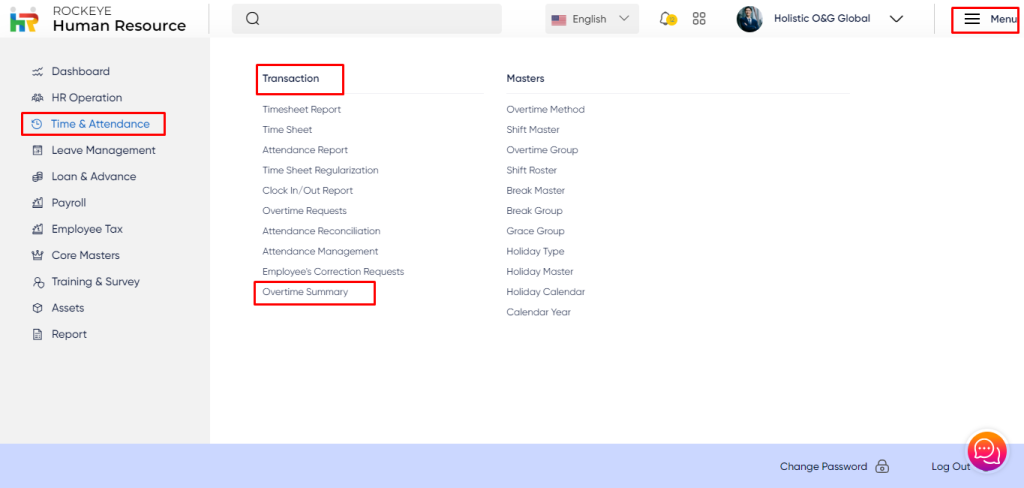
- Click on the main navigation icon which is located in the top right corner of the screen, then click on the Time and Attendance section which is located on the left side menus on the screen.
- Click on the Overtime Summary section, which is located in the Transactions under Time and Attendance. After clicking on this link, you can navigate to Overtime Summary Listing.
Listing
- Select Pay Period: Displays the selected reporting period for which overtime records are shown.
- Overtime/Process Overtime: Through this option, the user will be able to process the overtime and move to the pay projection section for the selected employees.
- In the Overtime summary page, overtime-related listing will be displayed as below
- Employee Name: The full name of the employee who submitted the overtime request.
- Emp Code: The unique employee code/ID assigned to the employee.
- OT Date: The specific date on which the overtime was worked or requested.
- OT Day Type: Identifies the type of day on which overtime occurred (e.g., Working Day, Weekly Off, Holiday).
- Compensate As: Defines how overtime will be compensated (Fixed Amount, Salary Hours, or Comp Off).
- Applied Hours: The number of hours of overtime requested by the employee.
- Overtime Hrs: The calculated overtime hours based on system configuration and applicable rules.
- Approved Hours: The final overtime hours approved by the manager or approver.
- Actions: Provides available user actions such as View, Edit, Approve, Reject, or Delete for the overtime record.
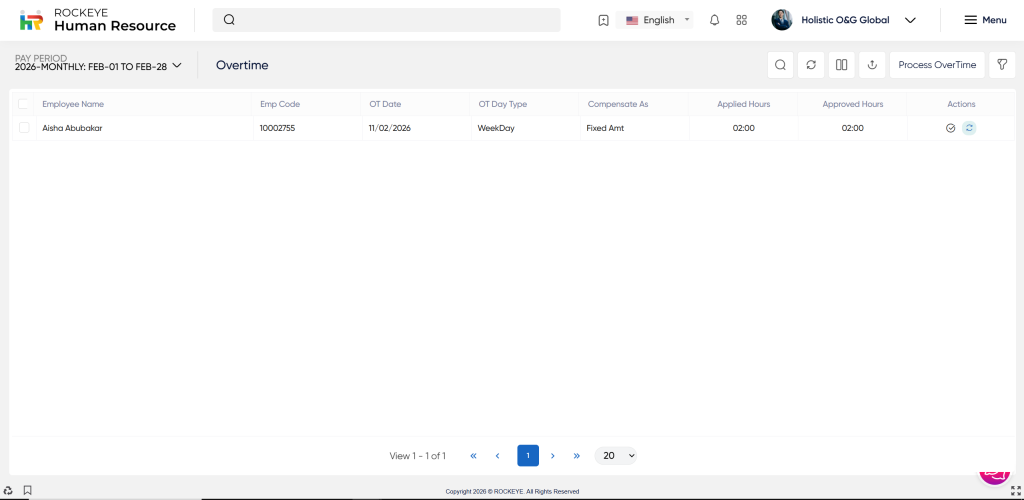
The user will be able to perform all actions on the listing page
- Advanced Search: The user will be able to perform an advanced search based on different criteria.
- Show All Listing Columns: The user will be able to refresh and view all columns in the listing.
- Hide and Show Columns: The user will be able to hide or show columns on the listing page.
- Export Listing Records: The user will be able to export the listing records.
- Filter: The user will be able to filter records based on specific fields.

