Units
Introduction/Purpose
The Unit Master is used to define and manage various measurement units (e.g., Liters, Kilograms, Pieces) , ensuring standardization across product transactions, stock handling, pricing, and reporting.
Each unit defined helps maintain consistency in how products are measured, sold, and tracked within the system.
How To Navigate
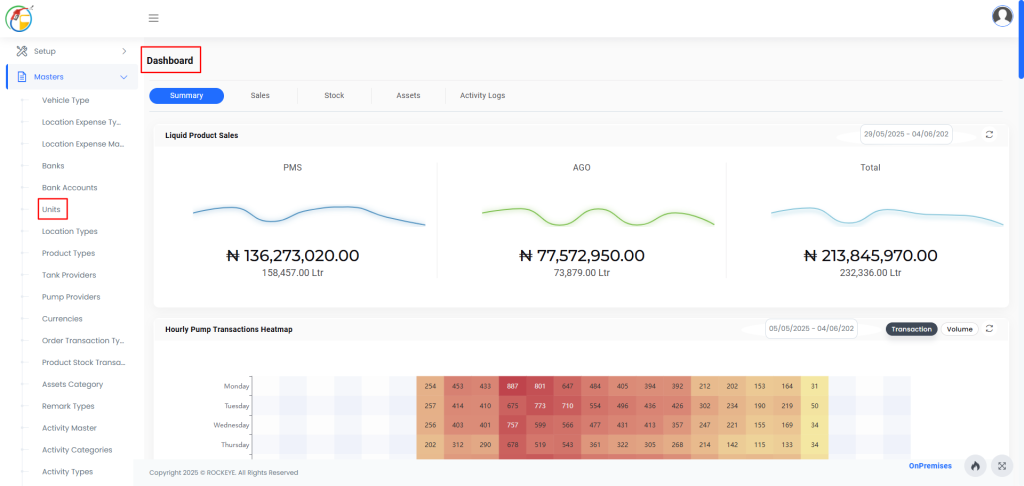
- Go to the Master Module from the main dashboard.
- Select Units from the submenu to open the Unit List View.
Listing
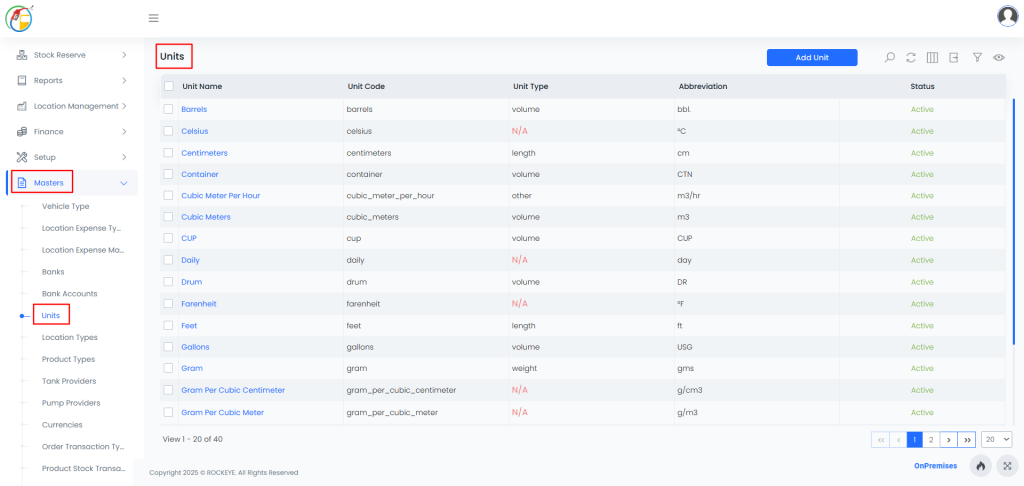
How To add Units
Click Add New in the Unit List View.
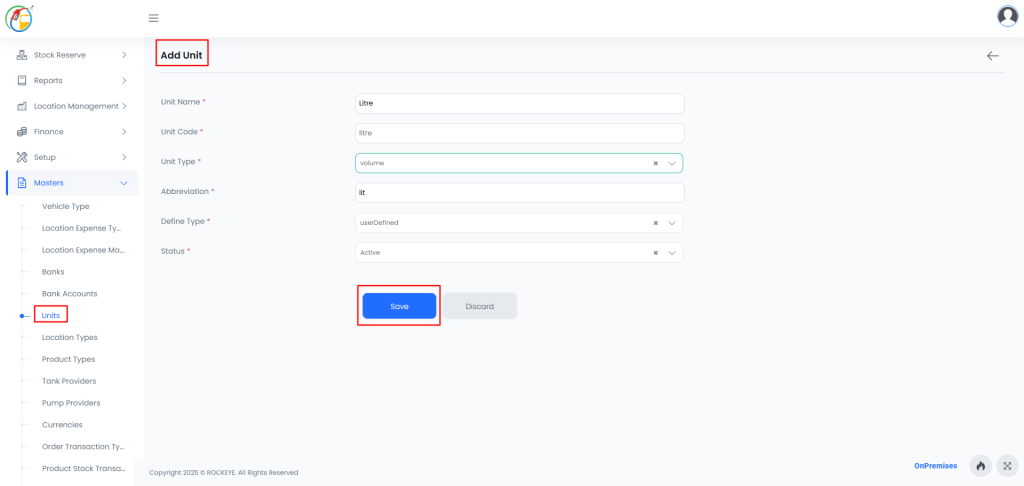
- Fill in the unit details:
- Unit Name: Full name (e.g., Kilogram, Liter)
- Unit Code: Unique code (e.g., KG, LTR)
- Unit Type: Classification (e.g., Volume, Weight)
- Abbreviation: Short form (e.g., Kg, L)
- Define Type: User-defined or system-defined
- Status: Active or Inactive
- Click Save.

