Bills of Materials
Purpose:
The Bills of Materials (BoM) serves as a comprehensive list of all raw materials, components, and subassemblies required to manufacture a product. It outlines the quantity and cost of each material, allowing for accurate production planning, cost estimation, and inventory control.
Navigation Menu:
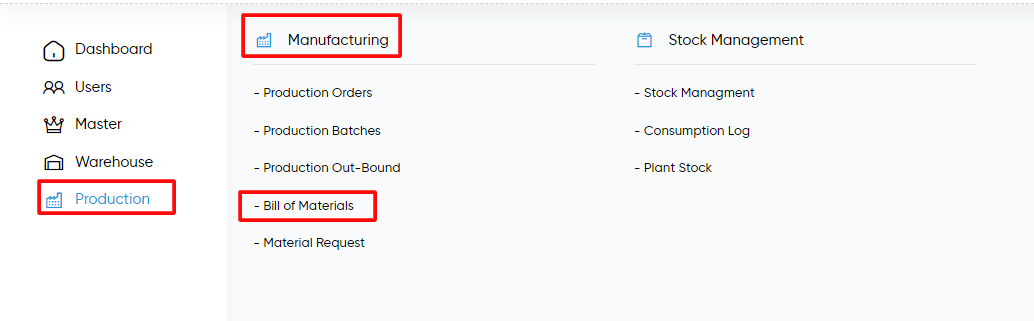
Production > Manufacturing > Bills of Materials
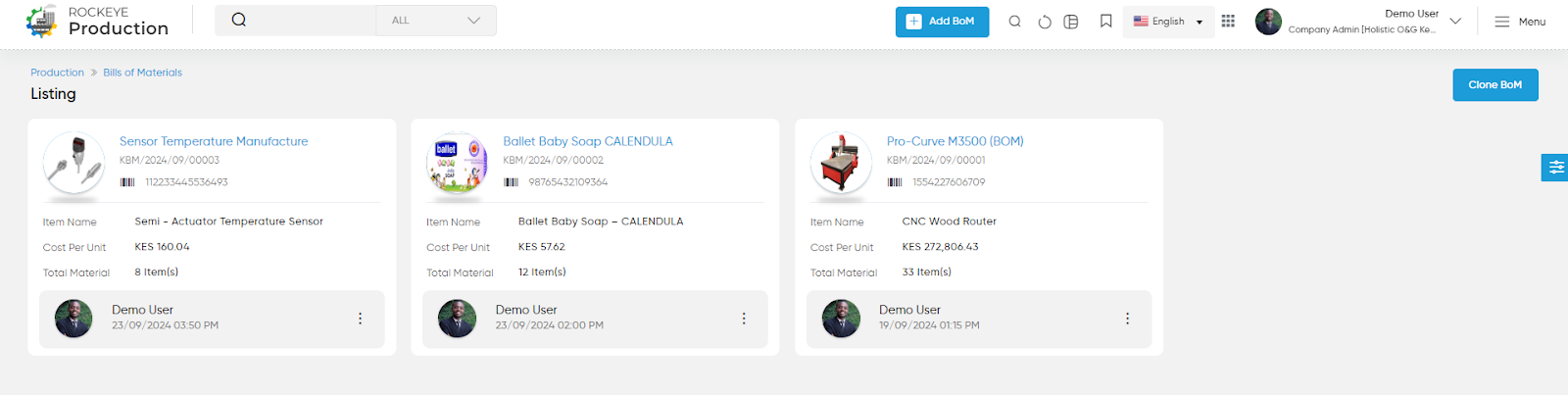
Listing screen:
Bills of Materials Listing Screen is to provide users with an organized view of all the Bills of Materials associated with their Items.
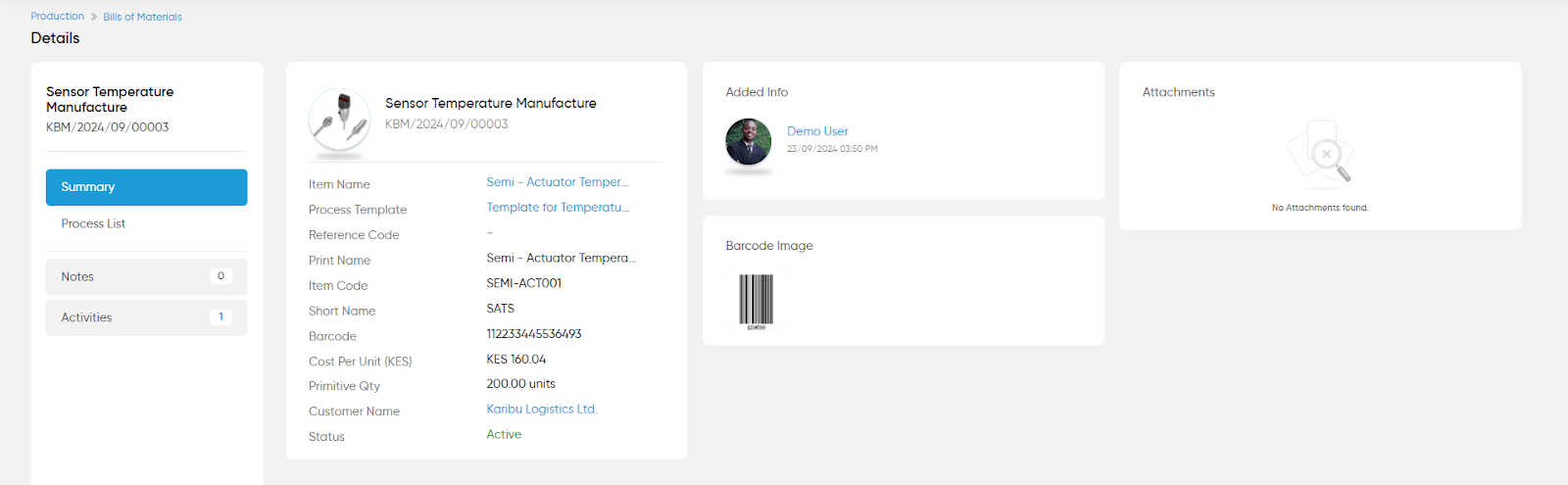
- On Clicking on each BOM name the user can view the details of the BOM for selected items.
- Summary:- The Summary section provides a concise overview of a specific production highlighting essential details about the item being produced for Bills of Materials.
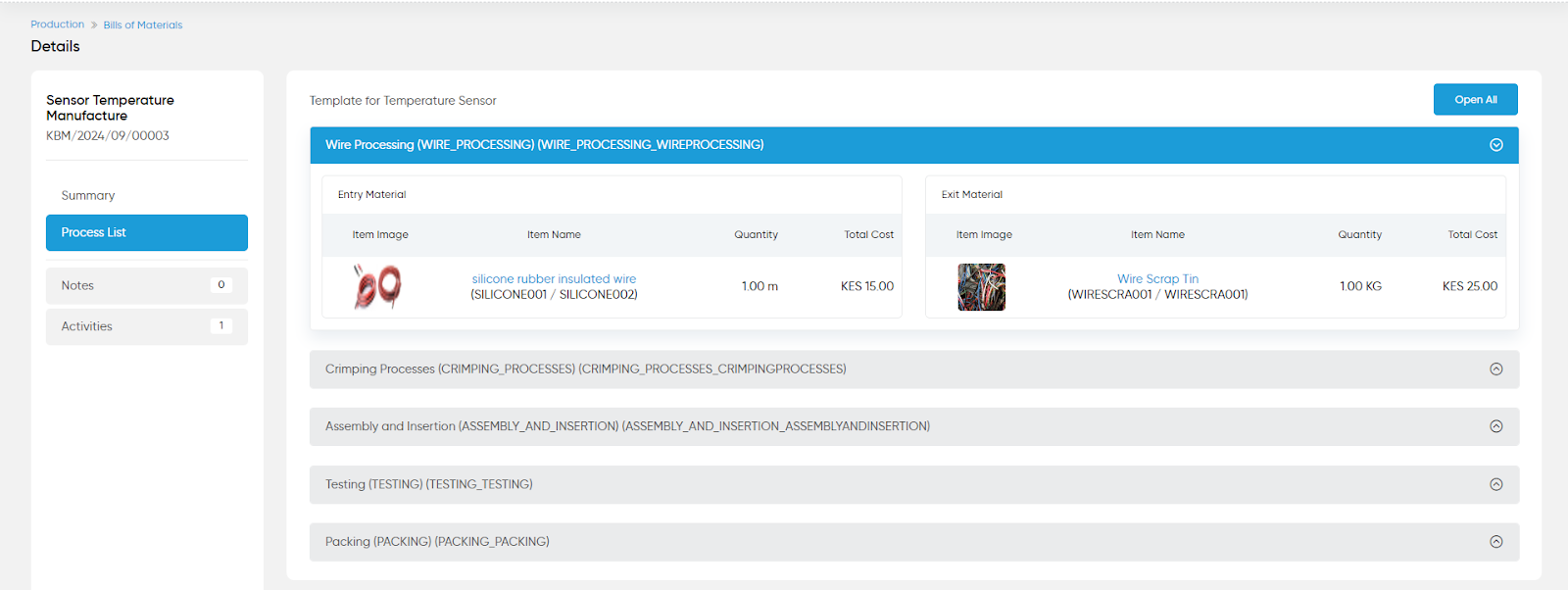
- Process List:- The Process List provides a comprehensive overview of each step involved in the manufacturing of a product, detailing the operations required from the entry of raw materials to the final packaging of the finished product.
Clone BOM:

The user can clone selected BOM by providing below shown details.
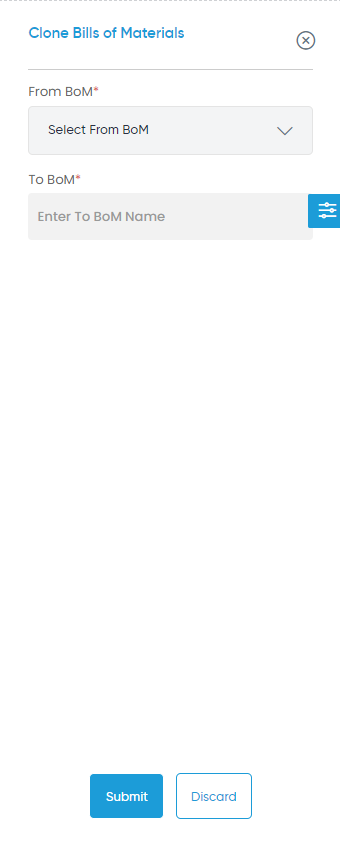
- From BOM (Required):- This field allows users to select the original Bill of Materials that they wish to clone. It includes a dropdown list of existing BoMs for easy selection.
- To BOM (Required):- This field indicates the destination for the cloned BoM. Users can enter the name of the new BoM, which should be unique to avoid confusion with existing BoMs.
Add BOM:

On clicking on the Add BOM button the user can add the BOM by filling below shown details.
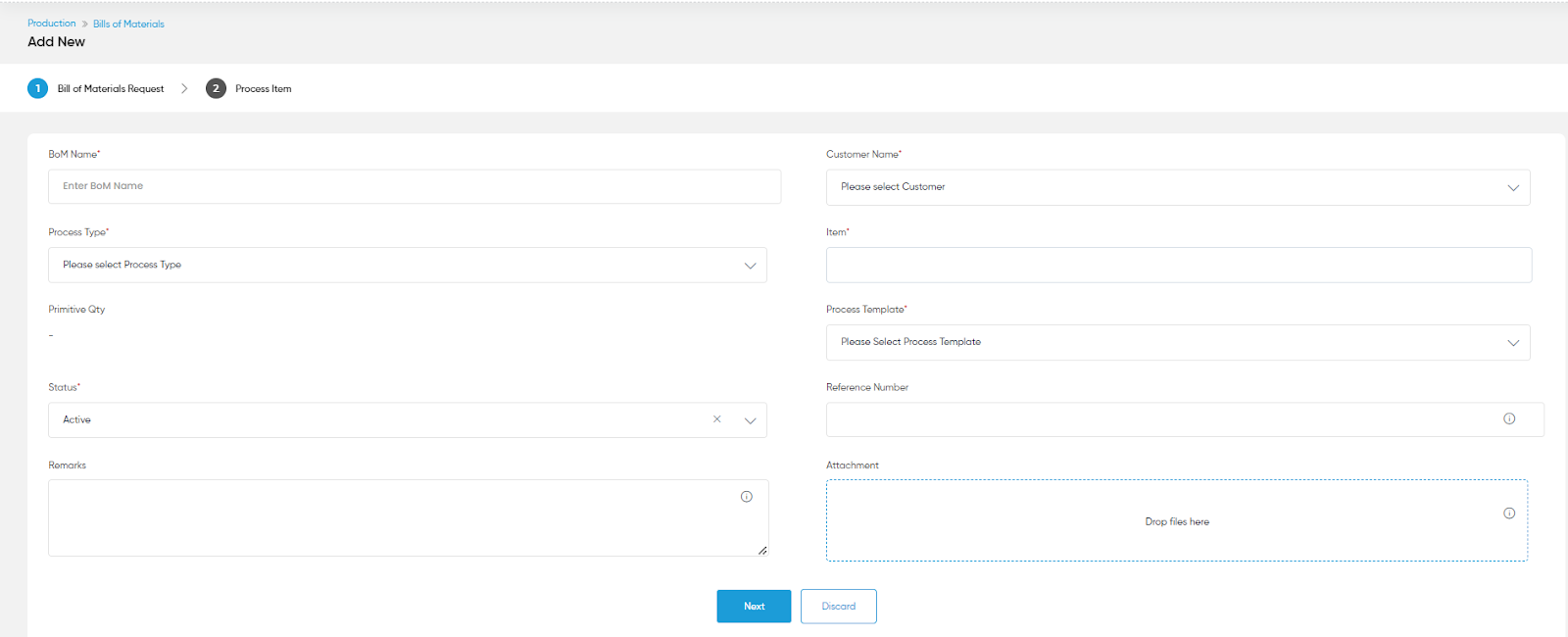
- BOM Name (Required):- This field allows the user to specify a unique name for the Bill of Materials. The name should be descriptive enough to easily identify the specific BOM.
- Customer Name (Required):- This field captures the name of the customer for whom the product is being manufactured from the drop-down.
- Process Type (Required):- This field indicates the type of manufacturing process involved (e.g., process manufacturing or discrete manufacturing).
- Item (Required):- This field requires the selection or entry of the finished item or product for which the BOM is being created.
- Primitive Qty :- This field denotes the quantity of the primary materials or components needed in the process template for production.
- Process Template (Required): - This field allows the user to select the template from the dropdown.
- Status (Required):- This field reflects the current status of the BOM.
- Reference Number: This optional field allows for the entry of a reference number or code associated with the BoM.
- Remarks: This field provides a space for additional notes or comments regarding the BOM.
- Attachment: This feature allows users to upload files or documents related to the BOM.
- Next:- On clicking on the Next button, the user can fill in the further details to create a BOM.
Process Item
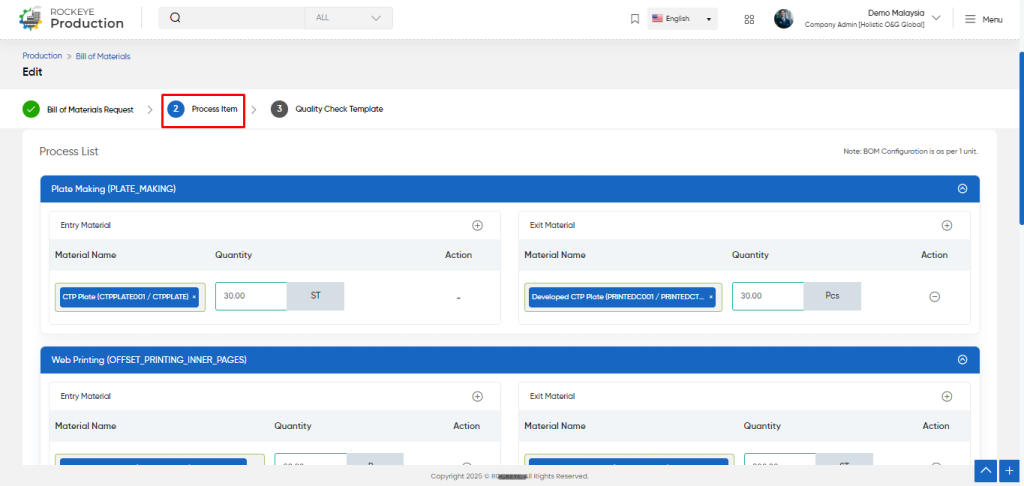
The process items outline the various stages involved in the manufacturing of any item along with the details that were previously saved for bill of materials.
Process List: Define and fetch the process that is created in the process master
- Entry Material
- Material Name: Select the entry material from the drop-down.
- Quantity: Enter the quantity of selected materials
- Add Material : Option to add more entry material with quantity.
- Exit Material
- Material Name: Select the exit material from the drop-down.
- Quantity: Enter the quantity of selected materials
- Add Material : Option to add more exit material with quantity.
Next: On clicking on the Next button, the user can fill in the further details to create a BOM and redirect to the quality check template.
Quality Check Template
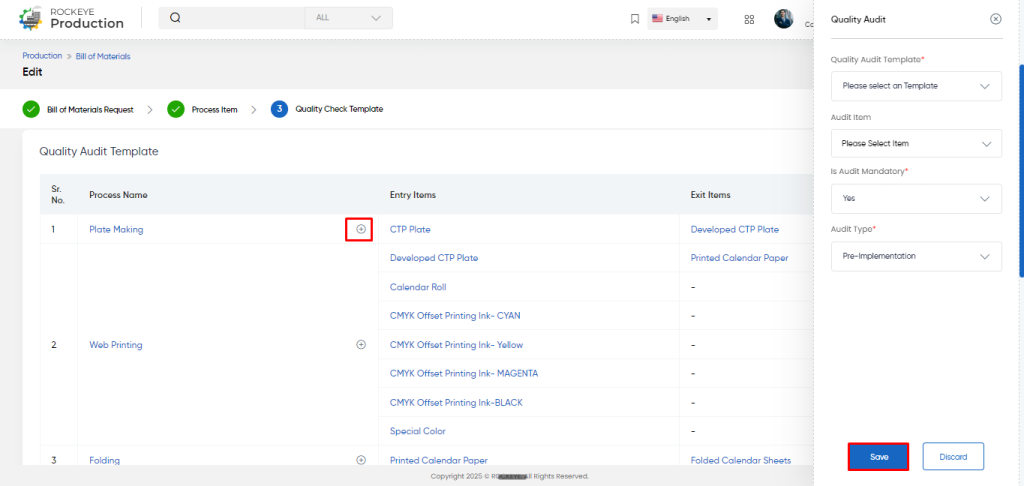
Step: On clicking “+” icon
The system will prompt the user to configure the quality audit details for the selected process.
Fields to Configure:
- Quality Audit Template: Select a predefined quality audit template from the list.
- Audit Item: Select the specific item, material, or process step to be audited.
- Is Audit Mandatory: Choose whether this audit is compulsory or can be skipped.
- Options:
- Yes (Mandatory) → Audit must be completed before moving forward.
- No (Optional/Skip) → Process can continue even if audit is not performed.
- Options:
- Audit Type: Select the category of audit to be performed.
Once the details filled by the user, user can finally submit the bill of material form
Refrence Video Link

