Transport Management
Freight Management
Wallet Overview
- Purpose: To provide a consolidated view of the user’s financial standing, including balances, pending transactions, and detailed transaction history.
- Navigation : Tap on the ‘WALLET’ tab located in the top navigation bar.
- Description :
- Balance Information:
- Receivable Balance: Displays the total amount owed to the user or available to be received.
- Pending PV: Shows the value of pending Purchase Vouchers or similar pending financial entries.
- Transaction History: The wallet displays a chronological list of transactions, typically showing:
- Transaction Type: Indicates whether it’s a CREDIT or DEBIT transaction.
- Amount: The value of the transaction.
- Payment TXN: The unique identifier for the payment transaction (e.g., TR/2024/10/00004).
- Bank: The bank associated with the transaction.
- Ref. ID: Reference Identification number, if applicable.
- Date & Time: When the transaction was performed.
- Performed By: The user or system entity that executed the transaction.
- Description: Additional details or notes related to the transaction. Users can often tap to expand this section for more information.
- Balance Information:

Managing Payments
- Purpose: To monitor the status of payments made or received, track transaction history, and manage payment disputes.
- Navigation : Tap on the ‘PAYMENTS’ tab located in the top navigation bar.
- Description:
- Status Filters: Categorize payments based on their current stage:
- ALL: Displays all recorded payment transactions.
- PENDING: Shows payments that are currently being processed or awaiting confirmation.
- CONFIRMED: Lists payments that have been successfully processed and confirmed.
- DISPUTE: Highlights payments that are currently under review or dispute.
- Status Filters: Categorize payments based on their current stage:
Viewing Invoices
- Purpose: To review outstanding and settled invoices, track payment statuses, and manage associated financial details.
- Navigation : Tap on the ‘INVOICES’ tab located in the top navigation bar.
- Description:
- Status Filters: Filter the invoice list based on their payment status:
- ALL: Displays all invoices regardless of status.
- PENDING: Shows invoices that are awaiting payment.
- PARTIAL PAID: Displays invoices where only a portion of the amount has been paid.
- PAID: Lists invoices that have been fully settled.
- Financial Summary: Key financial totals are displayed prominently:
- Total Amount: Represents the aggregate value of all invoices (or filtered invoices).
- Total Payable Amount: Shows the sum of amounts currently due across all selected invoices.
- Invoice Details: Each listed invoice typically includes:
- Invoice Identification Number (e.g., HOG/TPV/25/00009).
- Amount details (Payable Amount, Due Amount).
- Association details (e.g., Associated With HOG/TRP/ 25/00005).
- Voucher Date.
- Information on who added the invoice (e.g., Added By Ogbeche Olatunde) and the date.
- Payment Status Indicator (e.g., UNPAID).
- Status Filters: Filter the invoice list based on their payment status:

Managing Expenses
- Purpose: To track, view, and manage various operational expenses related to the transport business.
- Navigation: Tap on the ‘EXPENSES’ tab located in the top navigation bar.
- Description : :
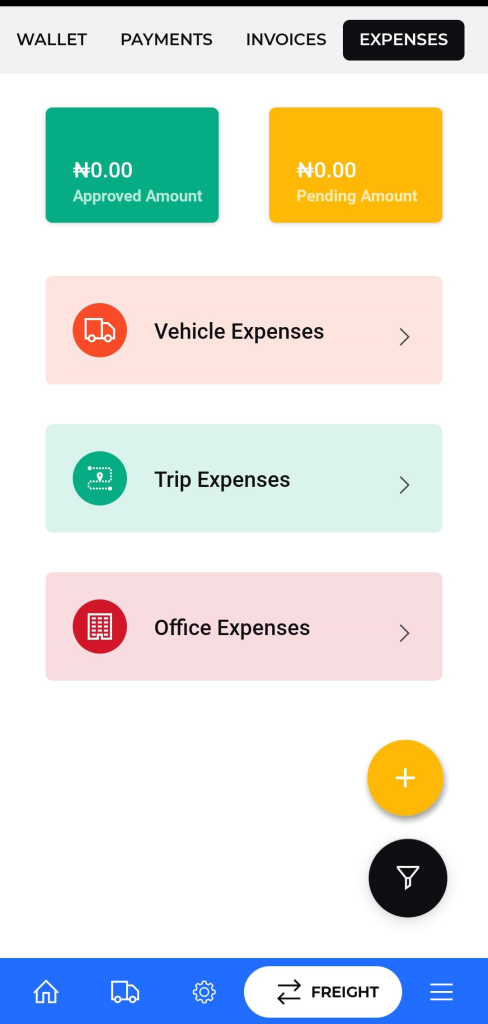
- Summary View: The top section provides a quick overview of financial statuses:
- Approved Amount: The total value of expenses that have been approved.
- Pending Amount: The total value of expenses currently awaiting approval.
- Expense Categories: Access detailed expense reports by tapping on the respective category links:
- Vehicle Expenses: View expenses related to vehicle maintenance, repairs, fuel (if categorized separately), etc
- Trip Expenses: View expenses incurred during specific trips, such as driver allowances, tolls, etc. (See Article: Adding Trip Expenses).
- Office Expenses: View general administrative and operational costs associated with the office. (See Article: Adding Office Expenses).
- Actions:
- Add Expense (+): The floating action button (+) allows users to add new expense records. Selecting a category from the screen above will direct you to the relevant expense entry form.
- Filter/Sort: Use the floating ‘Y’ icon (likely representing filter or sort options) to manage the displayed list of expenses.
- Summary View: The top section provides a quick overview of financial statuses:
Adding Vehicle Expenses
- Purpose: To record expenses specifically related to vehicles, such as maintenance, repairs, or parts.
- Navigation :
- Navigate to the ‘EXPENSES’ tab.
- Tap on the ‘Vehicle Expenses’ option.
- Description:
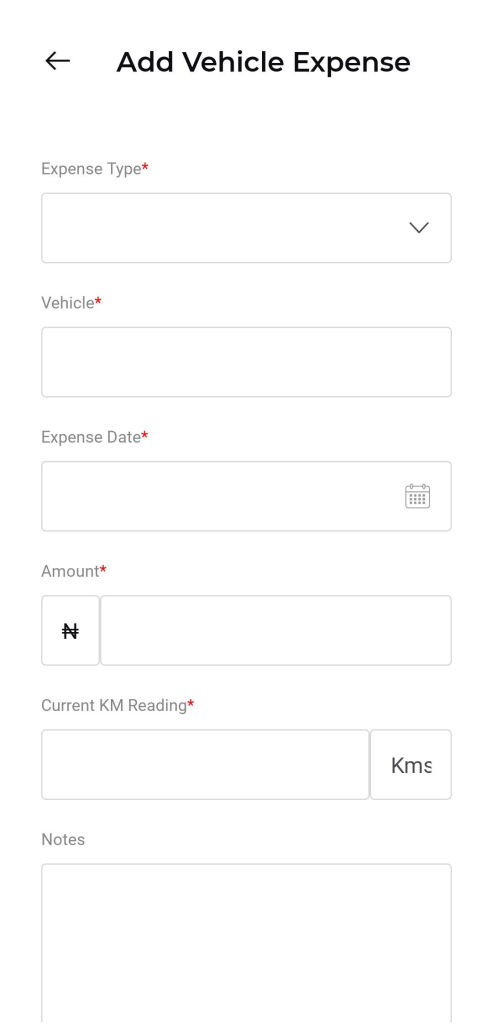
- To add new Vehicle Expense below are the fields that include:
- Category: Pre-selected as ‘Vehicle Expenses’.
- Amount: Enter the total monetary value of the expense.
- Date: Select the date the expense was incurred or paid.
- Remarks: Provide a description or notes about the expense.
- Attachments: Upload relevant documents like receipts or invoices.
- Submit the expense details using the appropriate button
- To add new Vehicle Expense below are the fields that include:
Adding Trip Expenses
- Purpose: To record expenses incurred during the course of a specific transport trip, such as fuel, tolls, driver allowances, or parking fees.
- Navigation:
- Navigate to the ‘EXPENSES’ tab.
- Tap on the ‘Trip Expenses’ option.
- Description:
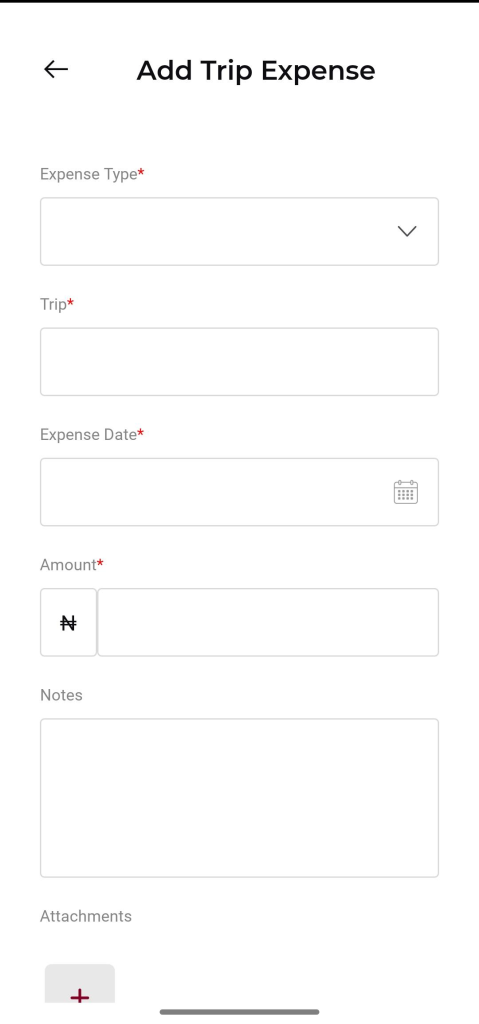
- To add new Trip Expense below are the fields that include:
- Category: Pre-selected as ‘Trip Expenses’.
- Amount: Enter the total monetary value of the expense.
- Date: Select the date the expense was incurred or paid.
- Remarks:Provide a description or notes about the expense. You may also be able to associate the expense with a specific trip ID if prompted.
- Attachments: Upload relevant documents like receipts or invoices.
- Submit the expense details using the appropriate button.
- To add new Trip Expense below are the fields that include:
Adding Office Expenses
- Purpose: To record general administrative or operational expenses not directly tied to vehicles or specific trips, such as rent, utilities, or office supplies.
- Navigation:
- Navigate to the ‘EXPENSES’ tab.
- Tap on the ‘Office Expenses’ option.
- Description:
- To add new Office Expense below are the fields that include:
- Category: Pre-selected as ‘Office Expenses’.
- Amount: Enter the total monetary value of the expense.
- Date: Select the date the expense was incurred or paid.
- Remarks: Provide a description or notes about the expense
- Attachments:Upload relevant documents like receipts or invoices.
- Submit the expense details using the appropriate button.
- To add new Office Expense below are the fields that include:
