Transport Management
Manage Location
Purpose
This section of the Transport Management System mobile application allows you to manage and view details of all operational locations, such as fuel depots and weighing locations.
Navigation: Manage > Locations
Viewing the Locations List
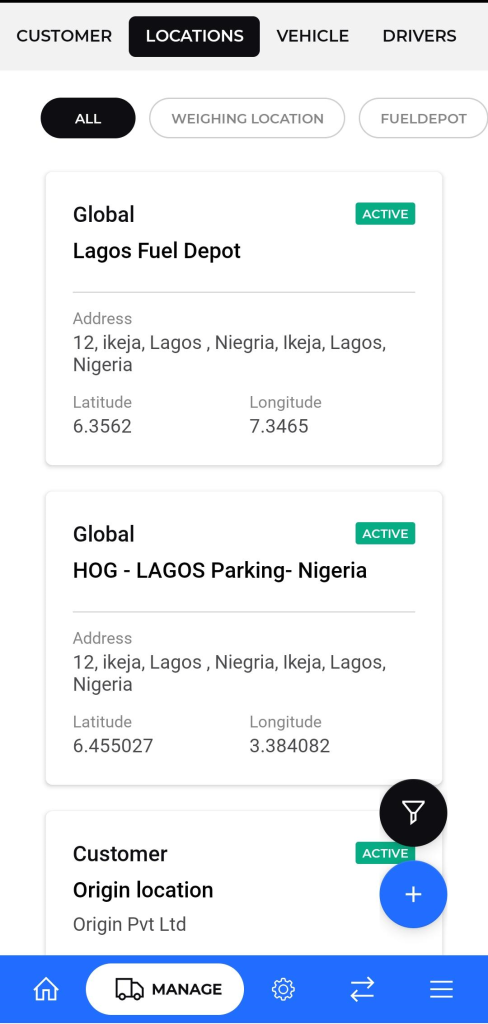
The locations list provides a summary of all registered locations in the system.
- Filters: You can filter the list to view specific types of locations using the buttons at the top:
- ALL: Displays all different registered locations.
- WEIGHING LOCATION: Shows only locations designated for weighing.
- FUELDEPOT: Shows only fuel depot locations.
- Safety Check : Displays locations where mandatory vehicle safety inspections or pre-trip checks are performed.
- Parking Depot : Lists all designated parking depots. This is useful for finding secure locations for overnight stops or vehicle staging.
- Loading Depot : Shows only locations where goods are loaded onto vehicles
- Checking Location : Displays official checkpoints along a route, such as customs, police stops, or internal company inspection points.
- Delivery Location : Lists all locations where goods are unloaded and delivered to the customer.
- Location Information: Each card in the list displays key details:
- Name: The name of the location .
- Type: The category of the location (e.g., “Global,” “Customer”).
- Status: The current status of the location.
- Address: The full address is displayed.
- Coordinates: The latitude and longitude of the location.
Adding a New Location
To add a new location to the system, follow these steps:
- From the locations list screen, tap the “+” floating action button at the bottom-right corner.
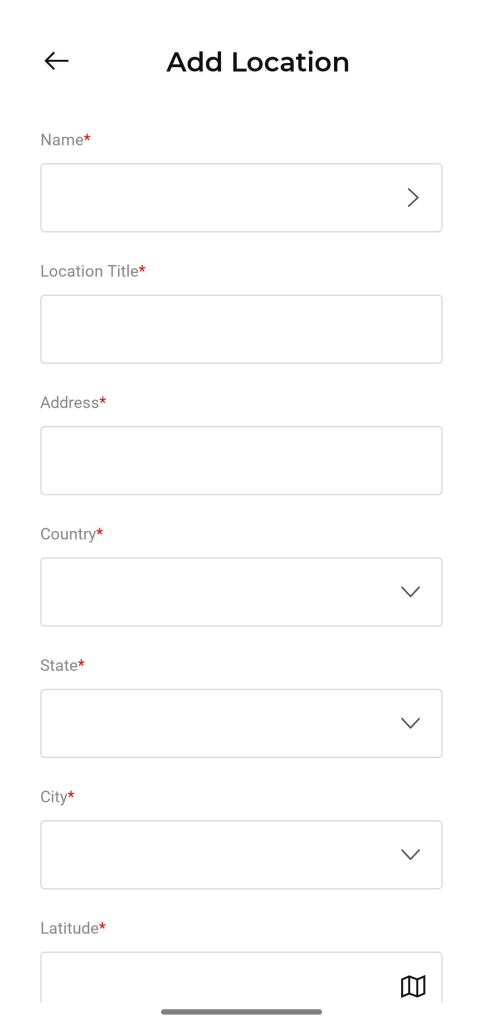
- The “Add Location” form will appear. Fill in the required fields:
- Name*: The name of the location.
- Location Title*: An optional title for the location.
- Address*: The complete address.
- Country*, State*, City*: Select the geographic details from the dropdown menus.
- Latitude* and Longitude*: Enter the geographical coordinates. You can also tap the map icon to automatically populate these fields from a map view.
- Applicable Locations: Tap the “+” button to add tags or categories for the location (e.g., “FUELDEPOT,” “WEIGHING LOCATION”).
- Status*: Select the initial status of the location from the dropdown menu.
- Once all required fields are completed, tap the Add button to save the new location.
- To cancel the action, tap the Discard button.
Viewing Location Details
Tapping on any location from the list will open a detailed view of its information.
- Location Name and Type: The main heading displays the location type (e.g., “Global”) and name (e.g., “Lagos Fuel Depot”).
- Status: The current status of the location is clearly visible.
- Capacity Information:
- Vehicle Parked: The current number of vehicles at the location.
- Parking Available: The percentage of available parking space.
- Address: The full address of the location.
- Applicable Locations: The tags or categories assigned to this location.
- Map View: A visual representation of the location’s position on a map.