Transport Management
Manage Customer
Purpose :
It serves as a central repository for all customer contact information, status, and associated activities like trips and orders.This section will guide you through viewing your customer list, adding a new customer, and viewing the details of an existing customer.
Navigation :
Manage > Customers
Customer List
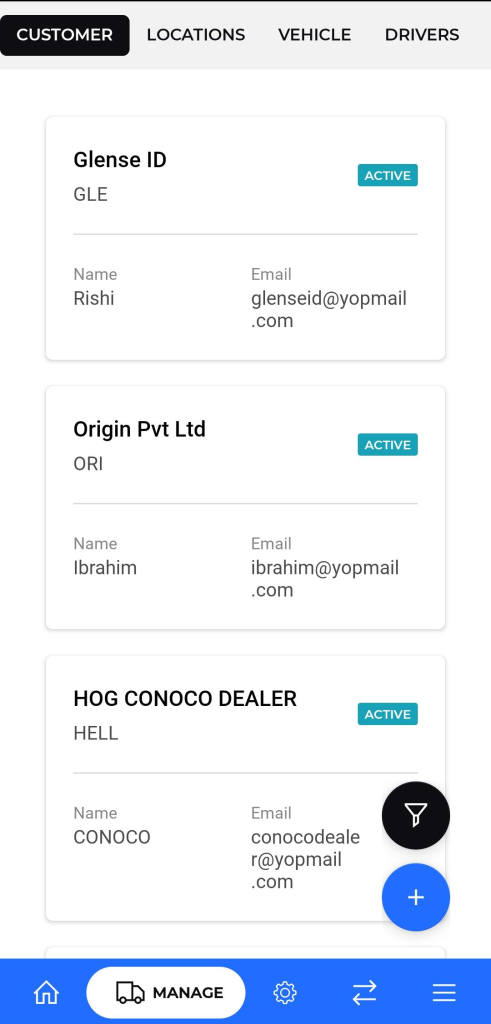
The customer list provides an overview of all registered customers in the system.
- Navigation: From the main dashboard, tap on the CUSTOMER tab at the top of the screen.
- Customer Information: Each entry in the list displays a summary of the customer’s key details:
- Company Name: The full name of the customer’s company (e.g., “Glense ID”).
- Company Code: A unique short code for the company (e.g., “GLE”).
- Name: The name of the primary contact person (e.g., “Rishi”).
- Email: The email address of the primary contact.
- Status: The current status of the customer account, such as ACTIVE.
Adding a New Customer
To add a new customer to the system, follow these steps:
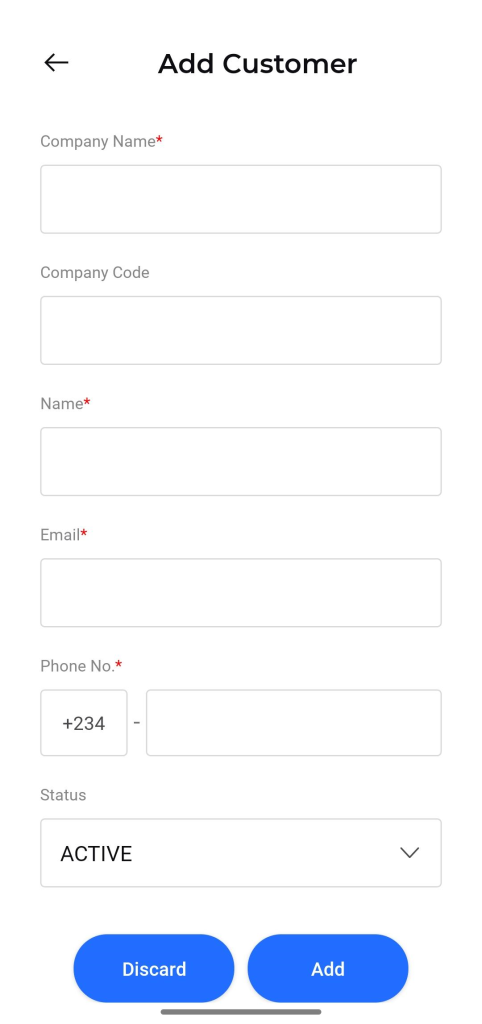
- From the customer list screen, tap the “+” floating action button located at the bottom-right corner.
- The “Add Customer” form will appear. Fill in the required fields:
- Company Name*: The official name of the customer’s company.
- Company Code: An optional unique identifier or short code for the company.
- Name*: The full name of the primary contact person.
- Email*: The contact’s email address.
- Phone No.*: The contact’s phone number.
- Status: Select the initial status of the customer from the dropdown menu (e.g., ACTIVE).
- Once all required fields are completed, tap the Add button to save the new customer.
- To cancel the action, tap the Discard button.
Viewing Customer Details
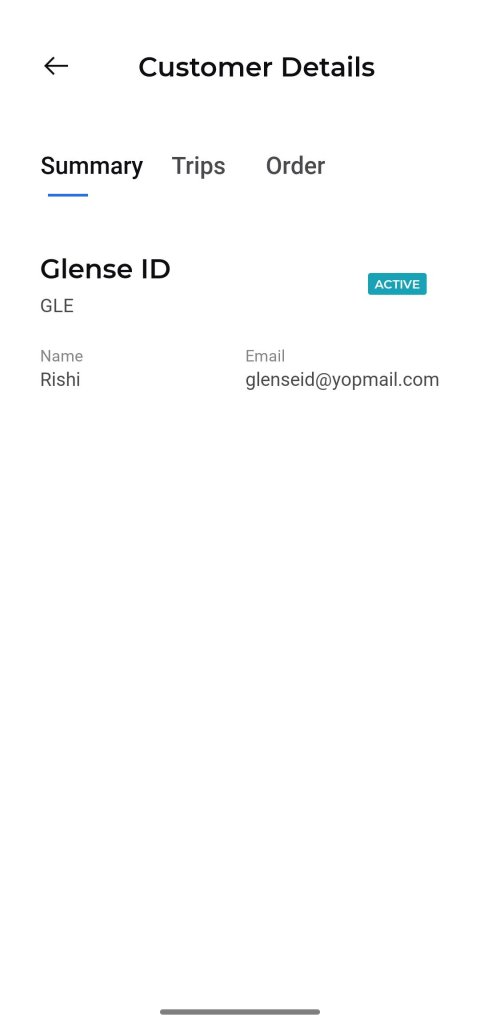
Tapping on any customer from the list will open their detailed information screen, which is divided into three tabs: Summary, Trips, and Order.
- Summary Tab: This is the default view and provides a comprehensive overview of the customer’s profile.
- Glense ID / Company Code: The unique code assigned to the customer.
- Status: The current status of the customer account (e.g., ACTIVE).
- Name: The name of the primary contact person.
- Email: The primary contact’s email address.
- Trips Tab: This tab will list all the trips associated with the selected customer.
- Order Tab: This tab will display a history of all orders placed by the customer.