Transport Management
Dashboard
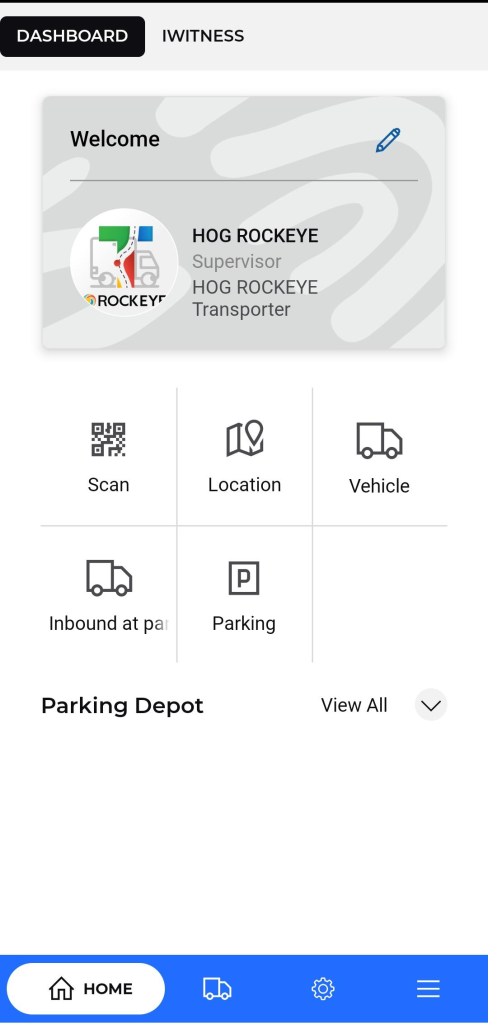
The Dashboard serves as the central hub of the application, providing transporters with a personalized overview of their transportation operations. Key features include:
- Displays the Transport Supeprofile information including name, role, company.
- Quick Access Icons: Provides one-tap access to frequently used features as below:
- Scan : Opens the device camera to scan QR codes or barcodes, typically used to validate trip assignments, vehicle IDs, delivery orders, or driver heck-ins
- Location : Displays real-time and historical GPS tracking of vehicles and drivers. Useful for monitoring routes, delays, and delivery confirmations.
- Vehicle : Shows a comprehensive list of registered fleet vehicles. Allows users to add, edit, or view maintenance, availability, and assignment status
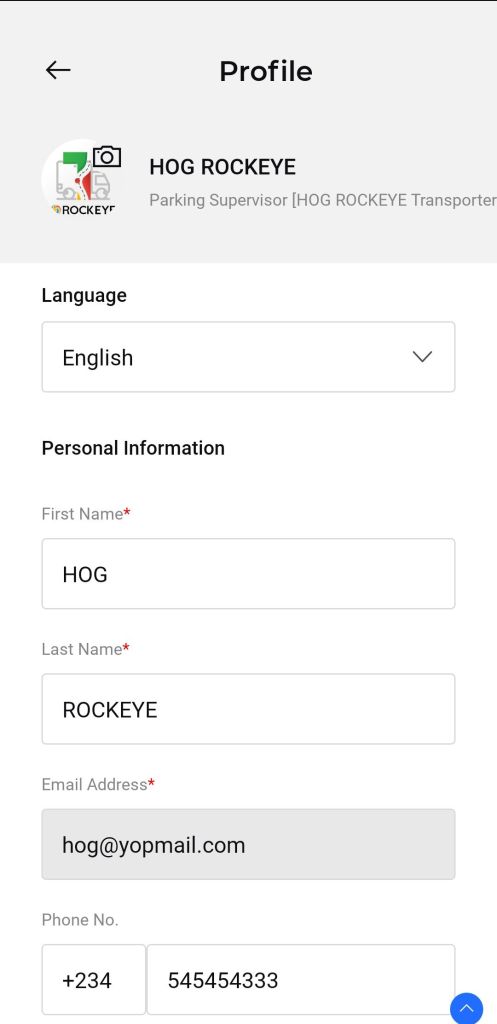
Allows the user to update their personal and application-related details.
Available Fields:
- Language: Select preferred application language.
- First Name & Last Name: Modify the user’s name.
- Email: Update registered email address.
- Phone Number: Change contact number.
- Company Name: Edit the name of the associated company.
- Change Password: Option to reset or change the current password.
- Enable Application PIN: Toggle button to activate or deactivate the application PIN for added security.
Action Button:
- Update:
- Saves and applies the changes made to the profile information.
Depot : View details of fuel depots or loading hubs. Includes depot locations.
- Includes a top navigation bar to switch between:
- Dashboard
- IWitness (for incident reporting)
- Features a bottom navigation bar with :
- Home: Access to the dashboard.
- Trips: Navigate to trip management.
- Freight : Display all the Freight Related Information.
- Menu: Access additional settings or features.