Transport Management
User Management
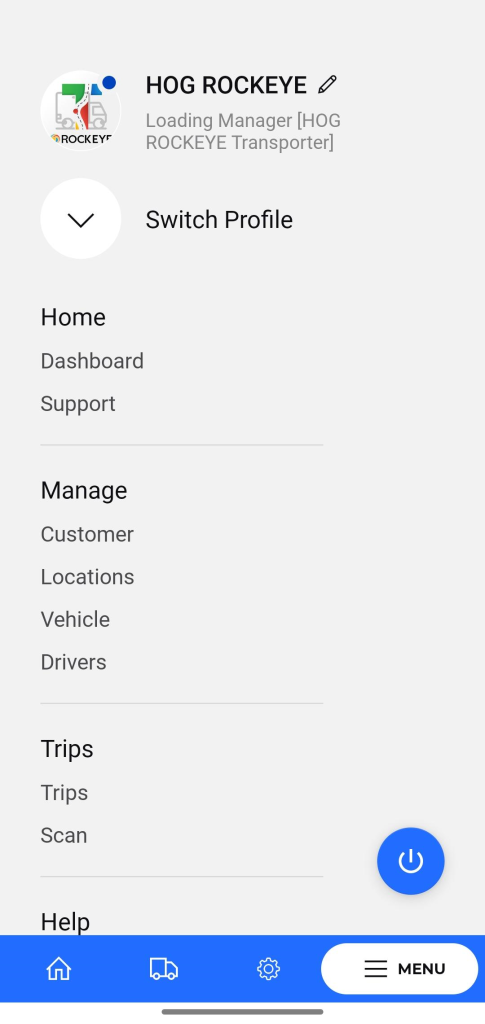
- Purpose: To view and manage your user profile information and potentially switch between different user roles or profiles within the system.
- Allows Editing the Profile Information
- How to Access: Tap on the menu icon to open the side navigation menu. Your profile details, including name and user type , are displayed at the top.
- Features:
- View Profile: Your name and role are prominently displayed.
- Switch Profile: Tap the dropdown arrow below your profile picture to reveal the “Switch Profile” option. This allows you to change your active user profile if you have access to multiple roles or entities within the system.
- Navigation Menu : Clicking on any of the section will redirect to that particular section screen
- Home
- Dashboard – Displays key metrics and quick insights.
- Manage
- Location – Shows location-related details and settings.
- Vehicle – Displays and manages vehicle information.
- Trips
- Scan – Enables scanning of QR codes or documents.
- Parking – Shows parking information and management features.
- Help
- iWitness – Opens the iWitness reporting and monitoring section.
- About – Displays information about the application or company.
- Contact Us – Includes contact details such as email, phone number, and hotline number.
- Home