Transport Management
Support
Purpose
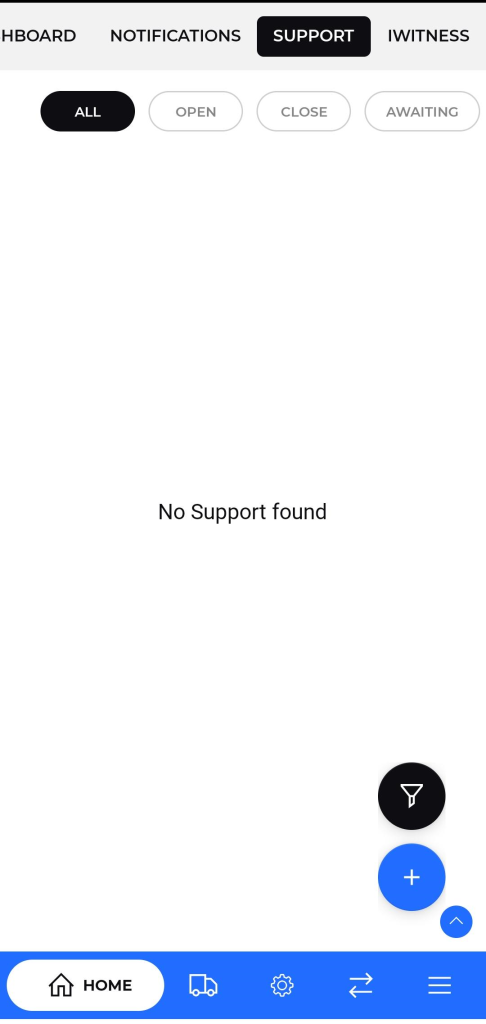
The Support screen allows transporters to raise complaints, technical issues, inquiries, or operational queries directly through the mobile app.Users can view previously submitted tickets, track the status of support requests, and create new support tickets as needed.
Navigation Path:
From the main screen –
- Top Navigation Tabs > SUPPORT
- The default view under the SUPPORT tab shows a list of all submitted support tickets.
- Located at the top of the screen. Tabs include:
- All – Displays all support tickets regardless of status.
- Open – Shows only currently unresolved tickets.
- Close – Displays tickets that have been marked as closed.
- Awaiting – Tickets waiting for a response from either the support team or transporter.
- Add New Support Ticket :
- Allows the user to raise a new support case.
- Filter Icon:
- Opens custom filter options to sort or search among support tickets (e.g., by date or category).
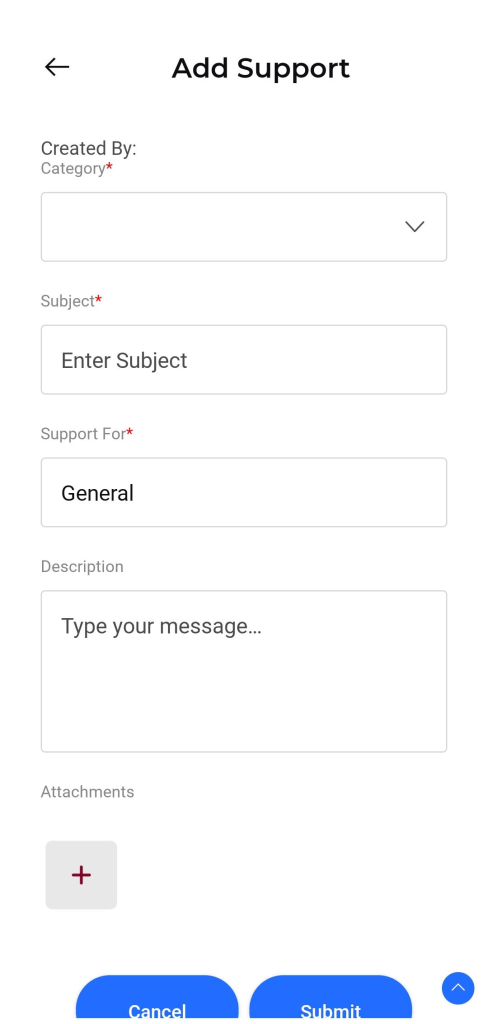
- Tap the “+” button from the Support listing screen to open the “Add Support” form
- Category : Select the relevant category (e.g., Trips, Driver, Fuel, Invoice, Other). Helps route the request.
- Subject : A short title summarizing the issue or request. Example: “Trip assignment error”
- Support For: Dropdown to specify the affected module or type of issue (e.g., General, Finance, Operations).
- Description: A detailed explanation of the issue or help required. This helps support staff understand and prioritize the ticket.
- Attachments : Option to upload screenshots, documents, or images supporting the request. Tap “+” to open the file picker.
Action Buttons :
- Submit: Button to save the new Support ticket expense.
- Cancel: Button to discard the new Support Ticket.