Transport Management
Manage Driver
Purpose : Allows you to view, add, and manage your fleet of vehicles.
Navigation: Manage > Vehicle
Viewing the Vehicle List
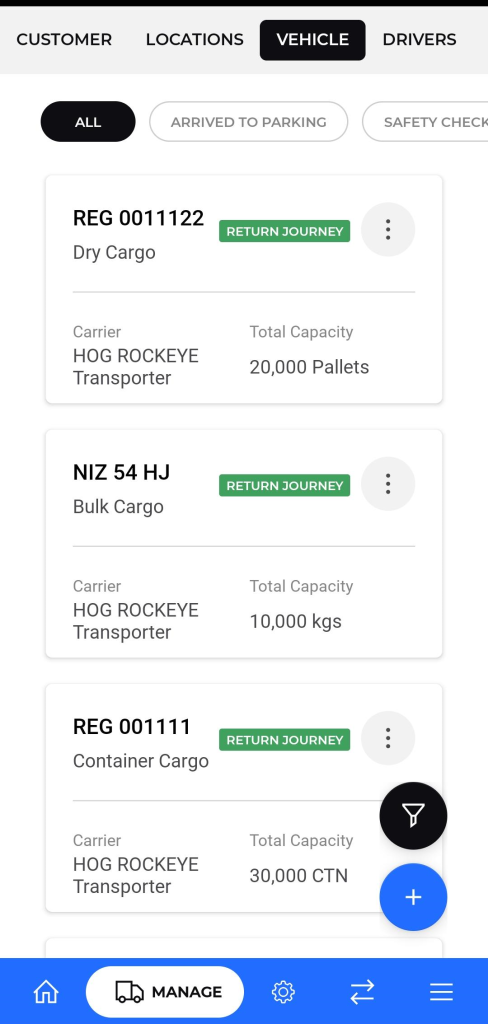
The vehicle list provides a summary of all registered vehicles in the system.
- Filters: You can filter the list to view vehicles based on their current status using the buttons at the top:
- ALL: Displays all registered vehicles in the system.
- ARRIVED TO PARKING: Shows only vehicles that have arrived at a designated parking location.
- SAFETY CHECK: Displays vehicles that are currently undergoing or have been flagged for a safety check.
- Available to load : Displays vehicles that are ready for a new trip assignment.
- Rejected Safety Check : Displays all vehicles that have failed a safety inspection. These vehicles are considered non-operational and must undergo maintenance before they can be used.
- Maintenance : Shows all vehicles that are currently out of service for scheduled maintenance or repairs.
- Trip Assign : Shows vehicles that have been allocated to a specific trip but have not yet started their journey.
- Return Journey : Displays vehicles that have completed their primary delivery and are now in transit, heading back to their home depot or another designated location.
- Active : Shows all vehicles that are part of the operational fleet.
- Inactive : Lists vehicles that are temporarily or permanently removed from the operational fleet. Inactive vehicles cannot be assigned to trips.
- Exit from parking : Shows vehicles that have just checked out of a parking depot and are now mobile, likely en route to their next point of call
- Trip Initiate : Lists vehicles where the driver has officially started the trip in the app.
- Truck in Transit : A general status for any vehicle that is actively moving between points as part of an assigned trip.
- Vehicle Information: Each card in the list displays key details:
- Vehicle Reg. No.: The unique registration number of the vehicle.
- Cargo Classification: The type of cargo the vehicle is designed to carry.
- Journey Status: The current status of the vehicle’s journey (e.g., “RETURN JOURNEY”).
- Carrier: The name of the carrier or transporter company.
- Total Capacity: The total load capacity of the vehicle.
Adding a New Vehicle
To add a new vehicle to the system, follow these steps:
- From the vehicle list screen, tap the “+” floating action button at the bottom-right corner.
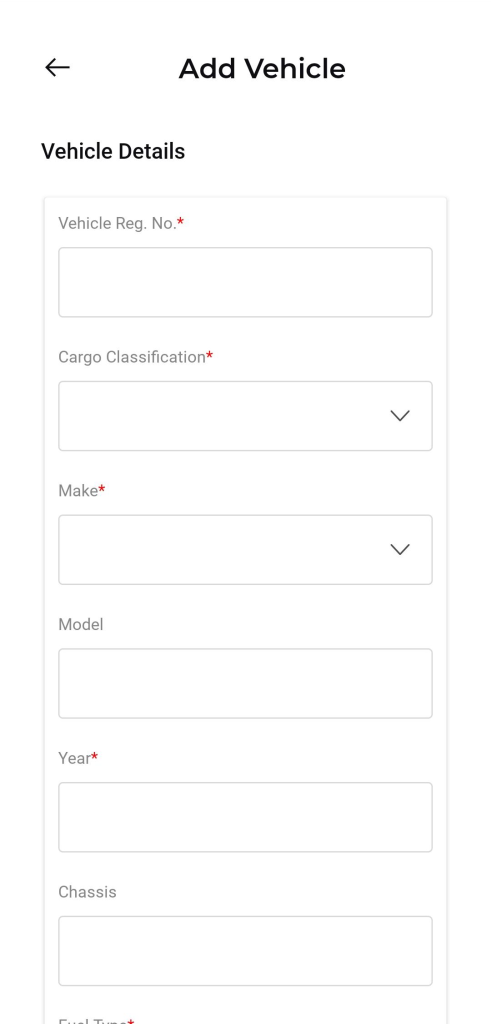
- The “Add Vehicle” form will appear, divided into two sections.
- Fill in Vehicle Details:
- Vehicle Reg. No.*: The mandatory registration number of the vehicle.
- Cargo Classification*: The type of cargo the vehicle is equipped to transport (e.g., Dry Cargo, Bulk Cargo).
- Make*: The manufacturer of the vehicle (e.g., “Mercedes,” “Volvo”).
- Model: The specific model of the vehicle.
- Year*: The manufacturing year.
- Chassis: The chassis number of the vehicle.
- Fuel Type*: The type of fuel the vehicle uses.
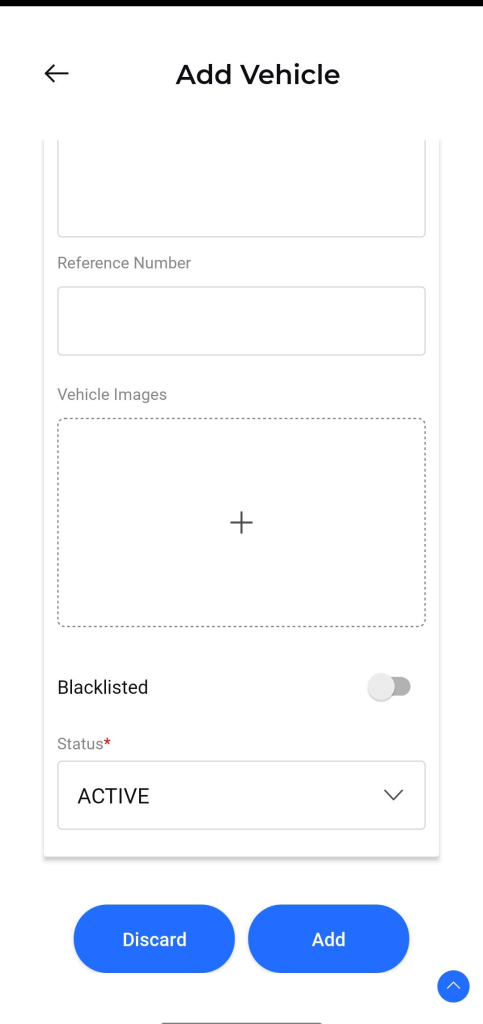
- Reference Number: An optional internal reference number for the vehicle.
- Vehicle Images: Tap the “+” icon to upload images of the vehicle.
- Blacklisted: Toggle this switch to mark the vehicle as blacklisted, preventing it from being used for new trips.
- Status*: Set the initial status of the vehicle from the dropdown menu (e.g., ACTIVE).
- Once all required fields are completed, tap the Add button to save the new vehicle.
- To cancel the action, tap the Discard button.
Managing a Vehicle
Tapping the three-dot menu on a vehicle’s card will reveal a list of management options:
- Arrived to Parking: Use this option to update the vehicle’s status to “Arrived to Parking,” which is useful for tracking and location management.
- Maintenance: This option allows you to log a maintenance request or record for the vehicle.
- Will Display below details once click on it :
- Vehicle Registration Number : The registration number of the selected vehicle. This field is pre-populated and read-only for reference.
- Vehicle Capacity : The cargo capacity of the selected vehicle. This is also for reference and is read-only.
- Status : The current status of the maintenance job.
- Expected Completion Date : Select the date when you anticipate the maintenance work will be finished and the vehicle will be back in service.
- Remarks : A text field for entering a detailed description of the maintenance issue or the work being performed.
- Attachment : Tap to upload relevant documents
- Action button
- Discard : Click to close the form without saving any changes and return to the vehicle list.
- Add : Click to save the maintenance record. The vehicle’s status will be updated in the system.
- Will Display below details once click on it :
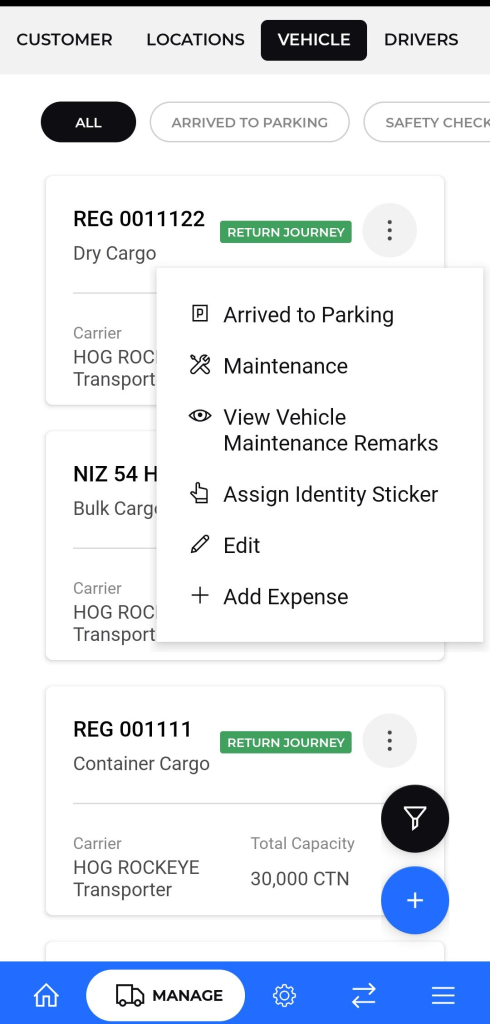
- View Vehicle Maintenance Remarks: Use this to view the history of maintenance activities and associated remarks for the vehicle.
- Assign Identity Sticker: This function is used to assign or update the identity sticker or RFID tag linked to the vehicle.
- Edit: Use this option to modify any of the vehicle’s details.
- Add Expense: This allows you to record and add a new expense associated with the vehicle, such as :
- Expense Type : Select the category of the expense from the dropdown menu
- Expense Date : Select the date on which the expense was incurred.
- Amount : Enter the total monetary value of the expense in the local currency.
- Current KM Reading : Enter the vehicle’s odometer reading at the time the expense was made.
- Notes : An optional text field to add any relevant details
- Attachment : Tap to upload a supporting document or image from your mobile device
- Action Buttons :
- Add : Tap this button to save the expense record
- Discard : Tap this button to exit the form without saving the expense entry.