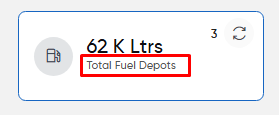
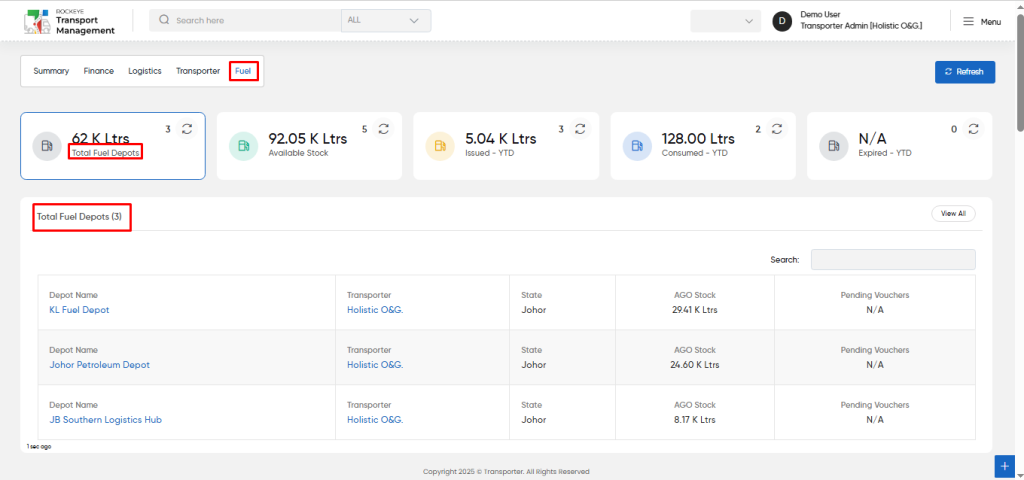
Users will be able to view the total quantity of fuel and count in fuel depots from this widget in the fuel section.
Users will be able to use the refresh icon. When users click the refresh icon, the “total fuel depots” kpi will be updated.
Users will be able to use the refresh icon which is at top right corner, the entire fuel sections will be updated.
Users will be able to view all “total fuel depots” by accessing the "view all” button.
Users will be able to search the fuel depots related data from the search box for the upcoming section.
User will be able to view the fuel depots data with the following
Depot Name
Transporter
State
Fuel stock
Pending vouchers
Available Stock:
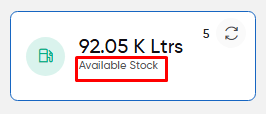
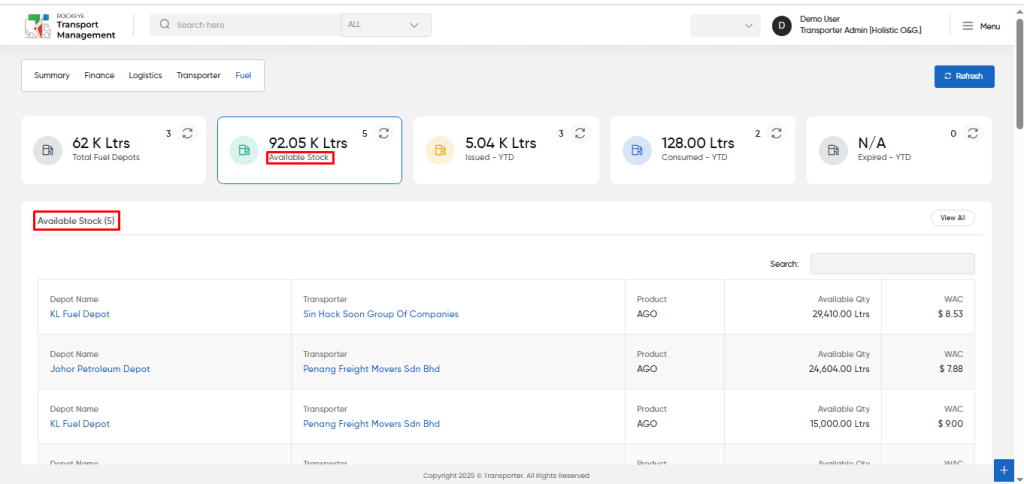
Users will be able to view the total quantity of fuel and count in available stock from this widget in the fuel section.
Users will be able to use the refresh icon. When users click the refresh icon, the “available stock” kpi will be updated.
Users will be able to use the refresh icon which is at top right corner, the entire fuel sections will be updated.
Users will be able to view all “available stock” by accessing the "view all” button.
Users will be able to search the fuel available stock related data from the search box for the upcoming section.
User will be able to view the available stock data with the following
Depot Name
Transporter
Product
Available Quantity
WAC
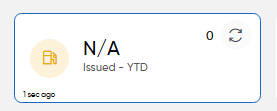
Fuel Issued - YTD:
Users will be able to view the total quantity of fuel and count in “Issued - YTD” from this widget in the fuel section.
Users will be able to use the refresh icon. When users click the refresh icon, the “Issued - YTD” kpi will be updated.
Users will be able to use the refresh icon which is at top right corner, the entire fuel sections will be updated.
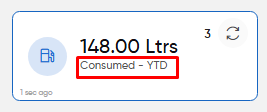
Fuel Consumed - YTD:
Users will be able to view the total quantity of fuel and count in “Consumed - YTD” from this widget in the fuel section.
Users will be able to use the refresh icon. When users click the refresh icon, the “Consumed - YTD” kpi will be updated.
Users will be able to use the refresh icon which is at top right corner, the entire fuel sections will be updated.
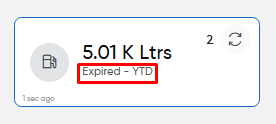
Fuel Expired - YTD:
Users will be able to view the total quantity of fuel and count in “Expired - YTD” from this widget in the fuel section.
Users will be able to use the refresh icon. When users click the refresh icon, the “Expired - YTD” kpi will be updated.
Users will be able to use the refresh icon which is at top right corner, the entire fuel sections will be updated.
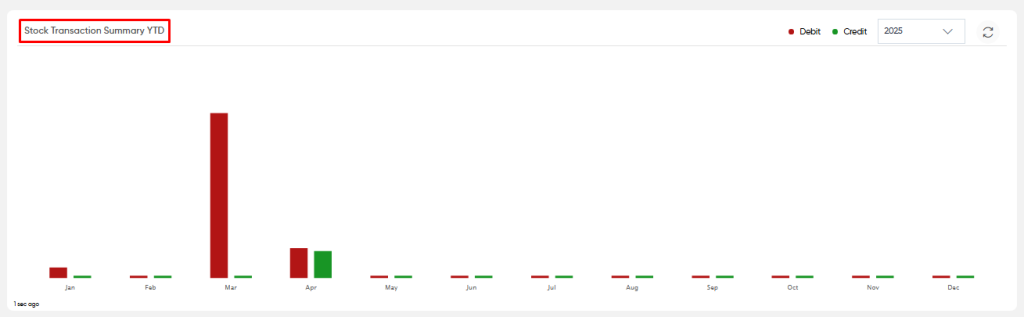
Stock Transaction Summary YTD:
Users will be able to view the credit and debit of fuel stock transactions, displayed month-wise within a given year.
This data is presented in a graphical format, allowing for an easy visual analysis of fuel stock movements over time.
By selecting a specific year from the dropdown menu, users can view the fuel stock transaction data for each month, categorized into credit and debit.
While hovering the cursor over the graph reveals specific values for each month's credit and debit quantities, enabling detailed analysis.
A refresh icon is available to update the "Stock Transaction Summary YTD" graph, ensuring users always have the most current financial data at their disposal.
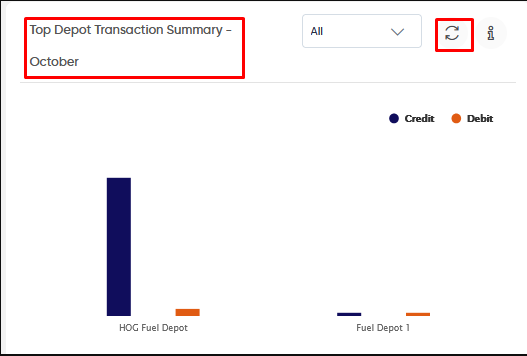
Top Depot Transaction Summary - current month:
Users can view the credit and debit fuel transactions for the top fuel depots in a graphical representation for the current month.
By default, this widget displays fuel transaction quantities, categorized by credit and debit, across the top depots.
Users can filter the data by selecting a specific fuel type, such as AGO, PMS, DPK, or "All," from the dropdown menu to display transaction details specific to that fuel type for the current month.
Hovering over an eye icon provides a brief explanation of the data displayed.
Additionally, hovering over the graph reveals detailed fuel quantity values for credit and debit transactions, offering a deeper insight into fuel stock movements per depot.
A refresh icon is available to update the "Top Depot Transaction Summary - [Current Month Name]" graph, ensuring users always have access to the latest fuel transaction data.
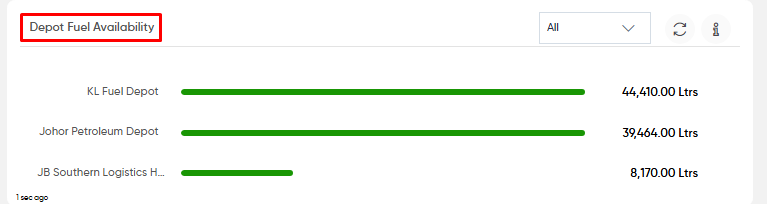
Depot Fuel Availability :
Users can view the fuel availability across different depots through a graphical representation that highlights the statistical quantity of fuel stocked in each depot.
By selecting a specific fuel type from the dropdown menu, users can access detailed information on the available quantity of that fuel across various depots.
This data is presented in a graphical format, making it easier to analyze fuel availability in each location visually.
Hovering over an eye icon provides a brief explanation of the displayed data.
Additionally, users can hover over the graph to reveal specific values, allowing for a more in-depth understanding of fuel stock availability per depot.
A refresh icon is available to update the "Depot Fuel Availability" graph, ensuring users always have access to the latest fuel availability data.
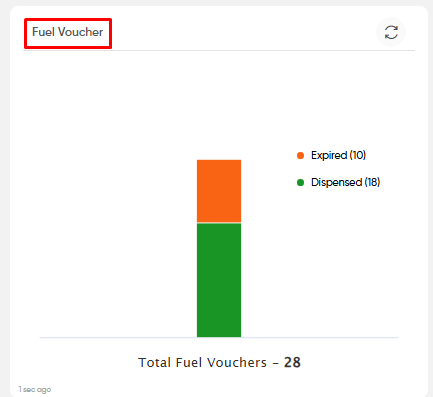
Fuel Voucher :
Users can view a graphical representation of fuel voucher statuses, categorized as "Dispensed" or "Expired."
This widget provides insights into the overall count of fuel vouchers in each status.
Hovering over the graph reveals specific counts for both dispensed and expired vouchers, allowing users to analyze the distribution in detail.
A refresh icon is available to update the "Fuel Voucher" graph, ensuring access to the most current voucher data.
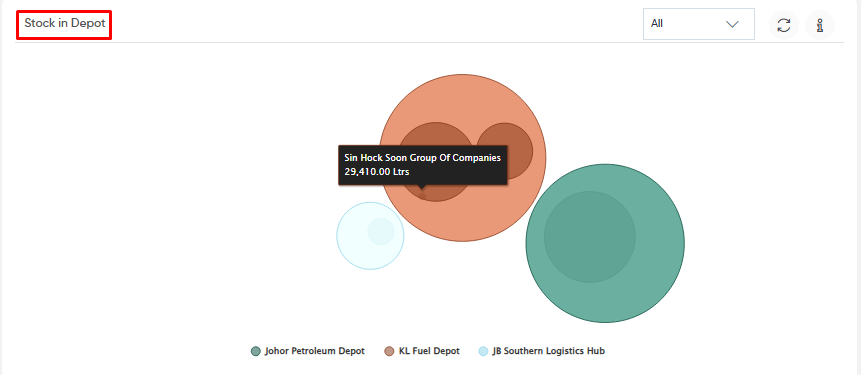
Stock in Depot :
Users will be able to view the total fuel quantity available in various fuel depots, categorized by transporter.
This widget provides a detailed view of fuel stock availability across different transporters within each fuel depot.
Users can filter the data by selecting a specific fuel type or choose the "All" option to see the total available fuel quantity across all transporters in all fuel depots.
By hovering over an eye icon, users can access a brief explanation of the displayed data.
Hovering the cursor over the graph reveals specific quantity values for each fuel type, transporter, and depot, offering a deeper understanding of fuel stock distribution.
A refresh icon is available to update the "Stock In Depot" graph, ensuring access to the most up-to-date data.
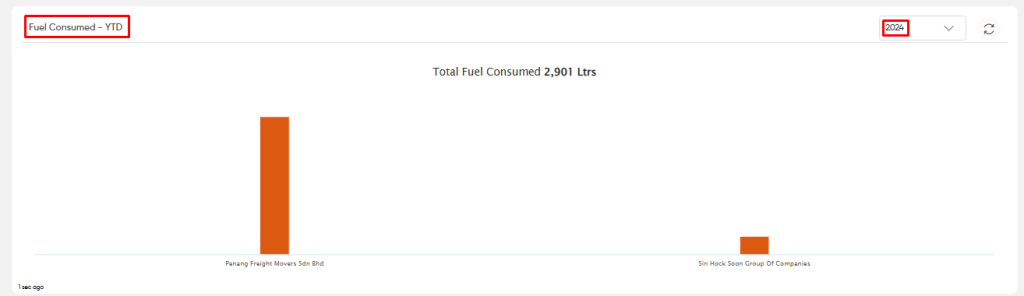
Fuel Consumed - YTD :
Users can view the total fuel consumption for the year-to-date (YTD) across different transporters in a graphical representation.
This widget provides insights into the total quantity of fuel consumed, displayed both graphically and statistically.
Users can select a specific year from the dropdown menu, allowing them to filter and view the fuel consumption data for that particular year.
By hovering the cursor over the graph, users can see the detailed consumed fuel quantity for each transporter.
A refresh icon is available to update the "Fuel Consumed - YTD" graph, ensuring access to the most current fuel consumption data.
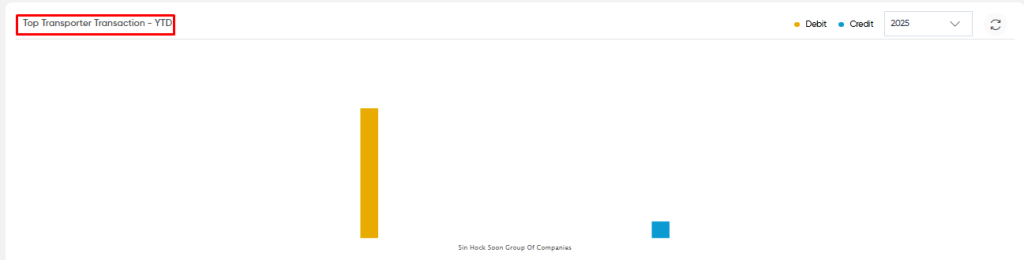
Top Transporter Transaction - YTD :
Users can view the credit and debit fuel transactions with top transporters in a graphical representation for the year-to-date (YTD).
This widget displays the quantity of fuel transactions, categorized by credit and debit, across the top transporters for a selected year.
By choosing a specific year from the dropdown menu, users can filter the data to display transaction details relevant to that year.
Hovering the cursor over the graph reveals detailed credit and debit quantities for each top transporter, allowing for in-depth analysis.
A refresh icon is available to update the "Top Transporter Transaction - YTD" graph, ensuring users have access to the latest transaction data.
 Watch Video Tutorials
 FAQ's
FAQ's